
Appearance
Settings
The Settings page holds what is not about one account: the Odoo connection shared by every account, the DHL Express connection, the vendors whose stock counts on every account, your own preferences, and your role. Open it with Settings in the sidebar. The settings of one marketplace account are in its own Settings tab.
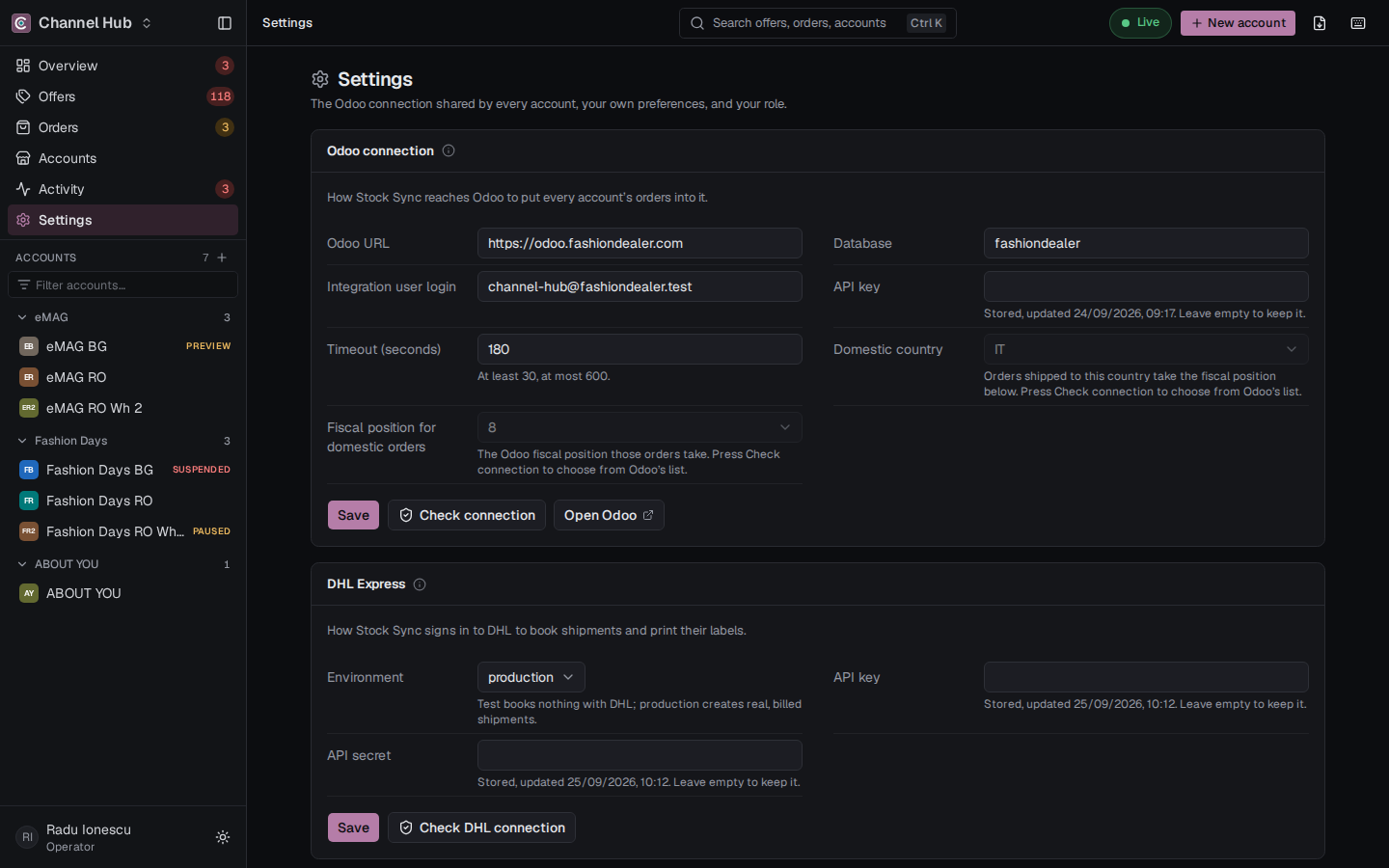
Odoo connection
How Stock Sync reaches Odoo to put marketplace orders into it: the address, the database, the integration user and its key. There is one Odoo for all accounts; each account maps its orders in its own Orders → Odoo settings. Only operators can change it.
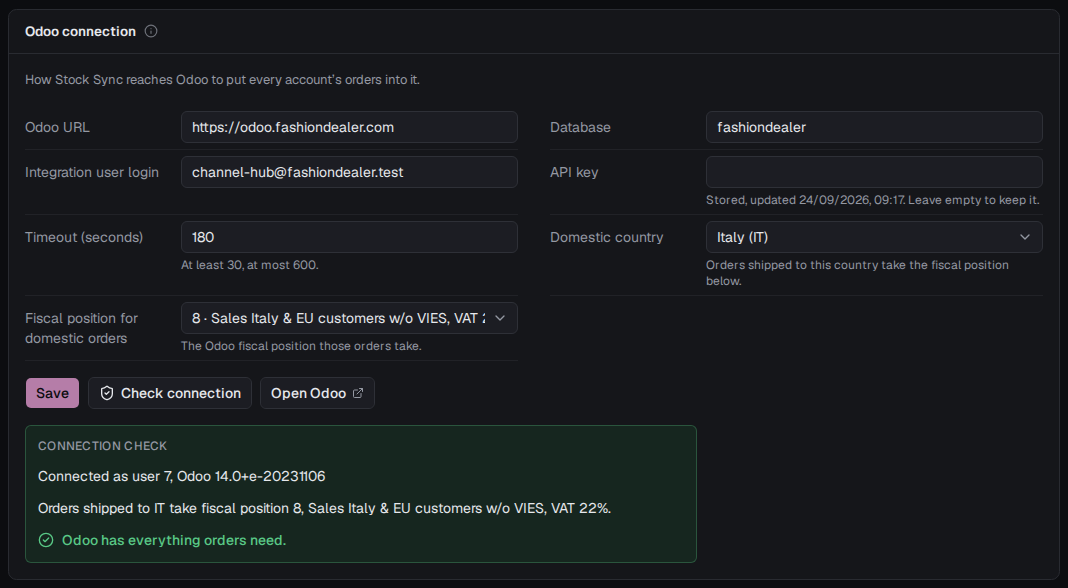
| Field | What it is | When you change it |
|---|---|---|
| Odoo URL | The address of Odoo, for example https://odoo.fashiondealer.com | Rarely |
| Database | The Odoo database to use | Rarely |
| Integration user login | The login of the Odoo user made for Channel Hub. Its orders show that user as their creator, so they are easy to tell apart. | When the user is replaced |
| API key | The user's API key, stored encrypted and never shown again | When it is replaced or expires |
| Timeout (seconds) | How long the import of an order waits for Odoo to answer one request: at least 30, at most 600, 180 by default. Check connection and saving order settings wait at most 20 seconds for each of their requests, and at most 25 seconds in all, whatever is set here. | Only if the technical team asks |
| Domestic country | The company's own country, chosen from Odoo's countries: Italy (IT). Orders of every marketplace shipped there take the fiscal position below, because Odoo has none to apply by itself for Italy. None in both sets none. | Only if finance asks |
| Fiscal position for domestic orders | The fiscal position those orders take, chosen from Odoo's active fiscal positions: 8 · Sales Italy & EU customers w/o VIES, VAT 22%. Choose both or neither. | Only if finance asks |
The API key box shows Stored, updated … Leave empty to keep it. Type a new key only to replace the stored one. Every other field must hold a value, except the two domestic fields, which are chosen together or left at None together. Their lists come from Odoo, so they are greyed out until Check connection has answered ("Press Check connection to choose from Odoo's list."). A saved fiscal position Odoo no longer has shows as 8 (not in Odoo). A new Odoo URL, Database or Integration user login is another Odoo or another user, so the stored key no longer counts: Save then asks for the key again ("Enter the API key again for the new URL, database or login").
Save stores the fields and says "Odoo connection saved." Orders that were waiting for Odoo are tried again within a few minutes. Once a connection is saved, Open Odoo opens the saved Odoo URL in a new tab. The same address builds the links to Odoo orders and products on the Orders and Order pages.
Check connection
Check connection asks Odoo whether the integration user can do everything Stock Sync needs: modules, permissions, fiscal positions and currency rates. It changes nothing, and it uses what is saved: with unsaved changes the page says "Check connection uses what is saved: save your changes first."; before the first save the button is greyed out ("Save the connection first, then check it.").
| You see | It means |
|---|---|
| Connected as user 7, Odoo 14.0+e-20231106 | The login works. The number is the Odoo user's id and the second part the Odoo version. |
| Orders shipped to IT take fiscal position 8, Sales Italy & EU customers w/o VIES, VAT 22%. | The domestic fields are set and Odoo has that position. If Odoo has no such position, the red message says Odoo has no fiscal position 8, the one set for orders shipped to IT and the orders shipped there need attention (No fiscal position). |
| Odoo has everything orders need. (green) | Nothing is missing: the accounts' orders can go to Preview and Live. Orders that were waiting for Odoo are tried again within a few minutes, instead of at the end of their wait. |
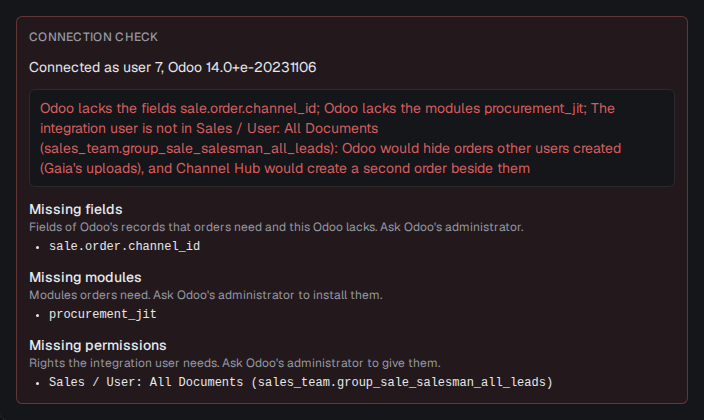
| A red message naming everything missing, then the lists below | Odoo lacks something orders need. Until a missing field, module or permission is fixed, order settings cannot be saved in Preview or Live. A missing domestic fiscal position does not block saving; only the orders shipped to that country wait. |
| Missing fields | Fields of Odoo's database that orders need and this Odoo lacks, named model.field, for example sale.order.channel_id. Not the fields of this form. Ask Odoo's administrator. |
| Missing modules | Odoo lacks a module orders need: procurement_jit or delivery. Ask Odoo's administrator to install it. |
| Missing permissions | The integration user lacks a right orders need: Sales / User: All Documents or Extra Rights / Contact Creation. Ask Odoo's administrator to give it. |
| Odoo refused the database, login or API key | The key, login or database is wrong. |
| Odoo did not answer (…) | The address is wrong, or Odoo is down. The brackets say briefly what happened, for example (connection refused). |
| Odoo is unavailable (it answered …) / Odoo answered with a web page instead of data (it may be under maintenance) | Something in front of Odoo answered for it: Odoo is stopped, restarting or under maintenance. Try again in a few minutes. |
| Odoo did not answer within 20 s, so the check gave up … | Odoo is down, restarting or overloaded. Try again in a few minutes; orders wait and arrive by themselves once Odoo answers. |
| Odoo did not finish answering within 25 seconds. Nothing was changed … | Odoo answers, but too slowly for the check to finish. Try again; if it keeps happening, Odoo is slow or down. Saving order settings, or choosing a carrier in an account's Shipping, says the same, with "Nothing was saved" instead. |
The key is never repeated in any message. A viewer reads "Changing the Odoo connection needs the Operator role." and has no way to save; Open Odoo stays, since it changes nothing.
DHL Express
How Stock Sync signs in to DHL to create shipments and their labels (see Create a DHL shipment). There is one DHL login for all accounts; each account gives its own DHL account number in its Shipping section. Only operators can change it.
| Field | What it is |
|---|---|
| Environment | Test books nothing with DHL; Production creates real, billed shipments. |
| API key | The MyDHL API key DHL issued, stored encrypted and never shown again. It is not the login of the MyDHL+ website. |
| API secret | Its secret, stored the same way. |
Before the first save the section says Not connected yet. Afterwards: Saved for DHL Express (production). API key and secret set. (saved, not checked: Check DHL connection says whether DHL accepts it) Save stores the fields and says "DHL Express connection saved." Leave the key and secret empty to keep the stored ones; a new Environment or API key is another DHL system or customer, so Save asks for the secret again: Enter the API secret again for the new environment or key.
Check DHL connection asks DHL whether it accepts the saved key and secret. It books nothing and changes nothing, uses what is saved ("The check uses what is saved: save your changes first.") and is greyed out before the first save. You read DHL accepts the connection. (green) or, in red, DHL's own words, or DHL did not accept the connection. A viewer reads the status line and "Changing the DHL Express connection needs the Operator role."
FedEx
How Channel Hub signs in to FedEx to book and cancel pickups of customer returns (see Book a FedEx pickup for a return). It books no labels: Odoo still makes those. There is one FedEx login for all accounts.
| Field | What to enter |
|---|---|
| Environment | test books nothing with FedEx; production creates real pickups. |
| API key | The key FedEx issued, stored encrypted and never shown again. |
| Secret key | Its secret key, stored the same way. |
| Account number | The FedEx account the pickups are booked on (digits only). |
Save stores the fields, and Check FedEx connection asks FedEx whether it accepts the saved key, secret key and account number. Like the DHL section, it uses what is saved, is greyed out before the first save, and shows FedEx accepts the connection. or FedEx's own words. Changing the environment, API key or account number asks for both secrets again. You enter the keys once. The team switches the pickup feature on separately: until then, saving the keys changes nothing in Odoo.
Vendors
Which PIM vendors' stock counts on every account. The table is the one described in Choose which vendors count: one row per vendor with Linked offers, Units and a Publish tick, All except… or Only these…, Show all and Save vendors. A vendor left out here is published by no account, and an account cannot bring it back: it shows Ignored app-wide in the account's own table. Each account can leave out more vendors in its Stock rules.
Under the table, "Saving recalculates every offer of every account; changed numbers are sent." and how many linked offers publish 0 today because of vendor rules. Save vendors asks Change the app-wide vendor rule? when the save would recalculate at least one account or leave one with nothing to publish (otherwise it saves at once). It says how many accounts are recalculated, paused and suspended ones included (they catch up when resumed); it also names any account that would be left with nothing to publish. Only operators can change it; a viewer reads the table.
Your preferences
Kept in this browser, for you only: another person, or you on another computer, keeps their own.
| Preference | Choices | What it does |
|---|---|---|
| Theme | Dark or Light | Dark by default; light for bright rooms and printing. The same as the moon or sun button at the bottom of the sidebar. |
| Live updates | A switch, on by default | Changes arrive as they happen. Turn it off to freeze every screen until you turn it back on; the Live pill in the top bar does the same. |
While live updates are off, the Live pill says Paused and nothing on screen changes by itself; turning them back on applies everything that arrived meanwhile. See Live updates and Themes.
People and roles
Who is signed in and what they may do: your name, your e-mail address and your role.
| Role | What it lets you do |
|---|---|
| Operator | Can see everything and run every action. |
| Viewer | Can see every screen; every action is refused. |
Someone signed in without a role reads Has no role in Stock Sync. A development break-glass session says so here too. This section is read-only: roles come from the Entra ID app roles of the Stock Sync registration; change them in Entra, not here. See Who can do what.