
Appearance
Accounts
The Accounts page lists every marketplace account Stock Sync manages, one row each, with one word that says whether it is sending. Operators add new accounts here and pause, resume, import or recalculate several accounts at once. Open it with Accounts in the sidebar, with Manage accounts → under the accounts table on the Overview, or by pressing G then A.
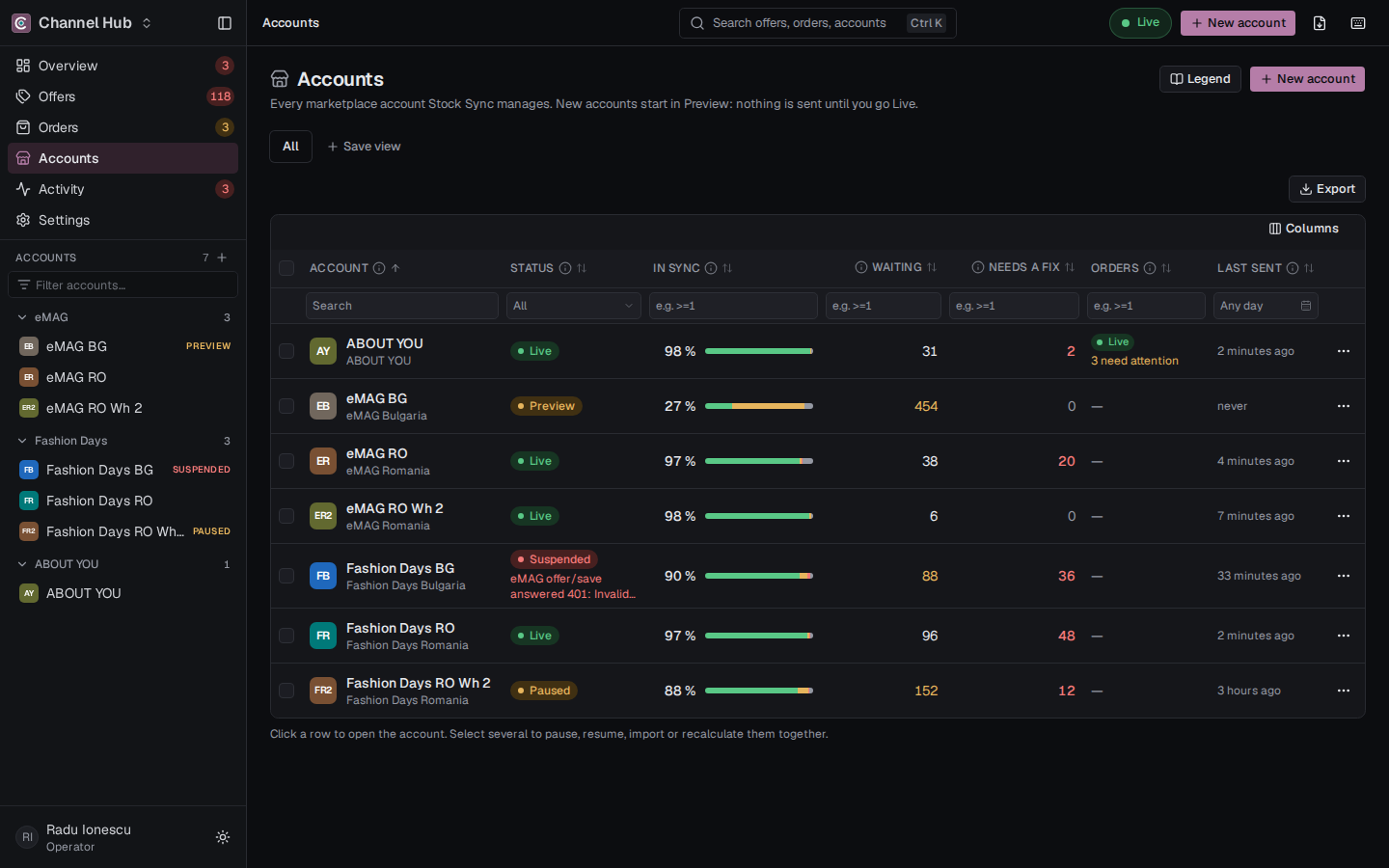
The page at a glance
From top to bottom:
- Accounts — the title, with a line that reminds you that new accounts start in Preview: nothing is sent until you go Live.
- Legend — what every account status, health and orders mode means, and what to do about it. See Legends and tooltips.
- New account — opens the New account form over the list. Operators only.
- The views bar (team views and Save view) and Columns.
- The table — one row per account, with a filter under each column title. Click a row to open its Account workspace.
- Under the table, a reminder: Click a row to open the account. Select several to pause, resume, import or recalculate them together. (the second sentence only for operators).
The columns
Every column title has a small (i): hover over it for what the column shows.
| Column | What it shows |
|---|---|
| Account | The account's badge and name. Click the name to open the account. |
| Status | One word for what the connector does: Live, Preview, Off, Paused or Suspended. Hover over it for its parts (Stock Off · Orders Live · Ship orders Live), what it means and what to do. A suspended or degraded account shows the marketplace's reason under it, in red or amber. An account that is paused while its stock is in Preview says and in Preview under Paused. While the marketplace's connector is switched off here, it says Connector switched off here: its work waits. under the word. |
| In sync | The share of linked offers whose marketplace number is what Stock Sync wants, with a thin bar: in sync (green), waiting (amber), needs a fix (red, the same number as the Needs a fix column), not linked (grey). Each offer is in one part only. |
| Waiting | Stock updates the marketplace has not applied yet: waiting to send, or sent and awaiting confirmation. On an account whose stock cannot be sent right now (stock in Preview or stock sync off, even while its orders run Live; Paused, Suspended, or its connector switched off here) the number is amber; hover over it for Held back and why: they wait until the account can send. |
| Needs a fix | Failed, rejected and orphaned offers, and offers whose barcode several PIM products hold, each counted once. Hover for how many of each; click the number to open Offers filtered to this account's Needs a fix. |
| Orders | Whether the account's marketplace orders go to Odoo: Off, Preview or Live, and, when some need a person, N need attention: click it to open Orders on Needs attention for this account. A dash means the marketplace does not send orders to Stock Sync (ABOUT YOU, eMAG, Fashion Days, Secret Sales, Fashionette, Spartoo, Bol and Showroomprivé do). |
| Last sent | When the marketplace last accepted a stock update for this account, or never. Hover for the exact date and time. |
| Last import | When every offer was last read from the marketplace (daily at 04:41, and on Import offers). |
| ⋯ | The row's menu. Operators only. |
Last import shows only on very wide windows (1,536 pixels and more) and Last sent from 1,280 pixels, so the picture above has no Last import; the same figures are on the account's Summary tab.
Filtering, sorting and Excel
With a handful of accounts you will rarely need it, but the table works like every list (Working with tables): under the column titles, a search box for Account, a dropdown for Status (Live, Preview, Off, Paused, Suspended), and typed conditions for In sync, Waiting, Needs a fix and Orders (>0, 10..50) and day ranges for Last sent and Last import (No date finds an account that never sent). Click a column title to sort, Shift-click for a second column. The table starts sorted by Account, A to Z. Filtering and sorting happen in your browser on the accounts already loaded, so they are instant. Export downloads the rows as they stand as an Excel file, made in your browser.
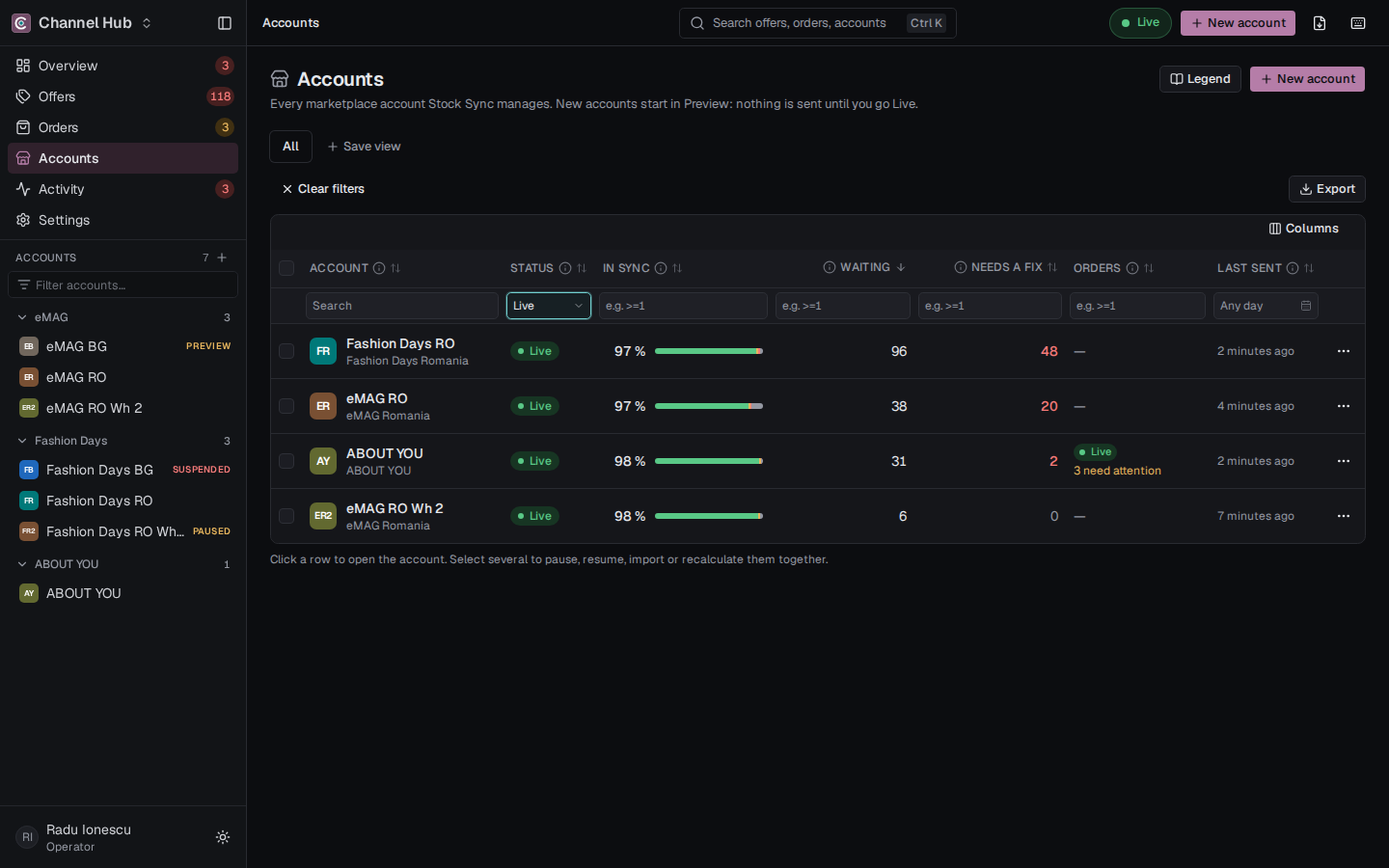
Team views and the column layout work as on every list. Grouping is not offered here.
How the status word is chosen
An account has a health (Healthy, Degraded or Suspended), a state (Active or Paused) and three switches: stock (stock sync off, or on in Preview or Live), orders and ship orders (each Off, Preview or Live). The status word combines them into one answer to "what does the connector do?":
| Status | When | Colour |
|---|---|---|
| Suspended | The marketplace refused the connection, whatever the rest | Red |
| Paused | The account is paused (and not suspended) | Amber |
| Live | Stock, orders or ship orders runs Live | Green |
| Preview | Nothing runs Live, and stock, orders or ship orders is in Preview | Amber |
| Off | Stock sync, orders and ship orders are all off: nothing runs | Grey |
Suspended outranks Paused: each of them alone stops all work. So an account with stock sync off whose orders run Live reads Live, with Stock sync off: no offers imported, no stock sent. under the word. A Degraded account still runs, so it shows what its parts say, with its reason in amber under the word. Every status explained has the full list.
The row's menu
The ⋯ at the end of a row opens the account's actions without opening the account. Hover over an item for what it does.
| Item | What it does | Asks first? |
|---|---|---|
| Pause (on an active account) | Stops importing, recalculating and sending for this account | Yes: Pause [account]? |
| Resume (on a paused account) | Switches the account back on: its offers are imported again and waiting stock is sent | No |
| Recover | Tests the connection again; if the marketplace accepts it, the account becomes Healthy and work restarts | Yes: Recover [account]? |
| Import offers | Reads every offer of the account from the marketplace now | No |
| Recalculate | Works out the stock to publish again for every offer | No |
| Edit connection | Opens the account's Settings tab at Connection | — |
An item that cannot be used right now is greyed out with the reason under it: Recover on a healthy account says The account is healthy: the marketplace accepts its connection.; Import offers and Recalculate on a paused account say The account is paused: resume it first., and on a suspended one The account is suspended: nothing is imported until the connection is fixed and recovered.
Doing several accounts at once
Operators can tick accounts with the box at the start of each row (or click a row's box, then Shift-click another to tick the rows between). A bar then rises at the bottom of the screen with how many accounts are selected and four actions:
| Action | Sent to | Disabled when |
|---|---|---|
| Pause | The selected accounts that are active. Asks first: Pause [account]? for one, Pause [n] accounts? for several, with their names. | All selected accounts are already paused. |
| Resume | The selected accounts that are paused | None of the selected accounts is paused. |
| Import offers | The selected accounts that are neither paused nor suspended, and whose connector is not switched off here | The selected accounts are paused or suspended., or The connector is switched off here. when that is so for every one (both reasons when it is a mix) |
| Recalculate | The same accounts as Import offers | The same as Import offers |
When an action applies to only some of the selection, its button says how many, for example Pause (2): the others are left alone. One message then says what was done, for example 2 accounts paused. Nothing is sent for them until they are resumed., 3 accounts resumed; their offers are being imported., Offer import requested for 3 accounts. or Recalculation requested for 3 accounts. If the server refused some, the message is amber and names each refused account with its reason, for example Offer import requested for 2 of 3 accounts. Refused: ….
The × on the bar, or Esc, clears the selection.
Live updates
The table updates by itself as accounts change: a status word, a count or a time changes in place, pushed by the server. You never need to reload. See Live updates.
What a viewer sees
A viewer sees the same table, the filters, the team's views and the Legend, without New account, the boxes to tick, the ⋯ menus or the buttons that save a view.
Good to know
- Nothing about an account can be changed from its row except through the ⋯ menu and the bulk bar; everything else is in its Account workspace.
- Accounts cannot be deleted from the screen.
- The sidebar lists the same accounts, grouped by marketplace, with a tag only for those that are not sending normally. See The sidebar.