
Appearance
Order page
The Order page shows one order: where it stands and what to do about it, what is on it, what Stock Sync did with it, and, for an operator, the buttons that move it on. You use it to see why an order is not in Odoo yet, to compare it with Gaia's order in Preview, to open the same order in ABOUT YOU or Odoo, to press Retry, Import anyway, Mark resolved or Close – handle manually, and to cancel the order.
You see the same content in two places:
- Beside the list — click a row on Orders (or an account's Orders tab) and the order opens in a side panel. J and K move to the next and previous order; Esc closes it.
- On its own page — Full page in the side panel. Its address is the order's own: copy it to send a colleague straight to the order.
The page at a glance
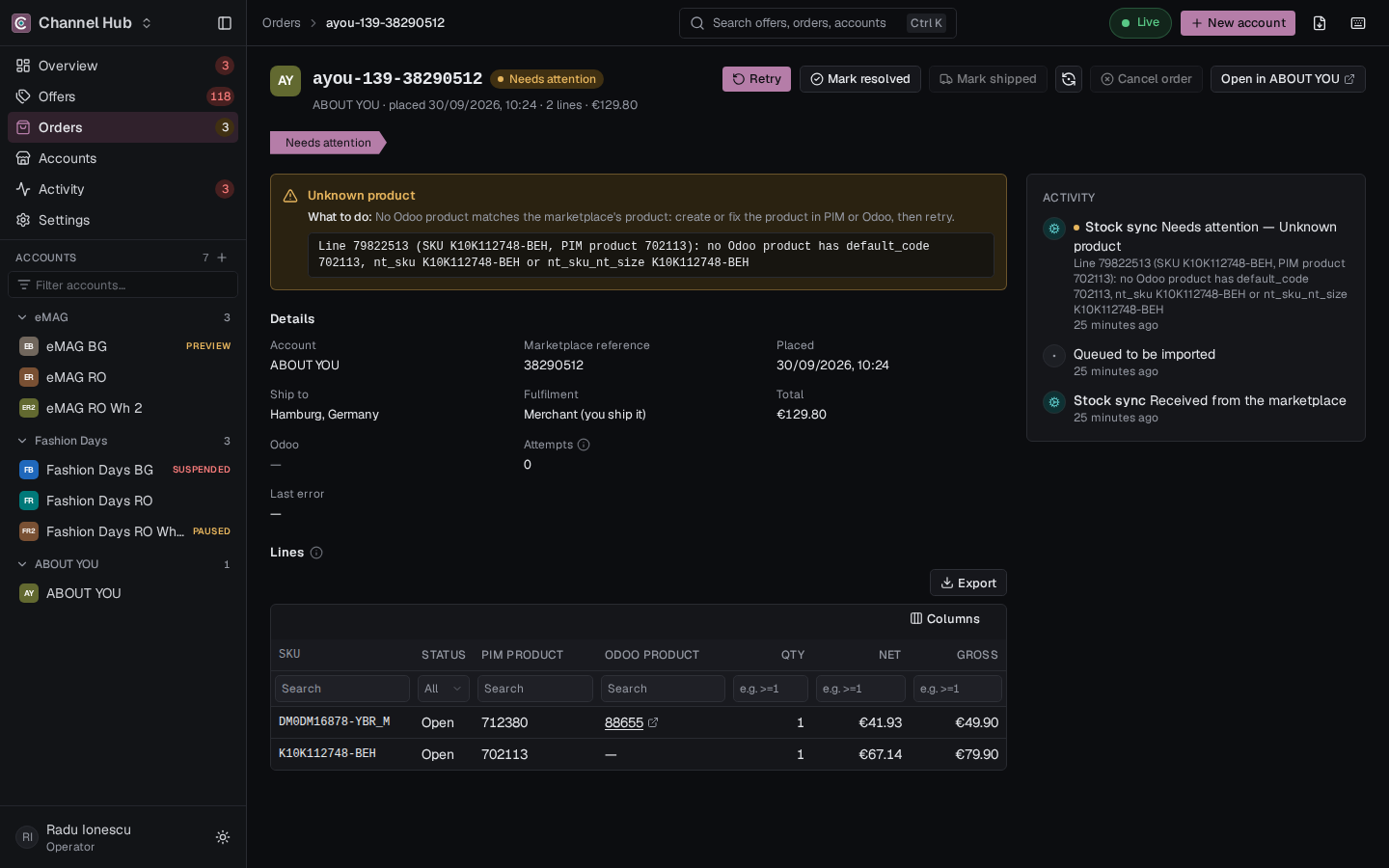
Orders in the breadcrumb at the top returns to the list with the view, filters, sort and grouping you opened the order from.
From top to bottom:
- The heading — the account's badge (hover for the account's name and status), the order's reference, its state as a coloured pill (hover for what it means) and, for a Previewed order, the comparison's result (Match, Different or Not in Odoo). Under it one line: the account, when it was placed, how many lines and the total. An order Stock Sync found in Odoo under its reference, instead of creating it, also says Found in Odoo and adopted.
- The buttons and links, at the top right — Retry, Import anyway, Mark resolved, Close – handle manually, Mark shipped, Re-sync with Odoo, Read again and Cancel order for an operator when they apply (see The buttons); Open in ABOUT YOU and, once the order is in Odoo, Open in Odoo for everyone (see Links to ABOUT YOU, Odoo and PIM).
- The status bar — Received → Previewed or Received → Imported, with the order's step filled, and → Shipped after Imported when the account ships from Stock Sync (and for every shipped order); a Partially returned or Returned order shows its state after Shipped. A Received order shows Received alone until its account's orders mode is known to be Preview or Live. Needs attention, Cancelled before import, Cancelled and Resolved stand alone.
- What to do / What this means — the box that says, in a sentence, where the order stands and what to do.
- The cancellation's line, when the order is being cancelled or was.
- Details, Lines, Shipping (its deliveries and what the marketplace was told), Documents and, for an account with orders in Preview, Preview comparison.
- Activity — what happened to the order, newest first. On the page it is a column on the right; in the side panel it comes last.
The trail at the top of the screen names the order by its reference: Orders › ayou-139-38290512.
What to do, what this means
The box under the status bar says where the order stands, in the same words as the state's tooltip and Every status explained:
| State | Box title | What it says |
|---|---|---|
| Needs attention | The reason, for example Unknown product (amber) | What to do: the reason's full sentence; under it, in grey, what the import found (for example the SKU no Odoo product has) |
| Received | Waiting for Odoo | What this means: it goes on by itself; how many times it was tried so far, when it was |
| Previewed | Previewed (blue) | Read the comparison below before the account's orders go Live |
| Imported | In Odoo as SO51284, or Found in Odoo and adopted as SO51104 (indigo); shipped in part, In Odoo as SO51270 · 1 of 3 shipped (violet), with what waits | Nothing to do |
| Resolved | Resolved by hand | Nothing to do; the note is in Details. Stock Sync no longer follows the order: anything still to ship is marked shipped in the seller centre by hand |
| The others | The state | Nothing to do |
For Cancel failed, the cancellation's own line below says where and why instead of the grey detail. An order needs attention explains every reason.
Details
| Field | What it shows |
|---|---|
| Account | The marketplace account the order came from |
| Marketplace reference | The reference the marketplace gave the order, and the one Odoo shows as its customer reference |
| Placed | When the customer placed the order |
| Ship to | City, country only. The customer's name and street are never shown. |
| Fulfilment | Who ships the order: Merchant (you ship it) or The marketplace ships it. Orders the marketplace ships itself are not supported yet and need attention. |
| Total | The order's total with VAT, in the order's currency |
| Odoo | The sale order's name as Odoo shows it (for example SO20841), a link that opens it in Odoo in a new tab, once it is there; — until then. An order imported before Stock Sync kept the name shows its number in Odoo until the name is read: older orders get their name over the next hours, a thousand per hourly run |
| Attempts | How many times Odoo could not be reached, or was too busy, since the order was queued. 0 when the first try worked; Retry starts the count again. |
| Next attempt | When it will try again, for an order that is waiting (Received), for example in 4 minutes (30/09/2026, 10:56). Not shown otherwise. |
| Last error | What went wrong the last time, in plain words: for example Odoo did not answer (connection refused) when Odoo is down, Odoo did not answer within 180 s when it is too slow, or Odoo is unavailable (it answered Bad Gateway) when what stands in front of Odoo answers for it; — when nothing did |
| Resolution note | The note of the person who marked the order resolved or closed it. Only on a Resolved order; when Mark resolved takes an order in Odoo back to Imported, the note is in its activity only. |
When the order is being cancelled, or was, a line under the What to do box says how it stands: Cancelling… checking Odoo, then telling [Marketplace] (or Cancelling… telling [Marketplace] for an order not in Odoo), Cancelling… waiting for [Marketplace], Cancelling… waiting for Odoo, Cancelling… finishing, Cancel failed at [Marketplace] or Cancel failed in Odoo, where [Marketplace] is the order's marketplace, for example ABOUT YOU, with the reason, or, once done, for example "Cancelled 2 items on 06/10/2026, 10:52 · Out of stock", followed by the note written in the dialog. The note is shown here only. Cancel an order explains each.
Lines
Each line shows the SKU the marketplace sold, the marketplace's Item number, the line's Status, the PIM product it belongs to, the Odoo product Stock Sync found for it, the Quantity (headed Qty), the Net unit price (without VAT, the price Odoo books on the sale order line), the Gross unit price (with VAT, what the customer paid), the VAT rate and the EUR rate used when the order is not in euros (— otherwise). Both prices are in the order's currency.
Gross is the marketplace's own price with VAT, the unit price ABOUT YOU's Seller Center shows, so the two screens match to the cent: for example Net €227.27, Gross €275.00, VAT 21 % for a Belgian order Seller Center shows at €275.00. A line the marketplace gave no price with VAT for (lines received before Stock Sync kept it, and marketplaces that give none) shows a Gross worked out from Net and VAT, in grey; hover over it to read Worked out from Net and VAT. A worked-out price can be a cent off what the marketplace shows. In the side panel beside the Orders list, the lines keep Net only, the price Odoo books. Item, VAT and EUR rate start in Columns, so the lines fit beside the activity on a 1280 px screen; tick them there to show them. An empty Odoo product (—) means no Odoo product was found: see Unknown product in An order needs attention.
The lines are a small table of their own: a filter under each title (for example Status, or a SKU pasted from Excel), a click on a title to sort (Shift-click for a second column), Columns, and Ctrl C to copy a block of cells into Excel; the table can be exported to Excel from the order. They have no saved views: an order has only a handful of lines, so there is no views bar and no Group by.
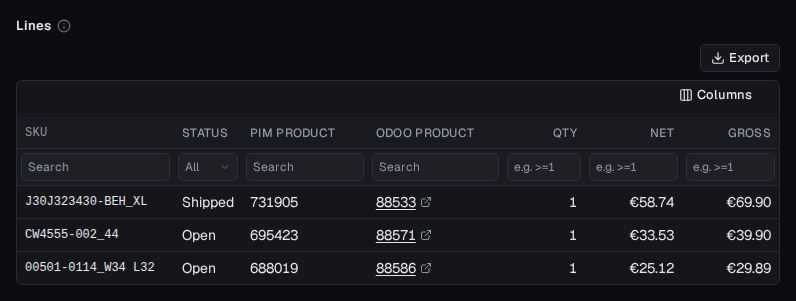
The PIM product opens the product in PIM, and the Odoo product opens the product in Odoo, each in a new tab. The Odoo product is plain text while no Odoo connection is saved in Settings → Odoo connection.
The Item is the marketplace's own number for that one item, for example 9001, in a monospaced font. It is the number a refusal names (ABOUT YOU refused item 9002) and the number a by-hand instruction names: Odoo gave up items 9001, 9002: cancel them at eMAG RO by hand; this clears itself once eMAG RO shows them cancelled (see Cancel an order). Look the item up in this column.
Status is what the marketplace says about the line:
| Status | What it means |
|---|---|
| Open | Not shipped yet. Only an open line can be cancelled. |
| Shipped | On its way to the customer |
| Cancelled | Cancelled, by Stock Sync (see Cancel an order), by the customer or by the marketplace |
| Returned | Sent back by the customer |
Shipping
Under Lines, for an account whose Ship orders is Preview or Live: one row per delivery of the order validated in Odoo (its OUT transfer, for example WH/OUT/04817), with what Stock Sync read from Odoo and what it told the marketplace. Before the first delivery is validated, it says No delivery of this order is validated in Odoo yet. An account whose Ship orders is Off has no Shipping section. See Ship an order.
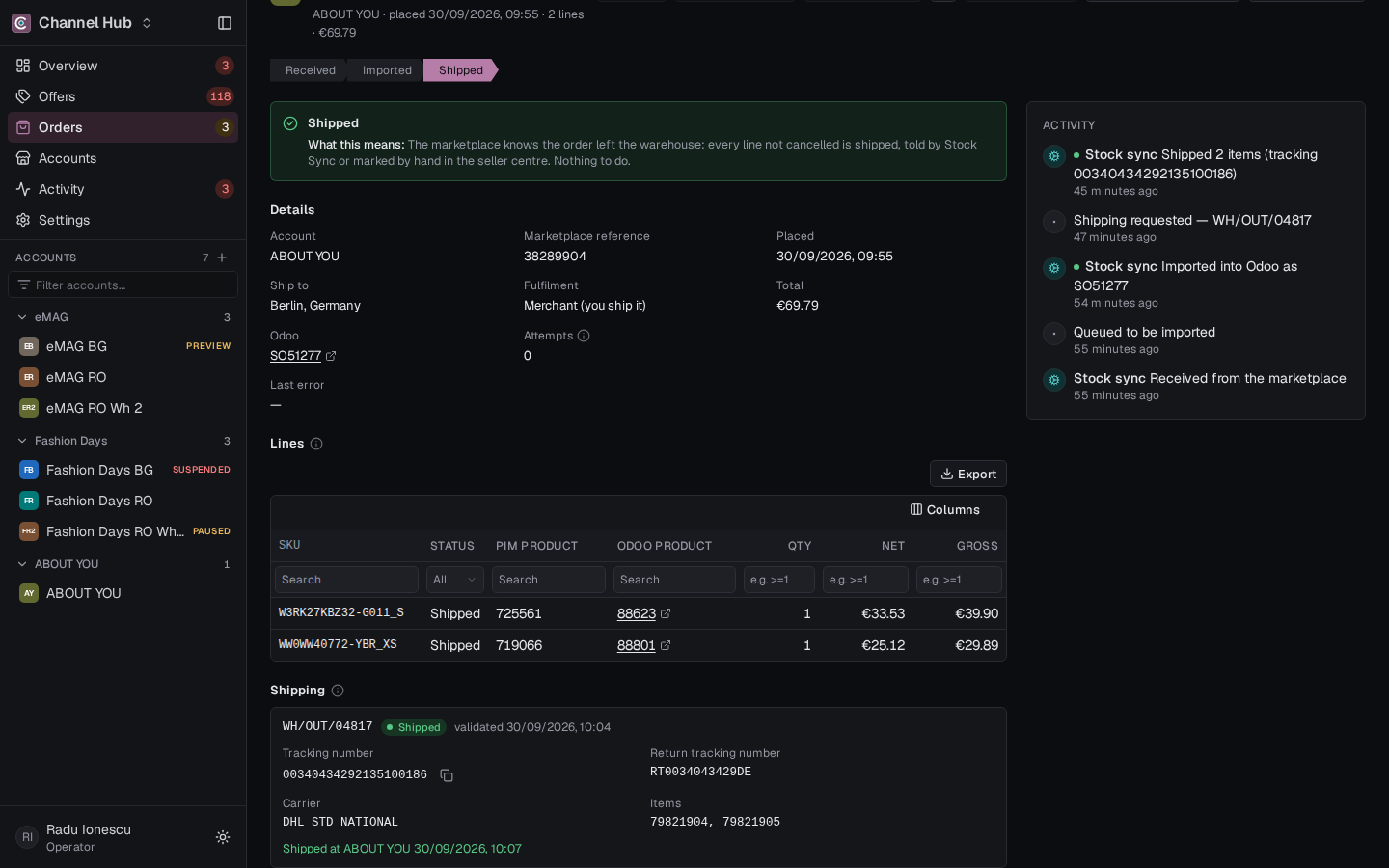
Each row shows the delivery's name, a pill for where it stands, when it was validated, then Tracking number (with a copy button, and for a FedEx delivery a FedEx link to the tracking page; a message says Tracking number copied), Return tracking number (on ABOUT YOU, which is sent one, or when Odoo holds one), Carrier (the order's own carrier key, what ABOUT YOU and Bol are sent) or, for an order without one, Carrier in Odoo (what Odoo holds, which not every marketplace is sent: the Would send line says what is), Invoice (when the marketplace needs one) and Items (the Item numbers of the order's Lines), and a line under them:
| Pill | Line | What it means |
|---|---|---|
| Waiting for Odoo (amber) | Missing: and what | The delivery is validated, but Odoo lacks something the marketplace needs. Stock Sync reads Odoo again every 5 minutes for 2 hours, then the order needs attention. …holds product … that no item of the order resolves to means the delivery moved a product no item stands for (a kit's components): mark its items shipped in Seller Center by hand, then Close – handle manually. |
| Waiting for Odoo (amber) | Not checked yet: the order waits for something else first | The delivery was validated while the order waits in Needs attention for another reason, or while a cancellation of it runs. Stock Sync checks it by itself once the order no longer waits. |
| Would send (blue) | Would send to ABOUT YOU: and the values | Ship orders is in Preview: this is what Live would send. Nothing was sent. |
| Sending (blue) | Sending to ABOUT YOU…, or … trying again at a time : and the reason | Stock Sync is telling the marketplace; after a failed try it tries again by itself (1, 5, 15, 60 minutes). |
| Sent (blue) | Sent to ABOUT YOU, waiting for its answer | The marketplace is deciding, usually within a minute. |
| Shipped (green) | Shipped at ABOUT YOU and when | The marketplace marked the items shipped and tells the customer. |
| Refused (red) | ABOUT YOU refused: and its words | The order needs attention with Marketplace refused the shipment. |
| Already shipped (grey) | Already shipped at ABOUT YOU: nothing was sent | Someone marked the items shipped in Seller Center first. |
| Already shipped (grey) | Nothing to ship: no item of the order was left for this delivery | Odoo delivered more units than the order has items left for; nothing was sent for them. |
In Preview a line above the rows says Ship orders is in Preview for this account: Stock Sync shows what it would send, and sends nothing.
DHL shipments
Under Shipping, once Channel Hub has asked DHL Express for a shipment of this order (see Create a DHL shipment). An order that has none has no such section. Newest first; an earlier shipment that a newer one replaced stays listed, greyed.
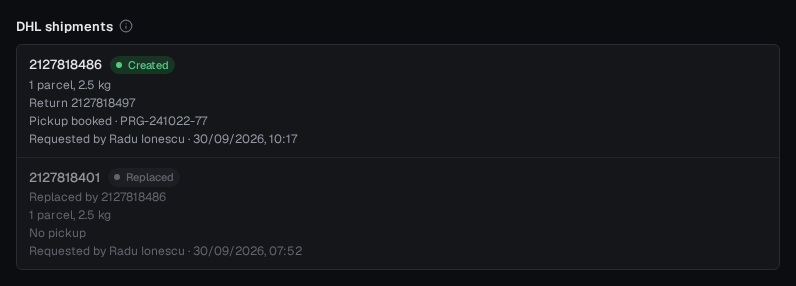
Each row shows the waybill and a pill, then the number of parcels and their weight, the Return waybill, what the pickup says, Requested by a person and when, and DHL's words when it said something:
| Pill | What it means | What to do |
|---|---|---|
| Requested (blue) | Channel Hub is asking DHL right now. | Wait a minute; the row updates by itself. |
| Created (green) | DHL made the shipment. Its labels are under Documents and the tracking number is in Odoo. | Print the labels from the Odoo sale order. |
| Return label missing (amber) | DHL made the outbound shipment but not the return label. | Create the return again: only the return label is asked again. |
| Refused by DHL (red) | DHL did not accept the request, with its words. Nothing was created. | Fix the cause and create the shipment again. |
| Unclear (red) | DHL did not answer in time, so Channel Hub does not know whether it made the shipment. The order needs attention with DHL shipment unclear. | Look for the reference in MyDHL+. Nothing there: It was not created. |
| Not created (red) | The shipment was not created at DHL. | Create the shipment again. |
| Replaced (grey) | A newer shipment took its place; the row says Replaced by its waybill. | Nothing. |
The pickup line says No pickup, Standing pickup, Pickup booked with its reference, Pickup not booked, or DHL may have booked it — check MyDHL+. Book pickup again appears on a Created or Return label missing row whose pickup says Pickup not booked or DHL may have booked it — check MyDHL+; look in MyDHL+ first in the second case. If another action on the same shipment is still running, the row says Channel Hub is already asking DHL for this shipment. Try again in a minute.
An operator sees the buttons Create the return again, Book pickup again and It was not created, each only when the row's state calls for it; a viewer only reads. Pressing one says, for example, "The pickup of order … is asked of DHL again."
Documents
Some marketplaces give documents with an order that must travel with the parcel. For ABOUT YOU orders you ship yourselves, that is ABOUT YOU's delivery document: the delivery and returns note with the shipping address, the items and the return instructions, to print and put in the parcel. Stock Sync fetches it once the order is in Odoo, keeps the file, and attaches it to the Odoo sale order as an internal note, so it can be printed from Odoo as well. Nobody is e-mailed.
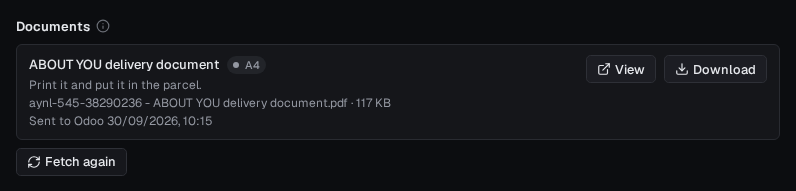
Each document shows its title, what to do with it, the file name and size, and Sent to Odoo with the time (Not sent to Odoo yet until then). A small tag says where it is printed: Label for the label printer (the Zebra) or A4 for the standard printer. ABOUT YOU's delivery document is A4. A shipping label that a person uploaded from the Odoo sale order (see the companion) also shows Uploaded by the person's name, its tracking number and its carrier. The labels of a DHL shipment (outbound and return, tag Label, file ending in .zpl) and DHL's receipt (tag A4, a PDF) are listed here too; the return label's line names its waybill. A document another one replaced (a replaced shipment's, or an uploaded label whose tracking number a later upload or a DHL shipment took over) is greyed and says Replaced by a later label or DHL shipment: not printed; it stays here to look at or download, and Print A4 for batch and the companion's Print leave it out. View opens the file in a new tab, to read or print it; Download saves it. Above the documents, a line says where the fetch stands:
| Line | What it means |
|---|---|
| Fetching… | Stock Sync is fetching the documents. It usually takes a few seconds. |
| Fetching… with Trying again at the time: and the reason | A try failed, for example because ABOUT YOU did not answer, and Stock Sync tries again by itself at that time: after 1, 5, 15 and then 60 minutes, 5 tries in all. Nothing to do. |
| No documents for this order | The marketplace gives none for this order, for example an order ABOUT YOU ships from its own warehouse. |
| Could not fetch: and the reason | Stock Sync gave up: the fifth try failed too (about an hour and a half after the first), or the marketplace or Odoo refused outright, for example Odoo refused the attachment. The order itself is in Odoo and is not affected. |
| (nothing) | Every document was fetched and sent to Odoo. |

Thirty days after the order ended, the file is removed with the customer's details. The row stays and says Removed after 30 days (still attached in Odoo): open the Odoo order to print it.
| Button | What it does | Shown when | Who sees it |
|---|---|---|---|
| Fetch documents | Fetches the order's documents now. A message says "The documents of order … are being fetched." | The order is Imported and its documents were never fetched (orders imported before Stock Sync fetched documents) | Operators |
| Retry | Fetches again from where it stopped, once the cause is fixed. Nothing already in Odoo is sent twice. | The line says Could not fetch | Operators |
| Fetch again | Asks first, Fetch the documents of order … again?, because Odoo gets a second copy: every document is downloaded again and attached to the Odoo order as a new note marked updated. The earlier documents stay listed. Use it when the marketplace changed the document, for example after an item was cancelled. | Every document was fetched | Operators |
None of these buttons is shown once the order's details were removed, 30 days after it ended. A viewer sees the documents, View and Download, and no button.
The Preview comparison
When the account's orders are in Preview, the order's Preview comparison shows how Stock Sync's Odoo order compares with the order staff put into Odoo under the same reference: on ABOUT YOU the one Gaia's upload created, on eMAG and Fashion Days the one staff booked, on Fashionette, Spartoo and Bol the one staff entered. On Secret Sales, whose Odoo orders Gaia Suite made until 1 November 2026, it is simply the one in Odoo. The sentences name it that way. The picture shows an ABOUT YOU order:
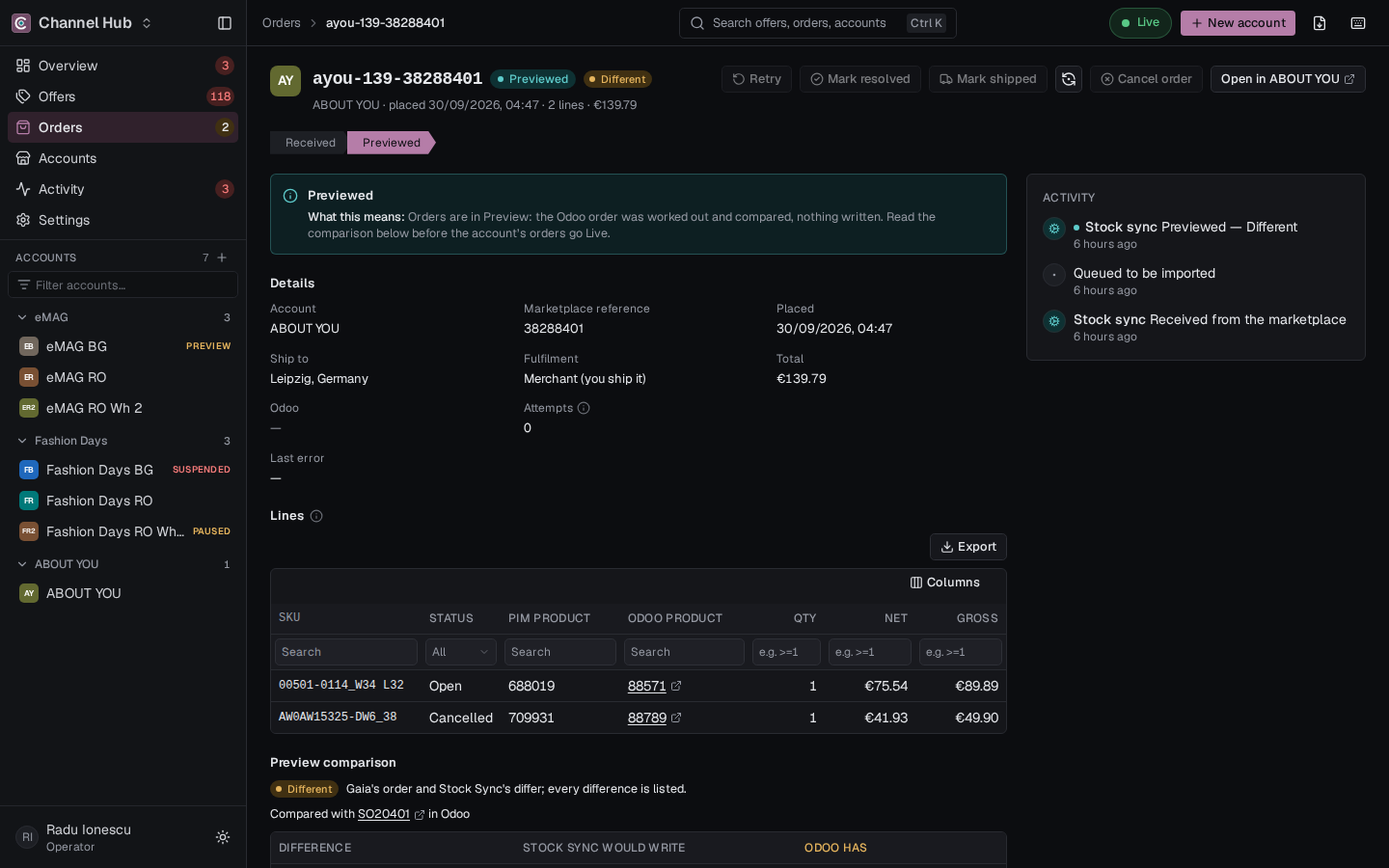
- Received → Previewed — the order was read and compared.
- Odoo — —: Preview neither creates nor links an Odoo order.
- Different — the result, with a sentence saying what it means.
- Compared with SO20401 in Odoo — the sale order Gaia's upload created, which Stock Sync compared with. Click it to open that order in Odoo and check the differences there. It is Gaia's order, not this order's: the Odoo field stays — until the account goes Live. While Odoo holds no order with the reference (Not in Odoo) there is no such line.
- Last compared 2 hours ago — when Preview last compared the order with Odoo; hover for the date and time. A Not in Odoo order is compared again by itself, and only a comparison whose result changed is added to the activity, so this line is where you see that it is still being compared. Orders compared before this line existed show it from their next comparison.
- The differences, one per row: Difference, what Stock Sync would write, and what Odoo has in Gaia's order. Here Gaia's order carries the upload's time rather than the customer's, and books the shipping fee (service line 813) at €4.90 where the mapping says €0.00.
The results:
| Result | What it means |
|---|---|
| Match | Staff's order and Stock Sync's are the same: Gaia's order and Stock Sync's are the same. on ABOUT YOU, Stock Sync's order and the one staff booked are the same. on eMAG and Fashion Days, …the one staff entered… on Fashionette, Spartoo and Bol, …the one in Odoo… on Secret Sales |
| Match (rate) | eMAG and Fashion Days orders only: the same except for the exchange rate. Both use the latest ECB rate published before the order is booked, but staff book a day later than Stock Sync, so they often use the next day's rate; the order says which day each side used. The order's date is not reported; lines and shipping are compared to the cent. |
| Different | They differ; every difference is listed, one by one. The order's date and the salesperson are compared as well as the lines, taxes and totals. |
| Not in Odoo | Odoo has no order with this reference yet, so there is nothing to compare. Stock Sync compares it again by itself for up to 7 days after it arrived, at most 4 hours apart, so it turns to Match or Different within a few hours of staff's order reaching Odoo (of Gaia's upload on ABOUT YOU, of staff booking it on eMAG and Fashion Days, of staff entering it on Fashionette, Spartoo and Bol, of the order reaching Odoo on Secret Sales); you need not do anything. A comparison with the same result again adds nothing to the activity: Last compared under the result says when Preview last looked. One still Not in Odoo a day after staff put it into Odoo means staff's order (on ABOUT YOU, Gaia's file) wrote its reference differently: tell the technical team before going Live (see Go live with orders). |
How a difference is named:
| Difference | What differs |
|---|---|
| Order date | The order's date and time (a minute either way still matches) |
| Salesperson | The salesperson, as Odoo user ids (Odoo id 7); only when the mapping names one |
| Fiscal position | The fiscal position, as Odoo ids |
| Odoo state | Gaia's order is Cancelled in Odoo, where Stock Sync's would be a Sales order |
| Odoo product 88571: quantity (or price, taxes) | That product's line: its quantity, its unit price or its taxes |
| Odoo product 88571: missing in Odoo / only in Odoo | A line only Stock Sync's order has, or only Gaia's |
| Service line 813: price (and the others above) | The same for a service line, by its Odoo product id |
How the values read:
- Prices are in euro, the currency Odoo books the order in, for example €4.90.
- Taxes, the salesperson and the fiscal position are Odoo ids: Odoo id 5, or Odoo ids 5, 9 for a line with two taxes; No taxes when a line has none, None when there is no salesperson or fiscal position.
- The order date is in your time zone, like every time on the screens.
- When a product's lines differ in price or taxes, each value comes with its quantity, for example 2 × €49.99, 1 × €44.99.
- Quantity 2 / No line under missing in Odoo or only in Odoo: one side has the line, the other has none.
Preview writes nothing to Odoo. Go live with orders says what to do with the results.
After Preview
Once the order has left Preview (going Live queued it, or it was cancelled or needs attention), the result no longer stands beside its state. It stays lower on the page, under In Preview, said in the past, as a record of what Preview found:
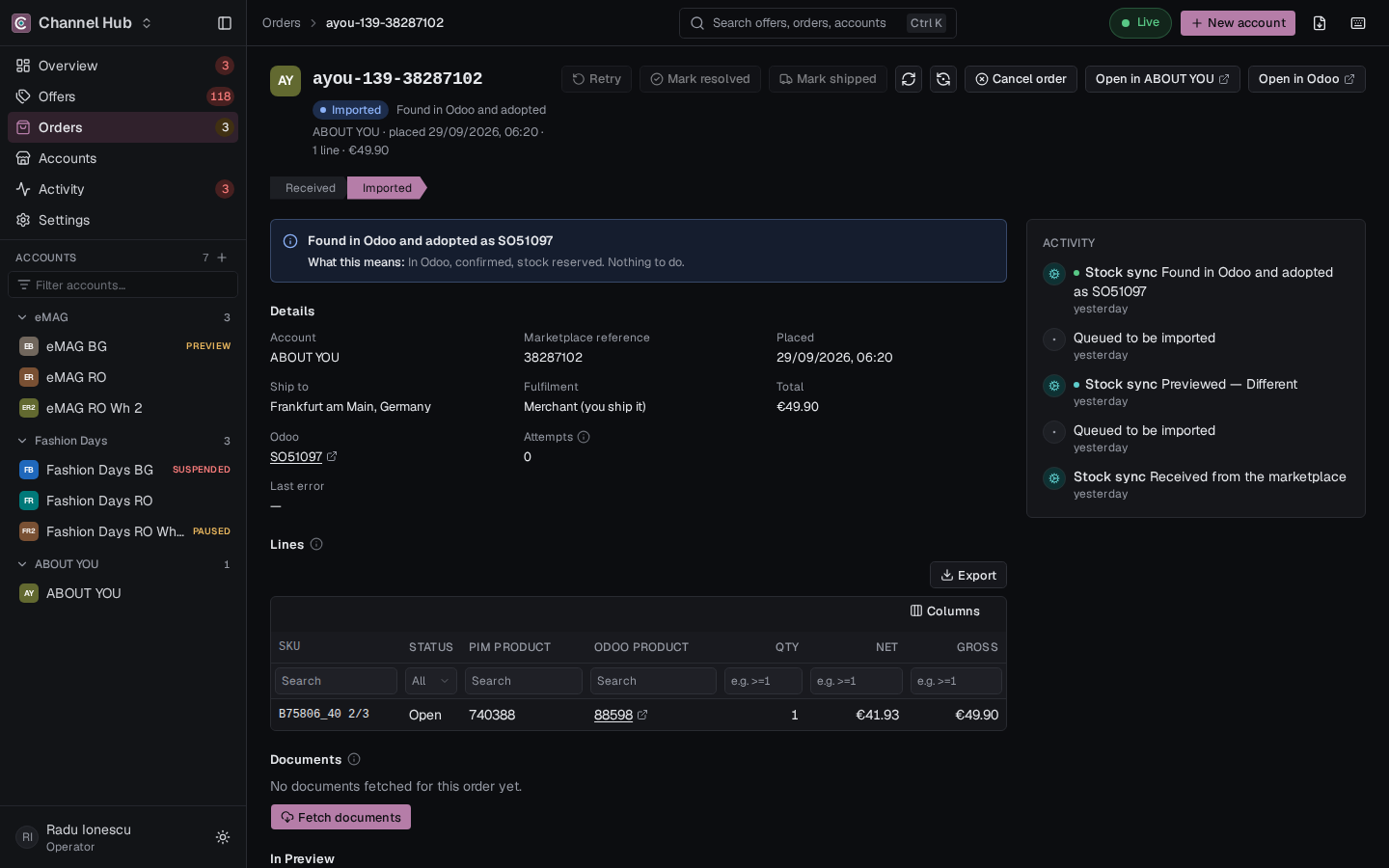
- Received → Imported — where the order stands now.
- Found in Odoo and adopted — Gaia's upload had created the order, and Stock Sync took it over instead of creating a second one.
- Odoo — the Odoo sale order, by its name, a link that opens it.
- In Preview — what Preview last found, here Different: Gaia's order books the shipping fee at €4.90. An order Preview found Not in Odoo and Live then created says "When Preview last compared it, Odoo had no order with this reference."
At the top right, this order has Cancel order: it is imported, its account's orders are Live, and its line is still Open, so an operator can cancel it (see Cancel an order). Open in ABOUT YOU and Open in Odoo open the same order in Seller Center and in Odoo.
The buttons
| Button | What it does | Shown when | Who sees it |
|---|---|---|---|
| Retry | Puts the order back in the queue to be tried again now. A message says "Order … is queued to be imported again." For Cancel failed it tries the cancellation again instead, from the step that failed: "The cancellation of order … is tried again." | The order is Needs attention, is not in Odoo yet and its reason is not Unreadable or Not supported; or its reason is Cancel failed, in Odoo or not, and no cancellation is running; or its reason is Shipping data missing in Odoo or Marketplace refused the shipment, in Odoo or not (it reads Odoo again and sends the shipment: "Order … is checked against Odoo again and its shipping retried.") | Operators |
| Import anyway | For an order not in Odoo yet whose cancellation failed: gives the failed cancellation up and imports the order into Odoo with every item the marketplace has not cancelled, instead of entering them in Odoo by hand after Mark resolved. It asks first, Import order … anyway?. A message says "The cancellation of order … is given up; the order is queued to be imported into Odoo." The failed cancellation stays on the page, and the activity says Cancellation given up with your name. See Cancel an order. | The order is Needs attention with Cancel failed and has no Odoo link. Greyed, with the reason on hover, while a Retry of the cancellation is running | Operators |
| Mark resolved | Says you handled what the order waited for. A dialog, Mark order … resolved?, asks for a Note (up to 500 characters, for example removed item 9002 from SO04513 in Odoo); an empty note is refused with "Write how the order was handled." What happens next depends on the order. In Odoo: Stock Sync first asks Odoo for the sale order. If it still delivers exactly the items the marketplace still has (cancelled items left out; shipped or returned ones counted), the order goes back to Imported (Shipped when every item is shipped already): Stock Sync follows its delivery again and tells the marketplace when it ships, only for the items still active, never a cancelled one. If the order changes again at the marketplace, it comes back to Needs attention. If they do not match, nothing changes and the dialog says why, for example "Odoo's order SO04513 delivers more than the marketplace still orders (product 1002: Odoo delivers 1 unit, the marketplace still orders 0 units (item 9002 cancelled)). Change SO04513 in Odoo to match, then Mark resolved again; or Close – handle manually", or, the other way round, that the marketplace still has items Odoo no longer delivers (cancel them at the marketplace or add them back in Odoo first); likewise when Odoo no longer has the sale order (use Re-sync with Odoo), when it is cancelled in Odoo or set back to a quotation, when Odoo ships a product of the order as other products (a kit), while a cancellation of the order is running, and while the order waits for Cancel at the marketplace by hand (it clears itself). See Mark resolved on an order in Odoo. In Odoo with every item cancelled: Cancelled. Not in Odoo: Resolved, and Stock Sync stops trying. Cancel failed of an order that waited for something else before the cancel: that reason comes back. | The order is Needs attention | Operators |
| Close – handle manually | Takes the order out of Stock Sync for good, whatever it waits for. A dialog, Close order …?, asks for a Note; Close order sends it, and a message says "Order … is closed." The order is Resolved (Cancelled when every item is cancelled). Odoo is not asked. Stock Sync no longer follows its delivery or tells the marketplace it shipped: mark it shipped in the seller centre by hand. Use it when you handle the rest of the order yourself, or when Mark resolved is refused and Odoo cannot be made to match. If the marketplace later cancels another of its items, the order still comes back to Needs attention with Changed after import; Mark resolved then follows it again. | The order is in Odoo and Needs attention (for an order not in Odoo, Mark resolved already ends it) | Operators |
| Re-sync with Odoo | For an order whose Odoo sale order is gone, for example after Odoo's database was restored from a backup or the sale order was deleted by hand, so Open in Odoo leads nowhere. It asks first, Re-sync order … with Odoo?. Stock Sync then checks with Odoo: if Odoo still has the sale order (in any state, cancelled too), nothing changes and the dialog says "Odoo still has SO51284, so there is nothing to re-sync: open it in Odoo". Otherwise the order forgets the lost sale order and is queued to be imported again: if Odoo holds an order under the order's reference (for example one entered again by hand), Stock Sync takes it over (Found in Odoo and adopted); if not, it creates and confirms a new one, which reserves the stock. A message says "Order … is queued to be imported into Odoo again." Its documents are not attached to the new Odoo order by themselves: press Fetch again under Documents once it is imported. | The order is Imported (as a small button with two arrows; hover for its name), or Needs attention while it is in Odoo, for example Changed after import with Odoo has no order SO51284 any more. Greyed, with the reason on hover, when the account's orders are not Live, while the order waits for its cancellation or its shipment, while a cancellation of it is running, and once any of its items was shipped or returned (a new Odoo order would reserve their stock again: enter it in Odoo by hand, then Close – handle manually) | Operators |
| Read again | Reads this order from the marketplace now and updates what Stock Sync holds, as the regular order check would, also for an order the marketplace no longer reports by itself, such as an eMAG or Fashion Days order that is finished there. Use it after something was fixed at the marketplace, for example the product of an item: the Lines then show what the marketplace says now. It changes nothing at the marketplace, so it does not ask first. A message says what it found, for example "Order … was read again from the marketplace: its data was updated." or "…: nothing had changed."; an order that waited for a data problem goes back in the queue to be imported. The activity says Read again from the marketplace with your name and what it found. If the marketplace no longer knows the order, a message says so and nothing changes. | Every order, as a small button with a circling arrow (hover for its name). Greyed, with the reason on hover, while the account's orders are Off | Operators |
| Mark shipped | Checks Odoo now instead of within 5 minutes, and tells the marketplace the order is shipped if Odoo has everything. A message says "Order … is being marked shipped at ABOUT YOU.", or, in amber, "Order … cannot be marked shipped yet: something is missing in Odoo. The order says what." In Preview nothing is sent and the order stays as it is. A refusal, such as "Odoo has no done delivery for SO51277 yet", stays in red under the buttons. See Ship an order. | Shown to every operator. Works when the account's Ship orders is Preview or Live, its orders are Live, and the order is in Odoo and Imported or waits in Needs attention with Shipping data missing in Odoo. Greyed, with the reason on hover, when Ship orders is Off, for Marketplace refused the shipment (use Retry), while a cancellation of the order is running, and otherwise | Operators |
| Cancel order | Opens the dialog Cancel order …?: tick the lines, choose a Reason, add a Note (required for Other), then Cancel N items; Keep order closes it and cancels nothing. For an eMAG or Fashion Days order every line is ticked and cannot be unticked, with the note [Marketplace] cancels whole orders only: cancel every item, or cancel the item in its Seller Center, naming the marketplace (for example Fashion Days Romania cancels whole orders only…). Stock Sync cancels them at the marketplace and in Odoo; a message says "Order … is being cancelled." See Cancel an order. | The account's orders are Live (ABOUT YOU, eMAG or Fashion Days; at eMAG and Fashion Days the whole order is cancelled), the order has an Open line that Stock Sync has not already had the marketplace cancel, no cancellation is running for it, the order is not waiting with Cancel failed (Retry or Mark resolved it first), and it is not an order in Odoo that waits in Needs attention for Cancel at the marketplace by hand. Any other reason is kept when the cancellation is done (see Cancel an order). A line whose delivery Odoo has validated (its Shipping row waits, would send, is sending, sent or shipped) is not offered: the goods have left the warehouse | Operators |
Retry is absent when the order is already in Odoo, because trying again could create it a second time (when Odoo lost the sale order, Re-sync with Odoo imports it again safely) (except for Cancel failed, whose Retry tries the cancellation, not the import, and for the two shipping reasons, whose Retry reads Odoo again and sends the shipment), and for Unreadable and Not supported orders, which cannot be retried (an unreadable order comes back by itself; a not supported one is decided by hand), and for Cancel at the marketplace by hand, whose items you cancel in the marketplace's own seller centre. What to do instead: for Cancel at the marketplace by hand, find the named items in the Item column and cancel them there: the warning clears itself within a few minutes once the marketplace shows them cancelled, with no button to press (Mark resolved is refused while it waits); for Changed after import, make the Odoo order match what the marketplace still has, then press Mark resolved, and the order is followed and shipped again, or, when Odoo lost the sale order, press Re-sync with Odoo; for Not supported, decide how to book the order, then press Mark resolved; for Unreadable, tell the technical team, and the order comes back by itself when the marketplace sends a readable version. A viewer sees none of these buttons. The reasons and what to do for each are in An order needs attention.
Cancel order is absent for an account in Preview or Off: Gaia's upload puts those orders into Odoo, so cancel them by hand in ABOUT YOU and Odoo, as today. It is absent too while a cancellation of the order is running, and when no line is Open any more.
On the Orders list, an operator can also Retry or Mark resolved several orders at once. Close – handle manually is for one order at a time.
Links to ABOUT YOU, Odoo and PIM
| Link | Where | Opens |
|---|---|---|
| Open in ABOUT YOU | Beside the buttons | The order in ABOUT YOU's Seller Center, found by its order number |
| Open in Odoo | Beside the buttons, once the order is in Odoo; viewers see it too | The Odoo sale order; the Odoo field links to it too |
| The PIM product of a line | Lines | The product in PIM |
| The Odoo product of a line | Lines, once an Odoo connection is saved | The product in Odoo |
Every link opens in a new tab and carries a small arrow-out-of-a-box icon. Viewers see them too: they only open pages. A link whose address is not known, for example an eMAG order, shows the plain number instead.
Activity
The panel lists what happened to the order, newest first. It follows live updates: a new line appears the moment it happens. What Stock Sync did by itself starts with Stock sync. A person's Retry, Mark resolved and Close – handle manually name them: Queued to be imported by ana@fashiondealer.it, Marked resolved by ana@fashiondealer.it, Closed – handled manually by ana@fashiondealer.it (the e-mail address, or the sign-in name when there is none). A Queued to be imported without a name is the system's own.
The activity is kept until 30 days after the order ended (Imported, Shipped, Partially returned, Returned, Cancelled before import, Cancelled or Resolved), and then deleted together with the customer's details. An order that never ends keeps its activity, but not its customer: a Previewed order loses the customer's details 30 days after Preview last compared it, and a Received order of an account whose orders are Off 30 days after it arrived. Its numbers, state, lines and comparison stay. Should its account go Live later, the order is still taken over when Gaia's upload holds it in Odoo; otherwise it needs attention with The customer's name and address are not available in Channel Hub, before anything is written to Odoo: enter it in Odoo by hand, then Mark resolved. A cancellation from Stock Sync starts the 30 days again when it ends: an order imported weeks ago and then cancelled keeps its activity for 30 days after the cancellation. The panel then says "This order ended more than 30 days ago, so its activity has been removed." The order's fields and lines stay.
| Line | What happened |
|---|---|
| Received from the marketplace | Stock Sync read the order. |
| Queued to be imported / Queued to be imported by ana@… | The order waits for its turn: when it arrives, after Retry or Re-sync with Odoo (with the name of the person who pressed it), and when going Live queues a previewed order again. Preview comparing a Not in Odoo order again by itself adds no line. |
| Previewed — Match / — Different / — Not in Odoo | Preview compared it with staff's order (Gaia's, on ABOUT YOU). A Not in Odoo order is compared again by itself (see The Preview comparison); a comparison adds a line only when its result changed, for example the Previewed — Match once staff's order is in Odoo, and Last compared in the comparison says when it last looked. Meanwhile the order shows Received for a few seconds. |
| Imported into Odoo as 51284 | Stock Sync created and confirmed the Odoo order. |
| Found in Odoo and adopted as SO51104 | An order with the same reference was already in Odoo (Gaia's upload); Stock Sync took it over instead of creating a second one. |
| Needs attention — Unknown product (or another reason) | The import stopped; the grey line under it says what it found. |
| Marked resolved by ana@… | That person handled what the order waited for; the grey line under it is their note. The state that follows says where the order went: back to Imported when it is in Odoo, Resolved when it is not. |
| Closed – handled manually by ana@… | That person pressed Close – handle manually: the order left Stock Sync for good. The grey line under it is their note. |
| Cancellation requested — Out of stock (2 items) | An operator asked to cancel two items, with that reason. The note is not shown here. |
| Cancelled 2 items — Out of stock | Stock Sync cancelled them at ABOUT YOU and, when the order is in Odoo, in Odoo. |
| Odoo gave up 2 items | The Odoo order lost two items that cannot ship any more (for example a cancelled sale order). With , 1 could not be matched when Odoo gave up more units than the order has open items for. Stock Sync then cancels them at the marketplace, or, when it cannot, asks you to (Needs attention — Cancel at the marketplace by hand). See When Odoo cancels. |
| Cancellation requested by Odoo — Cancelled in Odoo (2 items) | Stock Sync asked ABOUT YOU to cancel those items because Odoo gave them up. Cancelled in Odoo is the reason; no note. |
| Read again from the marketplace by ana@… | That person pressed Read again; the line under it says what it found, for example Its data was updated or Nothing had changed. |
| Cancellation given up, 1 item to import by ana@… | That person pressed Import anyway on an order whose cancellation failed; the Queued to be imported after it and the import that follows say what became of it. |
| Odoo no longer had SO51284: re-synced by ana@… | That person pressed Re-sync with Odoo after Odoo lost the sale order; the Queued to be imported above it and the import that follows say what became of it. |
| Odoo order replaced: now 51290 | Odoo's order was cancelled and replaced by another with the same reference. The order follows the new one and nothing is cancelled. |
| Cancel failed | The cancellation stopped; the grey line under it says where and why. See Cancel an order. |
| Documents requested / Documents requested again | The order's documents were asked for: when the order reached Odoo, by Fetch documents or Retry, or by Fetch again. The tries Stock Sync makes by itself while it waits are not listed. |
| Documents fetched and sent to Odoo | Stock Sync fetched every document and attached it to the Odoo order. No documents for this order when the marketplace gives none. |
| Documents failed | Stock Sync gave up; the grey line under it says why. See Documents. |
| Waiting for Odoo — WH/OUT/04817 | A delivery was validated but Odoo lacks something the marketplace needs; the grey line under it says what. |
| Shipping previewed — WH/OUT/04817 | Ship orders is in Preview: the grey line says what would have been sent. |
| Shipping requested — WH/OUT/04817 / Shipping retried — … | Stock Sync is telling the marketplace: by itself, after Mark shipped, or after Retry. No name: the account's activity says who pressed what. |
| Shipped 2 items (tracking …) | The marketplace marked them shipped. |
| Ship refused — WH/OUT/04817 | The marketplace refused; the grey line under it is its answer. |
| Already shipped at the marketplace — nothing sent (2 items) | The items were marked shipped by hand first. |
| No longer waits for shipping data: Ship orders is not Live | Ship orders was switched to Preview or Off, or the account's orders left Live, while the order waited for shipping data in Needs attention; it is Imported again. |
| The marketplace reports the order shipped: the order is Shipped | The marketplace's own data says every item that is not cancelled is shipped (staff did it in Seller Center), so the order is Shipped. |
| The marketplace reports every item returned: the order is Returned / The marketplace reports items returned, not all: the order is Partially returned | The marketplace reports items back, and the order moved to that state. |
| Nothing to ship — WH/OUT/04818 | The delivery found no item of the order left to take (Odoo delivered more units than the order has items left); the grey line says how many units. The same grey line under another shipping line, such as 1 unit in the delivery had no item of the order left to ship, means the delivery held more units than items: those units were left out. |
Failed attempts are not listed one by one. Attempts among the fields counts how many times Odoo could not be reached or was too busy, and Last error says what went wrong last; the activity shows the order going on once an attempt succeeds.
The order's activity names who pressed Retry, Mark resolved and Close – handle manually (the account's Activity records a close as marked an order resolved too). For Cancel order, Mark shipped and the documents' buttons, and for every command, the person's e-mail address is recorded in the account's Activity panel, as retried an order, marked an order resolved, re-synced an order with Odoo, cancelled order lines, marked an order shipped or fetched an order’s documents (see the account's Activity tab).