
Appearance
An order needs attention
An order in the state Needs attention is one Stock Sync did not want to guess at. You read its reason, fix what it names, and press Retry, or handle it by hand and press Mark resolved. An order already in Odoo then goes back to Imported, and Stock Sync follows and ships it as before. When you take an order in Odoo entirely into your own hands, press Close – handle manually instead.
Before you begin
Who can do this: an Operator. A viewer can read everything but has no buttons.
Time needed: a few minutes, plus whatever the fix takes in Odoo or PIM.
Before you start: the amber number beside Orders in the menu, or the Orders to check tile on the Overview, is above 0.
Steps
Click Orders in the menu (or G then R). The list opens on All; click the Needs attention quick view, with its amber count. Each row shows its reason under the state; hover over the reason for its one-line fix. The Reason filter under the column title narrows the list to one or more reasons, and the Account filter to one or more accounts.
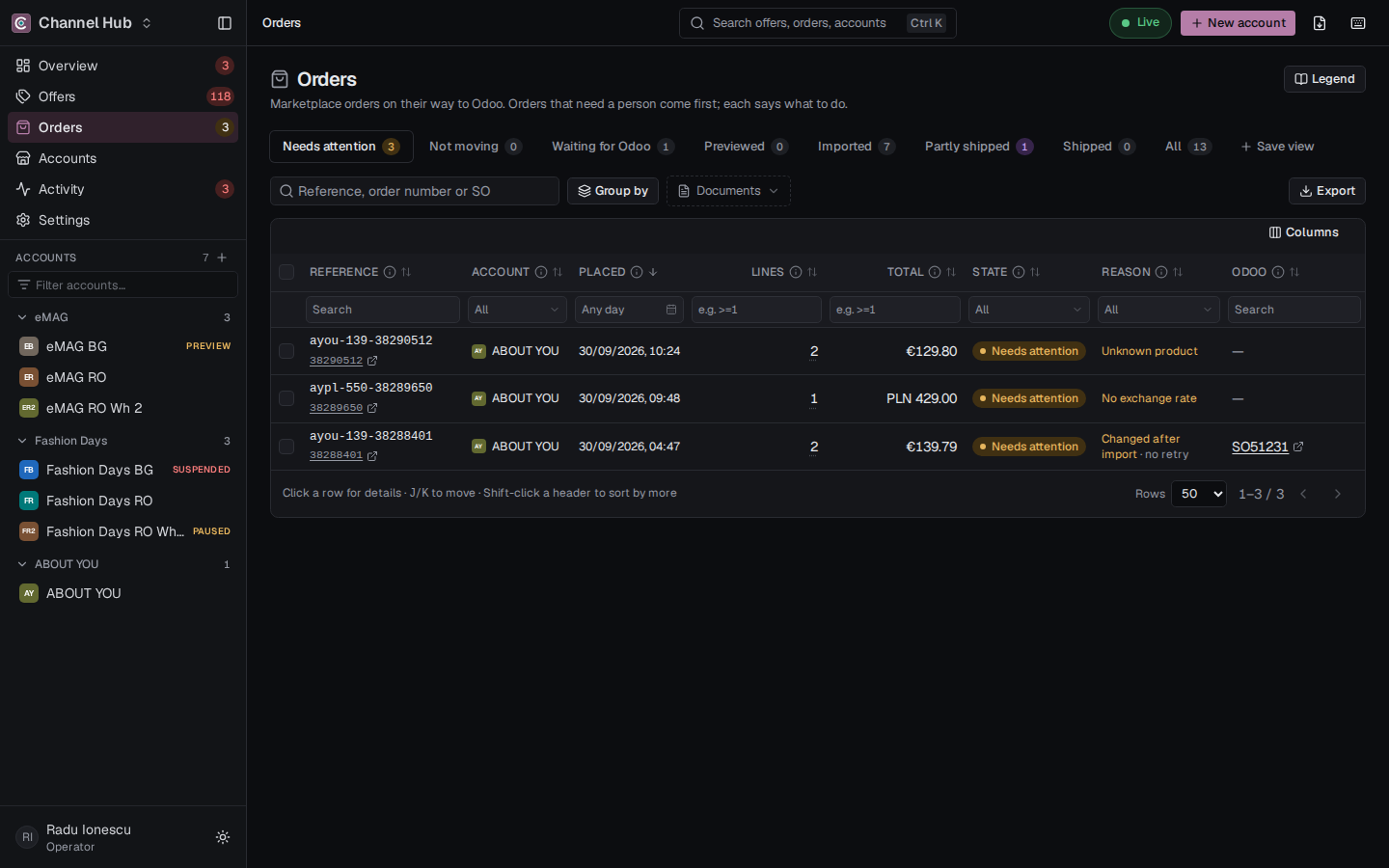
The Orders to check tile on the Overview opens the same list, and so does Review orders on the row "3 orders need attention" in the Overview's Needs your attention. On an account, its Orders tab shows the same views for that account.
You also get a message in Teams within about two minutes of an order landing here, at any hour (see Alerts in Teams). Its Open in Stock Sync link opens this view, narrowed to the account and the reason.
Click a row. The order opens in a side panel beside the list, with a Why it needs attention box on top: the reason, what to do, and what the import found. J and K move to the next and previous order; Full page opens the Order page.
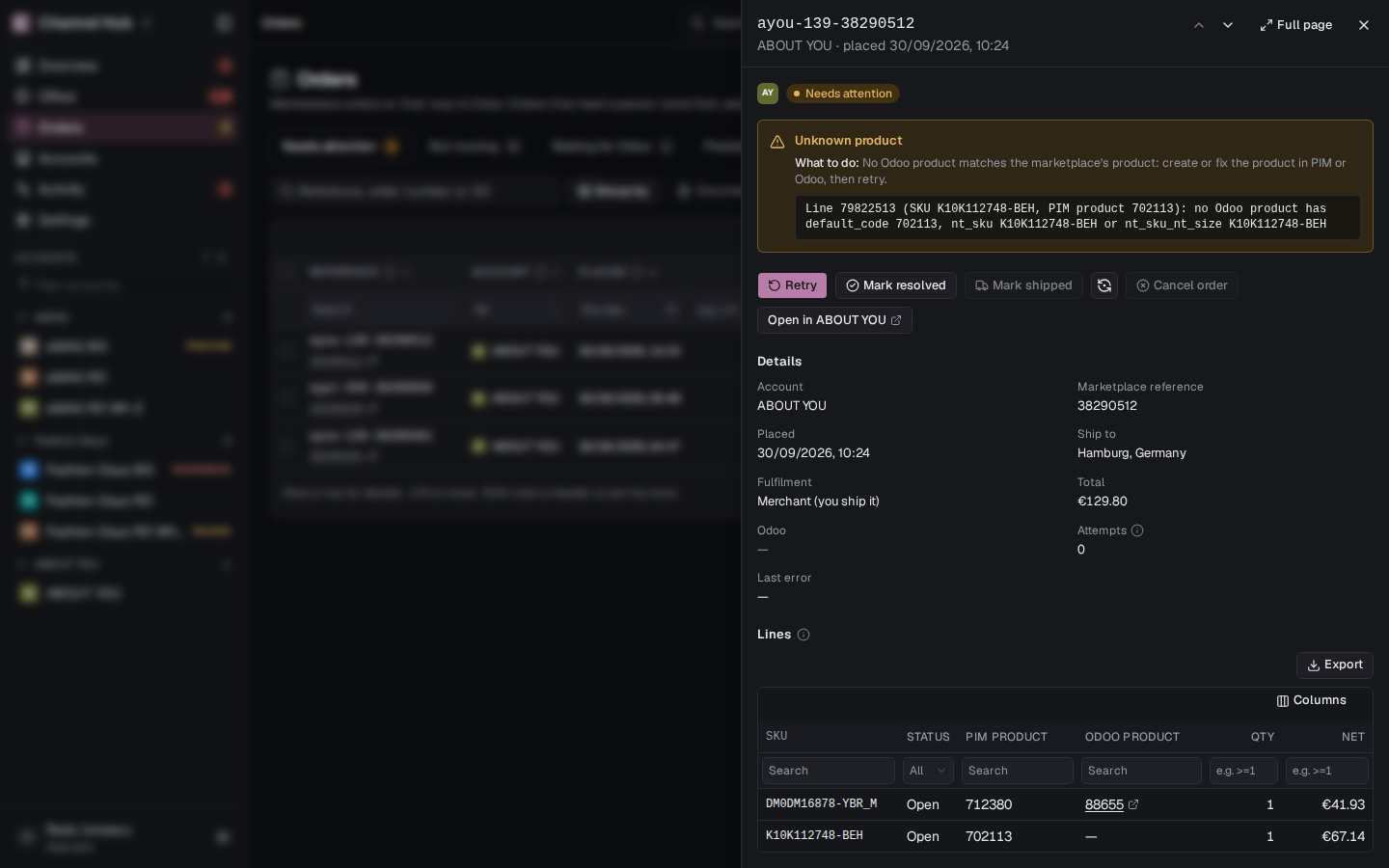
Read the reason and the sentence under it, and the grey line that says what the import found. Find the reason in the table below, or open the page's Legend, which lists every reason with what to do.
Fix what it says, in Odoo or PIM.
If the order is not in Odoo (no Odoo link) and Retry is offered, press it. The order is tried again at once. For Cancel failed, Retry is offered in Odoo or not, and tries the cancellation again (see Cancel an order). For Shipping data missing in Odoo and Marketplace refused the shipment, Retry is offered in Odoo or not, and sends the shipment again (see Ship an order). If it is already in Odoo, or you booked it by hand, press Mark resolved, type a Note saying what you did (for example booked by hand in Odoo as SO04513) and click Mark resolved in the dialog. For an order in Odoo, Stock Sync first asks Odoo whether its order still delivers exactly the items the marketplace still has; if so, the order goes back to Imported and its delivery is followed and shipped as usual, only for the items still active. If not, nothing changes and the dialog says what differs (see Mark resolved on an order in Odoo).
Rejected by Odoo after Odoo created the order
If the message says Odoo created an order and then refused a later step, for example "Odoo created SO04513 (id 4513) but refused to confirm it: [Odoo's reason]. Fix it in Odoo and press Retry; do not enter the order by hand." (or "Odoo holds SO04513 (id 4513), created by Channel Hub for this order, but refused …" after an earlier try), that order is in Odoo, even though the page shows no Odoo link. Fix the cause in Odoo and press Retry: Stock Sync finds that order and takes it over. Never enter the order by hand, or Odoo holds it twice.
If you handle an order in Odoo completely by hand, its shipping included, press Close – handle manually instead, type a Note and click Close order. The order is Resolved and Stock Sync no longer follows it: mark its items shipped in the seller centre yourself. If the marketplace later cancels another of its items, the order still comes back to Needs attention with Changed after import, so you see it; Mark resolved then follows it again.
Each reason
| Reason | What it means | What to do |
|---|---|---|
| Unknown product | No Odoo product matches the marketplace's product (the line's Odoo product is empty) | Create or fix the product in PIM or Odoo, then Retry |
| Ambiguous product | Two active Odoo products match, or only archived ones do | Fix the duplicate SKU, then Retry |
| Tax mismatch | Odoo's tax for the delivery country differs from the marketplace's VAT rate | Check the fiscal position or the tax in Odoo, then Retry |
| No fiscal position | Odoo has no OSS fiscal position for the delivery country. For Italy, the fiscal position set in Settings → Odoo is missing from Odoo | Create it in Odoo, then Retry. For Italy, correct Fiscal position for domestic orders in Settings, then Retry |
| No exchange rate | Stock Sync has no European Central Bank (ECB) rate for that currency from the last five working days | Nothing to do: it clears by itself after the next ECB rates arrive (working days from about 16:10 Berlin time), when Stock Sync tries the order again on its own. If it does not, tell the technical team, then Retry. When the detail says the ECB publishes no rate for the currency, it never clears by itself: tell the technical team |
| No shipping product | The customer paid shipping, but the account's order settings name no Shipping product | Set Shipping product in the account's order settings, then Retry |
| Seller voucher | The order has a voucher paid by us, not by the marketplace (eMAG pays its own vouchers), but the account's order settings name no Voucher product | Set Voucher product in the account's order settings (eMAG and Fashion Days: Commercial discount), then Retry: the voucher is booked as a discount line |
| Customer anonymised | The customer concealed their details at the marketplace, so Stock Sync erased its copy. Odoo still holds the customer and the invoices, which must be kept. The order keeps shipping and following meanwhile | Decide with whoever looks after personal data what to do in Odoo, then Mark resolved |
| Customer asked to cancel | The customer asked eMAG or Fashion Days to cancel an order already accepted. The order is still in Odoo and its unit stays reserved; Stock Sync does not finalize it on the marketplace while it waits | If it has not shipped, Cancel order (reason "Cancelled by the customer"). If it has, or you want to keep it, Mark resolved: Stock Sync then sends the invoice and finalizes as usual |
| Not supported | An order the marketplace ships itself (fulfilled by the marketplace); its Fulfilment says The marketplace ships it | Decide how to book it, then Mark resolved. There is no Retry for it. |
| Unreadable | The marketplace sent an order Stock Sync cannot read (for example a missing VAT rate or an unknown shop); the order names what is missing | Tell the technical team. There is no Retry: the order comes back by itself when the marketplace sends a readable version. |
| Rejected by Odoo | Odoo refused the order and says why. One case: Odoo already holds an unconfirmed quotation for this reference that someone else created. Stock Sync never touches it, and the message reads "Odoo already has order … for this reference as an unconfirmed quotation created by someone else: confirm or cancel it in Odoo, then Retry". Another: the message says Odoo created an order (SO…) but refused to confirm it or to set its date; that order is in Odoo already. | Fix what Odoo says, or confirm or cancel that quotation in Odoo; then Retry. When Odoo created the order, Retry takes it over: never enter it by hand. Mark resolved only an order that is not in Odoo at all. |
| Cancelled in Odoo | An order with this reference exists in Odoo and is cancelled | Decide what is right, in Odoo; Mark resolved when done. For an order Stock Sync had put in Odoo whose sale order is now cancelled there, Mark resolved is refused: use Close – handle manually |
| Changed after import | The marketplace cancelled something after the order was created in Odoo (a return does not do this: a returned order simply ends Partially returned or Returned) | Make the Odoo order match what the marketplace still has (for example set the cancelled line to 0 and take the unit out of the delivery), then Mark resolved: Stock Sync checks Odoo's order, and the order is Imported again and shipped as usual. If you would rather finish the order yourself, Close – handle manually. A cancellation made in Odoo is not this reason: it is followed by itself (see When Odoo cancels). When the line under the reason says Odoo has no order SO… any more (Odoo's database was restored from a backup, or the sale order was deleted by hand), press Re-sync with Odoo: Stock Sync checks that Odoo really no longer has that sale order, then imports the order again, taking over an order Odoo holds under its reference (one entered again by hand) or creating a new one (see Order page, the buttons). Do not use it, and it is greyed with the reason on hover, when items of the order were already shipped or returned, or Odoo already sent a delivery out (a new Odoo order would reserve their stock again: enter it in Odoo by hand, then Close – handle manually), when the account's orders are not Live, while a cancellation of the order is running, or while the order waits for its cancellation or its shipment. The same reason also appears when Odoo holds two live orders for the reference, when it gave up units but every matching item is already shipped at the marketplace, or when it holds no line of the product that was given up ("Odoo's order holds no line of product 501", for example after a line was swapped for another product) or ships it as other products ("Odoo ships product 501 as other products (a kit): check it by hand"). Stock Sync never guesses in those cases: check the order in Odoo by hand, then Mark resolved, or Close – handle manually when Odoo's order cannot match (always for a kit). An order already Partially returned or Returned that the marketplace cancels whole is different: Mark resolved asks Odoo nothing and ends it Cancelled, and Odoo's confirmed order stays as it is, so handle that order in Odoo yourself. |
| Stuck | Odoo or the marketplace has been unreachable for 24 hours | Tell the technical team. Orders continue by themselves once it is back; then Retry this one. |
| Cancel at the marketplace by hand | Odoo gave up items of an order that is Imported, and the marketplace cannot be told by Stock Sync: eMAG and Fashion Days cancel whole orders only, or the marketplace can cancel only some of the order and only some was given up. The sentence names the items and the account: "Odoo gave up items 9001, 9002: cancel them at eMAG RO by hand; this clears itself once eMAG RO shows them cancelled". The numbers are the Item numbers in the order's Lines; an item of more than one unit that Odoo gave up only in part reads 9001 (1 of 2 units). | Find the items in the Item column of the Lines and cancel them in the marketplace's seller centre. There is no button to press: the warning clears itself within a few minutes, once the marketplace shows every named item cancelled, and the order is Imported again (or Cancelled when every item is). Mark resolved is refused while the order waits for this ("… it waits for items 9001, 9002 to be cancelled at the marketplace by hand, and leaves Needs attention by itself once the marketplace shows them cancelled; or Close – handle manually"). Press Close – handle manually only if you take the whole order out of Stock Sync. If a revision that needs attention arrives first, for example a return, it replaces this reason, but the activity still names the items to cancel: Odoo gave up 2 items, then Needs attention — Cancel at the marketplace by hand with the sentence in grey under it. There is no Retry and no Cancel order. The warning also comes as a message in the Teams Operations channel (see Alerts in Teams). See When Odoo cancels. |
| Cancel failed | A cancellation asked from Stock Sync could not be finished. The order page says where (Cancel failed at ABOUT YOU or in Odoo) and why: ABOUT YOU refused an item, for example Item already shipped (the items it accepted are cancelled anyway; ABOUT YOU's words stay on the page); the warehouse started on the line in Odoo (picked or delivered) in the minutes after Stock Sync's check, so Stock Sync changed nothing in Odoo; Odoo refused the change, for example a line it could not find or a rule of a customised Odoo; or one of them was unreachable for 24 hours. Two cases do not get this reason: when Stock Sync's check in Odoo, made before anything is sent, finds the delivery started, nothing is cancelled and the order keeps its state, with the reason on its page; and an order not in Odoo yet whose items ABOUT YOU refused goes on to Odoo with the refused items, the failed cancel shown on its page. | Fix the cause and press Retry: the cancellation goes on from the step that failed, only the refused items are sent to ABOUT YOU again, and it gets another 24 hours. When the delivery had started, do the line in Odoo by hand: set it to 0, take the unit out of the delivery (back on the shelf if it was picked), then Mark resolved; do not Retry after that. If the item has shipped, or you finished it by hand in ABOUT YOU and Odoo, press Mark resolved. For an order not in Odoo yet whose items should go to the customer after all, press Import anyway: the failed cancellation is given up and the order is imported with its items still open at the marketplace, so nothing has to be typed into Odoo by hand. For an order in Odoo, Mark resolved puts it back to Imported once Odoo's order matches what ABOUT YOU still has. When ABOUT YOU refused the whole cancellation, nothing was cancelled anywhere, so it matches: a delivery Odoo validated while the cancellation was open waited, and Stock Sync now checks it and tells ABOUT YOU within 5 minutes. With Close – handle manually instead, Stock Sync sends nothing: mark the items shipped in Seller Center by hand. While the order waits with this reason, Cancel order is hidden: Retry or Mark resolved first. If Stock Sync's check in Odoo refuses the Retry, the order stays here with the check's reason. Once Cancel failed is over, the reason the order waited for before the cancel comes back (see Cancel an order). See Cancel an order. |
| Shipping data missing in Odoo | The delivery is validated, but something the marketplace needs is missing or wrong in Odoo, 2 hours after the validation (or at once after Mark shipped). The sentence names it: WH/OUT/04817 has no tracking number and SO51277 has no Tracking Nr., no 'Return Tracking number:' note on SO51277 or WH/OUT/04817, the tracking number on WH/OUT/04817 has spaces in it. | Add or correct it in Odoo. Stock Sync carries on by itself within 5 minutes and the order leaves Needs attention; Retry does it now. Mark resolved puts it back to Imported, but while the data is still missing it comes back here within 5 minutes. When the sentence says WH/OUT/… holds product … that no item of the order resolves to (a kit, a product swapped in Odoo), Odoo cannot be fixed for it: ship the delivery's items by hand where staff do it on that marketplace (on ABOUT YOU, in Seller Center), as the order page says, then Close – handle manually. |
| Marketplace refused the shipment | The marketplace said no, for example ABOUT YOU refused item 79821905: Invalid tracking key, or did not answer after 5 tries (after 1, 5, 15 and 60 minutes). | Read its words. Fix the cause in Odoo and press Retry: Stock Sync reads Odoo again and sends once more. Or ship it by hand where staff do it on that marketplace, as the order page says: mark the items shipped in Seller Center (ABOUT YOU), upload the invoice and finalize the order in Seller Center (eMAG, Fashion Days), ship the items in Loom (Secret Sales), complete the order in TPG's portal (Fashionette), mark the items shipped in Spartoo's back office, or confirm the shipment in Bol's seller dashboard. Within a few minutes Stock Sync reads that from the marketplace and the order becomes Shipped by itself once every item is shipped, with no Mark resolved needed. Mark resolved puts the order back to Imported without sending the refused shipment again. |
| DHL shipment unclear | You asked DHL for a shipment (see Create a DHL shipment) and DHL did not answer in time, so Stock Sync does not know whether it made one. The sentence says DHL may have created a shipment for SO48211. Look for reference SO48211 in MyDHL+. Stock Sync never tries again by itself, so no second shipment is billed. It notices within about 5 minutes. | Look for the reference in MyDHL+. Nothing there: on the order's page under DHL shipments, or in the Create DHL shipment window, choose It was not created, then create the shipment again. A shipment there: do not create another; Create again (replaces) if you want Stock Sync's labels instead. Mark resolved ends only this warning and the order carries on to shipping. If DHL's pickup of an earlier shipment of the order was found not booked while the order waited here, the order then moves to DHL pickup not booked instead. |
| DHL pickup not booked | A DHL shipment was created but DHL was not asked for the courier, or its booking failed, and the account's closing time passed. The labels are valid; only the pickup is missing. | Book pickup again on the order's page under DHL shipments (look in MyDHL+ first if the row says DHL may have booked it), or call DHL and then Mark resolved. Mark resolved ends only this warning and the order carries on to shipping, or to Shipped when its items have already gone; Close – handle manually does the same on such an order. This reason stays even when the marketplace reports the items shipped, and while it stands the order counts in Not moving and its customer's details are kept past the usual 30 days. If the order was waiting for another reason when the pickup was found not booked (Marketplace refused the shipment, Cancel failed, Customer asked to cancel), this warning comes once that reason ends, however it ends, and after Re-sync with Odoo once the order is in Odoo again. Once you answered it with Mark resolved or Close – handle manually, it does not come back for that shipment's pickup, even when the order later waits for something else; only a pickup found not booked afterwards brings it again. |
| Not in stock | Secret Sales waits for this order to be accepted, and PIM does not cover at least one line (or a line has no PIM link). The order page lists the short lines and the day Secret Sales rejects the order by itself. | Press Accept if the stock exists, Reject if not, or Retry once PIM is corrected. See Secret Sales. |
| Not accepted automatically | Secret Sales waits for this order, and its currency is not on the account's list of auto-accepted currencies (or the marketplace has no automatic acceptance). | Accept or Reject; or add the currency to the account's connection and Retry. |
| Confirm acceptance | The account is set to confirm every acceptance by hand. The order page shows what Stock Sync would do. | Check it, then Accept or Reject. |
| Accept failed | Secret Sales refused to accept some items; the line below says why. The items it took are kept. | Fix the cause and Accept or Retry (only the items left are asked for); or Reject if none was accepted. |
| Already shipped | The marketplace shows items of the order shipped or returned, and Odoo has no order for it, so Stock Sync created none: a new one would reserve stock for goods that already left. This can happen the first time an account's orders go Live, when it reads the last weeks' orders. | If it belongs in Odoo, enter and confirm it there under this reference, in the account's sales channel, then Retry: Stock Sync adopts it. Otherwise Mark resolved. |
An order that is only waiting because Odoo is down is Received, not Needs attention: leave it, it arrives by itself.
Several orders at once
When one fix unblocks many orders, for example an Odoo product created for an Unknown product that blocked twelve orders, you do not have to open each one.
On Needs attention, pick the reason in the Reason column's filter (here Unknown product).
Tick the orders (Shift + click ticks a range; X ticks the row you moved to with J and K). A bar appears at the bottom of the page.
Click Retry [n] orders, or Mark [n] orders resolved. The buttons count only the orders they can act on, and say so on hover: orders whose reason Retry cannot fix are skipped ("2 orders of the selected will be skipped: Retry cannot fix their reason."). Mark resolved asks for one Note for all of them (Mark 12 orders resolved?). Each order goes where its own Mark resolved would take it: an order in Odoo is checked against its Odoo order first and goes back to Imported, or is refused and listed with what differs. Close – handle manually is not offered for a selection: close such orders one by one.
The message says what happened, for example "12 orders are tried again." or "10 orders are tried again. 2 orders skipped: Retry cannot fix their reason." Where Stock Sync refused an order, the message lists it by reference with the reason, and the rest are still done. Esc or the bar's × clears the selection.
Retry, Mark resolved or Close?
| Retry | Mark resolved | Close – handle manually | |
|---|---|---|---|
| What it does | Tries to put the order into Odoo again; for Cancel failed, tries the cancellation again; for the two shipping reasons, reads Odoo again and sends the shipment | Says you handled what the order waited for. An order in Odoo is checked against its Odoo order and followed again; any other is closed as handled by hand | Takes an order in Odoo out of Stock Sync for good, whatever it waits for. Odoo is not asked. (Cancel at the marketplace by hand needs neither button: it clears itself once the marketplace shows the items cancelled.) |
| Use it when | You fixed the cause and the order is not in Odoo, or Odoo created it and then refused it (Rejected by Odoo naming an SO… order), or a cancellation failed and you fixed why (Cancel failed), or the shipping waits and you fixed Odoo (Shipping data missing in Odoo, Marketplace refused the shipment) | The order is in Odoo and you made Odoo's order match the marketplace's (Changed after import), you finished a failed cancellation by hand or decided to keep what was refused (Cancel failed); or it is not in Odoo at all and you booked it yourself or decided not to | You handle the rest of an order in Odoo yourself, its shipping included: a delivery holds a product no item resolves to and you shipped its items in the seller centre by hand, items were shipped and Odoo lost the sale order, or Odoo's order cannot be made to match |
| Asks for | Nothing | A note | A note |
| After it | Received, then Imported. For Cancel failed: the order stays Needs attention while the cancellation runs, then becomes Cancelled, Imported or Received, unless the order was waiting for something else before the cancel: then that reason comes back (see Cancel an order) | In Odoo: Imported (Shipped when every item is shipped already), and Stock Sync follows its delivery and ships it; Cancelled when every item is cancelled. Not in Odoo: Resolved, and Stock Sync never touches it again. Either way, an order that waited for something else before a failed cancel waits for that again (see Cancel an order). | Resolved, or Cancelled when every item is cancelled. Stock Sync no longer follows it: anything still to ship is marked shipped in the seller centre by hand. Only a later cancellation at the marketplace brings it back, as Changed after import. |
Mark resolved on an order in Odoo
Before an order in Odoo goes back to Imported, Stock Sync asks Odoo for its sale order and compares it with the marketplace's order, product by product: what Odoo delivered or still has on its way to the customer against the items the marketplace still has. Cancelled items do not count; shipped and returned ones do. Stock Sync then only ever tells the marketplace about items that are still active, never a cancelled one.
When they do not match, nothing changes and the dialog says why, in red beside its button:
| The dialog says | What to do |
|---|---|
| "Odoo's order SO04513 delivers more than the marketplace still orders (product 1002: Odoo delivers 1 unit, the marketplace still orders 0 units (item 9002 cancelled)). Change SO04513 in Odoo to match, then Mark resolved again; or Close – handle manually" | Odoo would still send the cancelled item. Set its line to 0 in Odoo and take the unit out of the delivery, then Mark resolved again. Or Close – handle manually and handle the order yourself. |
| "… the marketplace still has items Odoo's order SO04513 no longer delivers (product 501: Odoo delivers 0 units, the marketplace still orders 1 unit). Cancel them at the marketplace, or add them back in Odoo, then Mark resolved again once Stock Sync shows the change; or Close – handle manually" | The customer would wait for an item Odoo will not send. Cancel it at the marketplace (Cancel order on the order), or put it back on the Odoo order; once the order page shows the change, Mark resolved again. Or Close – handle manually. |
| "Odoo's order SO04513 is a quotation, not confirmed: confirm it in Odoo, then Mark resolved again; or Close – handle manually" | Someone set the sale order back to a quotation in Odoo. Confirm it there, then Mark resolved again. |
| "Odoo has no order SO04513 any more: use Re-sync with Odoo, or Close – handle manually" | Press Re-sync with Odoo (see Changed after import above), or Close – handle manually. |
| "Odoo's order SO04513 is cancelled: Close – handle manually instead" | The sale order is cancelled in Odoo: decide in Odoo, then Close – handle manually. |
| "Odoo ships product 501 as other products (a kit), which Stock Sync cannot follow: Close – handle manually" | Stock Sync cannot count a kit's units, nor ship its delivery: Close – handle manually and handle the order yourself. |
| "… a cancellation of it is running. Wait for it to end, or Close – handle manually" | Wait until the cancellation's line says it is done or failed, then press Mark resolved again. |
If Odoo cannot be reached, the dialog says so and nothing changes: try again later, or Close – handle manually.
Once the order is Imported again, it is followed like any other: a delivery Odoo validated while the order waited is checked within 5 minutes and sent to the marketplace, and if the marketplace changes the order again (another item cancelled), it comes back to Needs attention.
Cancel order is offered for an order that waits here, except for Cancel failed (Retry or Mark resolved it first) and, for an order in Odoo, Cancel at the marketplace by hand. Cancelling keeps the order's reason: when it is done the order still shows the reason you were handling, even with every item cancelled (only Shipping data missing in Odoo ends Cancelled); once you deal with it, Mark resolved (or Close – handle manually) ends such an order Cancelled, not Resolved. If the cancellation fails, the order shows Cancel failed, and once you Retry it or press Mark resolved, the earlier reason comes back and you deal with it as before. A Resolved order cannot be cancelled from Stock Sync, so cancel first if items must still go (see Cancel an order).
Retry is offered only for an order that needs attention, is not in Odoo yet, and whose reason is not Unreadable or Not supported. It is not offered for an order already in Odoo (Changed after import), because trying again could create it twice. The exceptions are Cancel failed, where Retry tries the cancellation, never the import (but not while a cancellation of the order is still running), and the two shipping reasons, Shipping data missing in Odoo and Marketplace refused the shipment, where Retry reads Odoo again and sends the shipment, never the import. For these three it is offered whether the order is in Odoo or not.
What you should see
- After Retry: a message, "Order … is queued to be imported again."; the order is Received for a moment (its activity says Queued to be imported), then Imported with an Odoo link (Previewed while the account's orders are in Preview), and the number beside Orders goes down by one. If the cause is not fixed, it comes back to Needs attention with the reason. Attempts starts again from 0 with every Retry.
- After Retry on Cancel failed: a message, "The cancellation of order … is tried again."; the line under the fields says Cancelling… again, and once it is done the order is Cancelled (every line cancelled), Imported (it is in Odoo) or on its way to Odoo (it was not), and the number beside Orders goes down by one. If the cause is still there, it comes back to Cancel failed.
- After Mark resolved on an order in Odoo: a message, "Order … is marked resolved."; the order is Imported again (Shipped when every item is shipped already, Cancelled when every item is cancelled), its activity says Marked resolved with your note under it, and the number beside Orders goes down by one. Within 5 minutes a delivery that waited is sent to the marketplace. If Odoo's order does not match, the dialog stays open with the reason and nothing changes.
- After Mark resolved on an order not in Odoo: the same message; the order is Resolved, its activity says Marked resolved with your note under it, and the number beside Orders goes down by one.
- On a Cancel failed order that was waiting for something else before the cancel, Mark resolved brings that reason back instead (see Cancel an order): the order still needs attention, so the number stays.
- After Close – handle manually: a message, "Order … is closed."; the order is Resolved (Cancelled when every item is cancelled), its activity says Closed – handled manually with your note under it, and the number beside Orders goes down by one.
- Who pressed Mark resolved or Close – handle manually is named in the order's activity and in the account's Activity tab (marked an order resolved, for both).