
Appearance
Read the catalog again now
You ask Stock Sync to read the PIM straight away, instead of waiting up to 15 minutes for the next scheduled reading, so a fixed or urgent stock change reaches the marketplaces sooner.
Before you begin
Who can do this: an Operator. Viewers do not see Read PIM now or Re-read from PIM.
Time needed: 1 click, then a minute or two for the result.
Before you start: make sure the change is really in the PIM (the PIM team says so, or you can see it there). Stock Sync reads only what the PIM already has.
When it helps
- The PIM team tells you they fixed stock or lead times, and you do not want to wait for the next reading.
- A product sold out in the shop and must go to 0 on the marketplaces now.
- The PIM data tile is amber after a PIM outage, and you want to check the PIM answers again.
By default the PIM is read on its own every 15 minutes, at :07, :22, :37 and :52, and once when Stock Sync starts. A change made just before one of those minutes gains nothing from a reading on request.
Read PIM now, Re-read from PIM or Resync?
| Button | What it reads | Use it when |
|---|---|---|
| Read PIM now (this page) | Every product the PIM reports as changed since the last reading | Many products changed in the PIM and you do not want to wait for the quarter hour |
| Re-read from PIM | The products of 1 to 50 offers you choose, whether the PIM reports them as changed or not; their offers are worked out again even when nothing changed | A few offers show another stock or lead time than the PIM itself does. See Re-read chosen offers |
| Resync | Nothing: it sends the number Stock Sync already worked out again | The marketplace shows another figure, or you fixed the cause of a rejection. See Resend stock for some offers |
Steps
Open the Overview.
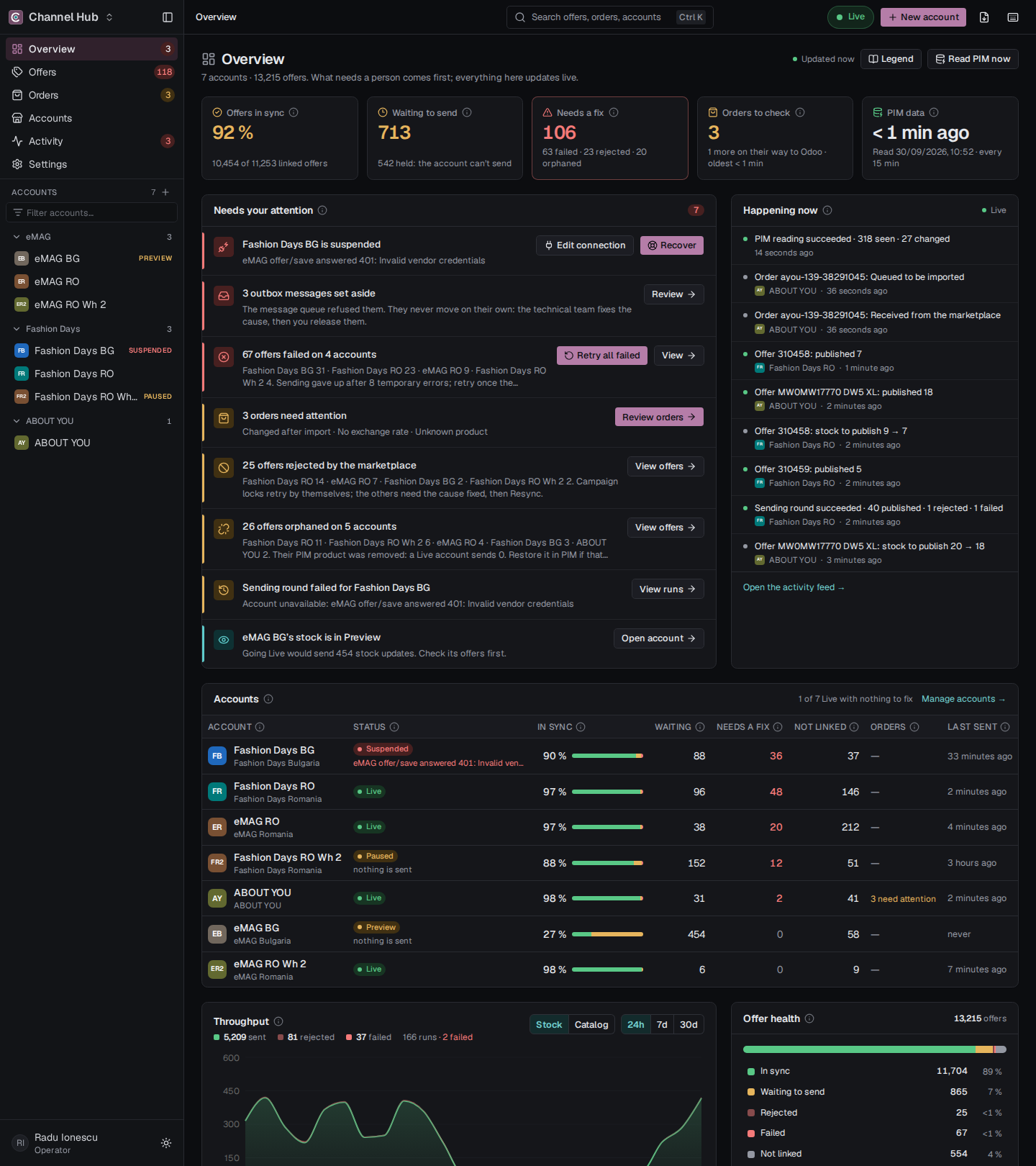
Look at the PIM data tile: how long ago the PIM was last read, and when.
Click Read PIM now at the top right of the page. It acts at once, with no confirmation. Hover over it first if you like: "Read the PIM products that changed since the last reading, without waiting for the 15-minute schedule."
Read PIM now is in three other places too, and they all do the same:
- at the top right of Activity;
- on the PIM reading is late or PIM data is out of date row of Needs your attention, when there is one;
- in Search or jump to (Ctrl K): type read or PIM and press Enter.
What you should see
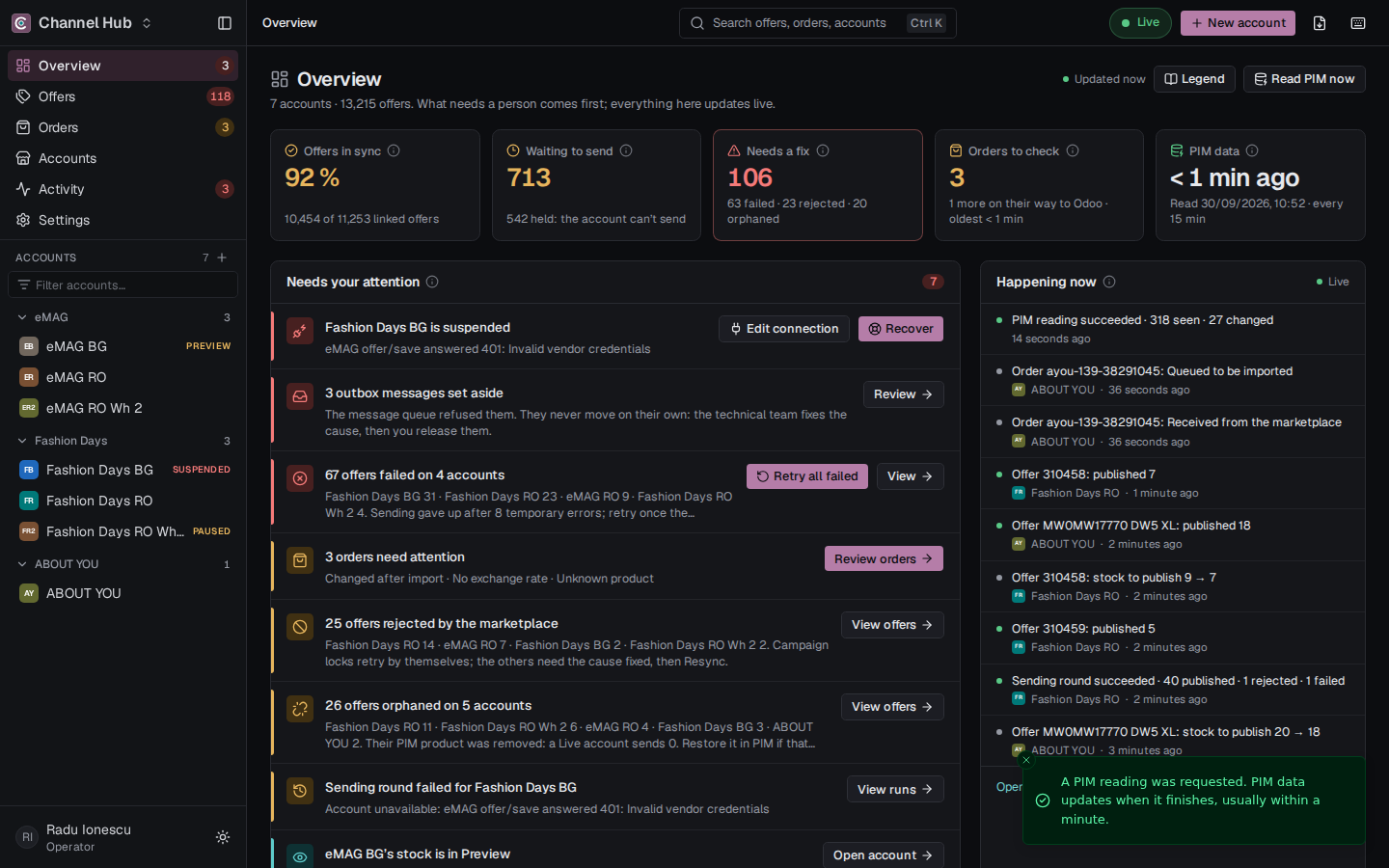
- The message: "A PIM reading was requested. PIM data updates when it finishes, usually within a minute." (from Activity: "A PIM reading was requested. It shows under Sync runs once it has run.")
- Within a minute or two a new PIM reading appears in Happening now on the Overview and in Activity → Sync runs. The reading itself takes a few seconds; its Counts say how many products it saw and how many changed. (A reading that found nothing new may be folded into the line "… PIM readings, nothing new" while Hide routine readings is on.)
- The PIM data tile drops to a minute or so as soon as the reading finishes: the page updates live.
- The changes it found go straight on: offers are recalculated and, on sending accounts, Sending round runs follow within seconds.
If a reading is already running, Stock Sync waits for it to finish and then reads the PIM once more, because that reading began before your click and may have missed your change (it waits up to a quarter of an hour; after that the next scheduled reading picks it up). Several people clicking at once cost at most two readings: the one running and one after it.
Re-read chosen offers
When you know which offers are wrong, and the PIM already shows the right stock or lead time for their products, Re-read from PIM reads just those products again instead of waiting for the PIM to report them as changed.
Open the offer (its side panel or its page) and click Re-read from PIM beside Resync, or choose it in the row's ⋯ menu. For several offers, tick 1 to 50 rows on Offers and click Re-read from PIM on the bar at the bottom.
Read the message, for example "3 offers re-read from PIM: 2 changed, 1 not linked.": changed means the PIM had other data, unchanged that it had the same (the stock was worked out again anyway).
Check the offer: PIM stock and Stock to publish show the new figures, its history has the line Re-read from PIM, and Activity → Sync runs has a Re-read from PIM run. A sending account sends any new number within seconds.
A product the PIM does not return is reported as not in PIM and left as it is: only the nightly Full PIM check removes products. A Re-read from PIM run does not count as a PIM reading for the PIM data tile. More in Re-read from PIM.
If something goes wrong
| You see | Do this |
|---|---|
| No new PIM reading after 5 minutes | Open Activity → Sync runs, choose Type: PIM reading, and check the latest one. See The catalog is stale. |
| The new PIM reading is Failed | The PIM did not answer or answered with an error, even after four attempts. Try once more later; if it fails again, tell the technical team. |
| After Re-read from PIM: "PIM could not be read, so nothing was re-read: …" or "PIM is not set up for the API …" | Nothing was changed. Try again later; if it lasts, tell the technical team. Read PIM now and Resync still work. |
| Re-read from PIM is greyed out on the bar | More than 50 offers are ticked, or Select all matching is on, or none of the ticked offers is linked to a PIM product. Hover over it for which. |
| The reading Succeeded but the product did not change | Its Counts show "0 changed": the change is not in the PIM yet. Check with the PIM team. |
| "Nothing was changed: the message broker (RabbitMQ) is unavailable …" | The request could not be passed on. Try again later; the scheduled readings carry on. |
| No Read PIM now or Re-read from PIM button | You are a viewer. |
More in Messages and what they mean.
Example
At 10:40 the PIM team writes: "We fixed the stock of 300 products that was wrong since yesterday." The next scheduled reading is at 10:52.
Ana presses Ctrl K, types read, and presses Enter on Read PIM now. At 10:41 Happening now shows the finished PIM reading, and Activity → Sync runs has it as Succeeded, "300 seen · 300 changed"; the PIM data tile reads 1 min ago. A few seconds later Sending round runs appear for each sending account. By 10:42 the 300 products show the right stock on the marketplaces, ten minutes earlier than they would have.