
Appearance
Alerts in Teams
When an order or an account needs a person, Stock Sync's monitoring posts a message in Microsoft Teams. Each message says what happened, what to do, and links straight to the orders or the account it is about. You do not have to watch the screen to find out.
Before you begin
Who reads this: everyone in the Teams channels. The fixes the messages lead to need the Operator role in Stock Sync.
Time needed: a minute to read a message; each alert below says how long its fix takes.
Before you start: be a member of production's Operations channel in Teams (ask your team lead), and be able to open Stock Sync (company VPN on, see Signing in and roles).
The two channels
| Channel | Who reads it | What arrives | When |
|---|---|---|---|
| Technical | the technical team | server, database, message queue and connection problems | at any hour |
| Operations | marketplace operators | the operator alerts below | Orders need attention: at once, at any hour. The others: Monday to Friday, 08:00–18:00 (Romanian time) |
Operator messages arrive only in the Operations channel, and every one starts with For operations.
Production and the test environment each have their own Technical and Operations channels: production's messages never arrive in the test environment's channels, and the other way round.
When messages come
- Orders need attention arrives at once, at any hour, also in the evening and at the weekend: within about two minutes of an order landing in Needs attention. So does Priority orders late.
- Late deliveries is a digest: one message shortly after 08:00, Monday to Friday, and none on a morning with nothing late.
- Every other message for operators arrives only Monday to Friday, between 08:00 and 18:00, Romanian time. Something that happens outside those hours (in the evening, at night or at the weekend) is sent at 08:00 on the next weekday, if it still needs a person by then.
- While a problem lasts, its message is repeated every 4 hours (for operators inside working hours, except Orders need attention, which repeats at any hour).
- When the problem is gone, a short message with the same title and — resolved at the end follows.
- Messages from production start with [prod]. Messages from the test environment start with [dev] and arrive only in the test environment's own channels. They are about test orders and test shops: ignore them unless you are testing.
An operator message reads like this:
[prod] For operations — Orders need attention (ABOUT YOU DE)
Orders of ABOUT YOU DE needing attention: 3 (Unknown product).
What to do: Open the orders, read the reason, fix it in Odoo or PIM, then press Retry (or Mark resolved).
Open in Stock Sync: a link to the orders
How-to: a link to the guide page
The title is [prod] For operations — (in the test environment's channel, [dev] For operations —), then the alert and the account; when the problem is gone, the same title comes again with — resolved at the end. The body is always, in this order: what happened, What to do, Open in Stock Sync and How-to. The account is written by its short id, as in the address of its page in Stock Sync (for example ABOUT YOU DE). Open in Stock Sync opens exactly the orders or the account the message is about; How-to opens the page of this guide that explains the fix.
Each operator alert
Orders need attention
Orders of ABOUT YOU DE needing attention: 3 (Unknown product).
What it means: Stock Sync stopped on one or more orders rather than guess. The message comes within about two minutes of an order landing in Needs attention, at any hour, also at night and at the weekend. The reason in brackets uses the same words as the Reason filter on Orders; when orders of one account need attention for different reasons, the same message has one line per reason, each with its own What to do and links.
What to do: click Open in Stock Sync. Orders opens on Needs attention, narrowed to that account and that reason. Read the reason, fix it in Odoo or PIM, then press Retry (or Mark resolved). Follow An order needs attention.
Time needed: a few minutes, plus the fix in Odoo or PIM.
Orders not reaching Odoo
Orders of ABOUT YOU DE have waited over an hour to reach Odoo. They go on by themselves; tell the technical team if it lasts.
What it means: orders of a shop have been Received for more than an hour and are not in Odoo yet, usually because Odoo does not answer.
What to do: nothing for the orders themselves: they go on by themselves once Odoo answers. Open in Stock Sync shows them on Waiting for Odoo. If the message comes again 4 hours later, tell the technical team.
Orders not moving
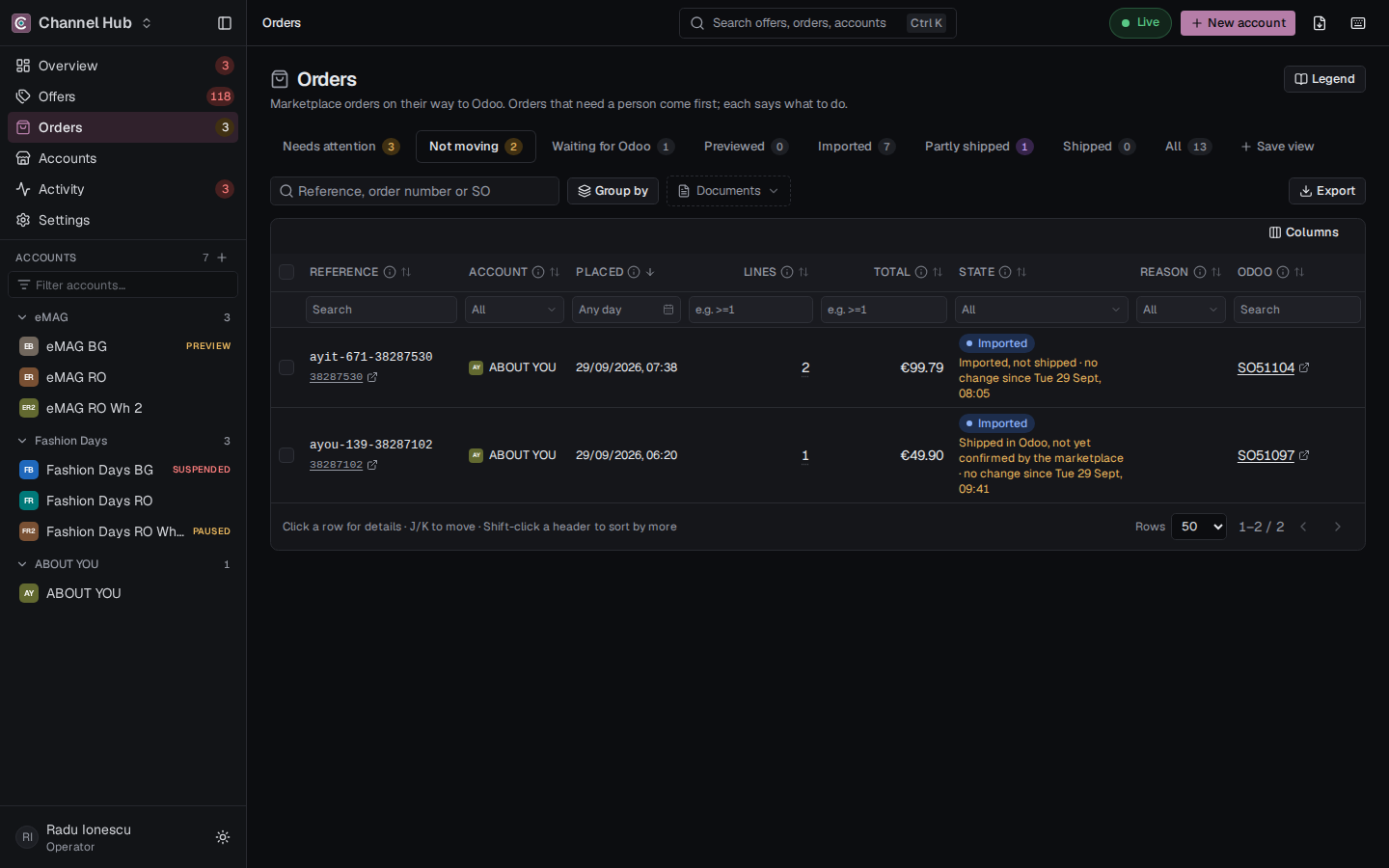
Orders of ABOUT YOU DE not moving for 24 weekday hours (Saturday and Sunday not counted): 2 — imported, not shipped.
What it means: an order has not changed for 24 weekday hours. Saturday and Sunday do not count: an order imported on Friday at 15:00 is reported on Monday at 15:00. The message ends with where the order is stuck:
| The message says | Where the order is | What to do |
|---|---|---|
| waiting in Needs attention | In Needs attention for a day | Handle its reason (see An order needs attention) |
| imported, not shipped | In Odoo, but the warehouse has not shipped it | Check the order in Odoo and get it shipped (see Ship an order) |
| shipped in Odoo, not yet confirmed by the marketplace | The delivery is done in Odoo; the marketplace has not confirmed the shipment | Open the order and read its Shipping section (see Ship an order) |
| a cancellation is not finished | A cancellation was started and has not ended | Open the order and read where the cancellation stands (see Cancel an order) |
Only orders of accounts whose Ship orders is Live can be imported, not shipped or shipped in Odoo, not yet confirmed: for the others someone else tells the marketplace, and Stock Sync does not wait for it.
Once the Deliveries page is switched on for your environment, orders waiting in the warehouse to ship are watched there instead, by their Delivery Date (see Late deliveries): this message no longer reports an order as imported, not shipped, so one late order is not reported twice. Until then it reports them as above.
What to do: click Open in Stock Sync. Orders opens on the Not moving view for that account. Each row says where the order is stuck and since when, for example Imported, not shipped · no change since Tue 29 Sept, 08:05. Look at each order: ship it, finish the cancellation, or handle its reason. An order leaves the view by itself as soon as something happens to it.
Time needed: a few minutes per order, plus what the warehouse or Odoo needs.
No new orders
No new order from ABOUT YOU DE for 1d 14h 0m 0s: more than 1d 0h 0m 0s without an order is unusual for this shop. Check the shop is online at the marketplace.
What it means: a shop whose orders are in Preview or Live in Stock Sync has been silent much longer than usual for that shop. Each shop has its own limit: 3 times its usual gap between two orders over the 4 weeks up to its latest order, and never less than 24 hours. Weekends count like any other day, because shops sell at the weekend too. A busy shop that usually gets an order every 2 hours is reported after 24 hours; a slow one that gets an order a day, after 3 days.
The message does not come for a shop with fewer than 20 orders in the 4 weeks up to its latest order (too few to know what is usual), for a paused account, or for Showroomprivé, which sells in planned sales events. A shop that stays silent keeps getting the message every 4 hours until it sells again, or until you pause the account or set its orders Off.
What to do: check in the marketplace's seller centre that the shop is online and selling. If the marketplace shows new orders that Stock Sync does not have, tell the technical team (see No new orders arrive from ABOUT YOU). Open in Stock Sync opens the account's page.
On the test environment the test shops seldom get 20 orders within 4 weeks, so this message should not come there.
Late deliveries (morning digest)
These two messages come once the Deliveries page is switched on for your environment.
Showroomprivé: 12 late, 3 of them priority.About You: 4 late; 1 priority order due today.Miinto: nothing late; 1 priority order due today.
What it means: shortly after 08:00 (by about 08:05), Monday to Friday (Romanian time), one message lists every platform with orders past their Delivery Date in Odoo whose delivery is not validated yet, how many of them are priority, and how many priority orders are due today, while they can still ship on time. A platform with nothing late but a priority order due today is listed too. The Delivery Date is Odoo's, set from each platform's lead time; an order is late from midnight after its Delivery Date. Nothing comes on a morning with nothing late and no priority order due, and nothing at the weekend: what turned late on Saturday or Sunday is in Monday's message. The digest never sends — resolved.
What to do: click Open in Stock Sync. Deliveries opens on the late orders of every platform. Ship them, or correct the Delivery Date in Odoo if it is wrong; Stock Sync follows Odoo within about 5 minutes. See Deliveries.
On the test environment, Odoo test holds old orders nobody will ship, so the [dev] digest comes every morning. Testers can ignore it.
Priority orders late
Priority orders of Showroomprivé are past their Delivery Date: 2.
What it means: orders Odoo marks as priority (Use Channel Priority Lead Time on the sale order) are past their Delivery Date and not delivered. It comes at once, at any hour, and repeats every 4 hours while it lasts. Because an order turns late at midnight, most of these arrive at midnight and are read in the morning, next to the digest.
What to do: click Open in Stock Sync. Deliveries opens on the late priority orders. Ship them first.
Order documents failed
Orders of ABOUT YOU DE whose documents failed for 15 minutes: 2.
What it means: for 15 minutes, the documents of some orders (ABOUT YOU's delivery document) could not be fetched from the marketplace or sent to Odoo. The orders themselves are in Odoo.
What to do: click Open in Stock Sync. The Orders list opens with the Documents button set to Documents failed, for that account. Open each order and press Retry in its Documents section (see Order page: Documents).
Offers need a fix
Fashionette has 2 offers that need a fix: they failed, were rejected, are orphaned or have a barcode several PIM products hold.
What it means: for an hour, the account has had offers in Needs a fix, and a person has to act on each one.
What to do: click Open in Stock Sync. The account's Needs a fix offers open: each row says why, and each offer's page says what to do. For a barcode several PIM products hold, correct the code in PIM. See Resend stock for some offers for offers that failed or were rejected.
The alert ends by itself when the account has none left, or when the account is paused.
Account suspended
ABOUT YOU DE stopped sending stock: the marketplace refused its connection. Edit the connection, then Recover.
What it means: the marketplace refused the account's connection for 10 minutes, so the account stopped sending stock.
What to do: click Open in Stock Sync to open the account. Edit the connection with the new key or password, then press Recover. Follow Bring back a suspended account.
Time needed: about 5 minutes, once you have the new key or password.
Account degraded
ABOUT YOU DE's marketplace calls keep failing: it still sends, and clears by itself once the marketplace answers. If it matters, pause the account until then.
This alert comes with the next update of the Teams alerts; until then the account's banner and Needs your attention on the Overview show it.
What it means: for 5 minutes the account has been Degraded: many of its calls to the marketplace got no answer, a timeout, "too many requests" or a server error (see Account health). Stock is still sent, and the calls that failed are tried again.
What to do: usually nothing: it ends by itself once the marketplace answers again, with a — resolved message. If it matters (a sale is on, stock moves fast), click Open in Stock Sync and Pause the account until the marketplace works again, then Resume. Pausing ends the alert too.
An alert ends by itself
There is nothing to acknowledge or close in Teams. An alert ends as soon as its cause is gone, for example when the orders are retried, shipped or resolved, or when the account sends stock again, and a message ending in — resolved follows. If the cause is still there 4 hours later, the message comes again.
An operator alert that ends outside working hours (in the evening or at the weekend) may not get its — resolved message. If Open in Stock Sync in the last message shows nothing left, there is nothing to do.
Messages for the technical team
The Technical channel gets messages about servers, the database, the message queue and the marketplaces' connections. Operators can ignore them. Three of them mean the technical team has to act before orders or stock move again:
- Channel Hub order poll failing (and Channel Hub account order polls failing): Stock Sync cannot read orders from the marketplace.
- Odoo refused the API key: Stock Sync cannot write orders into Odoo.
- Channel Hub DLQ: a message inside Stock Sync could not be processed and was parked for the technical team.
Once Deliveries is switched on, Channel Hub order deadlines stale tells the technical team that Stock Sync has not read Odoo's sale orders for over an hour: until it reads them again, delivered orders may show as late on Deliveries.
If one of them is about something you noticed on the screen, say so in the channel.