
Appearance
Connect Secret Sales
Connecting Secret Sales lets Stock Sync keep each shop's stock in line with PIM, accept new orders, put them into Odoo, send the tracking numbers back and cancel orders, the work Gaia Suite did until it stopped on 1 November 2026. You also learn what to do when Secret Sales waits for an order to be accepted and Stock Sync did not accept it by itself.
At a glance
| Stores | One account per Secret Sales shop. Each shop is one country: Germany, the Netherlands, Sweden |
| Login needed | An API key per shop. The API address is chosen in New account: the real shops or the test shop |
| Where it comes from | Secret Sales issues them, after its production review |
| Who can do this | An Operator. Viewers see the orders and the reasons but have no buttons |
| Time needed | About 10 minutes per account, then the checks. A minute for each order you accept or reject |
| Test shop | Yes: Secret Sales' staging address, with its own key and test data |
| Orders | Yes: accept or reject, into Odoo, tracking back, cancel. Refunds stay manual |
| Status of this connector | Seen working on the real shops: all three went Live on 4 November 2026, stock came into sync and a real order was accepted by itself. Shipping and cancelling were tried on the test shop |
One store or several?
One account for each shop, so one for each country and each key. The key decides the shop. There is nothing else to choose, and nothing on the screen tells you afterwards which shop a key belongs to.
| Account name | Shop in Loom's switcher | Country | Currency of its orders |
|---|---|---|---|
| Secret Sales DE | DE | Germany | EUR |
| Secret Sales NL | NL | The Netherlands | EUR |
| Secret Sales SE | SE | Sweden | SEK |
These three accounts already exist on the real system. Open them before you create anything: you only need a new account when the business gets a new shop. There is no UK shop, so GBP orders are not expected.
- Another country opens. Ask Secret Sales for that shop's key. Create a new account with this guide. The address stays the same, and no technical work is needed.
- Other Secret Sales sites. Secret Sales also runs V&D and To Be Dressed on the same platform. They have no account of their own here: a To Be Dressed order number has been seen in the Netherlands shop. Whether any of them ever gets a key of its own is for Secret Sales to say. A new key means a new account.
- Two accounts cannot share a key. Both would write to the same listings. Save in Orders → Odoo refuses the second one: "[account] already reads the orders of the same marketplace store. Set that account's orders to Off first." The stock side has no such check, so don't do it.
- Name them by country, as in the table, so everyone can see at a glance which shop an order came from.
What the shops share. All three sell the same PIM stock, so each is sent the same PIM figure, and one unit can sell in two shops at once. Stock Sync guards against this when it accepts: it takes off what it has already accepted for orders that are not in Odoo yet, in every Secret Sales shop. The last unit is never accepted twice. The second order waits for you as Not in stock.
What you need before you start
| ✓ | Item | Who gives it to you | How you know it's right |
|---|---|---|---|
| ☐ | The shop's API key, and which country it is for | Secret Sales, through the person who manages the seller account | Test connection answers in green, and the shop check passes |
| ☐ | The real API address | In New account, under API address, Secret Sales (Production): https://api-loom.secretsales.com | Review shows it |
| ☐ | A sign-in to Loom, Secret Sales' seller back office (sellers.secretsales.com) | The person who manages the seller account | You can switch between the shops |
| ☐ | The Odoo connection | Already there. It is shared by every account | Settings → Odoo connection, Check connection passes |
| ☐ | Lead-time limit and Vendors | The product owner | You have the answer in writing. The other Secret Sales accounts show the current choice under Settings → Stock → Stock rules |
| ☐ | Acceptance: Auto or Confirm, and the currencies it may accept by itself | The product owner | You have the answer in writing |
| ☐ | Which Cancel reason to use | The product owner, or copy the other Secret Sales accounts | It is in Secret Sales' list |
| ☐ | Prices of new products imported in the portal | The people who manage listings | Listings show a price in Loom |
Where the credentials come from
Secret Sales issues the keys. We have no click path for making one yourself, so don't look for one.
Ask the person who manages the Secret Sales seller account to get the key for the shop. Secret Sales issues real keys after its production review. Its partner support is at
partner.support@secretsales.com.Have them say which country the key is for, and write the country down, not the key. Nothing in Stock Sync tells you this later.
Have whoever holds the key type it into Stock Sync's form, or sit with you while you do. It goes into that form and nowhere else: never into a chat, a ticket or an email.
| Question | Answer |
|---|---|
| Who can get a key? | Secret Sales issues it. Ask the person who manages the seller account |
| Does it expire? | Secret Sales documents no expiry |
| Can I read it again? | Not in Stock Sync: once saved, it is stored encrypted and never shown again |
| It is lost, or refused | Ask for a new one the same way, then follow Enter or change credentials: pause the account or switch it to Preview, type the key in Settings → Connection, Save |
| Real or test? | The real shops use https://api-loom.secretsales.com: Secret Sales under Production in New account. The test shop uses https://api-staging.secretsales.com: Secret Sales test shop under Test. It has test data only and its own key |
Never put a real key on the test environment
On the test environment, choose Secret Sales test shop and the test key the technical team gives you. Real keys belong only on the real system. Secret Sales' staff place the test orders. Customer cancellations, returns and the 5-day automatic rejection can't be tried there. Test Odoo's FedEx carriers book real FedEx shipments, so ask the technical team before you validate a delivery there.
Connect the store, step by step
Open New account (the button in the top bar on any Channel Hub page, or on the Accounts page), click the Secret Sales card (it says Also reads orders) and Next. See New account for the form.
On Connection, under API address, click Secret Sales in the Production column:
api-loom.secretsales.com, the real shops. None is chosen for you. Secret Sales test shop, in the Test column with a Test badge, is Secret Sales' staging shop, with test data only: never for a real shop. On the test environment, testers always choose Secret Sales test shop: Secret Sales is the real shops' address on every environment, the test one included.Type the Name, for example Secret Sales DE. It starts as Secret Sales, which tells nobody which shop it is.
Type the API key of this shop. It shows as dots.
Leave Requests per second on 5. The grey line says More than 0, at most 10.
Leave Courier and Cancel reason alone. They are greyed out on None, and the grey line under each says you choose it from the marketplace's list once the account exists. You do that in Set up the account.
Check Auto-accepted currencies, which starts as
EUR, SEK, and Acceptance, which starts on Auto. Set them as the product owner decided. The grey line under Acceptance says what Auto and Confirm do.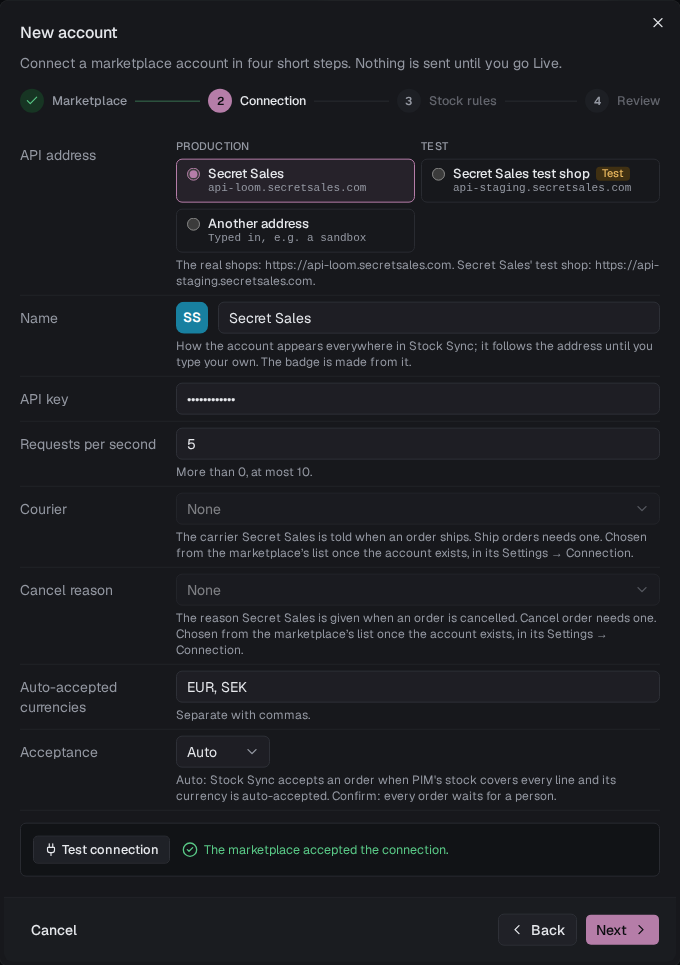
Click Test connection. It asks Secret Sales without saving anything.
- Good: in green, The marketplace accepted the connection.
- Bad key: in red, The marketplace refused the connection: with Secret Sales' answer, usually answered 401 or 403. Check the key and that it belongs to this address. Do not go on.
- Bad address or Secret Sales down: in red, The marketplace could not be reached (…), so the connection could not be checked. Try again in a moment. Check the address, then try again.
- A green answer does not say which shop the key is for. That is a later check.
Click Next.
On Stock rules, set the Lead-time limit as the product owner decided: No limit, or Limit to a number of days. Orders shows Off, and you can't change it here. Click Next.
On Review, read every line. API address must be the real one. API key reads Set (never shown again), Courier and Cancel reason read —, Connection test reads Accepted. Starts in Preview: everything is calculated, nothing is sent. Click Create account.
The account's page opens with "Secret Sales DE is created in Preview; its first offer import is requested." The status reads Preview, and the first Offer import starts by itself. Nothing is sent.
An account on the test shop's address is shown as Secret Sales test shop wherever the screens name its marketplace, so it is never taken for a real shop.
Set up the account
These are not on the form. Do them right after Create account.
Open the account's Settings → Connection. Courier and Cancel reason are now lists read from Secret Sales. You can't type a code.
Choose the Courier: the entry for FedEx. The list may show it only as a code, such as
fedex; Secret Sales treats every spelling the same.Choose the Cancel reason Secret Sales is given when you cancel an order, the same as the other Secret Sales accounts. If none has one, ask the product owner.
Both matter: Ship orders can't leave Off without a Courier ("Ship orders needs the account's Courier. Choose one in Settings → Connection first."). Without a Cancel reason, the Cancel order dialog says the account's connection needs one, links here and cancels nothing.
If a list says The list is not available yet: the marketplace could not be asked for it., the key was refused or Secret Sales did not answer. Try again in a moment.
Click Save: "Connection of Secret Sales DE saved."
Open Settings → Stock → Stock rules and set Vendors as the product owner decided. If you are unsure, compare with another Secret Sales account.
Open Settings → Orders & shipping → Orders → Odoo and set the mapping the way Gaia's orders have it. Leave Orders mode on Off for now.
- Sales channel Secret Sales
- Sales team Website. The list may call it Marketplace: it is the same record
- Warehouse E-commerce (ECOM)
- Pricelist Public Pricelist (EUR), also for Sweden. The list may call it Public Pricelist EUR: the same record
- Delivery method Fedex International
- Salesperson None: Odoo's default, the integration user
- Odoo order name: prefix SEC, 12 characters, so the Odoo order for
6000253563-a-Ais namedSEC6000253563AA - Service lines: none
Click Save.
You set no VAT rate. Secret Sales' prices include VAT, but its orders don't say at which rate, so Stock Sync takes the rate Odoo charges for the country the order is delivered to and works out the net price from it (119.00 at 19 % is 100.00). If Odoo has no tax for that country, the order waits in Needs attention and says so.
Every option explained
| Option | What it does | What to choose | Can it change later? | If it's wrong |
|---|---|---|---|---|
| API address | Where Stock Sync calls Secret Sales | https://api-loom.secretsales.com. The test shop uses https://api-staging.secretsales.com | Only while Paused or in Preview. The key must be typed again, and the account goes to Preview | The account works on test data, or can't reach Secret Sales |
| API key | Logs in, and decides the shop | The key of this country's shop | Only while Paused or in Preview. Saving a new one puts a Live account in Preview | Refused, then Suspended. Another shop's key writes to the wrong shop |
| Requests per second | How fast Stock Sync calls Secret Sales | 5. More than 0, at most 10 | Any time | Too high: Secret Sales may slow us down. Too low: stock is slower |
| Courier | The carrier Secret Sales is told when an order ships | The FedEx entry | Any time, after the account exists | Ship orders can't leave Off. Taken away later: the order waits with Marketplace refused the shipment |
| Cancel reason | The reason Secret Sales is given when you cancel | As on the other Secret Sales accounts | Any time, after the account exists | Cancel order cancels nothing and points here |
| Auto-accepted currencies | Orders in these currencies may be accepted by Stock Sync. Separate with commas, three capital letters each | EUR, SEK | Any time | Other currencies wait as Not accepted automatically. An empty list means a person decides on every order |
| Acceptance | Auto: accepts when PIM's stock covers every line, in an auto-accepted currency. Confirm: every order waits for a person, even when PIM covers it | The product owner's choice. Confirm suits the first days, if you want to watch | Any time | Auto too early: orders are accepted unwatched. Confirm left on: orders pile up against the 5-day deadline |
| Lead-time limit | Products with a longer lead time publish 0 | The product owner's choice | Any time. On a Live account, new figures go out within minutes | Too strict: many listings go to 0 |
| Vendors | Which PIM vendors this account publishes | The product owner's choice | Any time | Listings of a left-out vendor don't get their stock |
| Orders mode | Off, Preview, Live. Acceptance follows it: there is no separate switch | Off to start. See Going fully live | Any time | See Going fully live |
| Ship orders | Off, Preview, Live: whether Stock Sync tells Secret Sales an order shipped | Off to start | Only while Orders mode is Live and saved | Live while staff also ship in Loom: nothing is sent twice, but agree who does it |
| Sales channel, Sales team, Warehouse, Pricelist | Where the order goes in Odoo | As in Set up the account | Any time | Preview doesn't compare team, warehouse or pricelist, so you only see it on a Live order in Odoo |
| Delivery method | The method on the Odoo order. Fedex International books its label when the delivery is validated | Fedex International | Any time | Labels are not booked |
| Salesperson | The person on the Odoo order | None: Odoo's default, the integration user | Any time | Orders carry the person you named instead of the integration user |
| Odoo order name | The name of the Odoo order | Prefix SEC, 12 characters | Any time | Orders are named differently from Gaia's |
| Phone for customers without one | A phone for a customer who has none | Leave empty: Secret Sales gives a phone | Any time | Set one only if a FedEx booking fails for lack of a phone |
| Shipping product, Service lines | Extra lines on the Odoo order | None: Secret Sales charges customers no shipping | Any time | Gaia added a shipping-fee line to some orders. Whether Stock Sync should is the product owner's decision |
The required checks
Work down the table in order, for each new account.
| ✓ | Check | Where to look | What "right" looks like | If it isn't |
|---|---|---|---|---|
| ☐ | The address is the real one | Settings → Connection | https://api-loom.secretsales.com | Switch to Preview, correct it, type the key again, Save |
| ☐ | Test connection passed | Review step, Connection test | Accepted | See If something goes wrong |
| ☐ | The first import succeeded | The account's Activity tab, or Activity → Sync runs | Offer import is Succeeded | A Failed run or Suspended: see below |
| ☐ | The count is normal | Summary tab, Offers figures | About 7,850 listings: the real shops had 7,851 to 7,859 in November 2026 | A much smaller count, or test products: suspect the address or the key |
| ☐ | The key is this shop's | In Loom, switch to this country and open Price & Stock → Manage Inventory. Compare five SKUs' Qty with Marketplace shows on the account's Offers tab | The figures match. Shops can differ, so try SKUs where another shop shows another figure | They match another shop: wrong key. Replace it before anything else |
| ☐ | Nearly everything links | Summary tab, Not linked | Nearly all: 7,381 of 7,382 linked when checked against real PIM. A listing links by its SKU, see the Secret Sales rule | See below the table |
| ☐ | The quantities are right | Offers tab: open five to ten rows | Stock to publish is what PIM says is available | Check Eligible and the Lead-time limit |
| ☐ | Nothing was sent | The status banner, and Activity → Sync runs | Preview: everything is calculated, nothing is sent. No Sending round. Loom's Qty unchanged | Click Back to Preview, then ask the technical team |
| ☐ | The settings are there | Settings → Connection, Settings → Orders & shipping → Orders → Odoo | Courier, Cancel reason and the mapping are filled in | Set up the account |
| ☐ | The go-live checks | Go from Preview to Live | Every line ticked | Fix it first |
Not linked. A listing that is Not linked gets no stock, and an order for it waits as Not in stock. Stock Sync links a listing by its SKU and size. Where PIM has two products with the same SKU and size, the barcode picks. A barcode alone never links. So a few are normal, for example a typing mistake in the listing's SKU or a duplicate in PIM. Send the list to the listing team: Offers tab, Not linked view, Export. If nearly all are Not linked, stop and ask the technical team.
Going fully live
Read Go from Preview to Live and Go live with orders for the clicks.
| Step | Where | Who decides | Done when |
|---|---|---|---|
| 1. Stock: Preview to Live | Status banner, Go Live, type the account's name | The product owner | Status Live, and In sync nearly 100 %. The real shops took about 10 minutes |
| 2. Orders: Off to Preview | Settings → What this account does, Orders, Save | The product owner | At least 5 working days have passed in Preview, and no hand-made order still reads Not in Odoo a day after it was entered. Staff still accept in Loom and enter orders by hand |
| 3. Orders: Preview to Live | The same place, confirm Go live | The product owner | A real order is accepted and shows Imported, with the right channel, team, warehouse, pricelist and name in Odoo |
| 4. Ship: Off to Preview | Settings → What this account does, Ship orders | The product owner | The order pages' Shipping shows what would be sent, with no refusals |
| 5. Ship: Preview to Live | The same place, confirm | The product owner | A real delivery validated in Odoo shows as shipped in Loom |
| 6. Acceptance: Confirm to Auto, if you began on Confirm | Settings → Connection | The product owner | Orders are accepted without a person |
In Preview, nobody accepts orders for you
Secret Sales rejects an order by itself 5 days after it was placed. Until Orders mode is Live, staff must accept orders in Loom, or they are lost.
What happens within minutes of Orders Live
Stock Sync reads the last 14 days of orders. On Auto, it accepts what PIM covers among those waiting. It creates in Odoo what was accepted and isn't there under its reference. An order Secret Sales shows shipped or returned, which Odoo doesn't hold, goes to Needs attention as Already shipped: see An order needs attention. If you want to watch the first days, choose Confirm before you go Live.
A shipment can't be taken back
As soon as Secret Sales has a tracking number, it e-mails it to the customer. A number shorter than 6 characters is never sent.
What staff stop doing:
- From stock Live: typing a Qty in Loom. A number typed there is replaced after the next offer import. Change stock in PIM or Odoo.
- From orders Live: accepting in Loom and entering Secret Sales orders in Odoo by hand, from that day. From this day, a cancel in Odoo also cancels at Secret Sales and refunds the customer.
- From ship Live: shipping in Loom. Validate the delivery in Odoo as usual.
How to pull back:
- Stock: Back to Preview in the status banner. No confirmation, and sending stops at once.
- Orders: choose Preview or Off and Save. This also sets Ship orders to Off. Orders already in Odoo stay. Staff go back to Loom and hand-made orders, by the rule below.
- Ship: choose Preview or Off and Save. Staff ship in Loom again.
Fully connected means:
- ☐ The account has the real address and this shop's key, and the shop check passed
- ☐ Stock reads Live, and In sync is nearly 100 %
- ☐ Orders mode and Ship orders are Live
- ☐ Courier and Cancel reason are chosen
- ☐ Acceptance is what the product owner decided
- ☐ A real order has gone from accepted to Odoo, and its delivery has reached Loom as shipped
- ☐ Staff know what they stopped doing
Stock
Stock goes to Secret Sales as a quantity only. Stock Sync never sends or changes a price; prices stay as set in Secret Sales. It sends one listing at a time, at Requests per second: 5 a second, so 800 updates take about 3 minutes.
New products need their prices first
Secret Sales takes a stock figure alone only for a listing that already has prices. For every new product, import its prices in the Secret Sales portal (from an Excel file) first; until then Stock Sync's stock for it does not come through. A listing is on the site only when Secret Sales has approved the product, the shop is open, the listing is active and it wins the buy box (no other seller offers the same article cheaper).
Stock Sync links each Secret Sales listing to its PIM product by the listing's SKU (Gaia's code: PIM SKU, size, then brand); when two PIM products have the same SKU and size, the listing's barcode (EAN) picks the one that carries it, but a barcode alone never links a listing.
The orders mode starts Off. Follow Go live with orders to move it to Preview and Live; acceptance follows the same mode (below).
When Secret Sales waits for an order
Secret Sales keeps the customer's name and address back until an order is accepted, and rejects it by itself 5 days after the order was placed if nobody accepts it. Secret Sales asks for shipping by day 3. Stock Sync decides for each new order:
- PIM covers every line, the currency is on the list, the account is on auto: Stock Sync accepts it. Within a few minutes Secret Sales releases the customer and the order goes into Odoo. You do nothing.
- Anything else: the order goes to Needs attention and waits for you. Stock Sync never rejects an order by itself.
All the Secret Sales shops sell the same PIM stock. So before it compares, Stock Sync takes off what it already accepted for orders that are not in Odoo yet, in every Secret Sales shop: the last unit is never accepted twice, even when the two orders come from two different shops. The second order shows Not in stock.
In Preview Stock Sync only records what it would do and sends nothing to Secret Sales; staff accept in the Secret Sales portal meanwhile, and once an order is accepted Stock Sync compares it with Odoo as usual.
The four reasons
Open Orders → Needs attention (see An order needs attention). Each row shows its reason; the order page has a box Waiting for acceptance with Stock Sync's decision and the day Secret Sales rejects the order.
| Reason | What it means | What to do |
|---|---|---|
| Not in stock | PIM does not have enough for at least one line. The box lists each short line as ordered N, PIM has M, or not linked to a PIM product (the line's product has no PIM link, so Stock Sync cannot count it). | Check the stock. If it exists (in Odoo but not yet in PIM, say), press Accept. If not, press Reject. If PIM was just corrected, press Retry. |
| Not accepted automatically | The order is in a currency that is not on the account's list. | Decide: Accept or Reject. To let Stock Sync accept that currency in future, add it to Auto-accepted currencies, then Retry. |
| Confirm acceptance | The account is set to Confirm. The box shows what Stock Sync would do. | Check the box, then Accept or Reject. |
| Accept failed | Secret Sales refused to accept one or more lines, and the line below says why. Lines Secret Sales did take are kept. | Fix the cause, then Accept or Retry: only the lines left are asked for again. If no line was accepted at all, you can Reject instead. |
Accept or Reject
Open the order (its side panel or Full page) and read the box.
To accept, press Accept. A message says Order … is accepted at Secret Sales; it is imported once Secret Sales releases the customer. The order leaves Needs attention, and within a few minutes it is imported into Odoo.
To reject, press Reject, choose a Reason from the list (it is Secret Sales' own list; there is nothing to type) and press Reject order. Secret Sales rejects every line and tells the customer. The order ends Cancelled and nothing reaches Odoo. Rejecting only some lines is not offered: do it in the Secret Sales portal. A line of several units of one article is accepted or rejected whole; if only some of its units can ship, ask Secret Sales' logistics team.
Both buttons are there only for these four reasons, and they work only when the account's orders are Live (in Preview Stock Sync refuses them, because it sends nothing to Secret Sales). If Secret Sales cannot be reached the page says so and nothing changes: try again. If it refuses the account's key, the page tells you to check the account's connection. If it took some lines and refused others, the order shows Accept failed for the rest. Stock Sync accepts one Secret Sales order at a time, also when you press Accept, so its automatic acceptance always counts what you accepted. If it is accepting another order at that moment, Accept waits up to 10 seconds; if it is still busy, the page says Channel Hub is accepting another order of this marketplace right now; nothing changed. Try again in a moment. Press Accept again.
The 5-day deadline
An order nobody accepts or rejects is rejected by Secret Sales itself, and the customer's order is lost. The Teams alert for orders needing attention covers these reasons, and the box on the order shows the day. Do not leave an order in Needs attention for days.
An order that waits after being accepted with Waiting for the marketplace to release the customer needs nothing from you; it is read again on the next poll. If it still waits after 24 hours it goes to Stuck.
Shipping and cancelling
Shipping. Validate the FedEx delivery in Odoo with its tracking number, as usual. With Ship orders on Live, Stock Sync tells Secret Sales the Courier, the tracking number and FedEx's tracking link. A line already shipped in Loom is not shipped again. See Ship an order.
Cancelling. Use Cancel order on an order's page. Secret Sales is told the account's Cancel reason and the number of units. A line already shipped can't be cancelled this way: that is a return. See Cancel an order.
A cancel in Odoo also cancels at Secret Sales
On a Live account, Stock Sync passes on what Odoo has given up, once it has seen the same units given up for 30 minutes. Secret Sales then refunds the customer, line by line, so cancelling one line in Odoo is enough. Don't cancel an Odoo order just to enter it again. To edit one, confirm it again within the 30 minutes: that cancels nothing.
Currencies. Swedish orders are in SEK and are converted for Odoo. If no rate is available the order waits with No exchange rate, which clears by itself once the next rates arrive.
In Loom. The Channel Hub companion shows Stock Sync's view on Loom's orders and inventory pages. It has no Accept and no Reject: those stay on Stock Sync's order page. See The companion in Secret Sales' Loom.
The manual week
Gaia stopped on Sunday 1 November 2026. The plan was for staff to accept, ship and cancel Secret Sales orders in the Secret Sales portal and enter them in Odoo by hand until the product owner switched Stock Sync Live, which happened on 4 November 2026. The same work falls to staff today for any shop whose orders are not Live: a new shop, or one you pulled back.
One rule for hand-made orders
When you create a Secret Sales sale order in Odoo, set its client reference to the logistical order, a dash and the shipment group, exactly as Gaia does, for example 6000253563-a-A, and its channel to Secret Sales. Then Stock Sync adopts your order on the Live day instead of creating a second one. An order entered under another reference is created twice.
What Stock Sync leaves alone on the Live day: an order already accepted in the portal is not accepted again, a line already shipped there is not shipped again, and a line already cancelled there is not cancelled again. Preview shows any order not in Odoo under its reference as Not in Odoo, so a wrong reference is found before Live.
What stays manual
- Refunds for returns: issue them in the Secret Sales portal within Secret Sales' 7-day window. Stock Sync only reads what came back: the order is Partially returned while some items are still out, and Returned once every item is. When Secret Sales says a line of several pieces came back in part and a refund exists for it, the returned pieces show on a line of their own, as many as the refunds name, and at least one when no refund names a number. Until a refund exists, the line stays Shipped.
- A wrong tracking number: Secret Sales e-mails the tracking number to the customer as soon as it has it. If a wrong one was sent, ask Secret Sales' logistics team to correct it.
- Products and prices: published and changed in Secret Sales by hand.
- Importing prices for each new product, in the Secret Sales portal.
- Rejecting only some lines of an order, in the Secret Sales portal.
If something goes wrong
| You see | What it means | Do this |
|---|---|---|
Test products, Secret Sales test shop where the marketplace is named, or an address containing api-staging | The account is on the test shop | Switch to Preview, type the real address and the key again, Save |
| The marketplace refused the connection: … answered 401 (or 403) | The key is wrong, or doesn't belong to this address | Check for typing mistakes and the address. If both are right, ask for a new key |
| The marketplace could not be reached (…) | Wrong address, or Secret Sales is down | Check the address. Try again in a moment |
| API key must not start or end with a space, or contain a line break or other control character. | The paste brought a space or a line break with it | Paste it again, cleanly |
| API address must not contain a user name or password; the API key goes in API key. | The address holds a login | Type only the address |
| Enter the API key again for the new address | You changed the address. A stored key is never sent to a new address | Type the key and Save |
| API address and API key greyed out: Pause the account or switch it to Preview to change the API address and API key | The account is Live and active | Pause it or switch it to Preview first |
| The account turns Suspended, with … answered 401 … or 403 | Secret Sales refused the key. Nothing is sent or imported, and nothing is lost | Get a good key. On a Live account: Settings → Pause, type it under Connection, Save, Recover, Resume. Stock is now in Preview: check the offers and Go Live. In Preview: type it, Save, Recover. See Bring back a suspended account |
| The list is not available yet: the marketplace could not be asked for it. under Courier | The key was refused, or Secret Sales did not answer | Try again in a moment. If it stays, check the key |
| Reading the list from the marketplace. | The list is on its way | Wait |
| Ship orders needs the account's Courier. Choose one in Settings → Connection first. | No Courier yet | Choose it, Save, then set Ship orders |
| Ship orders can be switched on once this account’s orders are Live and saved. | Orders aren't Live yet | Go Live with the orders first |
| … already reads the orders of the same marketplace store … | Two accounts have the same key | Give this account its own shop's key |
| Marketplace refused the shipment, Choose the Secret Sales courier in the account's connection | The Courier was removed | Choose it, then Retry |
| Shipping data missing in Odoo, Secret Sales needs a tracking number of at least 6 characters | The tracking number in Odoo is too short or empty | Correct it in Odoo, then Retry |
| Not linked on nearly every listing | The key or address is wrong, or PIM has a problem | Check both. If they are right, ask the technical team |
| A new product's stock doesn't arrive | It has no prices yet | Import its prices in the portal |
| No fiscal position on an order | Odoo has no tax for the delivery country | Have it created in Odoo, then Retry |
| Connector off beside the status, and Connector switched off here: in the banner, or no Secret Sales card in New account | The connector is switched off in this environment. Stock and orders wait. No screen can switch it on | Only the technical team can change it. Ask them if you did not expect it |
More in Messages and what they mean and Troubleshooting.
Before you ask
You can settle these alone:
- Which address do I use?
https://api-loom.secretsales.com, for every real shop. - How many accounts? One per country and key.
- Can I use the same key twice? No.
- Why is Courier greyed out? Its list is read once the account exists: create the account, then open Settings → Connection.
- An order waits, what now? Read its reason in The four reasons.
- Stock is wrong on one listing. Change it in PIM or Odoo, not in Loom.
- An order is in Preview and waiting. Accept it in Loom: Stock Sync won't.
The product owner decides: Lead-time limit and Vendors, Auto or Confirm, which currencies are accepted by themselves, which Cancel reason to use, whether to add shipping-fee lines, and when each switch goes Live.
The person who manages the seller account, or Secret Sales: a new or replaced key, a Loom sign-in, whether a new shop or site gets a key, and a wrong tracking number already sent.
The technical team: a connector switched off, Not linked on nearly everything with the right key and address, an order stuck in Stuck or Unreadable, and test environment keys.
Send them:
- the account's name
- test or real system
- the page you were on
- the exact words on the screen
- the order reference or the listing's SKU
- the time
Never send the key.