
Appearance
Offers
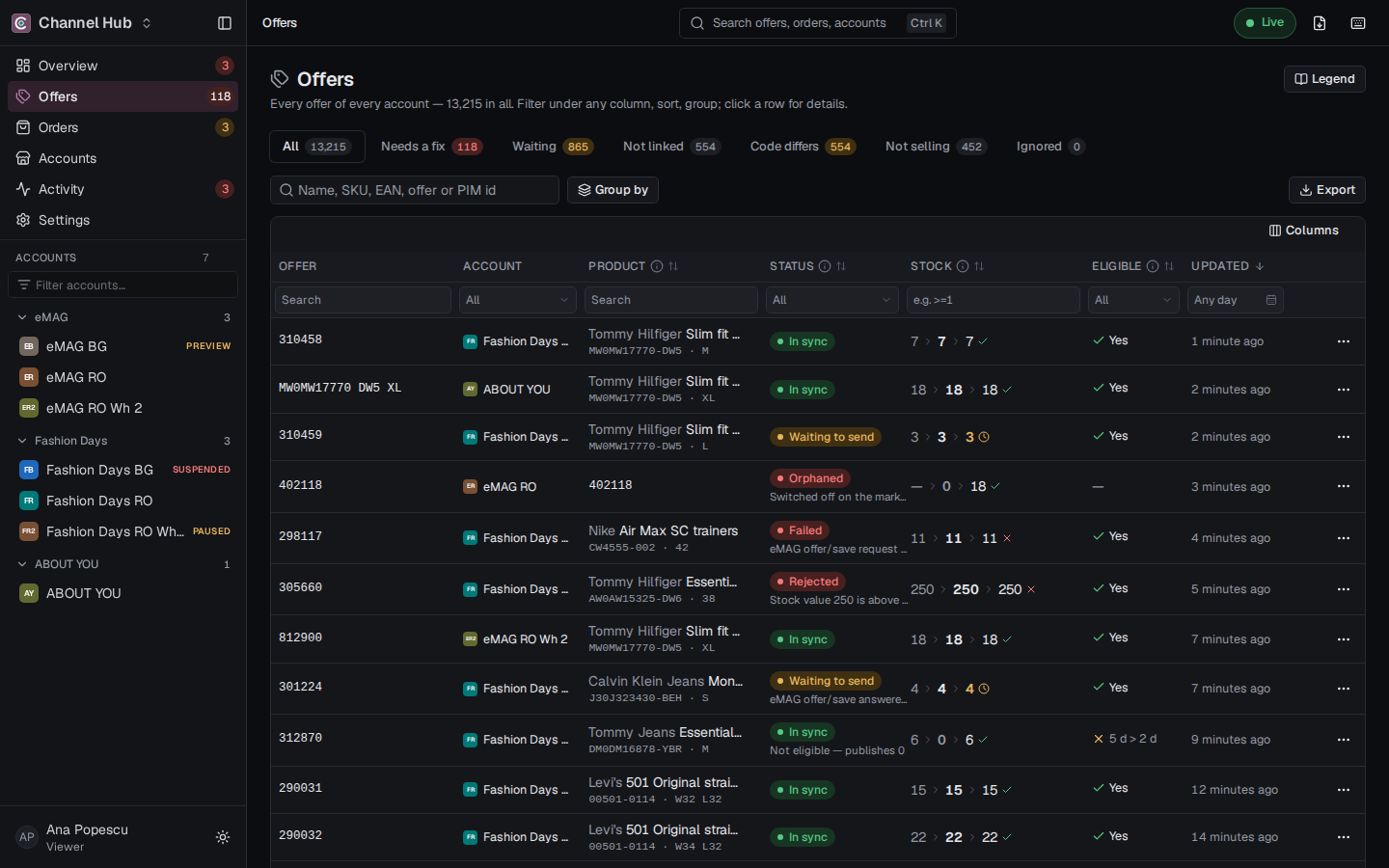
The Offers page lists every offer of every account in one table, with where each one stands: linked or not, in sync or not, and why not. You use it to find a single offer, to see every offer with a problem, and to send stock again, for one offer or many at once. Open it with Offers in the sidebar (or G then O). The number beside Offers in the sidebar counts the offers that need a fix: failed, rejected or orphaned.
The same list is the Offers tab of each account, already narrowed to that account.
The page at a glance
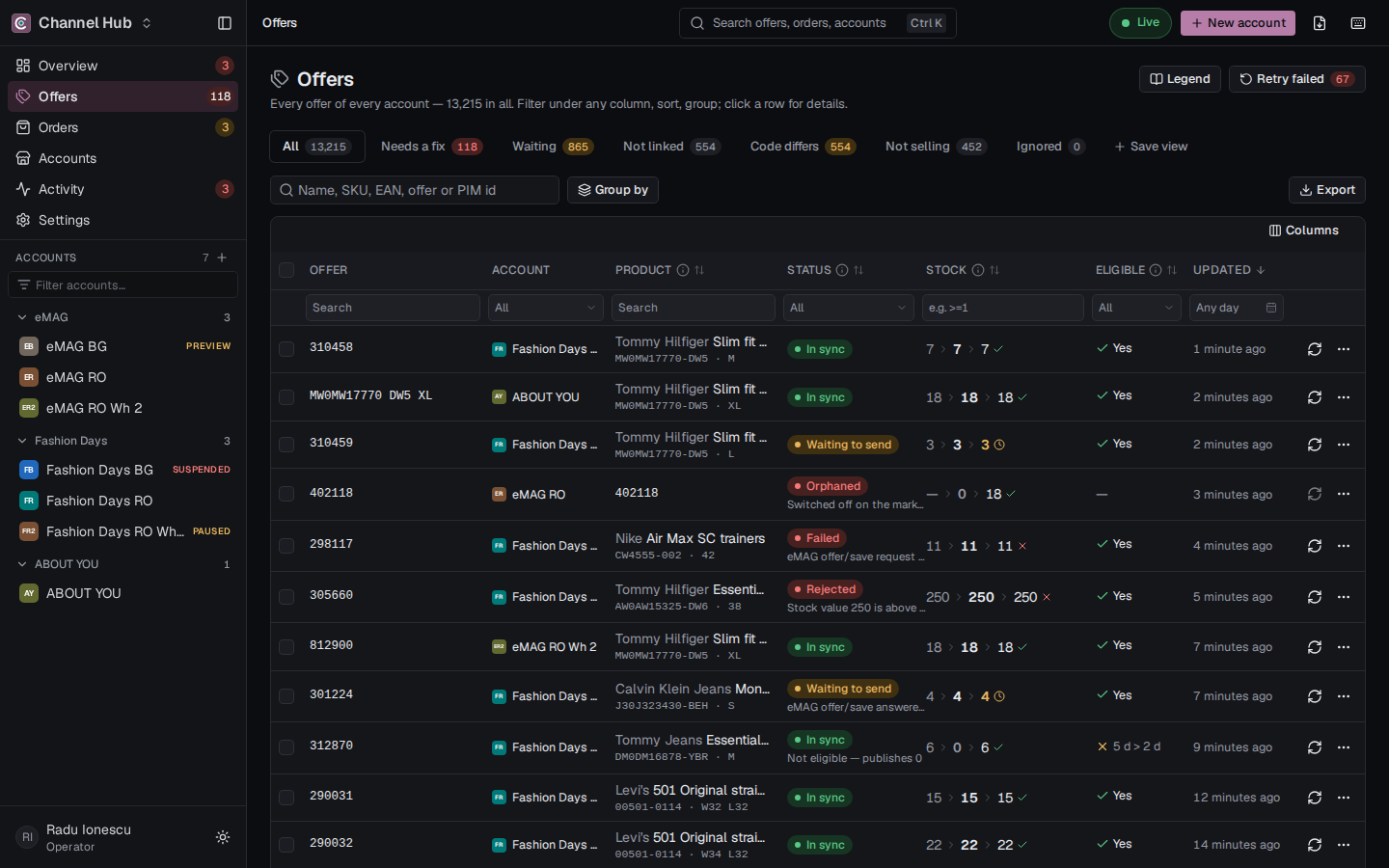
From top to bottom:
- Offers, with how many offers there are in all.
- Legend — what every status and colour on the page means, and what to do about it (Legend).
- Export — a menu with Excel (.xlsx), the list as you see it (every matching offer, your columns, filters, sort and groups with totals), and CSV, every matching offer with every column. Everyone has it. The file is made in the background: Preparing your export…, then a notice Your export of Offers is ready (n rows) with Download and Open in Excel, and your files of the last 24 hours are under Exports in the top bar. You can have 3 in progress (You have 3 exports in progress; wait for one to finish.); a failed one gives its reason and Try again. See Export to Excel.
- Retry failed, with the number of failed offers — puts every Failed offer of the accounts in the list back in the queue (67 across every account in the picture). Operators only. Disabled, saying No offer has failed., when there are none.
- The views bar — the quick views All, Needs a fix, Waiting, Not linked, Code differs, Not selling, Ignored, each with its count, then your team's saved views and Save view.
- The search box, Clear filters, Group by (Group with totals) and Columns (The columns).
- The table. Under each column title is its filter. Under the table: Click a row for details · J/K to move · Shift-click selects a range, the number of Rows per page (25 to 500) and the page arrows.
Filters, sorting by several columns, grouping, views, Excel export, column layout and copying cells work on every list the same way: Working with tables describes them once.
The quick views and team views
The views bar sits above the list. It starts with the quick views, which answer the questions you ask most in one click. Each shows how many offers it holds with the filters you chose; hover over one for what it holds. After them come your team's saved views and Save view (Team views).
| View | Shows | Count colour |
|---|---|---|
| All | Every offer that matches the filters, but the ignored ones | Grey |
| Needs a fix | Failed, Rejected or Orphaned offers, or Not linked because several PIM products hold the barcode: a person has to act | Red |
| Waiting | Waiting to send, or Sent, awaiting confirmation: the marketplace has not applied the number yet | Amber |
| Not linked | Offers with no PIM product: Stock Sync never touches their stock | Grey |
| Code differs | Offers whose marketplace code does not fit the linked PIM product, and offers with no product; those that ended on the marketplace are left out. See Linking an offer by hand | Amber |
| Not selling | Linked, but the marketplace does not sell them: not eligible (lead time), ended, switched off, or withheld by the marketplace's validation | Grey |
| Ignored | Offers that ended on the marketplace and have no PIM product: left out of every other view and figure, and not checked again until the marketplace lists them | Grey |
An offer on Ignored is listed nowhere else, so a search or a filter from another view does not find it: the number on Ignored then shows it is there. The search box in the middle of the top bar (Ctrl K) does find it. See Ignored offers.
The tiles and the to-do list of the Overview open this page on the right view.
A saved view is a quick view plus column filters, sort, grouping, rows per page and columns. Operators save, change and delete views; viewers open them. The views are the same for everyone.
Searching
Type in the search box (/ jumps to it); the list follows as you type, and Enter searches at once.
| You type | It finds |
|---|---|
Part of a product name or brand, for example polo or Tommy | The linked offers whose PIM product has it in its name or brand |
An offer id, for example 310458 | That offer. The whole id is needed. |
| A PIM product id | The offer linked to it. On eMAG and Fashion Days it is the same number as the offer id, unless the offer was linked to another product by hand (Linking an offer by hand). |
A barcode (EAN), for example 8712423341784 | The linked offer with that barcode. The whole barcode is needed. Barcodes come from the linked PIM product, so not linked and orphaned offers cannot be found by barcode. |
Part of a SKU, for example MW0MW17770 | Every linked offer of that SKU, one per size |
The whole SKU of an ABOUT YOU offer, for example MJ 1099_S TAY_9O_56 | That offer, linked or not: on ABOUT YOU the SKU is the offer id, so the whole of it is needed, written as ABOUT YOU has it. The PIM SKU alone (MJ 1099) finds every size. |
The search box looks across the identity columns at once. To look in one column only, or for a whole list of EANs or offer ids pasted from Excel, use the filter under that column.
To find one offer from anywhere in the app, use Ctrl K instead: it searches offers by id, SKU, EAN or name and opens the one you pick (see Search or jump to).
Filters
Under every column title sits a filter cell that fits the column: a search box for words and codes, a dropdown with ticks for statuses, accounts, brands, sizes and suppliers, a typed condition for numbers (>5, 10..50, empty) and a day range for dates. A column with a filter on is outlined. Filters on different columns add up (Failed offers of eMAG RO); several values in one dropdown are alternatives (Failed or Rejected). Working with tables explains each kind, including pasting a list of EANs from Excel.
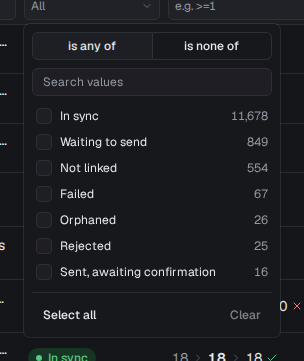
The dropdown of Status, Account, Marketplace status, Problem, Eligible, Brand, Size and Supplier shows every value with its count under your other filters. What the old filter chips answered is now a column filter:
| You used to open the chip | Now |
|---|---|
| Account | The Account column's filter. The Account column is shown while Stock Sync manages more than one account; on an account's own Offers tab there is none, because the tab is already that account |
| Status | The Status column's filter: In sync, Waiting to send, Sent, awaiting confirmation, Rejected, Failed, Not linked, Orphaned. A link status and a sync status can now be ticked together |
| On the marketplace | The Marketplace status column's filter: On sale, Switched off, Ended |
| Eligible | The Eligible column's filter: Eligible (partly eligible offers included), Not eligible (the product's lead time is longer than the account's limit, so it publishes 0) |
| Marketplace says | The Problem column's filter: the marketplace's validation reasons, for example Not yet finished, Blocked or Price not accepted |
Marketplace status and Problem are hidden until you show them in Columns. A filter on a hidden column is never silent: Filters on hidden columns above the table lists it, and a click on it shows the column. The quick views Needs a fix and Not selling cover the common cases without that.
The dropdown tells each status by its words and count. What each status means, and what to do, is in the Legend and on hover over a status in the table.
Clear filters removes every column filter and the search; the quick view stays. If nothing matches, the list says "No offers match. Try fewer filters, or another view."
A status filter matches the status the offer shows. An offer whose product was removed from the PIM (Orphaned) is found under Orphaned, not under Failed, even if its last send failed. Retry failed keeps its meaning: it retries the failed offers.
The address in your browser holds the view, the search, the filters, the sort, the grouping, the page and the open offer. Copy it to send a colleague to exactly what you see.
Sorting and grouping
Click a column title to sort by it (ascending, descending, off); Shift-click adds a second column. Every column sorts. The list starts sorted by Updated, newest first; a click on it turns it round.
Group by folds the list into groups by up to three columns (Account, Brand, Size, Supplier, Status, Marketplace status, Problem, Eligible). Each group shows Offers, PIM stock, Marketplace shows and Difference, and the list ends with Grand total. Inside a Supplier group, PIM stock is that supplier's stock and Marketplace shows and Difference are empty: see Grouping by Supplier.
The columns
Every column header with an (i) explains itself on hover. These are the columns the list starts with:
| Column | What it shows |
|---|---|
| Tick box | Selects the offer for the bulk actions. Operators only. |
| Offer | The marketplace's offer id, with the badge of the account it belongs to (hover the badge for the account's name and status). On ABOUT YOU the offer id is the SKU. Click the header to sort by offer id. |
| Product | The linked PIM product: brand and name, then SKU · size, so you recognise the row without opening PIM. No PIM product with this id for a not linked offer. |
| Status | One status, in colour: In sync, Waiting to send, Sent, awaiting confirmation, Rejected, Failed — or Not linked / Orphaned, which take the place of the sync status. Under it, one line when there is something to say: the last problem (hover for all of it, with the next attempt), or what the marketplace says (Ended on the marketplace — no stock sent, a validation reason, Switched off on the marketplace), or Not eligible — publishes 0. Hover the status for what it means and what to do. |
| Stock | Three numbers: PIM available › Stock to publish › Marketplace shows, with an icon: a tick when the marketplace shows the target, a clock while the new number is waiting to be sent or confirmed (the third number is then the last one sent), a warning when the marketplace showed another number at its last import, a cross when the last send did not go through, a no-entry sign when no stock is sent. The number is amber while the marketplace does not show what Stock Sync wants. Hover for the whole breakdown: PIM available and on hand, the rules, stock to publish, last sent and when, and what the marketplace showed. |
| Eligible | Eligible, Partly · 1 of 18 when only some suppliers can ship within the limit (only their pieces are published), or Not eligible with the reason, for example 5 d > 2 d. Hover for the lead time and the limit. Only on windows 1,280 pixels wide or more; the Stock hover and the side panel say the same on smaller ones. |
| Updated | When anything about the offer last changed. The list is sorted by it, newest first. Only on windows 1,440 pixels wide or more. |
| Actions | Resync (operators; see Sending stock again) and ⋯, the row's menu: Open details, Open full page, Open in PIM, Open in the marketplace (for example Open in ABOUT YOU), Copy offer id, and, for operators, Resync again with the reason when it cannot be used, and Re-read from PIM (see Re-read from PIM). |
Columns shows, hides, moves and freezes columns, and Reset layout brings the start back. Your browser remembers the layout for each list. Drag a title's right edge to resize a column; double-click the edge to fit it.
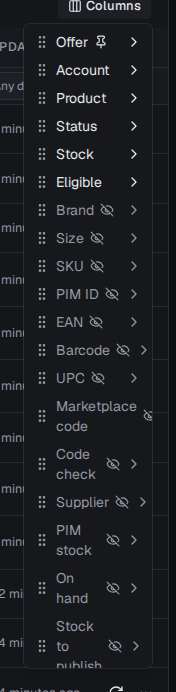
| More columns | What it shows |
|---|---|
| Account | The account's name. Shown from the start while Stock Sync manages more than one account (the Offer cell then does not repeat it) |
| Marketplace code, Code check | The code the marketplace reports for the offer; and how it compares with the linked product: Code matches, Code differs, Linked by hand, Not linked or No code |
| Offer ID, SKU, PIM ID | The marketplace's offer id; the product's SKU (an unlinked ABOUT YOU offer shows its own); the PIM product id |
| Brand, Size | From the PIM product |
| EAN, Barcode, UPC | The three code attributes of the PIM product, each as PIM holds it, separated by commas when there are several. Not checked or corrected |
| Supplier | Every supplier of the product, also one with no stock left |
| Marketplace status, Problem | What the marketplace says about the offer, and its validation reason |
| PIM stock | The PIM available stock; available is the one Stock Sync publishes |
| On hand | The PIM on-hand stock |
| Stock to publish, Marketplace shows | The two last numbers of Stock, as columns you can filter, sort and total |
| Lead time, Attempts | The product's lead time in PIM; how many times the last send was tried |
| Last sent | The last number the marketplace accepted, and when |
The EAN, Barcode, UPC and Supplier columns come from the nightly full PIM check. The first night after Stock Sync got them, they show — (and a filter on them finds nothing). The columns you had ticked in the old Columns menu stay shown.
Reading a row: examples
| Row | What it tells you |
|---|---|
| 310458, In sync, stock 7 › 7 › 7 with a tick | All is well: PIM has 7 available, the marketplace shows 7. |
| 305660, Rejected, Stock value 250 is above the maximum of 200…, stock 250 › 250 › 180 | Stock Sync wants 250, but the marketplace refuses more than 200 for this offer, so it still shows 180. Someone must decide on the marketplace side. |
| 301224, Waiting to send, …429: Too Many Requests, stock with a clock | The marketplace was busy. Stock Sync retries by itself; nothing to do. |
| 312870, In sync, Not eligible — publishes 0, stock 5 › 0 › 0 | The product takes 5 days to deliver and the limit is 2, so 0 is sent on purpose. |
| 315502, Not linked, No PIM product with this id | No PIM product 315502 exists. Stock Sync leaves this offer alone. |
| 287440, Orphaned, Switched off on the marketplace, stock — › 0 › 0 | The PIM product was removed, so 0 is sent; the marketplace has also switched the offer off. |
| 268804, In sync, Ended on the marketplace — no stock sent | The marketplace ended the offer; no stock is sent to it while it stays ended (see Matching offers to products). |
Every status explained describes each status. Find out why a stock number is wrong walks through an investigation.
The side panel
Click a row (or select it with J / K and press Enter) to open the offer beside the list, without leaving it.
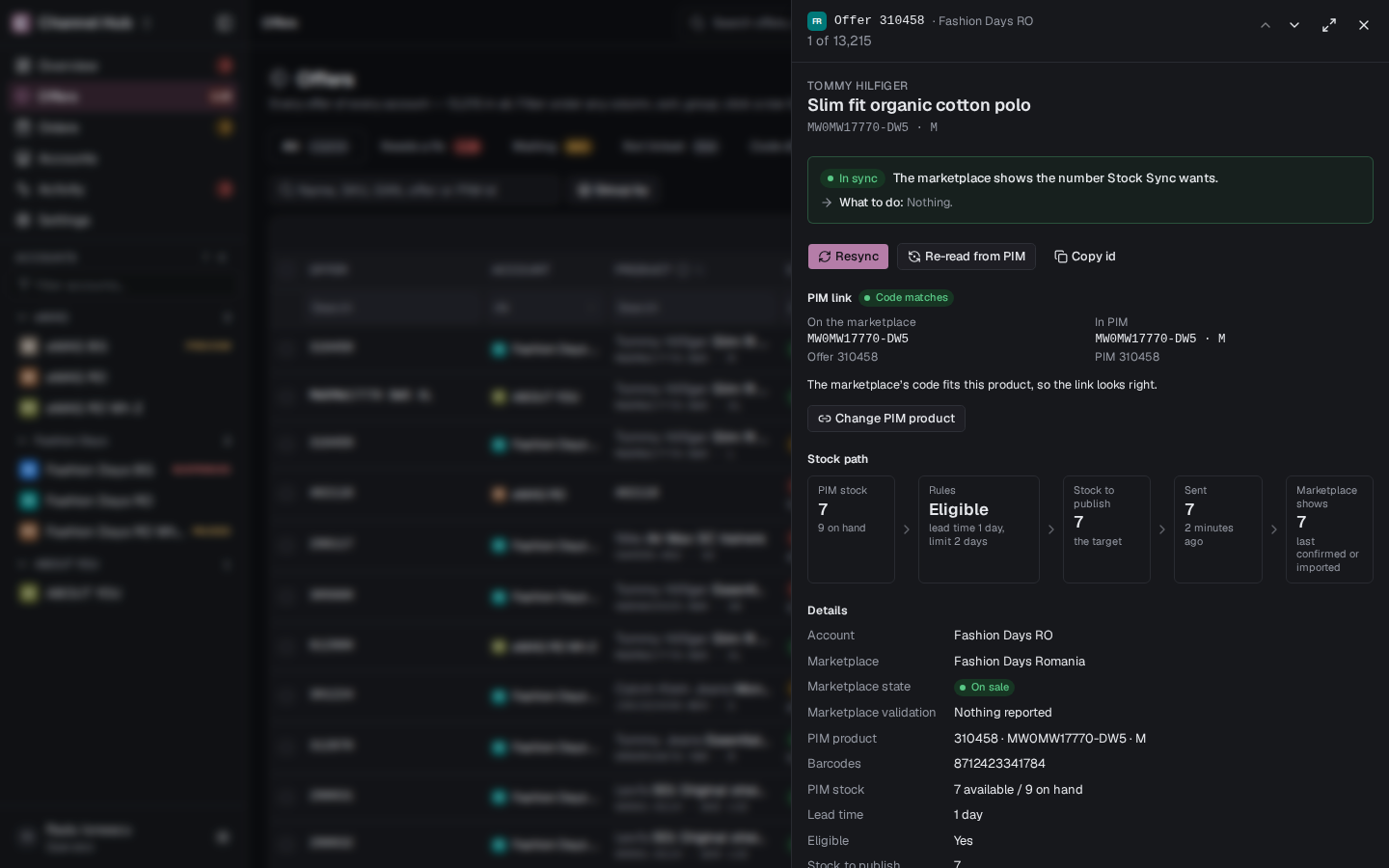
The panel holds everything the Offer page holds: what the status means and what to do, Resync (or why it cannot be used) and Re-read from PIM beside it, the stock path drawn in five steps, the details, and the offer's history. Open in PIM appears beside Resync only when the offer's product has a page in PIM (the picture shows none). At the top:
- The account's badge, Offer and its id, and the account's name; under it, where the offer is in the list, for example 1 of 13,215.
- Previous row and Next row (or K and J) move to the offer above or below without closing the panel.
- Open full page opens the same offer on its own page, whose address you can share.
- Esc or the close button closes the panel; the list is as you left it.
Selecting and bulk actions
Operators can select offers and act on all of them at once. Tick a row's box (or press X on the selected row); Shift-click a second box to tick every row in between. A bar rises at the bottom of the screen:
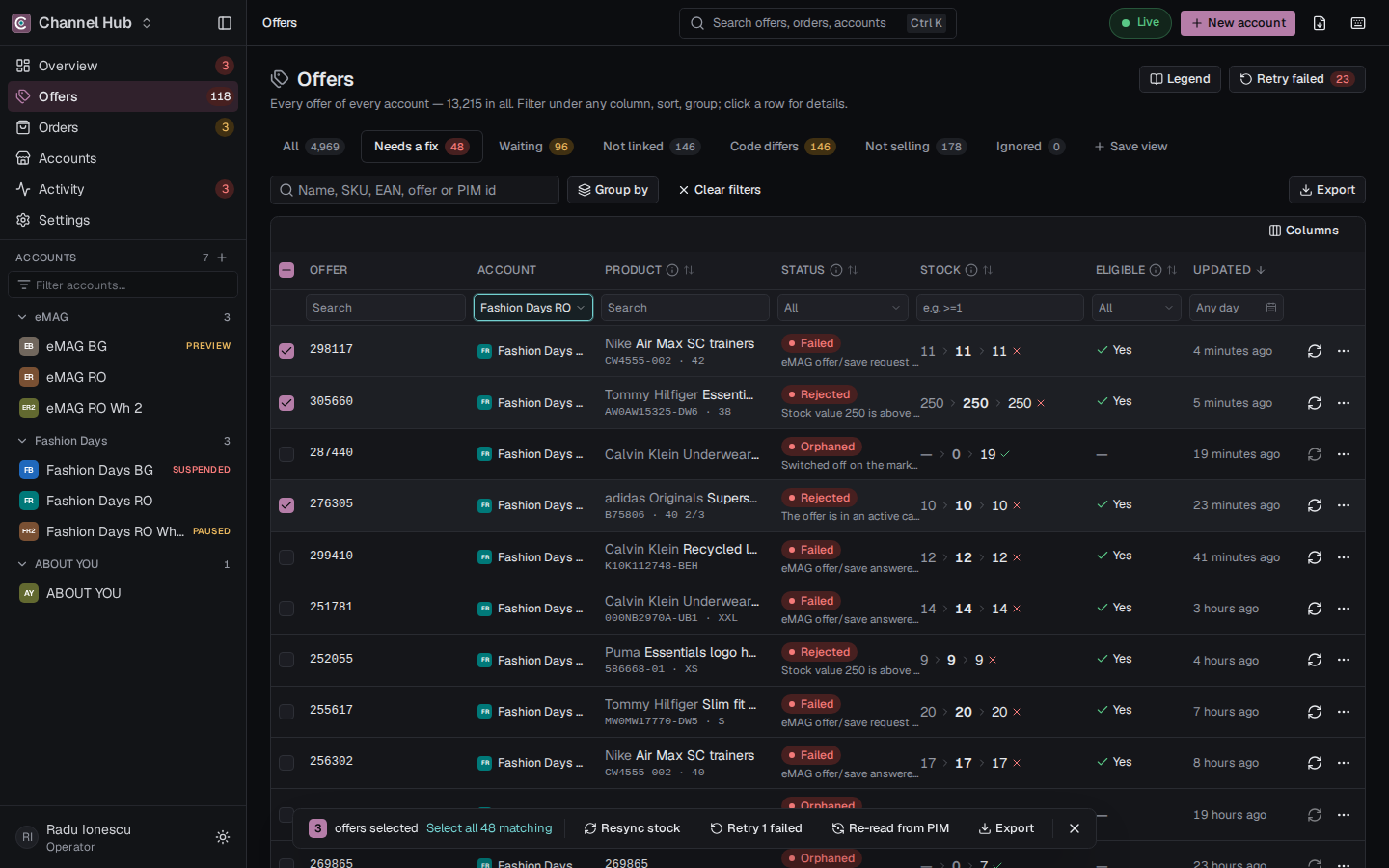
- N offers selected — how many are ticked.
- Select all N matching — selects every offer that matches the view and the filters, on every page, not only the ticked ones. The bar then says N matching offers selected.
- Resync stock — sends the stock of the selected offers again, even if nothing changed. Offers that cannot be resynced (not linked, orphaned, ended, or withheld by the marketplace) are left out: the button then says how many it will send, for example (2 of 3). Ticked offers have no limit: Stock Sync sends them in batches of 50 behind the scenes and one message covers them all. Over Select all matching it takes at most 5,000 offers; above that the button is disabled and says why on hover (Resync over the filters takes at most 5,000 offers. Narrow the filters.). When none of the ticked offers can be resynced it says None of the selected offers can be resynced: not linked, ended, withheld by the marketplace, or orphaned and already sent 0.
- Re-read from PIM — reads the products of the ticked offers from PIM again and works their stock out again, even when PIM changed nothing (see Re-read from PIM). It takes 1 to 50 ticked offers. With more than 50 ticked it is greyed out: Re-read from PIM takes at most 50 offers at a time; 120 are ticked. After Select all matching too: Re-read from PIM works on ticked offers, at most 50 at a time. Tick the offers instead of selecting all matching.
- Retry N failed — sends again only the Failed offers among those ticked; with Select all matching, Retry failed does the same for every failed offer that matches.
- Export — makes the selected offers into an Excel (.xlsx) or a CSV file in the background, as above; with Select all matching, every matching offer. A viewer has it too.
- The × (or Esc) clears the selection.
The selection belongs to the list on screen: changing the view, a filter, the sort, the grouping or the page clears it. Select all matching takes exactly the offers the list shows with its filters.
Sending stock again
Three buttons send stock again. None asks for confirmation: they act as soon as you click, then say what they did in a message at the bottom right.
| Button | Where | What it does |
|---|---|---|
| Resync | Each row, the side panel, the Offer page | Sends this offer's stock to the marketplace again, even if the number did not change. Queued and sent within seconds. |
| Resync stock | The bar of selected offers | The same for every selected offer |
| Retry failed | The top of the page, and the bar | Queues every Failed offer again (of every account in the list, or the account of its tab). Use it once the marketplace works again. |
Hover over any of them to read what it does. Where Resync cannot be used it is greyed out and says why on hover: Not linked to a PIM product: Stock Sync never sends its stock., Its PIM product was removed: Stock Sync already sends 0 for it., The offer has ended on the marketplace: no further stock is sent., or that the marketplace withholds it until it is fixed.
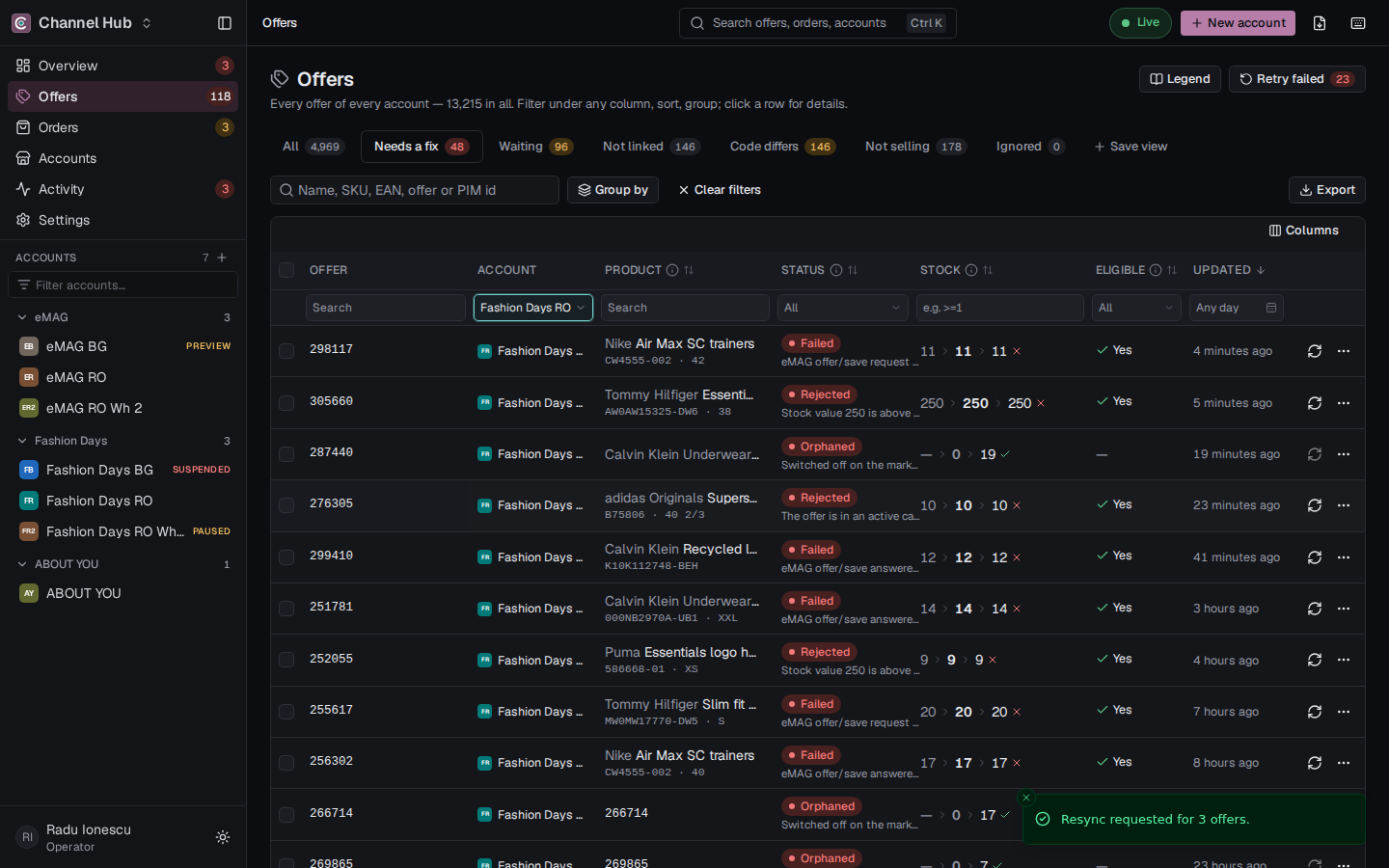
The messages:
- "Resync requested for 3 offers." — every selected offer is queued, and the selection is cleared.
- "Resync requested for 1 offer. 2 could not be: offer 298117 has ended on the marketplace; offer 301224 is refused by the marketplace (its reason is on the offer)." — an amber message names each offer that could not be sent and why; those stay ticked, so you can look at them. It stays up for 15 seconds.
- Over Select all matching, offers that cannot be sent are counted instead: "… 4 were skipped: not linked to a PIM product, or not failed."
- "23 failed offers of Fashion Days RO are queued again." — after Retry failed with the list narrowed to one account; over several accounts it reads, for example, "67 failed offers are queued again."
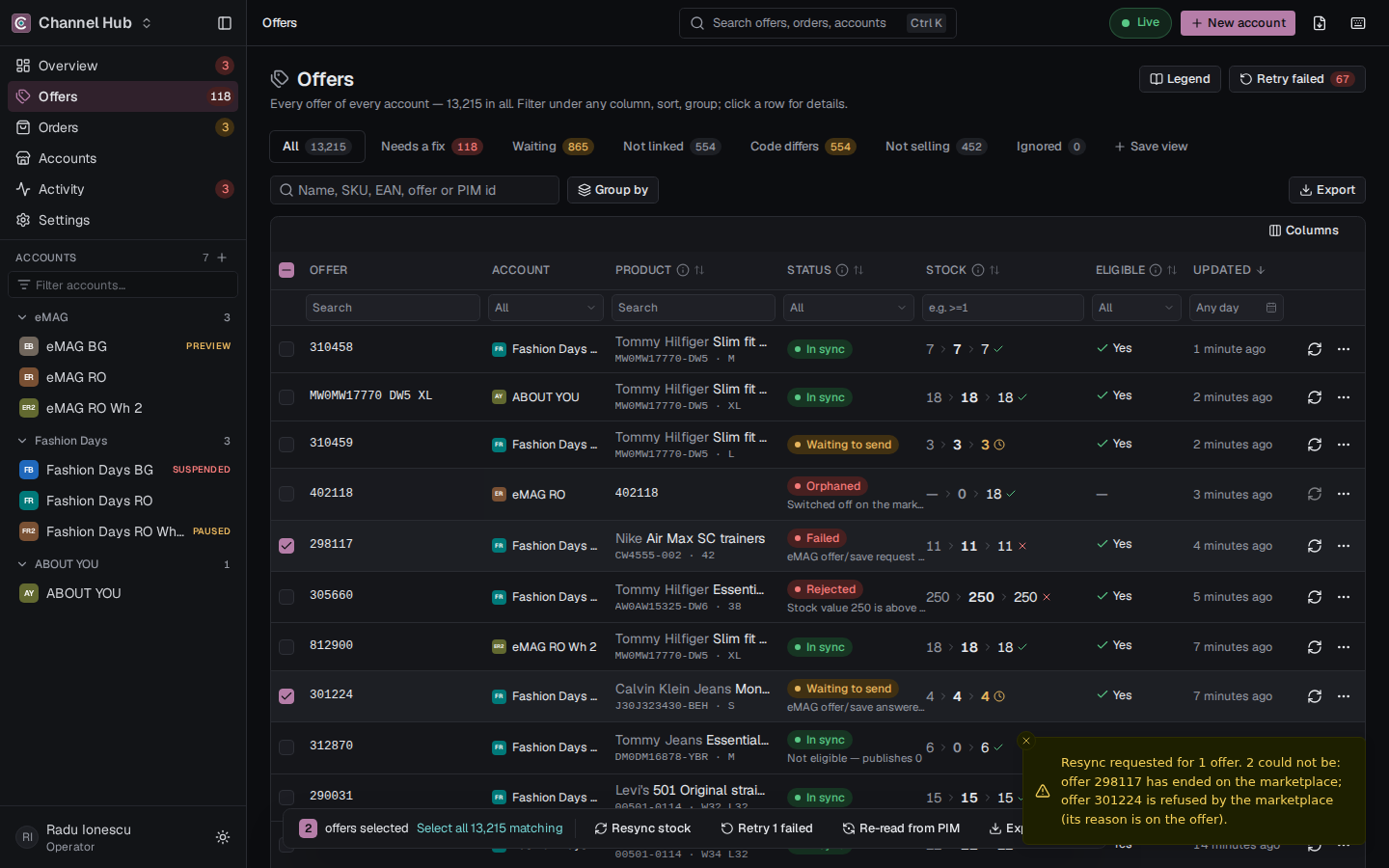
Use Resync when you suspect the marketplace shows something else than it confirmed, or after you fixed the cause of a rejection (a campaign that blocked the stock ended, for example). Use Retry failed once the cause of the failures is gone, for example after the marketplace came back from an outage; retrying while it is still down only makes them fail again. Step by step: Resend stock for some offers.
Re-read from PIM
Re-read from PIM reads the PIM products of the chosen offers again, straight away, and works out the stock to publish again for every offer of each product, on every account, even when PIM changed nothing. It is on the side panel and the Offer page beside Resync, in the row's ⋯ menu, and on the bar of selected offers (1 to 50 ticked). Operators only. It acts at once, with no confirmation.
| Button | What it does |
|---|---|
| Resync | Sends the number already worked out again. PIM is not read. |
| Re-read from PIM | Reads the chosen offers' products from PIM now and works their number out again. |
| Read PIM now | Reads every product PIM reports as changed since the last reading (Read the catalog again now). |
Use it when PIM shows the right stock or lead time for a product but the offer still shows the old one, and you do not want to wait for the nightly Full PIM check; or when the technical team asks you to after a change in how Stock Sync reads PIM.
The message counts what became of the offers, for example "3 offers re-read from PIM: 2 changed, 1 not linked." Only the parts above zero appear, in this order: changed (PIM had other data), unchanged (PIM had the same data; the number was worked out again anyway), not linked (no PIM product to read), not in PIM, failed. Offers that were not in PIM or failed are then named, for example "Not in PIM: offer 315502; left as they are until the nightly full PIM check. Failed: offer 298117 (reason)." That message is amber and stays 15 seconds, and the failed offers stay ticked.
If Stock Sync is busy with one of the accounts at that moment (reading its offers from the marketplace, or working its stock out again), Re-read from PIM does not wait for it: that account's offers are worked out again a few moments later, once Stock Sync is done with it, and they get no Re-read from PIM line in their history. Each other offer of a product that was read gets the line Re-read from PIM in its history, and Activity → Sync runs records a Re-read from PIM run: seen counts the products read, changed those whose PIM data differed. A product PIM no longer has is left as it is; only the nightly Full PIM check removes products. If PIM is not set up for this or does not answer, a red message says that nothing was re-read: "PIM could not be read, so nothing was re-read: …".
The Legend
Legend opens a panel that explains the page in one place: what each colour means (green all is well, amber waiting or worth watching, red needs a person, grey neutral), then every Status with its meaning and what to do, the On the marketplace states, and four examples of the Stock column.
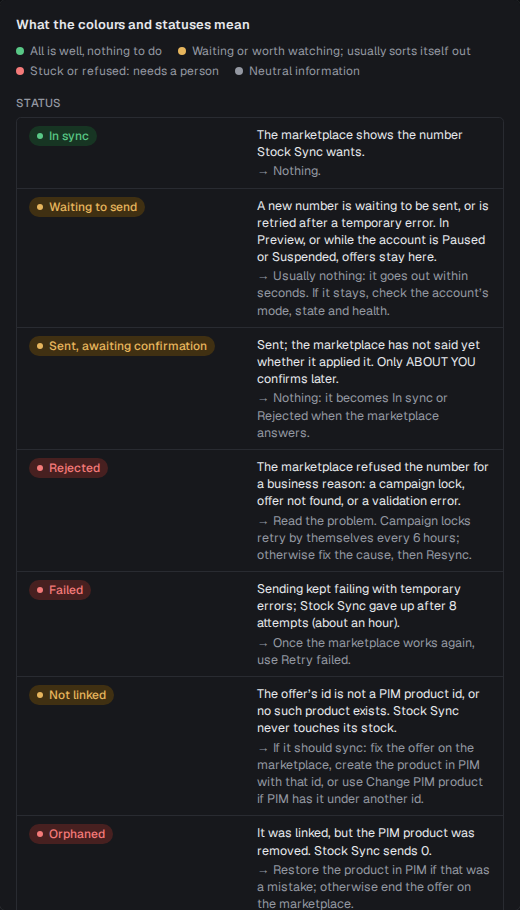
Every status in the table says the same on hover. Every status explained has them all.
Live updates
The list follows changes as they happen, without a reload: a row whose offer changed flashes briefly where it is. Rows never jump under your cursor: an offer that starts to match your view while you look waits behind a Show N new button above the table; click it to bring the new rows in. The button counts what is new on this page, not in the whole list. An offer that newer ones pushed off the page stays where it is, dimmed and marked May be out of date, until you click the button; you can open it but not select it. A row that stopped matching leaves at once, unless more than half of the page changed together (a bulk retry of more than half a page, for example): the list cannot tell those rows from pushed-off ones, so they stay marked until you click Show N new. If offers leave the last page until it is empty, the list goes to the page before by itself. While you have the Live pill paused, nothing moves until you resume (see The Live pill). Without the live connection the list reads itself again every 15 seconds.
An account's Offers tab
On an account, the Offers tab is this same list for that account only: there is no Account column or filter (a saved view's account filter is ignored there), and Legend, Export and Retry failed sit on the list's own toolbar. Everything else — views, filters, columns, grouping, side panel, bulk actions — works the same.
What a viewer sees
A viewer sees the same list, filters, sorting, grouping, views, side panel and Legend, and can Export. There are no tick boxes, no Resync, no Resync stock, no Re-read from PIM and no Retry failed, and no Save view, Save, Rename…, Delete… or moving of views: viewers open the team's views only.
Good to know
- J and K move down and up the rows, Enter opens the selected one, X ticks it, Shift-click ticks a range, Esc closes the panel or clears the selection, / jumps to the search box. Keyboard shortcuts lists them all.
- Rows under the table chooses 25, 50, 100, 200 or 500 offers per page.
- Drag across cells and press Ctrl C to copy them into Excel (Copy cells).
- The offer id is the PIM product id on eMAG and Fashion Days. To find the offer of a PIM product, search for its id.
- The old address of an account's offer list (from a bookmark) opens the account's Offers tab.