
Appearance
Cancel an order
When an order cannot be sent to the customer, you cancel it, or some of its lines, from the order's page. Stock Sync then cancels it at the marketplace, which tells the customer, and in Odoo, which frees the stock reserved for it, and it records why. You do it in one place, once; Stock Sync keeps trying until both are done and shows you what happened.
Before you begin
Who can do this: an Operator. A viewer sees no Cancel order button.
Which orders: orders of any account whose orders mode is Live, with at least one line still Open. Each marketplace has its own limits (its guide says which). eMAG and Fashion Days cancel whole orders only: the dialog ticks every line and cannot untick one ([Marketplace] cancels whole orders only: cancel every item, or cancel the item in its Seller Center, for example Fashion Days Romania cancels…). The order may be Received, Previewed, Needs attention or Imported.
Time needed: a minute to ask. Stock Sync does the rest by itself, usually quickly.
When to use it
- The item was oversold. The warehouse has none left for this order.
- The customer asked customer service to cancel, and the marketplace has not cancelled it already. On eMAG and Fashion Days a customer's request in the Seller Center shows as Customer asked to cancel (see Order needs attention).
- The customer cannot be reached, for example about a delivery problem.
- A duplicate or a test order.
- Suspected fraud.
Not for:
- A line already shipped. The marketplace refuses to cancel it. A return is handled as today. Once Odoo has validated the delivery that holds a line (the line's delivery shows under Shipping as waiting, would send, sending, sent or shipped), Stock Sync no longer offers to cancel it either: the goods have left the warehouse. Only a delivery whose shipment was refused, or that had nothing to ship, lets its lines be cancelled again.
- A line the warehouse has already started on (picked or delivered in Odoo). Stock Sync checks Odoo first and stops before telling the marketplace anything (see First, a check in Odoo).
- An order the customer or the marketplace already cancelled. Stock Sync reads that by itself: the order shows Cancelled before import, or, once it is in Odoo, Needs attention with Changed after import (an eMAG or Fashion Days order cancelled whole at the marketplace on a Live account is cancelled in Odoo by itself, with the reason Cancelled at the marketplace).
- An account in Preview. Gaia's upload puts its orders into Odoo, so a cancel from Stock Sync would leave Gaia's Odoo order behind. There is no Cancel order button: cancel in the marketplace's seller centre and in Odoo by hand, as today.
Steps
Click Orders in the menu (or press Ctrl K and type the order's reference) and click the order: it opens in a side panel beside the list. Full page opens the Order page; both have the same buttons.
Click Cancel order. It is there when the order has at least one Open line, no cancellation is running for it already, the order is not waiting with Cancel failed (see Cancel failed), and it is not an order in Odoo that waits in Needs attention for Cancel at the marketplace by hand (see An order that needs attention).
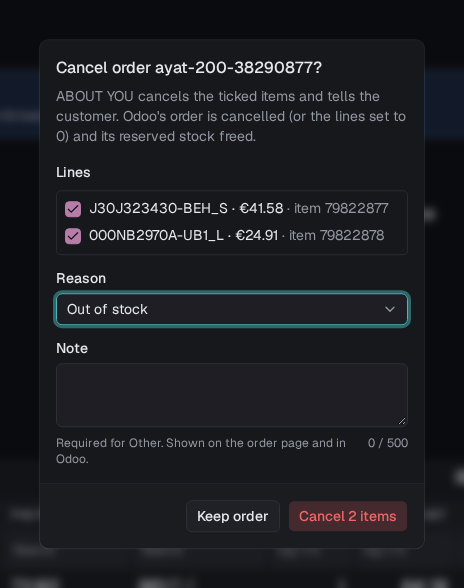
The dialog Cancel order [reference]? lists the order's open lines under Lines, all ticked. Each reads SKU · net price · item number, for example MW0MW17770-DW5 · €49.99 · item 9001: the net unit price as in the order's Net column, and the marketplace's own number for the item, the one a refusal names (ABOUT YOU refused item 9002). Untick the lines the customer keeps. At least one line stays ticked: the last ticked line cannot be unticked ("At least one line stays ticked.").
On a Secret Sales account without a Cancel reason in its connection, the dialog lists nothing: it says Secret Sales cancels only with the account's Cancel reason and links to Settings → Connection. Choose one there, then cancel the order (see Secret Sales: set up the account).
Choose a Reason (see The reasons); the list starts on Choose…, and confirming without a reason says "Choose a reason." Write a Note if it helps, up to 500 characters. The hint under it says "Required for Other. Shown on the order page and in Odoo.": for Other an empty note is refused with "Say why the order is cancelled."
Read what will happen: "[Marketplace] cancels the ticked items and tells the customer. Odoo's order is cancelled (or the lines set to 0) and its reserved stock freed.", where [Marketplace] is the order's marketplace, for example ABOUT YOU or Fashion Days Romania. For an order not in Odoo yet the second sentence says that nothing is cancelled there. Then click Cancel 1 item (or Cancel 2 items, and so on: the button counts the ticked lines). Keep order (or Esc) closes the dialog and cancels nothing.
A message says "Order [reference] is being cancelled." Under the order's fields the page shows Cancelling… checking Odoo, then telling [Marketplace] (or Cancelling… telling [Marketplace] for an order not in Odoo yet), for example Cancelling… telling ABOUT YOU, and then the result (see While it runs).
If Stock Sync refuses the request, for example because someone else started a cancellation of the same order a moment before, the dialog stays open and says why in red. Nothing was cancelled.
The reasons
| Reason | Use it when |
|---|---|
| Out of stock | The item was oversold or cannot be found in the warehouse |
| Cancelled by the customer | The customer asked to cancel |
| Customer cannot be reached | The order cannot go on without the customer, and they do not answer |
| Duplicate or test order | The order was placed twice, or is a test |
| Suspected fraud | The order looks fraudulent |
| Other | None of the above. The Note must say why. |
A further reason, Cancelled at the marketplace, is set by Stock Sync itself, never chosen: the marketplace cancelled the whole order and Stock Sync followed it in Odoo.
The reason and the note go into the order's page and into a note in Odoo. ABOUT YOU is not told the reason: it cancels the items and tells the customer. eMAG and Fashion Days are sent their nearest cancellation reason (for example out of stock); your note stays in Stock Sync and Odoo. The note is never shown in the order's activity, so write only what colleagues need to know; it is visible on the order page and in Odoo.
What it does
First, a check in Odoo
When the order is in Odoo, Stock Sync first looks at it there, without changing anything, to make sure the warehouse has not started on what you cancel:
- nothing is already delivered;
- no unit is already picked (put aside for the parcel); for the whole order, no unit has moved in any step of its delivery;
- for a cancel of some lines only: the order's delivery is done in one step (not pick, pack, then ship), and each line has its own open place in the delivery. A whole order can be cancelled even when its delivery has several steps.
If any of this fails, nothing is cancelled anywhere: the marketplace is not told, so the customer still expects the parcel, and Odoo is not changed. The page shows Cancel failed in Odoo with the reason; the items stay Open, and the order keeps its state: it does not go to Needs attention. You decide: let the parcel go out, or handle it by hand in Odoo and with the customer. Once the warehouse has undone the picking, you can press Cancel order again.
An order not in Odoo yet has nothing to check.
A known limit. The check looks at what you asked for. If you cancel the whole order and the marketplace then refuses some of the items (ABOUT YOU decides item by item), Stock Sync has to cancel only the other lines in Odoo, and that needs what a cancel of some lines needs: a delivery in one step, and an open place for each line. When the delivery has several steps, Stock Sync stops at Odoo after the marketplace has already cancelled the rest: the order shows Cancel failed and needs attention. Cancel those remaining lines in Odoo by hand (see Doing it in Odoo by hand), then press Mark resolved.
At the marketplace
The marketplace cancels the ticked items and tells the customer. ABOUT YOU decides item by item, usually quickly; eMAG and Fashion Days cancel the whole order at once. An item the marketplace says is already cancelled counts as cancelled. An item it refuses, for example because it has shipped, stays as it is (see Cancel failed); the items it accepted are cancelled anyway, at the marketplace, in Odoo and in Stock Sync. When the marketplace refuses every item, nothing is cancelled anywhere: the Odoo order is not touched, and the cancellation has failed straight away.
In Odoo
Only when the order is in Odoo (it has an Odoo link):
- Every line of the order is now cancelled (by this request and any earlier one): the whole Odoo order is cancelled. Odoo cancels its delivery and frees the reserved stock. If the order has draft invoices, Odoo cancels them with it, without asking; an invoice already posted stays posted, so tell finance.
- Some lines stay: the quantity of each cancelled line is set to 0, and its unit is taken out of the delivery. That frees exactly that one unit in the warehouse: the other lines keep their reservation, also when they are the same product, and the rest of the order goes on as before.
- In both cases a note is added to the order's chatter, for example "Cancelled in Channel Hub: Out of stock (1 item, ref …)", or with your note: "Cancelled in Channel Hub: Other: Duplicate of 48212 (1 item, ref …)".
Each Odoo line holds one unit, as Gaia's and Stock Sync's orders always do. When the order has several lines of the same product, Stock Sync takes one whose unit has not shipped and is not picked. If the Odoo order was changed by hand so that a product no longer has a line of one unit to cancel, Stock Sync does not guess: the cancellation fails in Odoo, and you cancel that line in Odoo by hand.
Stock Sync never takes a line out of the Odoo order once the warehouse has started on it (delivered, picked, or a delivery in several steps). The check above catches that before the marketplace is told. Only if the warehouse starts in the minutes between that check and the Odoo step does the cancellation stop at Odoo after the marketplace has cancelled the item: see Cancel failed for doing it by hand.
An order that is not in Odoo yet has nothing to cancel there. It is not sent to Odoo while the cancellation runs; afterwards it is, without the cancelled lines, and if every line was cancelled it never reaches Odoo. If Gaia's upload had already put the order into Odoo by then, Stock Sync takes that Odoo order over, as always, and cancels the lines there too.
Orders from before the switch
An order that Gaia's upload put into Odoo before the account switched to Stock Sync, and that Stock Sync never imports, keeps Gaia's copy in Odoo untouched: after a whole cancel of a Received order, or a partial cancel followed by Mark resolved. For such orders, look for Gaia's copy in Odoo and cancel it there by hand.
In Stock Sync
- Each cancelled line shows Cancelled in the Status column of the order's Lines.
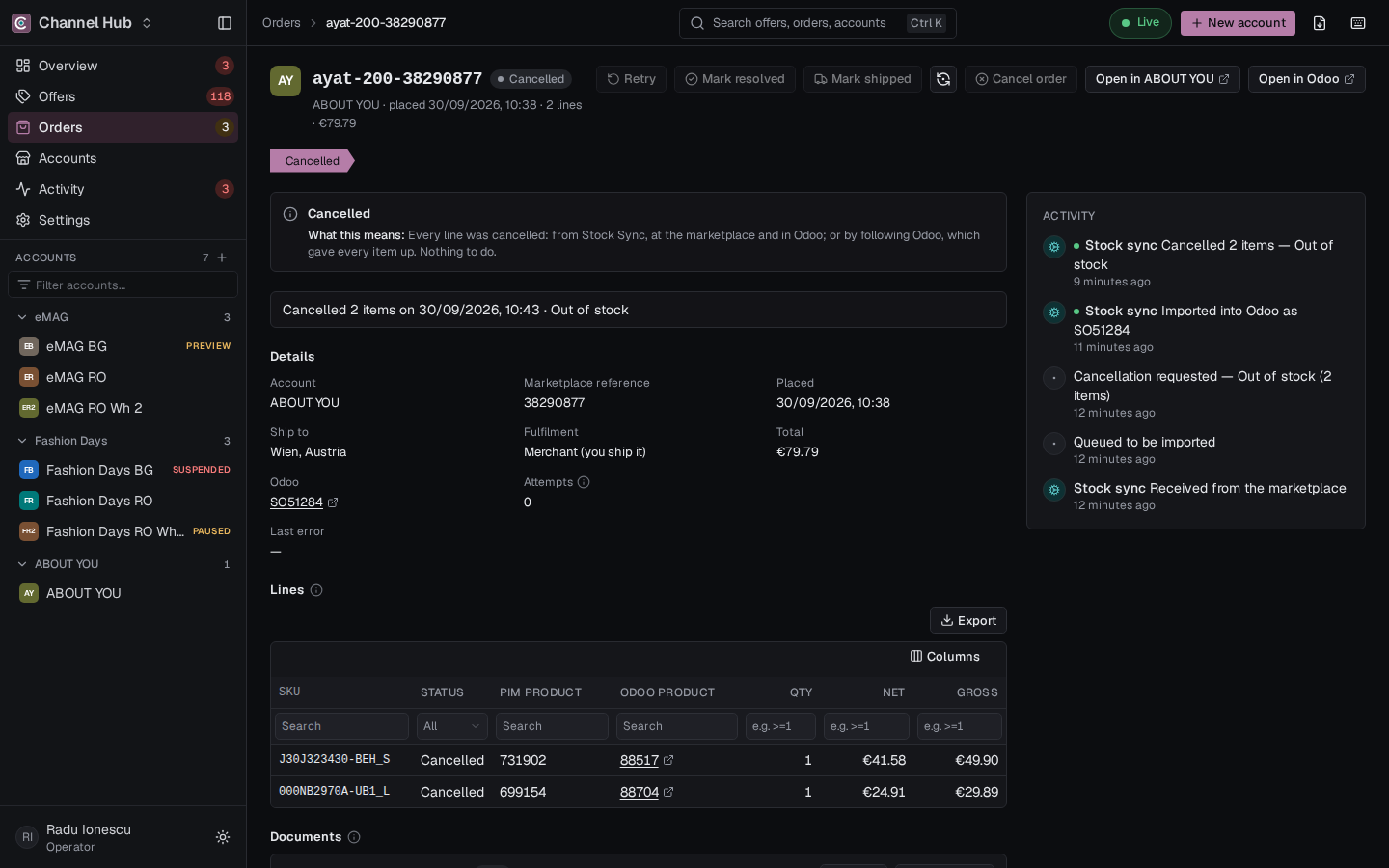
- When every line of the order is cancelled, the order becomes Cancelled. Otherwise it keeps its state: an Imported order with one line cancelled stays Imported, and so does an order with one line shipped and the others cancelled.
- The order's activity shows Cancellation requested — Out of stock (2 items), then Cancelled 2 items — Out of stock. The account's Activity tab records who asked, as cancelled order lines.
- The next time Stock Sync reads the order from the marketplace, it sees the items cancelled. Because Stock Sync cancelled them itself, the order does not go to Needs attention for it.
- A line the marketplace has already cancelled for Stock Sync is not offered in the dialog again, even if its Odoo step failed: Retry finishes it (see below).
The stock comes back by itself
Stock Sync does not put the cancelled stock back on the marketplaces directly. Once Odoo frees the reservation, PIM's available figure rises, and the next PIM reading (every 15 minutes) sends the new number to every marketplace, as for any other stock change.
While it runs
The order keeps its state while it is being cancelled, and a line under the order's fields says where the cancellation stands. [Marketplace] is the order's marketplace, for example ABOUT YOU or Fashion Days Romania:
| The page says | It means |
|---|---|
| Cancelling… checking Odoo, then telling [Marketplace] | The order is in Odoo: Stock Sync checks there that the warehouse has not started on the items (see First, a check in Odoo), then sends them to the marketplace |
| Cancelling… telling [Marketplace] | The order is not in Odoo yet: Stock Sync sends the items to the marketplace |
| Cancelling… waiting for [Marketplace] | The items are sent; the marketplace has not decided yet |
| Cancelling… waiting for Odoo | The marketplace has cancelled the items; Odoo is next |
| Cancelling… finishing | Odoo is done; Stock Sync marks the lines cancelled |
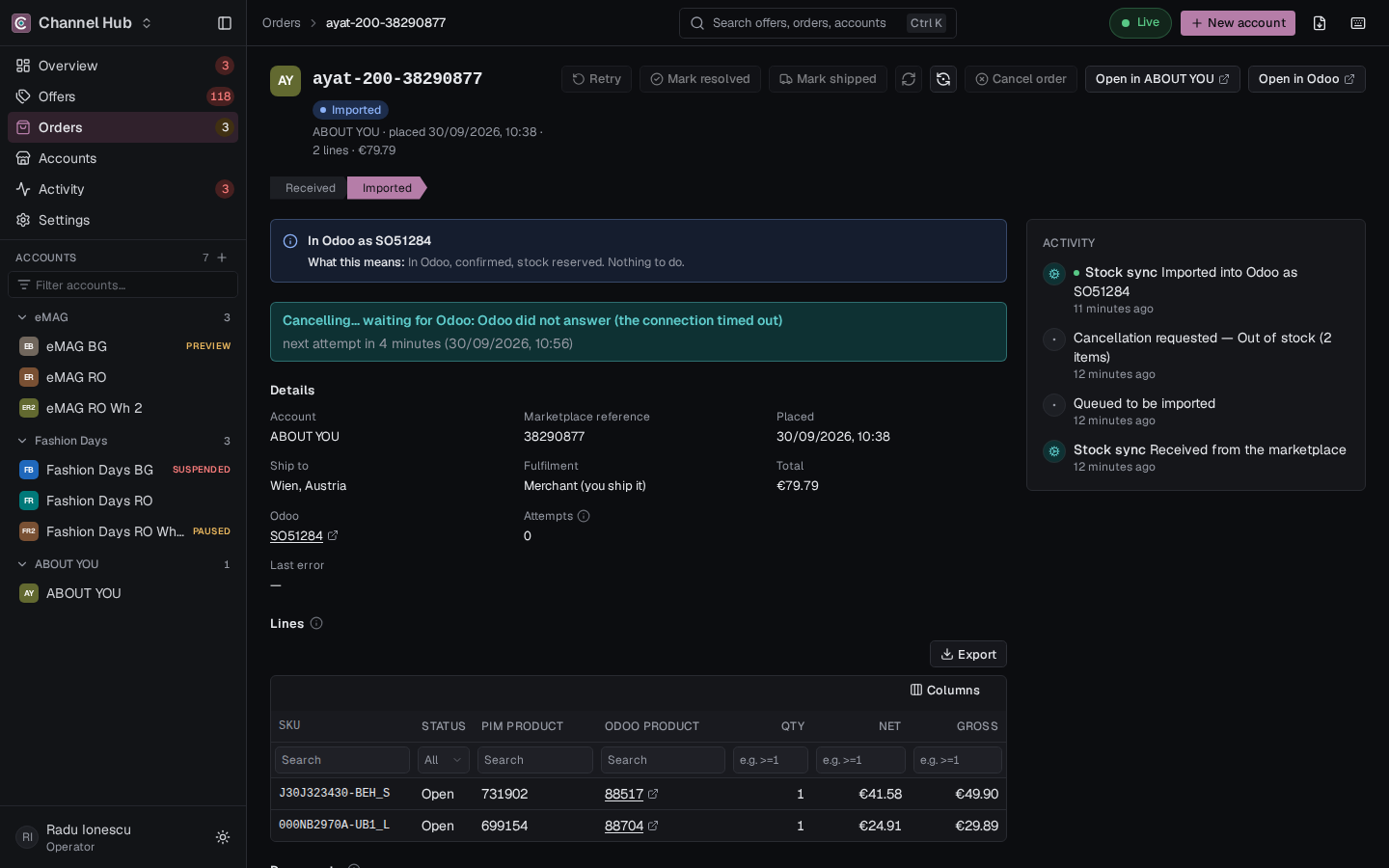
When the marketplace or Odoo cannot be reached, the line adds what went wrong and when it tries again, for example "Cancelling… waiting for Odoo: Odoo did not answer (the connection timed out)" and next attempt in 4 minutes. Stock Sync tries again after 1, then 5, then 15 minutes, then every hour, as for orders. Nobody has to press anything. After 24 hours it gives up: the cancellation has failed (see below). If the marketplace never gave its answer in that time, the items count as not cancelled: they can be cancelled again, and Retry sends them again (the marketplace says already cancelled for any it did cancel, and those count as cancelled).
While a cancellation runs, neither Cancel order nor Retry is offered: one cancellation at a time per order.
When it is done, the line reads, for example, "Cancelled 2 items on 06/10/2026, 10:52 · Out of stock", followed by your note if you wrote one.
Cancel failed
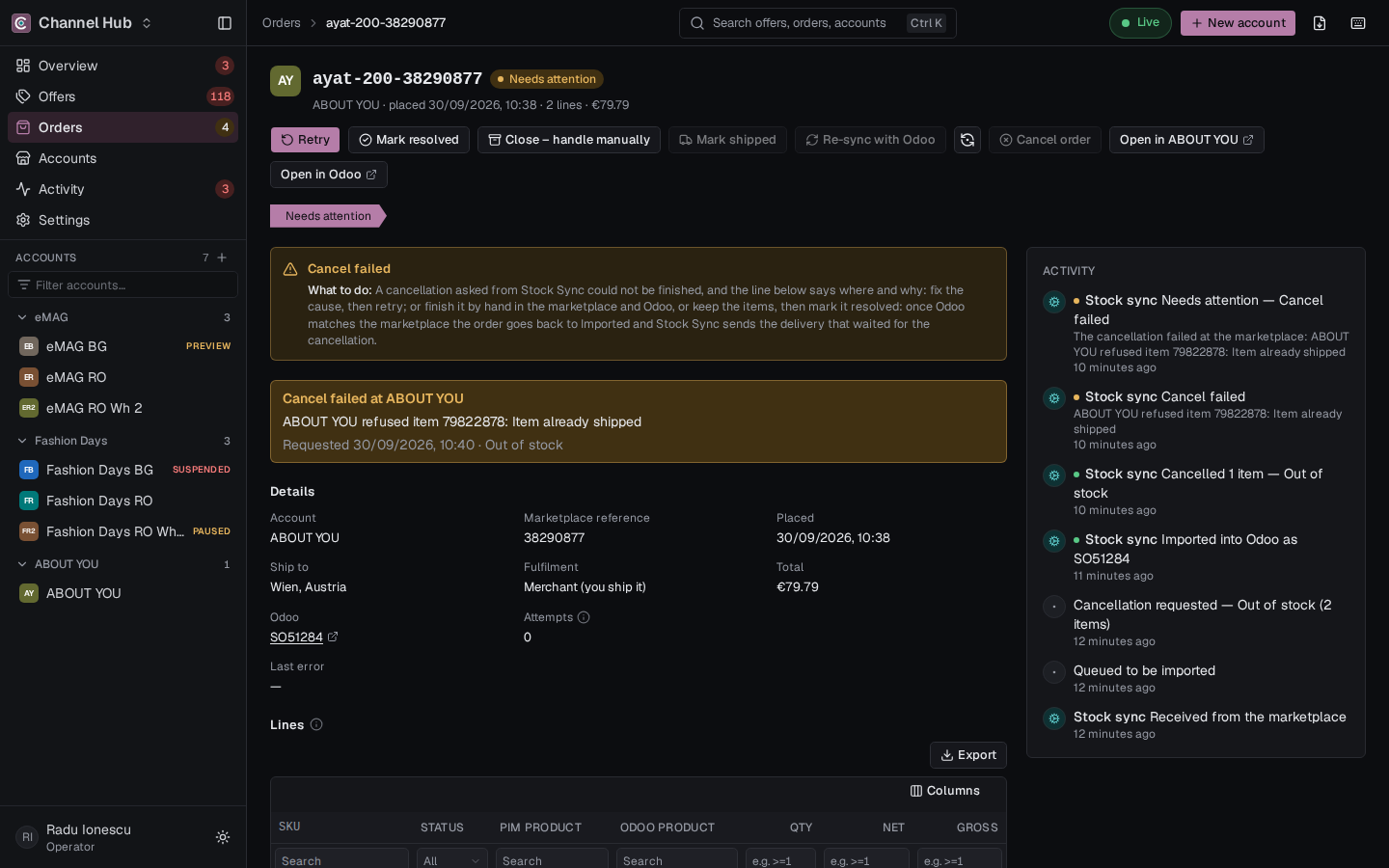
When the cancellation cannot be finished, the line under the fields says where: Cancel failed at [Marketplace] (for example Cancel failed at ABOUT YOU) or Cancel failed in Odoo, with the reason, then when it was requested and why ("Requested 06/10/2026, 10:41 · Out of stock"). ABOUT YOU's own words for a refused item stay there even if Odoo fails later. In most cases the order also goes to Needs attention with the reason Cancel failed.
Two cases do not need attention:
The check in Odoo refused a first request (see First, a check in Odoo): nothing was sent anywhere and the items are still open. Decide whether the parcel goes out or you handle it by hand. (When the check refuses a Retry, the order stays in Needs attention: see the table.)
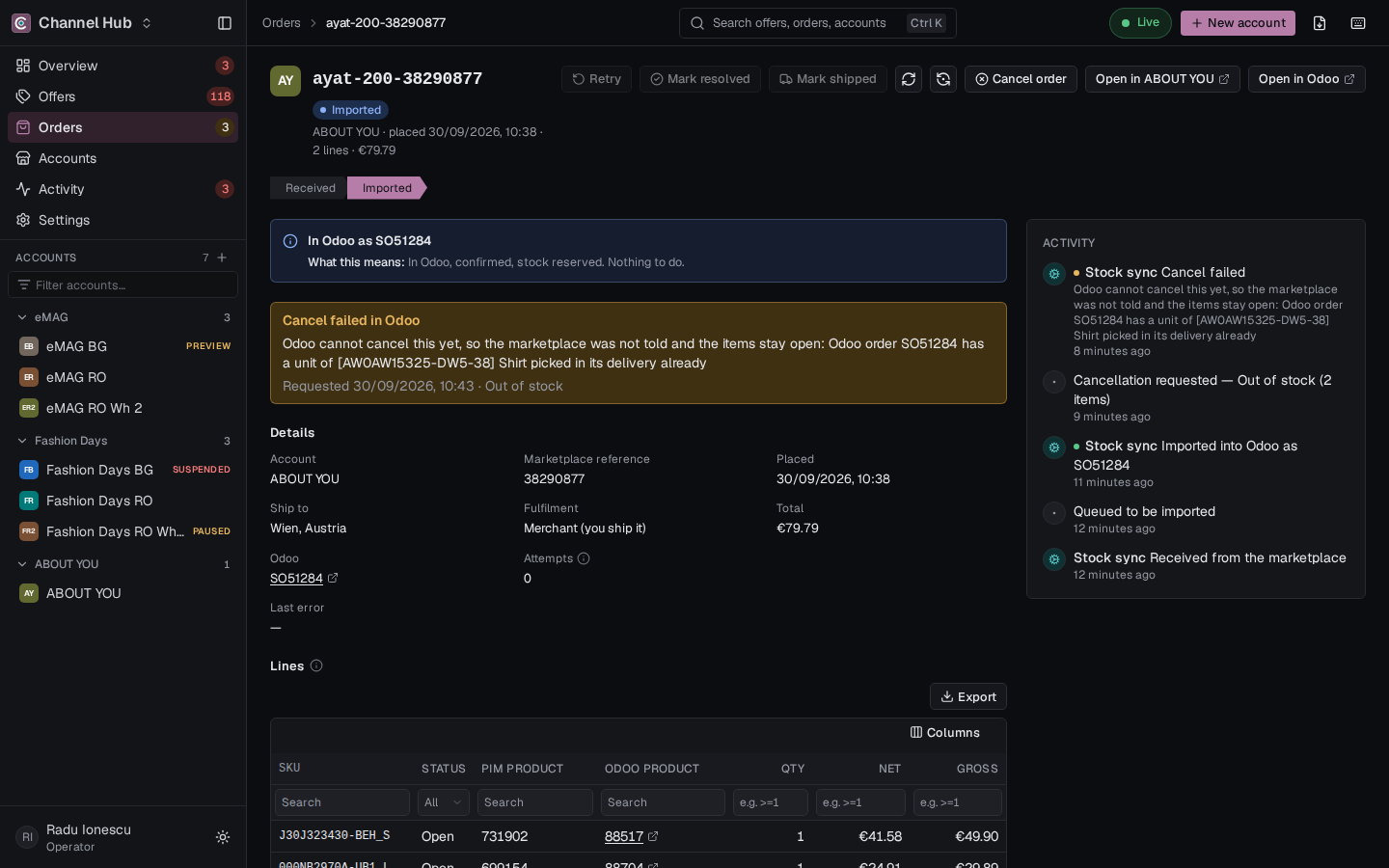
An order not in Odoo yet whose items ABOUT YOU refused. The refused items are still the customer's, so the order does not wait for a person: it goes on to Odoo with the refused items, without the ones ABOUT YOU cancelled, and the failed cancel stays visible on the order page and in its activity. If the refused item can still be cancelled, cancel it again later with Cancel order.
| What failed | For example | What to do |
|---|---|---|
| ABOUT YOU refused an item | Item already shipped: the refused item is named, with ABOUT YOU's words. The other items are cancelled; if ABOUT YOU refused them all, nothing was cancelled and Odoo was not touched. | If the item has shipped, it goes to the customer: press Mark resolved. For an order in Odoo, the order is then Imported again and Stock Sync tells ABOUT YOU when its items ship, also for a delivery validated while the cancellation was open: that delivery waited, and is checked and sent within 5 minutes. If ABOUT YOU refused every item, Odoo was not touched, so its order still matches and Mark resolved goes through. If the cause can be fixed at ABOUT YOU, fix it and press Retry. On an order not in Odoo yet there is nothing to press: it goes on to Odoo by itself. |
| The check in Odoo refused, before anything was sent | A unit is already picked or delivered, or, for a cancel of some lines, the delivery goes in several steps. ABOUT YOU was not told this time; Odoo was not changed. | On a first request: the order does not need attention. Let the parcel go out, or handle it by hand in Odoo and with the customer; once the warehouse has undone the picking, Cancel order again. On a Retry: the order stays in Needs attention, now with the check's reason. Once the warehouse has undone the picking, Retry again; or finish it by hand and press Mark resolved. |
| The delivery in Odoo started after the check | Rare: the warehouse picked the unit in the minutes between the check and the Odoo step. ABOUT YOU has already cancelled the item and told the customer; Odoo was not changed. | Do it in Odoo by hand (below), then press Mark resolved with a note. |
| Odoo refused the change | Odoo's own words, for example a line it could not find, or a rule of a customised Odoo | Fix it in Odoo, then Retry; or cancel in Odoo by hand and press Mark resolved |
| ABOUT YOU or Odoo unreachable for 24 hours | Odoo did not answer (connection refused) | Tell the technical team. Once it is back, press Retry. |
Doing it in Odoo by hand
When Stock Sync stopped at Odoo, ABOUT YOU has already cancelled the item, so Odoo must follow. In Odoo, or with the person who looks after Odoo orders:
- Open the sale order (Open in Odoo on the order page) and set the cancelled line's quantity to 0.
- In the order's delivery, take that unit out. If it was already picked, put it back on the shelf first; in a warehouse that delivers in several steps (pick, pack, ship), take it out of each step that holds it.
- If Odoo shows the unit as delivered, it has already left the warehouse although ABOUT YOU cancelled it: tell the warehouse and customer service; it may come back as a return.
- Back in Stock Sync, press Mark resolved and say in the note what you did, for example "Line set to 0 and unit put back in Odoo by hand". Stock Sync checks that Odoo's order now delivers only the items ABOUT YOU still has; then the order is Imported again and its delivery is followed as usual. If Odoo still delivers the cancelled unit, the dialog says so and nothing changes: finish step 1 and 2, then press Mark resolved again.
Do not press Retry after doing it by hand: the line is no longer there for Stock Sync to cancel, so it would only fail again. Retry is for when the cause is gone and Stock Sync can do the work itself, for example once the picking has been undone in Odoo.
While the order waits in Needs attention with Cancel failed, Cancel order is hidden: no new cancellation can start until you Retry the failed one, press Import anyway (an order not in Odoo yet) or press Mark resolved. This holds even when the order still has an Open line, for example an item ABOUT YOU refused.
An order in Odoo that waits for Cancel at the marketplace by hand is refused too ("cancel its items by hand at the marketplace while you handle it"): you are already cancelling its items by hand. Every other reason can be cancelled against (see below).
Retry, Import anyway, Mark resolved or Close?
| Retry | Import anyway | Mark resolved | Close – handle manually | |
|---|---|---|---|---|
| What it does | Tries the cancellation again from the step that failed. What was done is not done again: only the items ABOUT YOU refused are sent to it again. The 24 hours of waiting start again from the moment you press it. | Only for an order not in Odoo yet. Gives the failed cancellation up and imports the order into Odoo with every item the marketplace has not cancelled | Says the failed cancellation is dealt with. For an order in Odoo, Stock Sync first checks that Odoo's order delivers exactly the items ABOUT YOU still has, then follows the order again | Takes the order out of Stock Sync for good. Odoo is not asked |
| Use it when | You fixed the cause | The items should go to the customer after all, for example the marketplace refused the request (a 400), never decided in 24 hours, or could not be reached | You finished the cancellation by hand in ABOUT YOU and Odoo, or decided to keep what was refused | You handle the rest of the order yourself, also its shipping, or Odoo's order cannot be made to match |
| Asks for | Nothing | A confirmation | A note | A note |
| After it | A message says "The cancellation of order [reference] is tried again." The order stays Needs attention — Cancel failed while it runs, then becomes Cancelled (every line cancelled), goes back to Imported (it is in Odoo), or goes on to Odoo (it was not in Odoo yet); if the order was waiting for something else before the cancel, that reason comes back instead (see An order that needs attention) | A message says "The cancellation of order [reference] is given up; the order is queued to be imported into Odoo." The order is Received and is imported within minutes, like any new order. The failed cancellation stays on the page and in the activity (Cancellation given up, with your name). An item the marketplace still cancels later puts the order in Needs attention — Changed after import. | In Odoo: Imported again (Stock Sync ships what is still active, a delivery that waited included), or Cancelled when every item is cancelled; refused, with the difference named, while Odoo still delivers a cancelled item. Not in Odoo: Resolved; the items it still has must be entered in Odoo by hand: Stock Sync will not import it (use Import anyway instead to have Stock Sync import them). Either way, if the order was waiting for something else before the cancel, it waits for that again (see An order that needs attention). | Resolved, or Cancelled when every item is cancelled, whatever the order waited for before. Stock Sync never touches it again: mark what still ships in Seller Center by hand. |
Import anyway is offered to operators only, and only on an order with no Odoo link that shows Cancel failed. It is greyed out, with the reason on hover, while a Retry of the cancellation is running. It asks first, because it creates the order in Odoo and reserves its stock. Check the marketplace's seller centre before you press it: an item the marketplace did cancel is left out by itself, but one it cancels later has to be handled in Odoo.
For Cancel failed, Retry is offered whether the order is in Odoo or not: it retries the cancellation, never the import. If the cause is still there, the order comes back to Cancel failed. If a refused item has shipped in the meantime, Stock Sync refuses the Retry itself: a red sentence beside the button says the order cannot be cancelled: item … is not open. Then press Mark resolved: the item goes to the customer, and Stock Sync tells ABOUT YOU when it ships.
On a Cancel failed order, the amber box with the reason no longer repeats what went wrong: the cancellation's line under it says where and why.
An order that needs attention
You can cancel items of an order that is in Needs attention, for example Changed after import, and the order keeps its reason. When the cancellation is done the order still shows the same reason in the same words, even if every item is now cancelled: someone still has to deal with it, and Retry or Mark resolved work as before. The one exception is Shipping data missing in Odoo: when every item is cancelled there is nothing left to ship, so the order becomes Cancelled. Cancelling only some items keeps every reason. When you have dealt with the reason and press Mark resolved, an order whose every item is cancelled becomes Cancelled, not Resolved: it counts as a cancelled order, and your note is in its activity.
If the cancellation fails, the order shows Cancel failed, and Stock Sync remembers the reason it waited for. The way out is the one of every failed cancellation (see Cancel failed): Retry, or Mark resolved. When Cancel failed is over, whether Retry ended done, Odoo withdrew the cancellation, or you pressed Mark resolved, the earlier reason comes back: the order shows it again, its activity says Needs attention with it, and for Marketplace refused the shipment the note on the Odoo sale order is written again.
- Mark resolved on Cancel failed records your note in the activity, but the order does not become Resolved: it waits for its earlier reason again, and you resolve that too. Close – handle manually ends it at once, the earlier reason too.
- An earlier Shipping data missing in Odoo does not come back by itself. The order goes back to Imported (or Shipped when every item has shipped), and within minutes the shipping check puts it in Shipping data missing in Odoo again if the data is still missing. When you press Mark resolved on such an order, Stock Sync first checks Odoo's order against the marketplace's, as for any order in Odoo going back to Imported (see Mark resolved on an order in Odoo), and refuses while a cancellation of it is still running.
- An earlier Marketplace refused the shipment comes back, because only Retry sends the shipment again.
- If a new reason arrives while the order shows Cancel failed, for example a new return, it replaces both. The older reason does not come back later.
When Odoo cancels
Staff also cancel in Odoo itself: the whole sale order, or only the units the warehouse cannot send. You do not have to repeat that here. Stock Sync reads the Odoo orders of every Live account every 5 minutes and cancels at ABOUT YOU what Odoo has given up. Nothing is asked of you, and nothing is written back to Odoo, because Odoo is where it started.
What counts as given up
Stock Sync counts, product by product, the units Odoo has given up: ordered, minus delivered, minus still on an open delivery. A unit that can still ship is never given up. So:
| What happened in Odoo | What Stock Sync does |
|---|---|
| The sale order was cancelled before anything shipped | Cancels every item of the order |
| The sale order was cancelled after part was delivered | Cancels the rest; the delivered items stay |
| A delivery was validated with fewer units and No backorder | Cancels only the missing items; the order stays Imported |
| A delivery was validated and a backorder is waiting | Nothing. The backorder can still ship. |
| The backorder was cancelled later | Cancels the items that were waiting in it |
| The quantity was lowered on the delivery, for example out of stock | Cancels the difference. Lowering the quantity on the sale order line alone is not enough: the warehouse could still ship the unit. Lower it on the delivery too, or validate the delivery without a backorder. |
| An item was returned | Nothing. A return is not a cancellation. |
Your own cancellation from this page is not counted twice: what you cancelled here is already out of the count.
Part of an order cannot ship
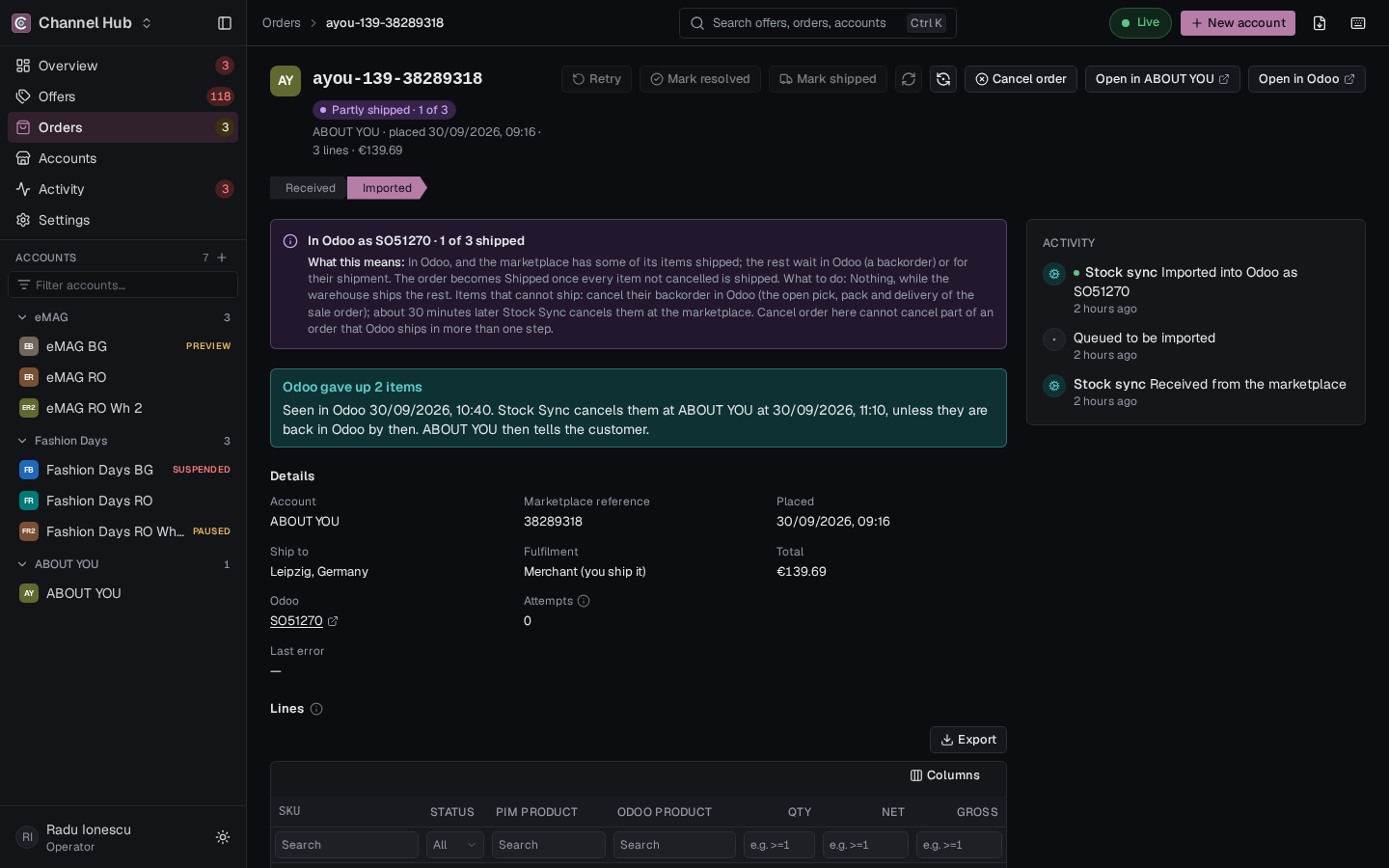
When the warehouse validates a delivery with fewer items and keeps a backorder for the rest, the order shows Partly shipped · 1 of 3 in violet. If the rest will never come (no stock), cancel it in Odoo, not with Cancel order: the ECOM warehouse ships in three steps (pick, pack, then the delivery), and Stock Sync cannot cancel part of such an order itself. The order's box says the same.
- Open the sale order in Odoo (Open in Odoo on the order page).
- Open its backorder: the transfers still open for the missing items (the pick, the pack and the delivery, each named like the first ones with a higher number).
- Cancel each of them.
- Back in Stock Sync, the order shows a blue note within 5 minutes: Odoo gave up 2 items. Seen in Odoo …. Stock Sync cancels them at ABOUT YOU at …, unless they are back in Odoo by then.
- At that time (30 minutes after the cancel was seen), Stock Sync cancels those items at ABOUT YOU with the reason Cancelled in Odoo. Once ABOUT YOU confirms, every item not cancelled is shipped and the order becomes Shipped.
The grace period: 30 minutes
Staff sometimes cancel a sale order only to edit it (Cancel, then Set to quotation, then Confirm). A cancel like that must never reach the customer. So Stock Sync waits until it has seen the same units given up for 30 minutes. If the order is back in quotation or confirmed again before then, the wait starts over and nothing happens at ABOUT YOU. Allow about 35 to 45 minutes from the cancel in Odoo to the order showing it. A replacement sale order made after Stock Sync has already acted is noticed at the latest by the next daily check.
A replaced sale order
Staff may also cancel a sale order and make a new one under the same reference. When Stock Sync finds the old one cancelled and exactly one other live order with that reference, it does not cancel anything. It follows the new one: the order's Odoo link now opens it, and the activity says Odoo order replaced: now and the new sale order's name. If Odoo holds two live orders for the reference, Stock Sync does not guess: the order goes to Needs attention with Changed after import and the sentence "Odoo holds two orders for this reference: …". Keep one in Odoo and press Mark resolved.
What you see
- While Stock Sync waits, the order page shows a blue note: Odoo gave up 2 items, when it was seen, and when Stock Sync cancels them at ABOUT YOU, unless they are back in Odoo by then, and that ABOUT YOU then tells the customer. Past that time it says at its next check of Odoo (every 5 minutes); while the order needs attention, that Stock Sync waits and cancels them only once the order is Imported again. The note goes once Stock Sync has asked ABOUT YOU, once Odoo has the items back, or once Stock Sync no longer watches the order (Resolved, Shipped, Cancelled, the account's orders not Live, or imported more than 90 days ago).
- The order's activity says Odoo gave up 2 items (with , N could not be matched when Odoo gave up more units than the order has open items for), then Cancellation requested by Odoo — Cancelled in Odoo (2 items), then the usual Cancelled 2 items — Cancelled in Odoo. Cancelled in Odoo is the reason of the cancellation, not the name of the first line.
- The line under the fields shows the reason Cancelled in Odoo and no note. It never says checking Odoo or waiting for Odoo: Odoo is where the cancellation started, so Stock Sync only tells ABOUT YOU and finishes. The dialog Cancel order never offers that reason; it is only ever set by Odoo.
- When every item is cancelled the order becomes Cancelled. With No backorder on one of two items, only that item is Cancelled and the order stays Imported.
- If ABOUT YOU refuses an item, for example one already shipped, the order goes straight to Cancel failed for a person, as for any cancellation (see Cancel failed). The sentence says that Retry checks Odoo again first: fix the cause and Retry, or cancel the items at ABOUT YOU by hand: once Stock Sync shows them cancelled, mark the order resolved.
- Retry and every resend of a cancellation Odoo started read Odoo again first, and send only what Odoo still gives up. If staff have restored the items meanwhile, nothing is cancelled: the order page shows "Cancellation withdrawn: nothing was cancelled", the activity "Cancellation withdrawn — Odoo no longer gives N items up, nothing was cancelled", and the order stops waiting.
- If Odoo's order holds no line of the product that was given up (a line swapped for another product), or ships it as other products (a kit), Stock Sync cancels nothing. The order goes to Needs attention with Changed after import and the sentence "Odoo's order holds no line of product 501" or "Odoo ships product 501 as other products (a kit): check it by hand". Check it in Odoo. For a swapped line, put the product back so Odoo's order matches the marketplace's, then Mark resolved; for a kit, Mark resolved is refused ("Odoo ships product 501 as other products (a kit), which Stock Sync cannot follow: Close – handle manually"): handle the order yourself and press Close – handle manually.
Stock Sync only acts on an order that is Imported and has no cancellation running. An order that waits in Needs attention, or is still being cancelled, keeps what Odoo gave up and is acted on once it is Imported again. A Resolved or Cancelled order is not watched, and neither is an order older than 90 days.
When a marketplace cannot do it: cancel by hand
ABOUT YOU can cancel item by item. eMAG and Fashion Days cancel whole orders only. When Odoo gives up the whole order, Stock Sync cancels it there; when Odoo gives up only some items, the order goes to Needs attention with the reason Cancel at the marketplace by hand, and the sentence names the items:
Odoo gave up items 9001, 9002: cancel them at eMAG RO by hand; this clears itself once eMAG RO shows them cancelled
The numbers are the marketplace's item numbers. The order page's Lines table has an Item column with the same numbers, so you find the rows by it. When Odoo gave up only some of the units of an item that has more than one, the sentence says so, for example 9001 (1 of 2 units): no marketplace cancels part of an item, so you cancel that part yourself.
- Open the order from Needs attention (see An order needs attention).
- Find the named items in the Item column of the Lines, and cancel them in the marketplace's own seller centre.
- Nothing to press in Stock Sync. Within a few minutes of the marketplace showing every named item cancelled, the warning clears itself: the order goes back to Imported, and Stock Sync ships the rest as usual, or it becomes Cancelled when every line is cancelled.
There is no Retry and no Cancel order on such an order, and Mark resolved is refused while it waits ("… it waits for items 9001, 9002 to be cancelled at the marketplace by hand, and leaves Needs attention by itself once the marketplace shows them cancelled; or Close – handle manually"). Press Close – handle manually only to take the whole order out of Stock Sync. The warning also comes as a message in the Teams Operations channel, as for any order that needs attention (see Alerts in Teams).
If a Needs attention revision arrives first, for example a return, it replaces this reason; the activity still names the items to cancel: Odoo gave up 2 items, then Needs attention — Cancel at the marketplace by hand with the sentence in grey under it.