
Appearance
Connect Showroomprivé
You connect the company's shop on Showroomprivé Drop to Stock Sync, so that its orders reach Odoo the way staff type them today, its labels from Nippon are matched to the orders, and the tracking numbers go back to Showroomprivé. On Drop, Showroomprivé is the retailer: it sells our products in flash-sale campaigns on showroomprive.com, and we sell to Showroomprivé. We invoice its company, Saldi Privati SRL; the shopper never hears of us. Our Rimini warehouse picks and packs every order, and Nippon makes the UPS and BRT labels and books the pickups. About 85 orders a day, many more on the day a campaign opens.
At a glance
| Stores | One account for the Drop shop. Showroomprivé's test shop is a second account, on the test environment only. |
| Login needed | One API key. Shop id only if one key reaches several shops. |
| Where it comes from | Showroomprivé's seller back office: your user name at the top right → user settings → API key → Generate |
| Who can do this | An Operator types it in. Viewers see everything but have no buttons. The product owner decides each switch to Live, and the day staff stop typing campaign orders. |
| Time needed | About 15 minutes for the form and the settings, then a few days of order Preview |
| Test shop | Yes: https://showroomprive2-dev.mirakl.net, with its own key |
| Stock | Off. Showroomprivé sells "unlimited" and nobody sends it stock. |
| Orders | Read every 5 minutes. Each order becomes one Odoo order sold to Saldi Privati, at the net price Showroomprivé pays us, with its campaign. No accepting: Showroomprivé accepts every order itself. |
| Labels | From Showroomprivé's own label service (CLS) for an account with the CLS login: made when the order reaches Odoo. Otherwise from Nippon: you request them with Stock Sync's files and upload what Nippon sends back. See Labels from Showroomprivé (CLS) and Upload labels. |
| Status of this connector | Not yet seen working. Nothing has been read from Showroomprivé through the API yet. See below. |
Not yet seen working
Stock Sync was built from Showroomprivé's and Mirakl's documents and from what Showroomprivé's back office shows. Nothing has been read through the API yet. Until the required checks are done and Preview is clean, nothing goes Live.
Not this guide: Showroomprivé's other platform, where we sell to the shopper and invoice them, and whose orders Gaia Suite creates in Odoo (A-… references). Stock Sync doesn't touch it.
Showroomprivé runs on Mirakl, a platform many marketplaces use for their sellers. Stock Sync's Mirakl part is written once, and Showroomprivé is the first marketplace that uses it. If the business ever sells on another marketplace that runs on Mirakl, most of the work is already done: tell the technical team and the product owner.
One store or several?
One account for the company's Drop shop. The API key decides the shop: there is no country or site to choose. Drop ships to every country Showroomprivé sells in from the same shop, and one account covers them all.
| Account | Covers | Where |
|---|---|---|
| Showroomprivé | The Drop shop, every country | The real Stock Sync, with the production key |
| Showroomprivé test (any name you like) | Showroomprivé's test shop | The test environment only, with the test shop's own key |
An account on the test shop's address is named Showroomprivé test wherever the screens name its marketplace, so it is never taken for the real shop; it is still listed under Showroomprivé in the sidebar.
- Shop id. Leave it empty. It is needed only if one key reaches several shops; Showroomprivé then says which number is ours.
- Never make two accounts with the same key. The form accepts it and Test connection turns green, but the orders refuse the second one: choosing Preview or Live on it says "[name] already reads the orders of the same marketplace store. Set that account's orders to Off first." Look in Accounts first.
- Name: keep Showroomprivé.
What you need before you start
| ✓ | Item | Who gives it to you | How you know it's right |
|---|---|---|---|
| ☐ | Your own look at the Accounts list | You | No Showroomprivé account exists yet. If there is one, don't create another: go to The required checks. |
| ☐ | A login to Showroomprivé's seller back office | The person who manages the Drop seller account | https://showroomprive-prod.mirakl.net opens the shop's back office |
| ☐ | The API key | You generate it, or that person types it in with you | Test connection answers green |
| ☐ | The Operator role in Stock Sync | Whoever gives out roles, see Who can do what | You see New account |
| ☐ | The Odoo connection | The technical team, if it's missing | Settings → Odoo connection: Check connection passes |
| ☐ | Which Odoo contact of Saldi Privati SRL the orders are sold to, its invoice address, and the payment term | The product owner, or the person who types the campaign orders today | You can name them in Odoo |
| ☐ | The product owner's agreement on the day staff stop typing campaign orders | The product owner | A day between two campaigns is agreed before anything goes Live |
Where the credentials come from
The only credential is the API key. Showroomprivé has a test shop and a production shop, and each has its own key.
Sign in to Showroomprivé's seller back office:
https://showroomprive-prod.mirakl.netfor the production shop,https://showroomprive2-dev.mirakl.netfor the test shop.Click your user name at the top right, then open your user settings.
Open API key and click Generate.
Copy the key and paste it into Stock Sync's API key field, and nowhere else.
- Who can generate it? A user of the shop's back office. The key belongs to that user: if the user leaves, generate a new key from another user and replace it in Stock Sync.
- Generating a new key stops the old one. Do it only when you are ready to type the new one into Stock Sync at once (Enter or change credentials).
- Test or production? The key of the test shop works only on the test shop, and the production key only on production.
This key is the whole shop
It can change stock and prices and cancel orders. Type it into Stock Sync's form and nowhere else: never into a chat, a ticket or an email, and never a screenshot of the page that shows it. The production key belongs on the real Stock Sync only, never on the test environment.
Connect the store, step by step
Open New account: the button in the top bar on any Channel Hub page or at the top of Accounts, the + beside Accounts in the sidebar, or Ctrl K and new.
Marketplace. Click the Showroomprivé card, which says Also reads orders. Until the technical team switches Showroomprivé on for this system, the card isn't on New account: if it's missing, stop and ask them.
Click Next.
Connection.
- API address has the production shop chosen: Showroomprivé in the Production column,
showroomprive-prod.mirakl.net. For the test shop, on the test environment only, choose Showroomprivé test in the Test column (showroomprive2-dev.mirakl.net, with a Test badge). - Name fills in as Showroomprivé, or Showroomprivé test for the test shop. Keep it.
- Paste the API key; it shows only as dots.
- Leave Shop id empty.
- Leave Requests per second on 1.
- Leave Tracking addresses empty: UPS and BRT are known already (see Tracking back).
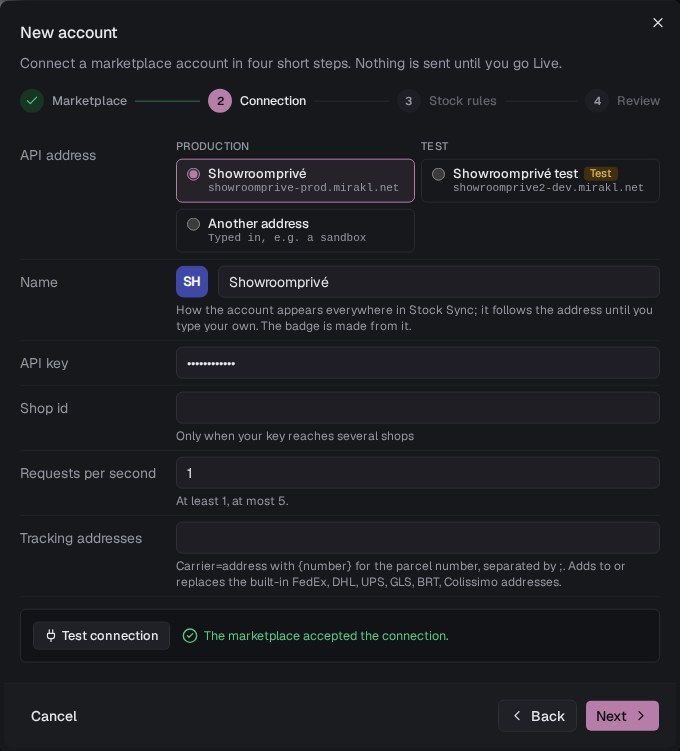
- API address has the production shop chosen: Showroomprivé in the Production column,
Click Test connection. It asks Showroomprivé for one offer and saves nothing.
You see It means Do this A green line, The marketplace accepted the connection. The key works on that address Click Next. A red line, The marketplace refused the connection: … The key is wrong, or belongs to the other shop Check the address, then copy the key again. A red line, The marketplace could not be reached (…), so the connection could not be checked. Try again in a moment. No answer, or Showroomprivé asked us to slow down Try again in a few minutes. Fill in API key first. The field is empty Paste the key. Stock rules. Leave them as they are: stock goes Off in step 9. The orders start Off. Click Next.
Review. Check the lines: Marketplace Showroomprivé, Name, API address, API key Set (never shown again), Requests per second 1, Orders Off, Connection test Accepted.
Click Create account. The account opens in Preview, and nothing is sent.
Open the account's Settings tab, choose Off in the Stock row of What this account does and confirm with Switch off. It acts at once: there is no Save. The offers screens then say Stock sync is off for this account: no offer is read and no stock is sent. An offer import that had already started sends nothing. The account's status word then follows its orders: with Orders and Ship orders Live it reads Live (hover: Stock Off · Orders Live · Ship orders Live), and Go Live / Back to Preview are no longer offered.
In Orders → Odoo, choose the Order workflow Dropship — we invoice the marketplace, and set the fields below the way staff's Drop orders have them today. Leave Orders mode on Off for now.
Field Choose Customer The contact of Saldi Privati SRL that staff's Drop orders are sold to Invoice address Saldi Privati's invoice address, as on staff's orders. Empty: the customer itself. Fiscal position Sales Italy & EU customers w/o VIES, VAT 22% Payment term 30 giorni dalla fattura Sales team Private Sale Warehouse ECOM Sales channel, Pricelist, Salesperson As on staff's Drop orders; ask the product owner when unsure Delivery method, Shipping product, Commission product None: Drop orders carry no shipping fee and no commission, and the labels come from Nippon, not from Odoo Click Save. Then carry on with The required checks.
Every option explained
| Option | What it does | What to choose | Can it change later? | If it's wrong |
|---|---|---|---|---|
| API address | Which Showroomprivé shop Stock Sync calls | https://showroomprive-prod.mirakl.net; the test shop https://showroomprive2-dev.mirakl.net on the test environment only | Locked while the account is Live and active | The test fails, or the account talks to the other shop |
| API key | The shop, and who we are on it | The key you generated | Locked while Live and active. Leave it empty to keep the stored one. | Refused, and the account becomes Suspended |
| Shop id | Which shop, when one key reaches several | Empty | Locked like the key | A wrong number: Showroomprivé refuses every call |
| Requests per second | How fast Stock Sync may call Showroomprivé. The orders have a slower limit of their own, which Stock Sync keeps by itself. | 1. Don't raise it on your own. | Any time | Too fast: Showroomprivé asks Stock Sync to wait, and it waits as long as asked |
| Tracking addresses | The tracking page each carrier's parcels get, written Carrier=address, with {number} where the parcel number goes, separated by ; | Empty. FedEx, DHL, UPS, GLS and BRT are built in. | Any time | A carrier with no address: its shipments wait in Needs attention |
| Stock sync | Whether Stock Sync reads Showroomprivé's offers and sends stock | Off | Any time, as Stock in Settings → What this account does. Switched back on, stock starts in Preview. | On: Stock Sync would read 66,000 offers it can't link and has no stock to send |
| Order workflow | Who the Odoo order is sold to: the shopper (Marketplace) or Showroomprivé (Dropship) | Dropship — we invoice the marketplace | Any time; change it only while the orders are Off or in Preview | Marketplace: Stock Sync doesn't send the orders to Odoo: each waits in Needs attention as Unreadable, naming this setting |
| Customer, Invoice address | The Saldi Privati contact the order is sold to, and where its invoice goes | As on staff's Drop orders | Any time | Orders sold to the wrong company: invoicing per campaign goes wrong |
| Fiscal position, Payment term | The VAT and the payment term on every Drop order, whatever the delivery country | Sales Italy & EU customers w/o VIES, VAT 22%, 30 giorni dalla fattura | Any time | Wrong VAT on the invoice |
| Orders mode | Off, Preview (shows what it would create, writes nothing) or Live (creates in Odoo) | Off, then Preview, then Live between two campaigns | Any time | Live while staff still type campaign orders: the same sales twice in Odoo |
| Ship orders | Off, Preview (shows what it would send) or Live (sends the tracking to Showroomprivé) | Off, then Preview, then Live | Only while the orders are Live | Off means no tracking goes back from Stock Sync |
The required checks
| ✓ | Check | Where to look | What "right" looks like | If it isn't |
|---|---|---|---|---|
| ☐ | Test connection | The form, then Review | Accepted | See If something goes wrong |
| ☐ | Stock sync is Off | The account's Settings | The offers screens say Stock sync is off for this account | Choose Off in Stock (Settings → What this account does) and confirm with Switch off |
| ☐ | Order comparisons, after step 1 of Going fully live | Orders, the Previewed quick view | Every order reads Not in Odoo (staff's campaign orders hold no Showroomprivé number), and its lines show the right PIM products and prices | A line without its product: send the order number to the technical team |
| ☐ | One order read by hand | The order's page | Customer Saldi Privati, the shopper's delivery address, the campaign, net prices as in the back office | Fix the Order workflow fields |
| ☐ | Our orders are ones we label | Needs attention | No order Unreadable because Showroomprivé makes its label | Tell the product owner: those orders stay manual |
| ☐ | One label on the test environment | For a CLS account: the first test in Labels from Showroomprivé (CLS). Otherwise Upload labels with one real Nippon delivery | A label on the order with its tracking number (CLS), or each page matched to its order with UPS or BRT (Nippon) | Don't go Live: send it to the technical team |
Products. A Drop order line names our product as the PIM SKU and the size, 194371C01 54, which Stock Sync reads as 194371C01_54: the last space separates the size, since a PIM SKU may hold spaces (100037 A0F2 Z99Q ONESIZE). When the size says one size (ONESIZE, TU), Stock Sync looks for the product by its SKU alone, whatever size Odoo gives it: 81140681 TU is the bag Odoo keeps in size ONESIZE, and SJC181 0300 ONESIZE is the pair of sunglasses Odoo keeps in size 52. When the code finds no product, Stock Sync looks for the line's EAN, which Showroomprivé sends with every line, as the product's barcode in Odoo. A line found either way shows its PIM product. A line whose product isn't found waits in Needs attention, as on every marketplace.
Going fully live
The orders go Live between two campaigns, on the day staff stop typing campaign orders. Staff's campaign orders hold no Showroomprivé order number, so Stock Sync can't adopt them: if both run during the same campaign, the same sales are in Odoo twice. Stock stays Off throughout.
| Step | Where | Who decides | Done when |
|---|---|---|---|
| 1. Orders to Preview | Settings → What this account does, Orders | You | Orders show as Previewed within about 5 minutes |
| 2. Read the comparisons | Orders, Previewed | You, with the product owner | Lines, prices, customer and campaign are right, over several days |
| 3. A label on the test environment | CLS first test, or Upload labels for Nippon | You, with the technical team | A label with its tracking number, or pages matched to their orders |
| 4. Agree the day staff stop | The product owner, with the people who type campaign orders | Product owner | A day between two campaigns |
| 5. On that day: orders to Live | Orders mode, Live, Save, then Go live in the dialog | Product owner | New orders become Imported, one Odoo order each |
| 6. Ship orders to Preview, then Live | Ship orders, under Orders mode | Product owner | The first real shipment reads Shipped, and the tracking shows in the back office |
Live creates every waiting order
On Live, every order of the last days that isn't in Odoo is created. Agree with staff which campaign is the first one Stock Sync creates, so no campaign is typed by hand too.
What changes on the Live day:
| Who | Changes |
|---|---|
| Staff who type campaign orders | Stop. Each Drop order arrives in Odoo by itself, sold to Saldi Privati, with its campaign as the Source Document: group them by campaign for invoicing. |
| Staff who request labels from Nippon | Use Orders → Upload labels → Request labels instead of the Airtable export, and upload Nippon's labels and tracking files there. |
| The warehouse | Prints the labels from the order, as ZPL on the Zebra. Validates the delivery in Odoo, as now. |
How to pull back:
| From | Do this | What it means |
|---|---|---|
| Orders Live | Orders mode to Preview or Off, Save (details) | Stock Sync stops creating orders, and Ship orders goes Off too. Orders already in Odoo stay. Staff type the orders of the days between. |
| Ship orders Live | Ship orders to Preview or Off, Save | Nothing more goes to Showroomprivé. Tracking is uploaded in the back office by hand. |
A shipment already sent can't be taken back: the customer has the tracking.
Fully connected means:
- ☐ One Showroomprivé account, Stock sync Off
- ☐ Order workflow Dropship, Orders mode Live, new orders Imported within minutes
- ☐ Labels requested and uploaded through Stock Sync
- ☐ Ship orders Live, tracking reaching Showroomprivé
- ☐ Someone looking at Needs attention every day
Stock
Off for Showroomprivé Drop. Showroomprivé lists our products for each campaign at 999,999 units and sells "unlimited": nobody sends it stock, and its offers carry no code of ours. With Stock sync Off, Stock Sync reads no offer and sends nothing. The orders are not affected.
Orders
Orders appear in Stock Sync within about five minutes: Showroomprivé asks not to be read more often. Once the orders are Live, they reach Odoo too.
- One Odoo order per Showroomprivé order, sold to the Customer you chose (Saldi Privati), invoiced to its Invoice address, delivered to the shopper's address, which Stock Sync keeps in Odoo as a delivery address under Saldi Privati.
- The reference is Showroomprivé's order number, for example
354620002-A, as Odoo's Customer Reference. The campaign (campaign-number, six digits) is the Source Document. - Prices are the net prices Showroomprivé pays us, as its back office shows them. The VAT comes from the Fiscal position, whatever the delivery country.
- No shipping fee and no commission: Drop orders carry neither.
- The shopper gets a name, an address and a phone on the delivery address in Odoo, and no email, so Odoo never writes to Showroomprivé's customers. Stock Sync keeps the email on its own order only, for Nippon's request file.
- Showroomprivé allows only a few order reads an hour. Stock Sync stays under that limit by itself. If Showroomprivé asks it to slow down, new orders, shipments and cancellations wait as long as asked and then carry on. Nothing is lost.
Needs attention catches an order Stock Sync can't read, as Unreadable with the reason: a line without our product code, a country it doesn't know, an order whose label Showroomprivé makes itself, or an account whose Order workflow isn't Dropship (see What stays manual).
Labels from Showroomprivé (CLS)
Showroomprivé has taken Drop transport over: our orders now come as Showroomprivé transport (carrier-manager = SRP), and each parcel's label and tracking number come from Showroomprivé's own label service, CLS. Nippon is retired for an account that uses CLS. An account switches over by itself, as soon as two things are true: the technical team has switched showroomprive-cls on for the system, and the account's connection holds the whole CLS login. An account without them behaves as before: such an order is Unreadable, and Nippon's pages are shown.
What you type. In Settings → Connection, the group Showroomprivé transport (CLS) (it shows only while showroomprive-cls is on) has four fields: address (it holds a secret token, so it is never shown again), user name, password (never shown again) and client id. Fill in all four or none. Showroomprivé gives them to the product owner: one set for the test shop, another for production. Test connection then also signs in to CLS: it says CLS sign-in refused when the login is wrong, and that the marketplace could not be reached (CLS can't be reached right now) when CLS is down. A CLS problem never stops the account: its orders keep being read, and only their labels wait or are refused.
What happens to an order.
- When Channel Hub imports an order into Odoo (orders Live), it asks CLS for one label and stores it as a ZPL file, 10 x 15 cm, ready for the Zebra. Preview never asks: a label books a real parcel.
- The label shows on the sale order in Odoo and on the order's page under Showroomprivé labels, with the tracking number and the carrier (Colissimo, Mondial Relay, GLS and so on, from the order's Showroomprivé transport line).
- Channel Hub tells Showroomprivé the tracking number at once. When the Odoo delivery is validated, Ship orders confirms the shipment, as before.
- The warehouse prints with Print label in the companion. Nothing is converted.
Another label. A second parcel is a person's decision: Another label, on the order's page or in the companion, asks CLS again. Every tracking number then goes to Showroomprivé. It is refused while the order waits for its label (see the table below: Retry is the way out of that wait). Showroomprivé makes at most 20 labels per order. An order Channel Hub adopted (it was already in Odoo when Channel Hub first saw it) gets no label by itself: Another label is how you get one.
When CLS says no.
| You see | It means | Do this |
|---|---|---|
| Showroomprivé label unclear (Needs attention) | CLS didn't answer, after five tries over about an hour and twenty minutes | Retry asks again, printing first, so a label CLS already made is found, never made twice. Mark resolved if you labelled the parcel another way: Another label is offered again afterwards. |
| Showroomprivé refused the label, with CLS's code and words | A set-up problem on Showroomprivé's side (for example 305 Warehouse not found), or the order is already shipped there | Send the words to Showroomprivé (dev_transport@showroomprive.net). Retry asks again; Mark resolved if you labelled it another way. |
| Showroomprivé refused the label: …doesn't know order … | CLS didn't know the order for two hours: Showroomprivé's back office can lag behind, so Channel Hub keeps asking for two hours first | Send the order number to Showroomprivé (dev_transport@showroomprive.net). Retry once they know it. |
| Showroomprivé refused the label: Showroomprivé gave this order's existing label again (tracking …) | Another label got the order's first label back instead of a new parcel | Ask Showroomprivé's transport team (dev_transport@showroomprive.net) for the second parcel, then Mark resolved. |
| Showroomprivé refused the label: Channel Hub can't store labels: the order documents storage isn't configured. | The system has nowhere to keep labels | Technical team. |
| Showroomprivé refused the label: …CLS sign-in refused, and Test connection says so | The CLS login is wrong or was changed | Type it again in Settings → Connection, Save, then Retry the orders. |
| No label, no message, the account's orders Live | The connector connector.showroomprive is switched off on this system | Technical team: on prod the connector must be on for labels. |
Nippon hidden. For a CLS account, Request labels and the Nippon uploads refuse the account, and Upload labels leaves it out of its lists. Other accounts and the page itself stay.
Cancelling. CLS has no cancel call. An order cancelled after its label goes to Needs attention as Changed after import, and says its label is unused: don't ship the parcel. Ask Showroomprivé at dev_transport@showroomprive.net to cancel the label.
First test, on the test shop. Before telling Showroomprivé we are ready, the technical team runs the checks of its runbook (docs/runbooks/showroomprive-cls.md in the repository) on the test orders, and the product owner reads the result.
Switching on (technical team). First settle every order of Showroomprivé's transport still waiting as Unreadable: once readable it goes to Odoo and books a CLS parcel by itself, even if it was shipped by hand. Then, per environment, by SQL (the repository's feature flags runbook): UPDATE feature_flags SET enabled = true WHERE key = 'showroomprive-cls'; On prod, connector.showroomprive must be on as well, and the prod CLS login is typed on the day Showroomprivé switches our shop.
Tracking back
Labels. For an account without the CLS login, Showroomprivé gives no labels for Drop and Nippon makes them (an account with it: see Labels from Showroomprivé (CLS)): BRT for Italy, UPS for every other country. In Orders → Upload labels, Request labels builds the two files Nippon expects, and you upload what Nippon sends back (label PDFs and tracking files). Stock Sync matches each label to its order and writes the tracking number and the carrier on the order. See Upload labels.
Ship orders, in What this account does, can be switched on once the orders are Live. When the delivery is done in Odoo, Stock Sync tells Showroomprivé in the two steps it requires: first the tracking, then "shipped". Showroomprivé counts an order as shipped only after both. If the second step is refused, the order waits in Needs attention as Marketplace refused the shipment, with Showroomprivé's words.
- Every parcel goes with its own tracking number and its own tracking address: Showroomprivé passes the tracking to the shopper only when every parcel has both.
- UPS parcels get UPS's tracking page. BRT parcels get BRT's page for the whole 15-digit number, as Showroomprivé shows it for Nippon's BRT parcels today.
- Carriers. FedEx, DHL, UPS, GLS and BRT are known. Another carrier needs its address in Tracking addresses; until then its orders wait for a person, who confirms the shipment in Showroomprivé's back office.
- Whole orders only. An order with two deliveries is sent when both are done.
- An order already shipped at Showroomprivé, by hand, isn't sent again.
Cancellations
Cancel order on the order's page, and cancels made in Odoo, work as for ABOUT YOU, for whole orders only. Showroomprivé usually doesn't let a seller cancel an order. Then the order shows Cancel failed at Showroomprivé with Showroomprivé's refusal, and waits in Needs attention. A person asks Showroomprivé to cancel it, at dropship@showroomprive.net, then presses Mark resolved. See Cancel an order.
An order Showroomprivé cancels itself after it reached Odoo goes to Needs attention as Changed after import, and a person handles it in Odoo.
What stays manual
- Listing products and prices: Showroomprivé creates the products and offers of each campaign.
- Emailing Nippon (an account without the CLS login): download the request files from Stock Sync and email them as today.
- Delivery notes (DDT): made as today, outside Stock Sync.
- Invoices: one deferred invoice per campaign, by staff in Odoo, from the orders of that campaign (the Source Document). Credit notes for missing items and returns, as today.
- Returns, refunds and penalties: staff handle them with Showroomprivé.
- Orders whose label Showroomprivé makes itself (its own label service): should one come, it waits in Needs attention as Unreadable and is shipped the way Showroomprivé asks; then press Mark resolved.
- Cancelling an order Showroomprivé refuses to cancel: ask Showroomprivé, at dropship@showroomprive.net.
- Finding an offer in Showroomprivé's back office: Open in Showroomprivé on an order opens it in the production shop's back office, but offers have no such link. Search for the offer's SKU in the back office. On a test-shop account, the order link opens the production shop too, where the order isn't.
If something goes wrong
| You see | What it means | Do this |
|---|---|---|
| No Showroomprivé card on New account, or Connector off on the account | The connector is switched off on this system. Its work waits. | Only the technical team can change this. Ask them. |
| The marketplace refused the connection: … | Showroomprivé doesn't accept the key on that address | Check the address (production or test shop), then copy the key again. Still refused: generate a new key. |
| The marketplace could not be reached (…) | No answer, or Showroomprivé asked us to slow down | Try again in a few minutes. Still so after an hour: technical team. |
| Fill in API key first. | The field is empty | Paste the key. |
| Tracking addresses: … when saving | An entry isn't Carrier=address, or its address has no {number} | Fix the entry the message names, or empty the field. |
| … already reads the orders of the same marketplace store. … | A second account with the same key | Keep the first. Pause the second, leave its orders Off, and ask the technical team to remove it. |
| Suspended, with Showroomprivé's refusal | The key no longer works: a new one was generated, or its user left | Generate a key, type it in Settings → Connection, Save, then Recover. See Bring back a suspended account. |
| Offers being imported, or stock figures, on this account | Stock sync is On | Choose Off in Stock (Settings → What this account does) and confirm with Switch off: it acts at once. |
| An order line without its product | Its 194371C01 54 code matches no active PIM product of that SKU and size | Check the product in PIM. Then send the order to the technical team. |
| An order Unreadable, saying Showroomprivé makes its label | The account has no CLS login (or showroomprive-cls is off) | Type the CLS login (Labels from Showroomprivé (CLS)), or ship it the way Showroomprivé asks and Mark resolved. Tell the product owner. |
| Every order Unreadable, saying Showroomprivé orders go to Odoo the dropship way | The account's Order workflow is Marketplace | Choose Dropship — we invoice the marketplace in Orders → Odoo. The orders already Unreadable are read again when Showroomprivé next changes them; one that must reach Odoo sooner goes to the technical team. |
| Another order Unreadable | A line without our product code, or a country Stock Sync doesn't know | Send it to the technical team. There's no Retry. |
| Marketplace refused the shipment | Showroomprivé said no, in the words shown, or the carrier has no tracking address | Read the words. Fix the cause in Odoo and Retry, or confirm the shipment in the back office and Mark resolved. |
| A label page that matched no order | Nippon's page holds no order number or tracking number Stock Sync could read | See Upload labels. Never attach it to an order by guess. |
| Cancel failed at Showroomprivé | Showroomprivé doesn't let us cancel this order | Ask Showroomprivé to cancel it (dropship@showroomprive.net), then Mark resolved. |
Before you ask
You can settle these yourself:
- One account per country? No. One account covers the whole Drop shop.
- Which address? Production: leave Showroomprivé chosen. Showroomprivé test is for the test environment only.
- What is Shop id? Leave it empty, unless Showroomprivé tells us our key reaches several shops.
- Why is stock Off? Showroomprivé sells "unlimited" on Drop; nobody sends it stock.
- Why do orders take five minutes to appear? Showroomprivé asks not to be read more often.
- Why does every order say Not in Odoo in Preview? Staff's campaign orders hold no Showroomprivé order number, so there is nothing to compare with. Check the lines and prices instead.
- Why can't I cancel an order? Showroomprivé usually refuses. Ask Showroomprivé.
The product owner decides: the Saldi Privati contact, invoice address and payment term, which campaign is the first Stock Sync creates, every move to Live, and what happens with an order Showroomprivé labels itself.
The technical team handles: the connector switched off, an order Unreadable for no clear reason, a label upload that matches nothing, and another marketplace on Mirakl.
What to send them: the account name, whether it's the test or the real system, the page you were on, the exact words on screen, the order reference, and the time.
Never send the key
Not the key, and not a screenshot of the back office page that shows it.