
Appearance
Find out why a stock number is wrong
When a customer, a colleague or the marketplace shows a stock number you did not expect, you find the one offer, read it, and follow a short decision tree to the cause and its fix.
Before you begin
Who can do this: anyone signed in can investigate. The fixes that press a button (Resync, Re-read from PIM, Resume, Recover, Go Live) need an Operator.
Time needed: 5 minutes for one offer.
Before you start: have something that identifies the product: the marketplace offer id, the PIM product id (usually the same number), a barcode (EAN), a SKU or the product's name. Knowing the account (for example Fashion Days RO) helps but is not needed: the Offers list covers every account.
The decision tree
Open the offer (steps below) and walk down the tree. Each branch ends in the fix.
Steps
Find the offer. The quickest way: press Ctrl K and type the offer id, SKU, barcode or product name; the Offers group lists the matches with their account. Press Enter to open one.
Or open Offers (G then O), type in the search box (/ jumps to it) and press Enter. The search covers every account; the Account filter narrows it to one.
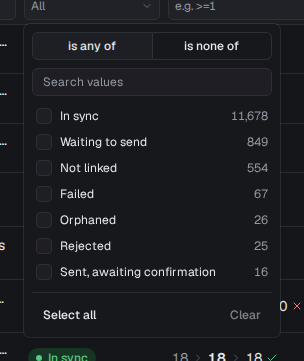
If you are looking for a group rather than one offer, use the quick views and the column filters instead: Status, Marketplace status, Eligible, Problem (the marketplace's reasons). Each option shows its count. A filter on a column that is hidden shows above the table as a chip you can click; Marketplace status and Problem are hidden at first, so show them with Columns. Paste a list of EANs or offer ids from Excel to find several offers at once (Working with tables).
Click the row. The offer opens in a side panel beside the list (Open full page gives it its own page and address).
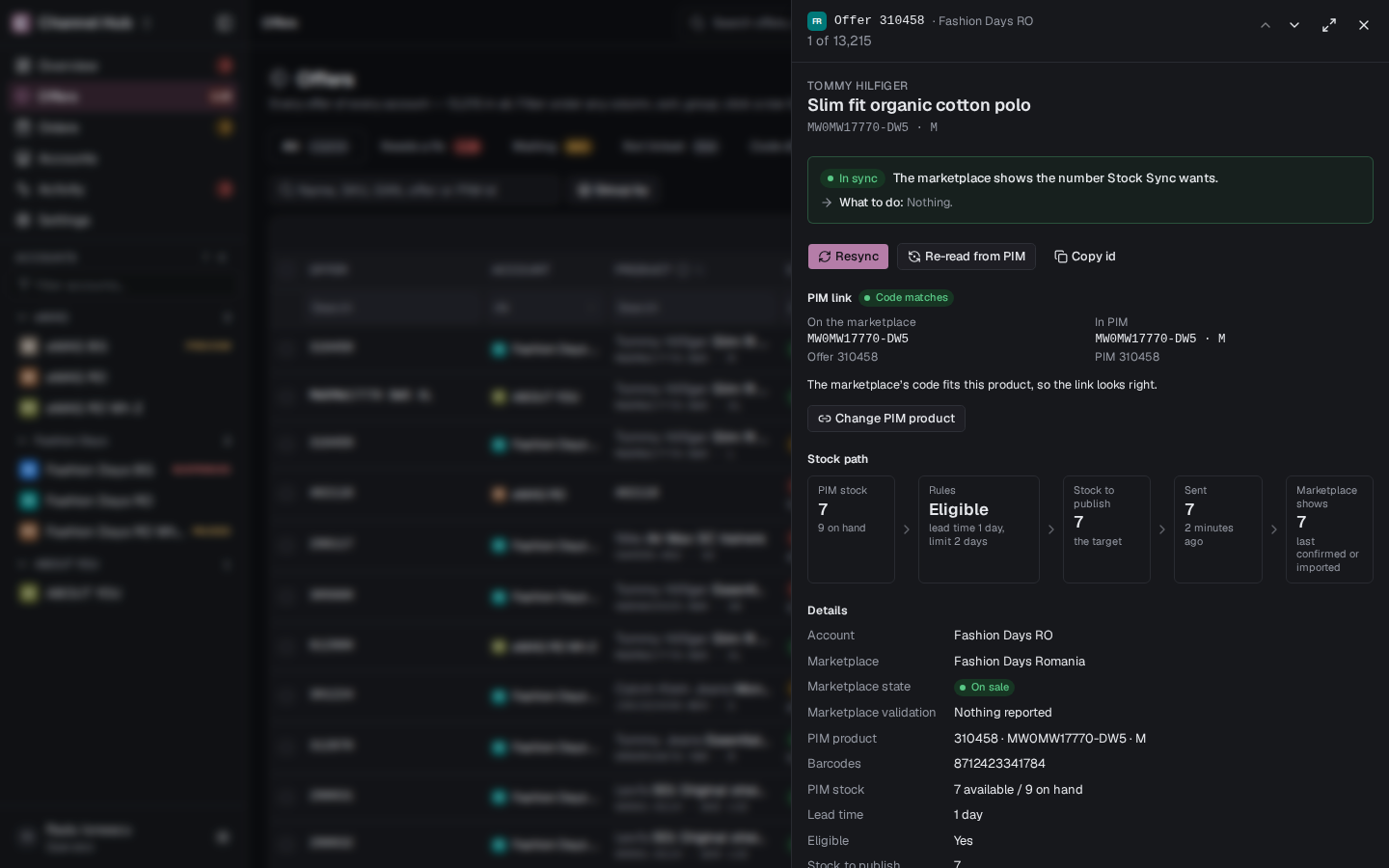
Read the What this means box: the offer's status (one word: Not linked or Orphaned for an offer without a working link; otherwise In sync, Waiting to send, Sent, awaiting confirmation (ABOUT YOU only), Rejected or Failed), what it means, and What to do. A line under it gives what the marketplace says (ended, switched off, a validation reason) and the Last problem, if there is one.
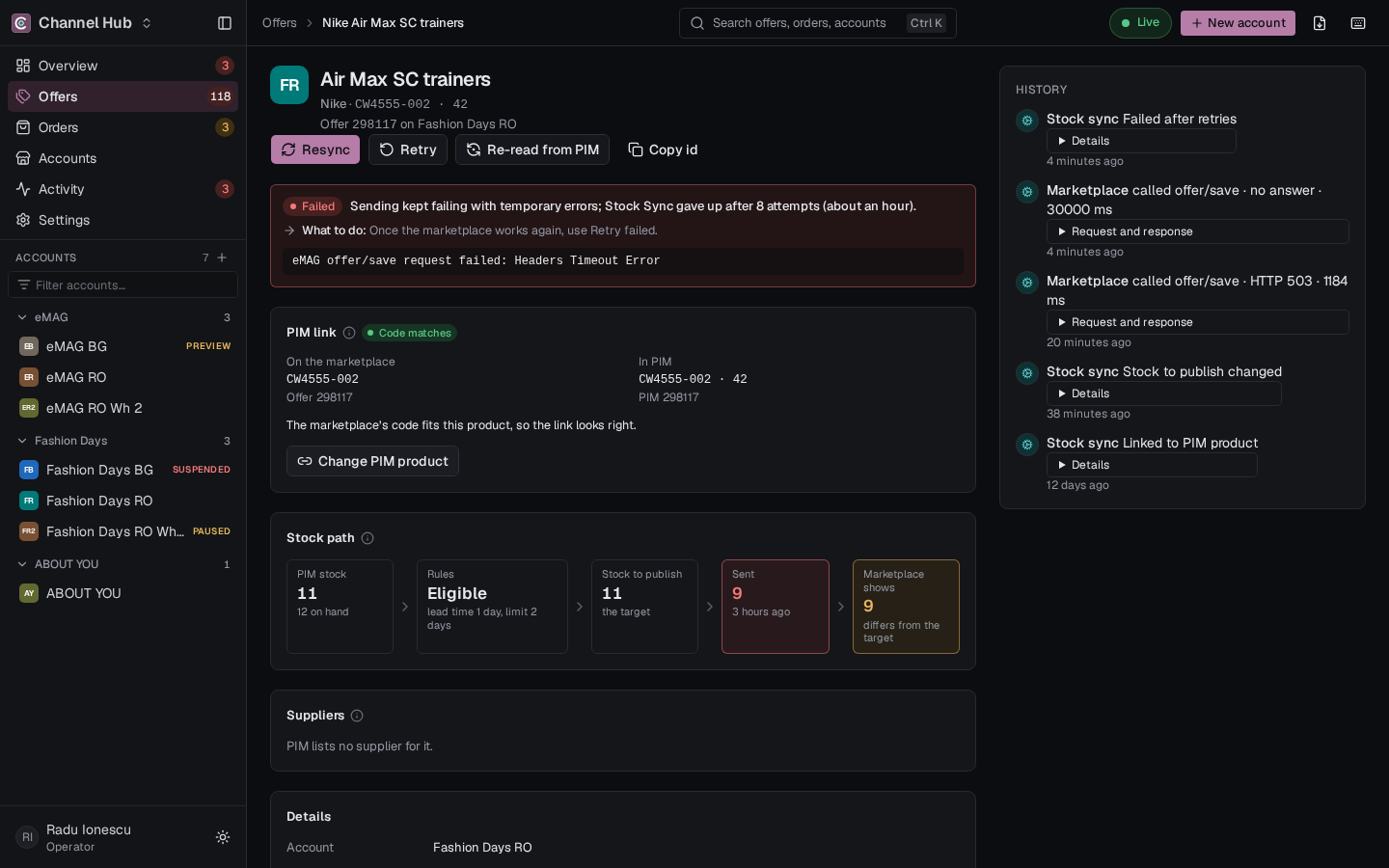
Read the Stock path, left to right, in the order the stock travels:
- PIM stock: available to sell (on hand is shown for reference only), as the PIM says.
- Rules: Eligible, Partly eligible (only the pieces of suppliers that ship within the limit count, for example "1 of 18 ship within 2 days"), Not eligible or Orphaned, from the account's lead-time limit.
- Stock to publish: what Stock Sync worked out from it.
- Sent: the last quantity the marketplace accepted, and when.
- Marketplace shows: what the marketplace last told Stock Sync: its confirmation of the last update, or the offer import if that came later.
The step that is off is coloured: that is where the cause is. Hover over a step for what it means.
Check Eligible and Lead time under Details. An offer whose product takes longer to deliver than the account's limit is not eligible and gets 0 on purpose.
If PIM stock or Lead time is not what PIM itself shows now, click Re-read from PIM beside Resync (operators). It reads this product from PIM again and works the stock out again for each of its offers, even when PIM changed nothing. Resync would only send the number Stock Sync already has. See Re-read from PIM.
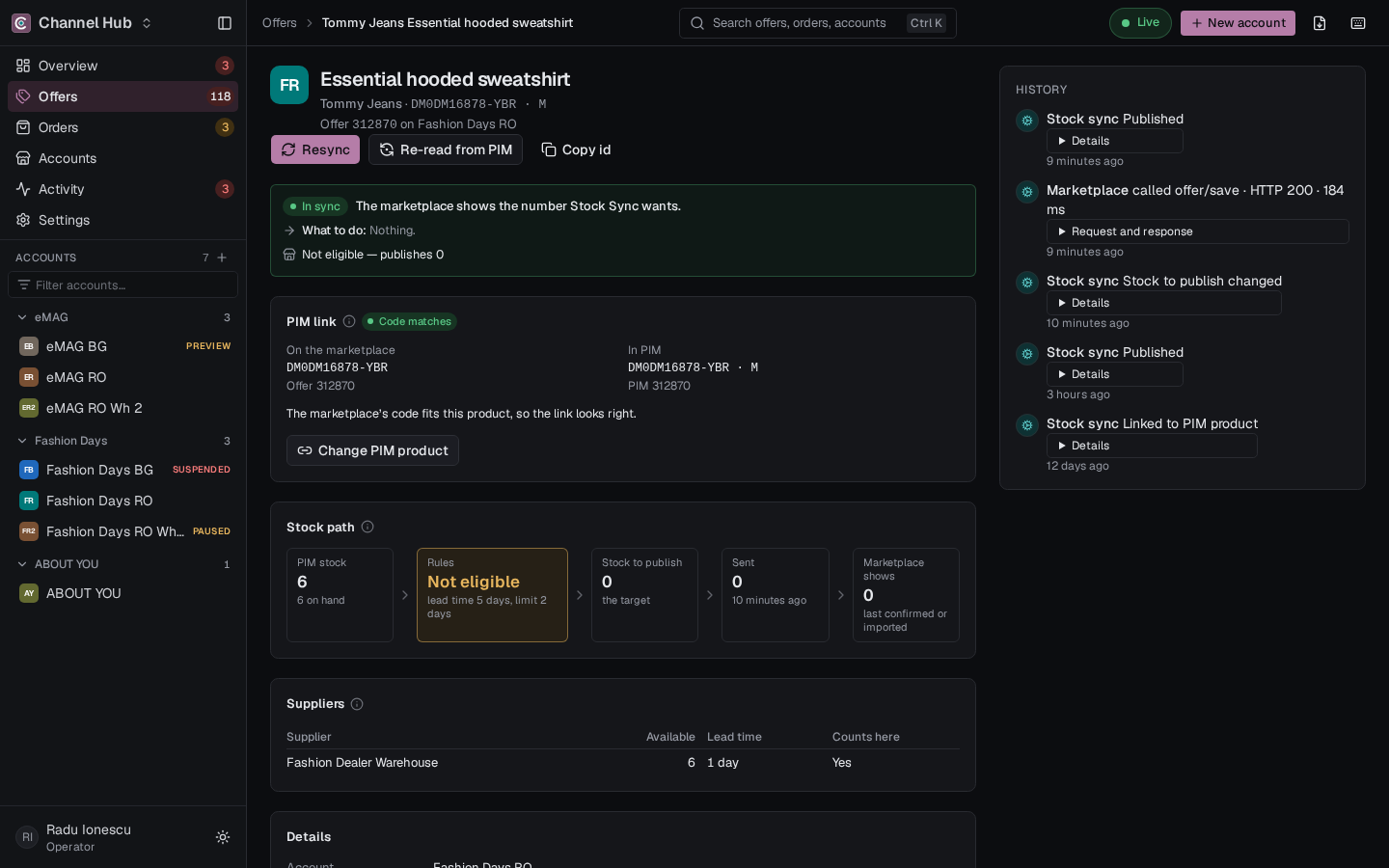
Check the account: hover over its badge at the top of the panel, or look at the sidebar. A PREVIEW, PAUSED, SUSPENDED or CONNECTOR OFF tag means nothing is sent for it.
If the status is Rejected or Failed, read Last problem, then open the latest called offer/save line under History with Request and response to see exactly what the marketplace answered.
If many offers of one account stopped moving at the same time, open Activity → Sync runs, choose the account in the Account filter, and read its latest Sending round runs. A round that is Failed means the account itself could no longer be used; one that says Succeeded with a failed count tells you how many offers gave up in that round.
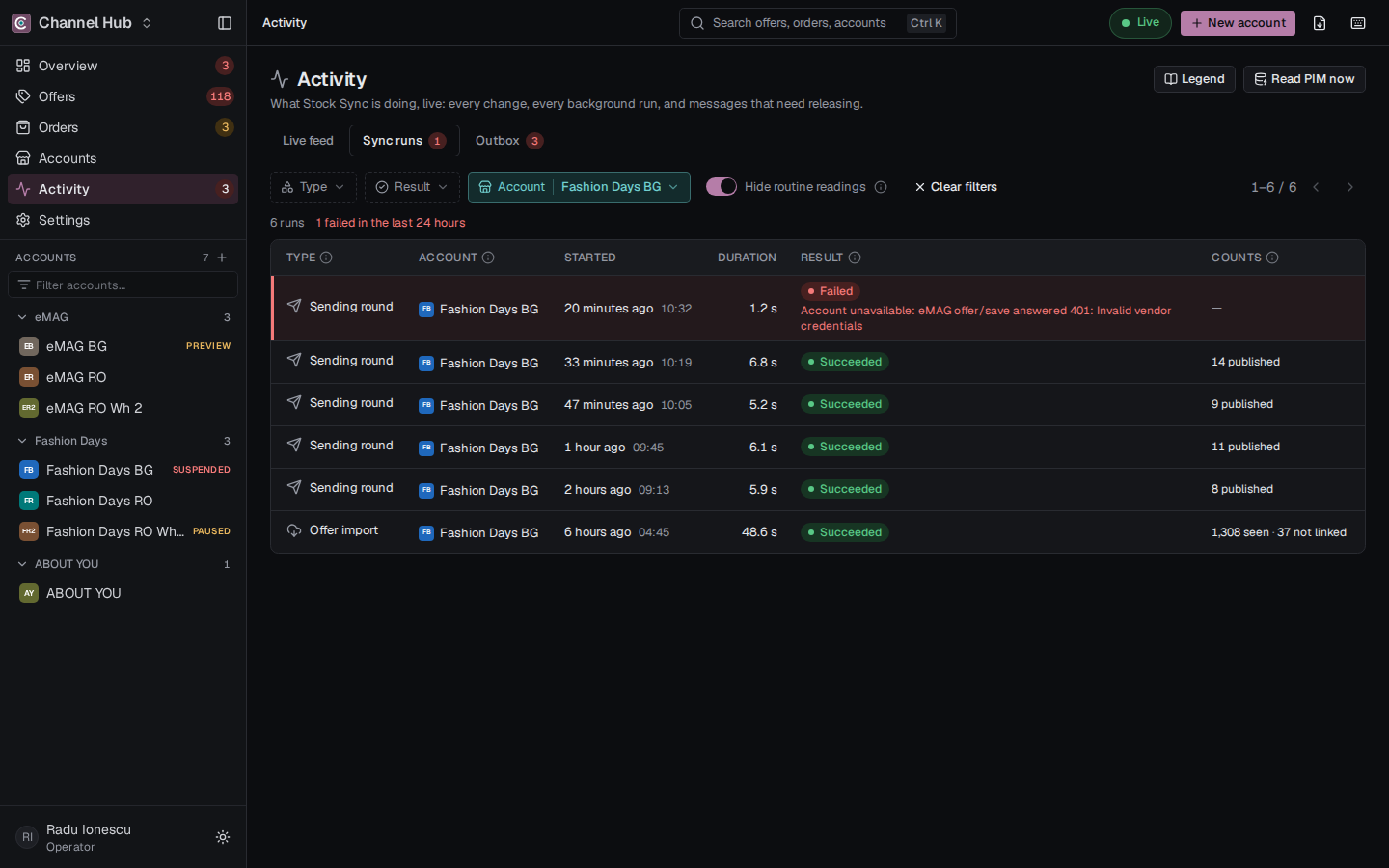
Here the marketplace refused the account's login, so it is suspended: see Bring back a suspended account.
Apply the fix at the end of your branch of the tree.
What you should see
Once the fix is in place, the panel follows by itself: the page updates live.
| Fix | When the result shows |
|---|---|
| Resync on the offer | "Offer 305660 is queued to be sent again." Sent within seconds; Sent changes as soon as the marketplace accepts it |
| A change in PIM | At the next PIM reading (at most 15 minutes), or at once with Read PIM now |
| Re-read from PIM on the offer | "1 offer re-read from PIM: 1 changed." (or 1 unchanged when PIM had the same data). PIM stock and Stock to publish update at once; a sending account sends a new number within seconds |
| A new Lead-time limit | A Recalculation runs straight after Save; a sending account sends the differences within a minute or two |
| Resume, Recover or Go Live | Import, recalculation and sending within a minute or two |
| Import offers | Marketplace shows is updated when the import finishes (about a minute for a few thousand offers) |
The offer's History records each step: "Stock to publish changed" for a new number, "Queued to be sent again" after a Resync, "Re-read from PIM" after a Re-read from PIM, or "Marketplace showed a different number, queued to be sent again" after an offer import found another number; then the call to the marketplace, "Published".
If something goes wrong
| You see | Do this |
|---|---|
| The search finds nothing: "No offers match. Try fewer filters, or another view." | Click Clear filters, check the quick view is All, and try another identifier (barcode instead of SKU). |
| Resync is greyed out | Hover over it, or read the line under it in the panel: the offer is not linked, orphaned, ended on the marketplace, or withheld by the marketplace's validation. A viewer sees no Resync at all. |
| Offer [id] cannot be resynced | The offer is not linked, or has no number to send yet. |
| Re-read from PIM is greyed out: Not linked to a PIM product: there is nothing to re-read. | The offer has no PIM product. Link it first with Change PIM product (see the tree). |
| "… Not in PIM: offer [id]; left as they are until the nightly full PIM check." | PIM did not return the product. Nothing was changed; check the product in PIM. |
| "PIM could not be read, so nothing was re-read: …" or "PIM is not set up for the API …" | Nothing was changed. Try again later; tell the technical team if it lasts. Resync and Read PIM now still work. |
| The marketplace itself shows another number than Sent | Customer orders, or someone on the marketplace, changed it since the last offer import. The next offer import (by default daily at 04:41) notices the difference, and Stock Sync sends its own number again by itself; Import offers does it now. |
| Ended on the marketplace — no stock sent under the status | The marketplace ended the offer. No stock is sent while it stays ended. If the marketplace puts it back on sale, the next offer import notices, and Stock Sync sends whatever stock it missed meanwhile (see Matching offers to products). |
Every cause, with more detail: The marketplace shows 0 but we have stock. The marketplace's texts are explained in Messages and what they mean.
Example
Customer service writes: "Fashion Days RO shows 180 of the jacket with barcode 8712423132764, but the warehouse says we have 250."
- Ana presses Ctrl K and types 8712423132764. One offer: 305660, Fashion Days RO. She presses Enter.
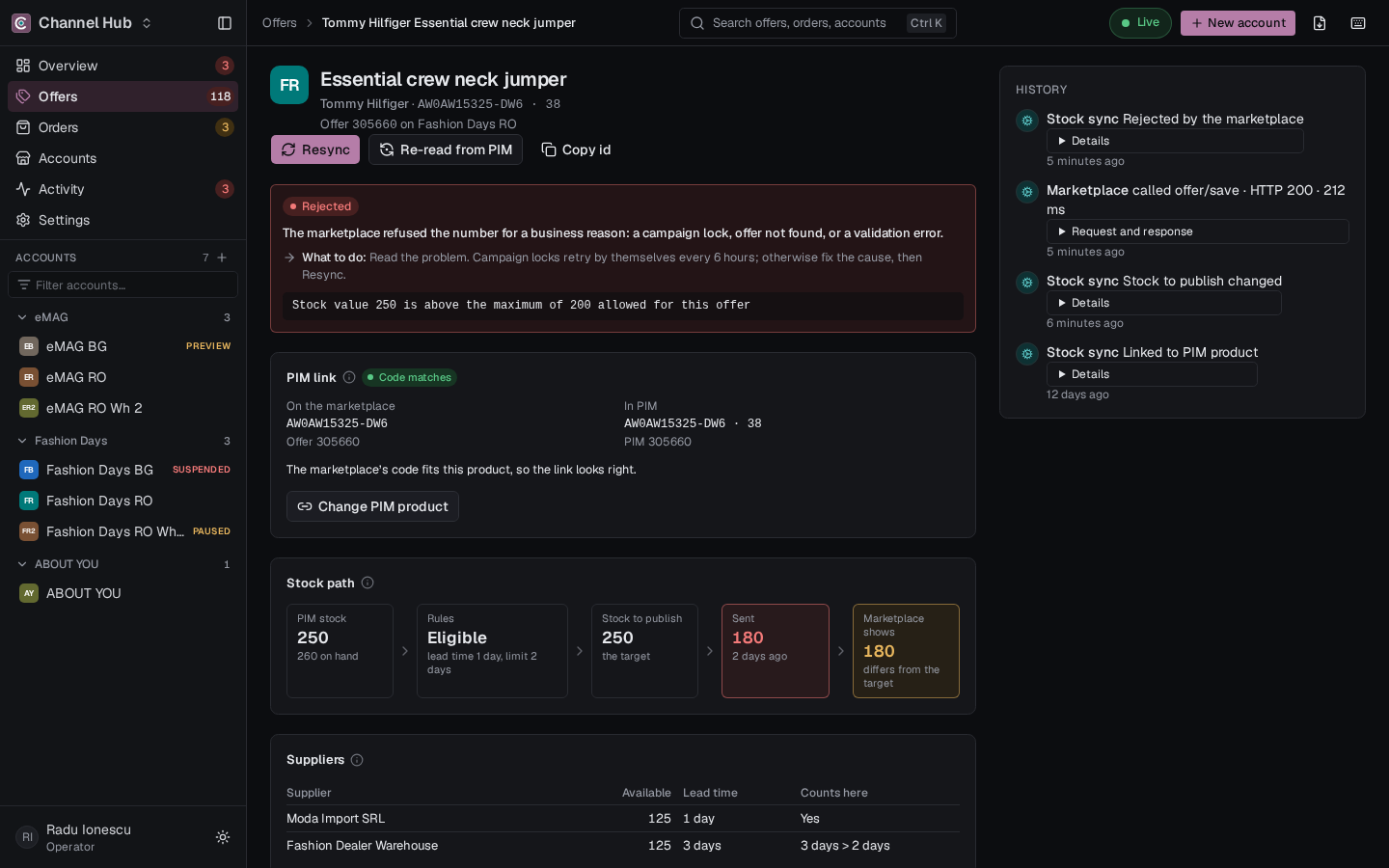
- The status is Rejected. The stock path reads PIM stock 250 → Rules Eligible → Stock to publish 250 → Sent 180, coloured red → Marketplace shows 180. The account's badge has no dot: it is Live.
- Last problem: "Stock value 250 is above the maximum of 200 allowed for this offer". Sent is still 180, from two days ago, which is why the marketplace shows 180.
- She opens Request and response on the latest call under History: the marketplace answered the same message.
- The fix is on the marketplace: the offer has a limit of 200. She asks the marketplace team to raise it. Two hours later they confirm; she clicks Resync. The message says "Offer 305660 is queued to be sent again." A few seconds later the status reads In sync and Sent is 250.
Related
- Offer page and Offers.
- How the quantity is calculated.
- Matching offers to products.
- Every status explained.
- A day in the life: a real investigation at 09:15.