
Appearance
Account workspace
The account workspace shows one marketplace account: what it is doing right now, how its offers and orders stand, what people and the system did with it, and how it is set up. Operators also run the account from here: go Live, pause it, recover it, import its offers again. Open it by clicking an account in the sidebar, a row on the Accounts page or the Overview, or by typing its name in Search or jump to… (Ctrl K).
The workspace at a glance
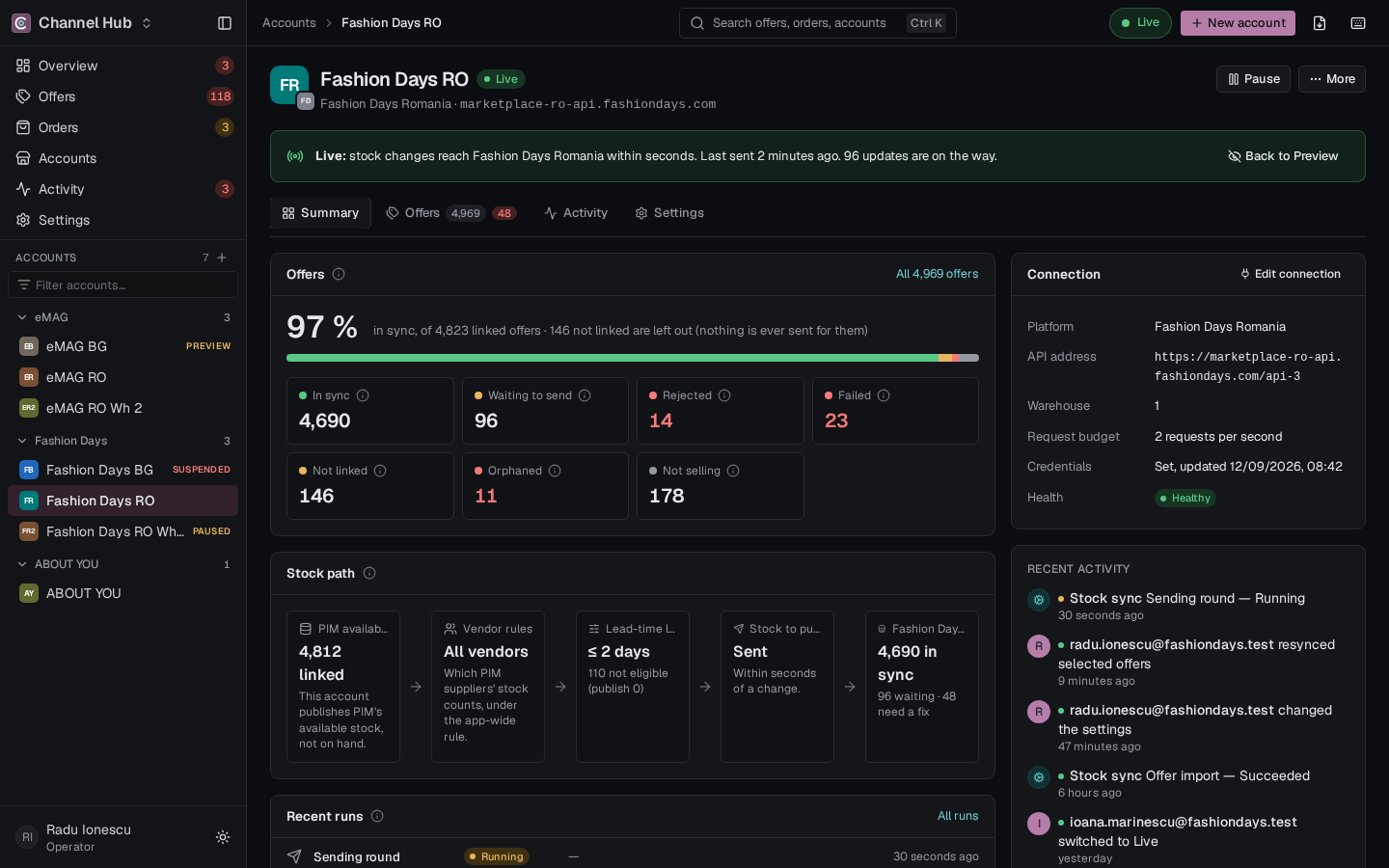
From top to bottom:
- The header — the account's badge with its marketplace's small logo, its name, its status word (Live, Preview, Off, Paused or Suspended; hover over it for its parts and what each really does, such as Stock Off · Orders Live · Ship orders Live. Orders are created in Odoo and shipments are told to the marketplace; stock sync is off.), and under the name the marketplace site and its address.
- Open seller centre — opens the marketplace's seller centre in a new tab, only where the marketplace has one (ABOUT YOU's Seller Center, for example); Fashion Days RO in the picture has none. Everyone has it: it changes nothing.
- Pause — on an active account. Operators only.
- More — the account's other actions. Operators only. See The More menu.
- The status banner — what the account is doing, in one sentence, with the one action it needs now. See The status banner.
- The tabs — Summary, Offers, Orders (only for a marketplace that sends orders), Activity and Settings. Each tab has its own address, so you can share a link to it.
The status banner
The banner under the header changes colour and words with the account's status, and holds the action that status calls for. A viewer reads the same sentence without the buttons.
| Status | The banner says | Its action |
|---|---|---|
| Live (green), stock Live | Live: stock changes reach [marketplace] within seconds. Last sent [time]. and, when some are on their way, [n] updates are on the way. | Back to Preview |
| Live (green), stock in Preview while orders or ship orders run Live | Live: its orders are created in Odoo (and/or its shipments are told to [marketplace]). Its stock is in Preview: calculated, not sent. Going Live would send [n] stock updates now. | Go Live |
| Preview (amber) | Preview: everything is calculated, nothing is sent. Going Live would send [n] stock updates now. | Go Live |
| Stock sync off: Live (green), Preview (amber) or Off (grey), as its orders run | Stock sync is off: no offers are imported and no stock is worked out or sent. Then Orders carry on. (orders in Preview or Live) or Orders are off too: nothing runs., and Switch it on in Settings; the account then starts in Preview. | None: Go Live and Back to Preview are not offered while stock sync is off, not in the More menu either |
| Paused (amber) | Paused: nothing is imported, recalculated or sent. [n] stock updates wait as Waiting to send. If it is also in Preview: after you resume, nothing is sent until you go Live. | Resume (and Go Live if it is also in Preview) |
| Suspended (red) | Suspended: the marketplace's reason, then Nothing is imported or sent until you fix the connection and recover. If it is also paused: after recovering, press Resume. | Edit connection and Recover |
A Degraded account still sends, so its banner is the Live one, turned amber, with an extra line Degraded: and the reason, and a Recover button.
When the connector is switched off here
The technical team can switch a marketplace's connector off in one environment, for example while it is not ready. The account's status stays as it was, with an amber Connector off beside it, and the banner says Connector switched off here: in this environment nothing is imported from or sent to [marketplace], and its orders are not read. What comes next depends on the status:
| Status | The banner goes on | Its action |
|---|---|---|
| Live, stock Live | Stock and orders wait, and move again by themselves once the connector is back on. | Back to Preview |
| Live, stock in Preview (orders Live) | Its orders wait, and move again by themselves once the connector is back on. Its stock stays in Preview: no stock is sent until you go Live. | Go Live |
| Live, stock sync off (orders Live) | Its orders wait, and move again by themselves once the connector is back on. Stock sync is off: no stock is sent. | None |
| Preview | …until the connector is back on. After that it is still in Preview: no stock is sent until you go Live. | Go Live |
| Preview, stock sync off (orders in Preview) | Its orders wait until the connector is back on. After that they are still in Preview. Stock sync is off: no stock is sent. | None |
| Off | Nothing runs for this account anyway: stock sync and orders are off. | None |
| Paused | …until the connector is back on. After that it is still Paused: nothing is sent until you press Resume. | Resume (and Go Live if it is also in Preview) |
| Suspended | …until the connector is back on. After that it is still Suspended: the marketplace's reason, then Fix the connection and recover. | None: Recover and Edit connection wait for the connector |
No screen can switch a connector on. Ask the technical team if you did not expect it. In the More menu, Import offers, Recalculate and Edit connection say The connector is switched off here. On the Summary, Stock to publish reads Held, Connector off: nothing reaches the marketplace., even for a Live account, and Edit connection on the Connection card is greyed out: hover over it for the same reason. You can still go Live; the confirmation then says The connector is switched off here: going Live would send [n] stock updates once it is back on., and the message afterwards [account] is Live; its waiting stock updates are sent once the connector is back on. In the sidebar a Live account is tagged CONNECTOR OFF, and its badge has an amber dot when the sidebar is folded.
Every button explains itself when you hover over it, for example Go Live: Start sending stock to the marketplace. You confirm by typing the account name.
Preview and Live
In Preview, Stock Sync works everything out but sends nothing to the marketplace. In Live, it sends. A new account always starts in Preview. Preview and Live explains why both exist.
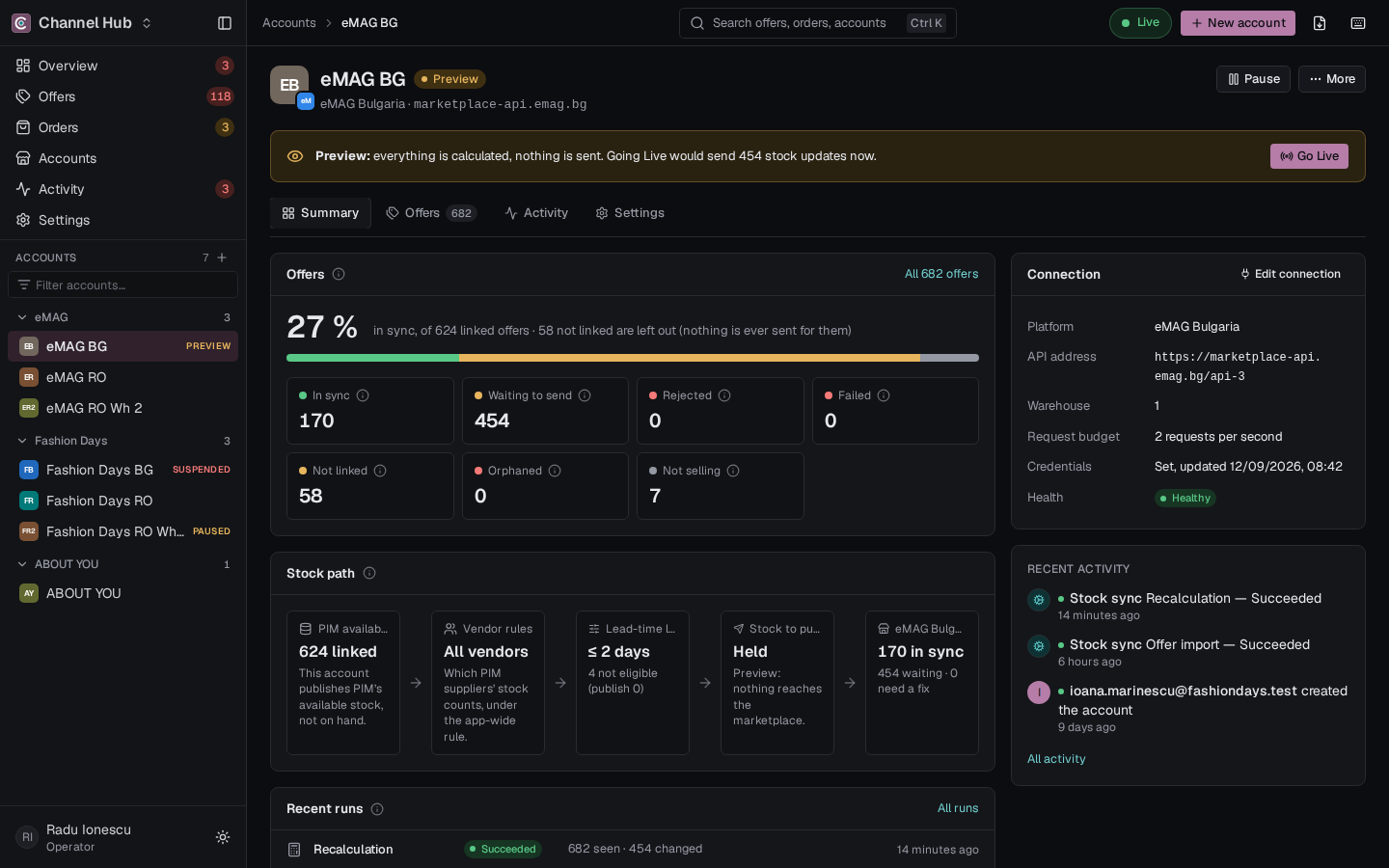
Going Live asks for the account name. Go Live (in the banner, or Go Live… in the More menu) opens a confirmation:
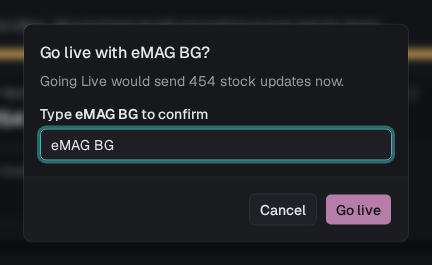
- Going Live would send 454 stock updates now. — how many stock updates go out the moment you confirm. If the account is suspended or paused, the dialog adds that nothing is sent until it is recovered or resumed.
- Type [account] to confirm — type the account name exactly, capitals and spaces included. Go live stays greyed out until it matches.
- Go live — switches the account to Live and, if it is active and healthy, starts sending: "[account] is Live; its waiting stock updates are being sent." A paused account sends nothing until it is resumed, and the message says so: "…are sent once it is resumed." (a suspended one "…once it is recovered."). If it fails, the reason appears in the dialog beside the button, so you can try again without typing the name again.
Step by step: Go from Preview to Live.
Going back to Preview does not ask. Back to Preview switches at once, because it only stops sending: "[account] is in Preview; nothing is sent to the marketplace." Changes in the PIM are still worked out while in Preview; they wait and are sent when you go Live again.
Pause and resume
Pause asks first: Pause [account]? — Nothing is imported, recalculated or sent to the marketplace for [account] until it is resumed. Stock updates keep waiting.
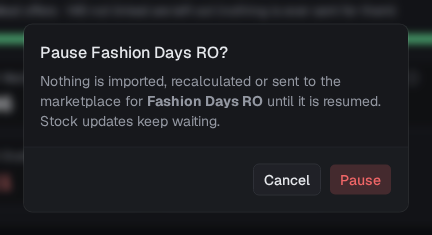
A paused account shows Paused in its header and an amber banner with Resume:
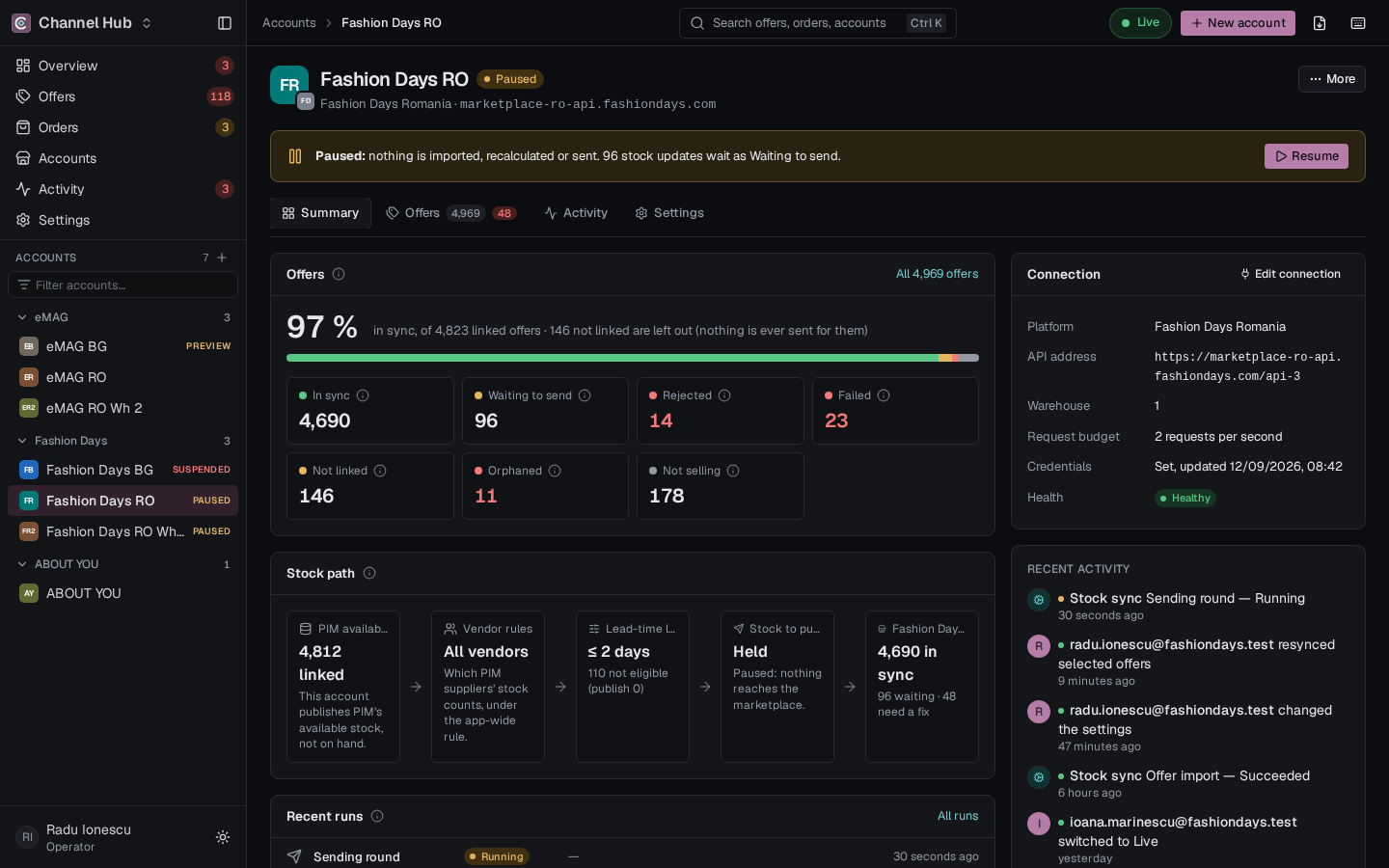
Resume acts at once, with no confirmation. It switches the account back on and requests an offer import, a recalculation and the sending of what waited: "[account] is resumed; its offers are being imported and its waiting stock updates sent." (in Preview: …It is in Preview, so nothing is sent to the marketplace.).
Resume is refused in two cases, with a red message and nothing changed:
- Enter the connection's credentials before resuming — the account has no credentials yet (Credentials reads Not set). Enter them in Settings → Connection first.
- Nothing was changed: the message broker (RabbitMQ) is unavailable… — Stock Sync's internal message queue is down. The account stays paused; try again once it is back.
Pause and Preview are different. Preview still imports, recalculates and works out every change, and only holds back the sending. Pause stops imports, recalculations and sending; stock changes from the PIM are still worked out and wait as Waiting to send. See Account health and pausing and Pause and resume an account.
A suspended account
When the marketplace refuses the account's credentials, Stock Sync suspends the account. Until someone recovers it, nothing is sent, and no offer import or recalculation runs for it.
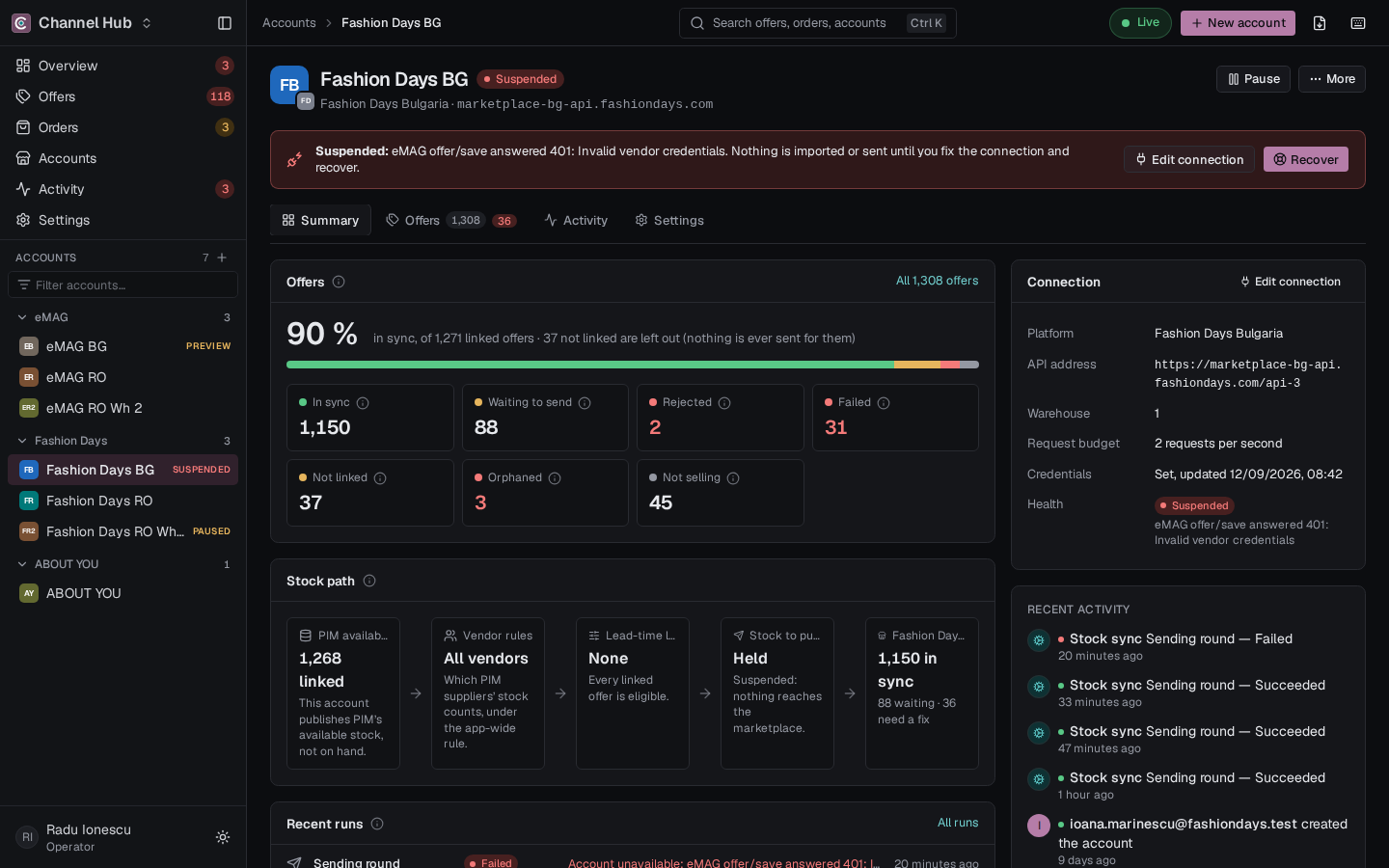
- Edit connection opens Settings → Connection, where you enter the new credentials and Save.
- Recover asks first: Recover [account]? — Stock sync asks the marketplace whether it accepts [account]'s credentials again. If it does, the account is healthy again and its waiting stock updates are sent; if not, it is suspended and the reason is shown.
When the marketplace accepts the account again, the message reads "[account] is recovered; its offers are being imported and its waiting stock updates sent." and the status word changes. Recover does not resume a paused account: if the account is also paused, the message says "[account] is healthy again, but it is still paused: nothing is imported or sent until you press Resume."
If the marketplace still refuses, a red message reads "[account] is still suspended: [reason]", the banner shows the new reason, and the Activity tab records the attempt as tried to recover the account — refused. Fix the credentials first, then Recover again. Step by step: Bring back a suspended account.
The More menu
More in the header holds the account's other actions. Hover over an item for what it does.
| Item | What it does | Asks first? |
|---|---|---|
| Import offers | Reads every offer of this account from the marketplace now, instead of waiting for the daily import at 04:41. New offers get linked. "Offer import requested for [account]." | No |
| Recalculate | Works out the stock to publish again for every offer, from PIM stock and the account's rules. Changed numbers are queued to be sent. "Recalculation requested for [account]." | No |
| Edit connection | Opens Settings → Connection | — |
| Go Live… (in Preview) or Back to Preview (in Live) | Switches the publish mode, as in the banner | Go Live: yes, the typed name |
Import offers and Recalculate are greyed out with the reason under them while the account is paused (The account is paused: resume it first.) or suspended (The account is suspended: nothing is imported until the connection is fixed and recovered.).
When to use each one:
- Import offers after someone created, ended or changed offers directly on the marketplace, and you do not want to wait for the nightly import.
- Recalculate when you believe the numbers on the offers are stale, for example after the PIM team fixed product data. Saving a new Lead-time limit already recalculates by itself.
The work itself runs in the background; its run appears on the Activity tab and in Activity → Sync runs.
Summary
The first tab shows the account at a glance.
| Section | What it shows |
|---|---|
| Offers | The share in sync, of [n] linked offers (offers that are not linked are left out: nothing is ever sent for them; so are linked offers that have ended on the marketplace, which nobody can buy, with a link beside it that opens them; another link opens the ignored offers, when there are any), then one number per status: In sync, Waiting to send, Awaiting confirmation (ABOUT YOU), Rejected, Failed, Not linked, Orphaned and Not selling. Hover over a number for what it means; click it to open the Offers tab filtered to those offers. All [n] offers opens the whole list. |
| Stock path | How a PIM number becomes the number the marketplace shows, for this account: PIM available (how many offers are linked; every account publishes PIM's available stock, not on hand) › Vendor rules (All vendors, N left out or N chosen, or the app-wide rule's own count such as 1 left out app-wide when the account itself leaves none out: which PIM vendors' stock counts here) › Lead-time limit (None, or the limit and how many offers are not eligible and publish 0) › Stock to publish (Sent within seconds of a change while the account's stock is Live and it is neither paused nor suspended; Held otherwise, saying why: Preview, Stock sync off, Paused, Suspended, or while its connector is switched off here, Connector off) › the marketplace (how many in sync, waiting and needing a fix). |
| Recent runs | The latest background runs for this account: imports, recalculations, sending rounds, with their result. All runs opens the Activity tab. |
| Connection | Platform, API address, Warehouse (eMAG and Fashion Days), Request budget (for example 2 requests per second), Credentials (Set, updated [date]; the password is never shown) and Health, with the reason when it is not healthy. Operators have an Edit connection link here, greyed out while the connector is switched off here. |
| Recent activity | The latest things people and the system did on the account. All activity opens the Activity tab. |
The tab updates live: counts and runs change as they happen.
Offers
The Offers tab is the same list as the Offers page, already narrowed to this account (so it has no Account filter): quick views, filters, the side panel, Resync stock and Retry failed on selected offers, Export. The tab's title shows how many offers the account has (4,969 for Fashion Days RO) and, in red, how many need a fix: failed, rejected or orphaned. Hover over the red number for what that means.
Orders
Only for an account whose marketplace sends orders to Stock Sync. The tab is the Orders list narrowed to this account. Its title shows how many orders the account has and, in amber, how many need attention. An account whose marketplace sends none has no Orders tab and no Orders → Odoo settings.
Activity
The Activity tab has two parts.
Activity lists, newest first:
- What people did, under their e-mail address: created the account, switched to Live, changed the settings, changed the connection, resynced selected offers, re-read offers from PIM, paused the account, and so on. On an ABOUT YOU account also changed the order settings, retried an order, marked an order resolved and cancelled order lines: an order's own activity names who pressed Retry and Mark resolved; for its other buttons, this list says who.
- What the system ran, under Stock sync: Offer import — Succeeded, Sending round — Running, Recalculation — Succeeded.
The dot before each entry is its colour: green for done; amber for still running, only partly done, refused, not valid or not found; red for failed or not possible because something was unavailable; grey for a run stopped by a restart, or an action that changed nothing. An action that did not go through reads as an attempt, for example "tried to recover the account — refused: eMAG product_offer/read answered 401: Invalid vendor credentials". The record is kept, so you can always see who changed what and when.
Sync runs lists this account's background work: imports, recalculations, sending rounds, with their result and counts, as on Activity → Sync runs.
Settings
The Settings tab holds What this account does (Stock, Orders and Ship orders: Off, Preview or Live each), Connection, Stock (the Stock rules), Orders & shipping (when the marketplace sends orders: Orders → Odoo, Shipping and Batch print), Identity (the Name and the badge's Appearance) and Pause, with one Save for all of them. See Account settings.
What a viewer sees
A viewer sees every tab and the same banner, without Pause, More, the banner's buttons, the boxes to tick offers, or Edit connection on the Summary. On the Settings tab every section is read-only. Open seller centre stays: it changes nothing.
When an action is refused
If the server no longer sees you as an operator, the buttons may still be on screen but the action is refused. Usually this means you signed in again (perhaps in another tab) with the Viewer role:
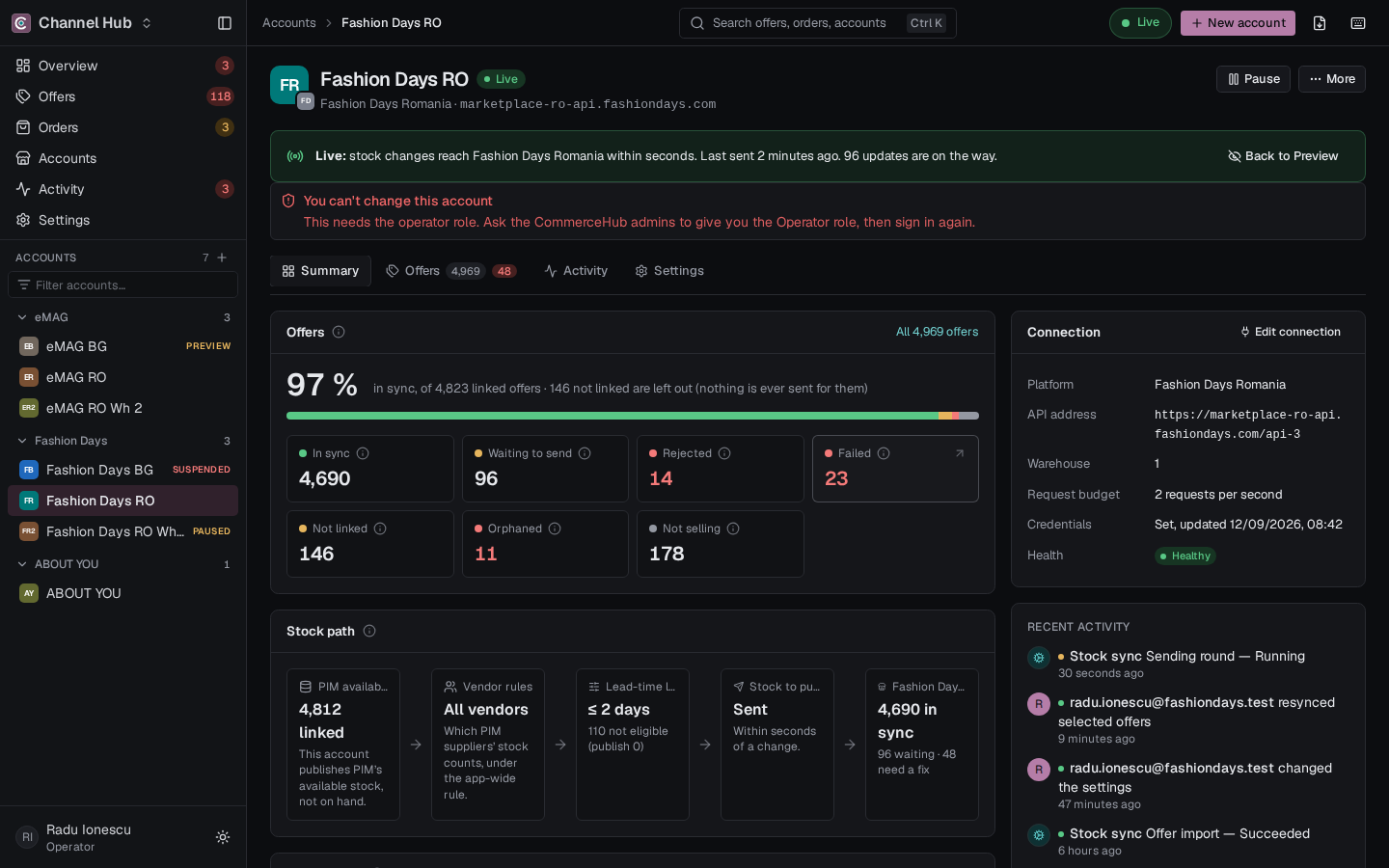
Nothing was changed. Ask for the Operator role if you need it, sign in again, and reload the page. See Signing in and roles and Messages and what they mean.
Good to know
- Only Pause, Recover and Go Live ask for confirmation. Resume, Import offers, Recalculate and Back to Preview act as soon as you click.
- Every action lands on the Activity tab with your e-mail address.
- Recover makes a suspended account healthy again but does not resume a paused one; press Resume as well.
- The workspace updates live: after an action, the status word, the banner and the counts change by themselves, usually within a second or two. See Live updates.