
Appearance
Change the lead-time limit
You change how long a delivery time an account accepts (Lead-time limit), and every offer of the account is recalculated with the new limit. To choose which vendors' stock counts at all, see Choose which vendors count further down.
Looking for the stock setting?
There is none any more. Every account publishes the PIM's available stock: what can be sold now. The PIM's on hand stock includes pieces Odoo has reserved for other orders, so Stock Sync shows it for information and never sends it. See How the quantity is calculated.
Before you begin
Who can do this: an Operator. For a viewer, the limit is plain text.
Time needed: 1 minute, plus a minute or two for the recalculation.
Before you start: agree the change with the product owner. On a sending account it changes the stock of many offers on the marketplace within minutes. If you want to look before anything is sent, switch the account to Preview first (see Go from Preview to Live).
The setting
| Setting | Choices | Effect |
|---|---|---|
| Lead-time limit | A whole number of days, or empty for No limit | Offers whose product takes longer to deliver get stock 0 and show Not eligible |
The full rules, with examples: How the quantity is calculated.
Steps
Open the account from the sidebar, then its Settings tab, and click Stock rules in the list on the left (or scroll to it). The account's Summary also shows the current limit in its Stock path.
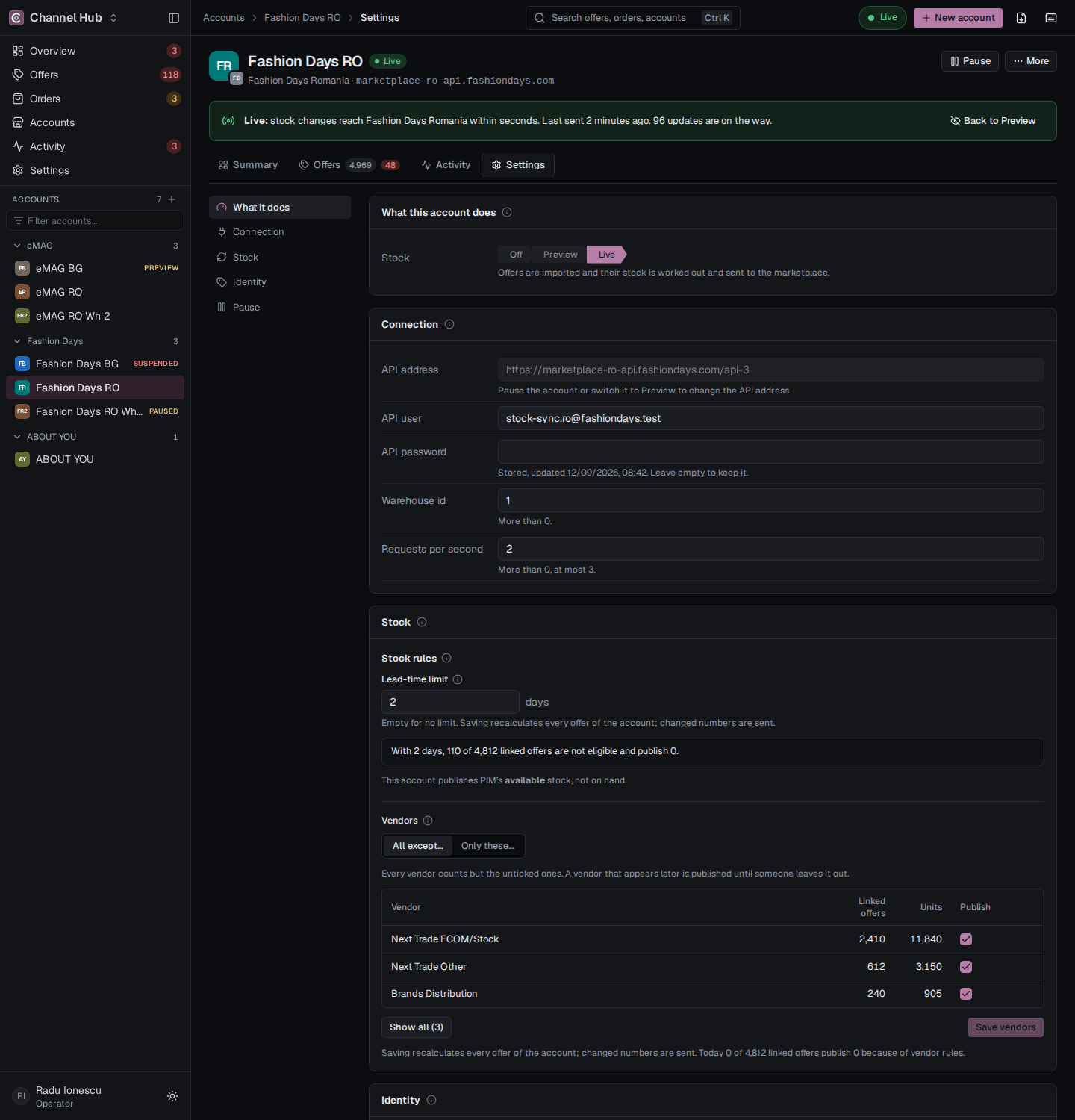
Type a whole number of days in Lead-time limit, or clear it for no limit. The line under the box says what saving will do, for example "Saving sets 3 days and recalculates every offer of the account; changed numbers are sent. Today 110 of 4,812 linked offers are not eligible."
As soon as it differs from what is saved, a bar appears at the bottom of the tab: Unsaved changes · Stock rules, with Discard and Save.
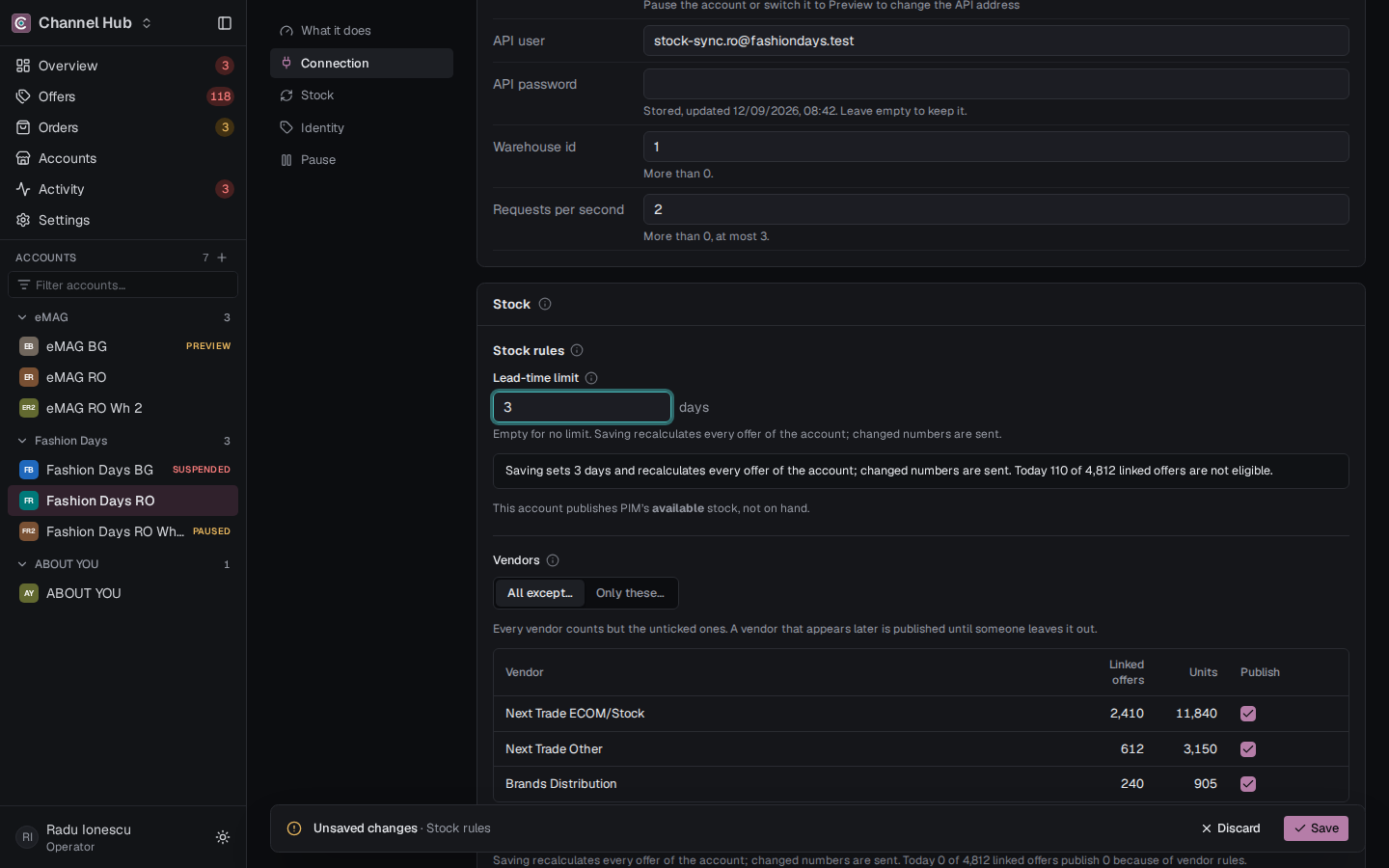
Click Save (or press Alt + S). To go back to the saved value instead, click Discard (Alt + J). One Save saves every section you changed on the tab; the bar lists them.
If you try to leave the tab with unsaved changes, Stock Sync asks first:
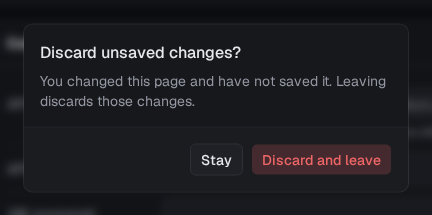
Choose Stay to go back and save, or Discard and leave to drop the change.
What you should see
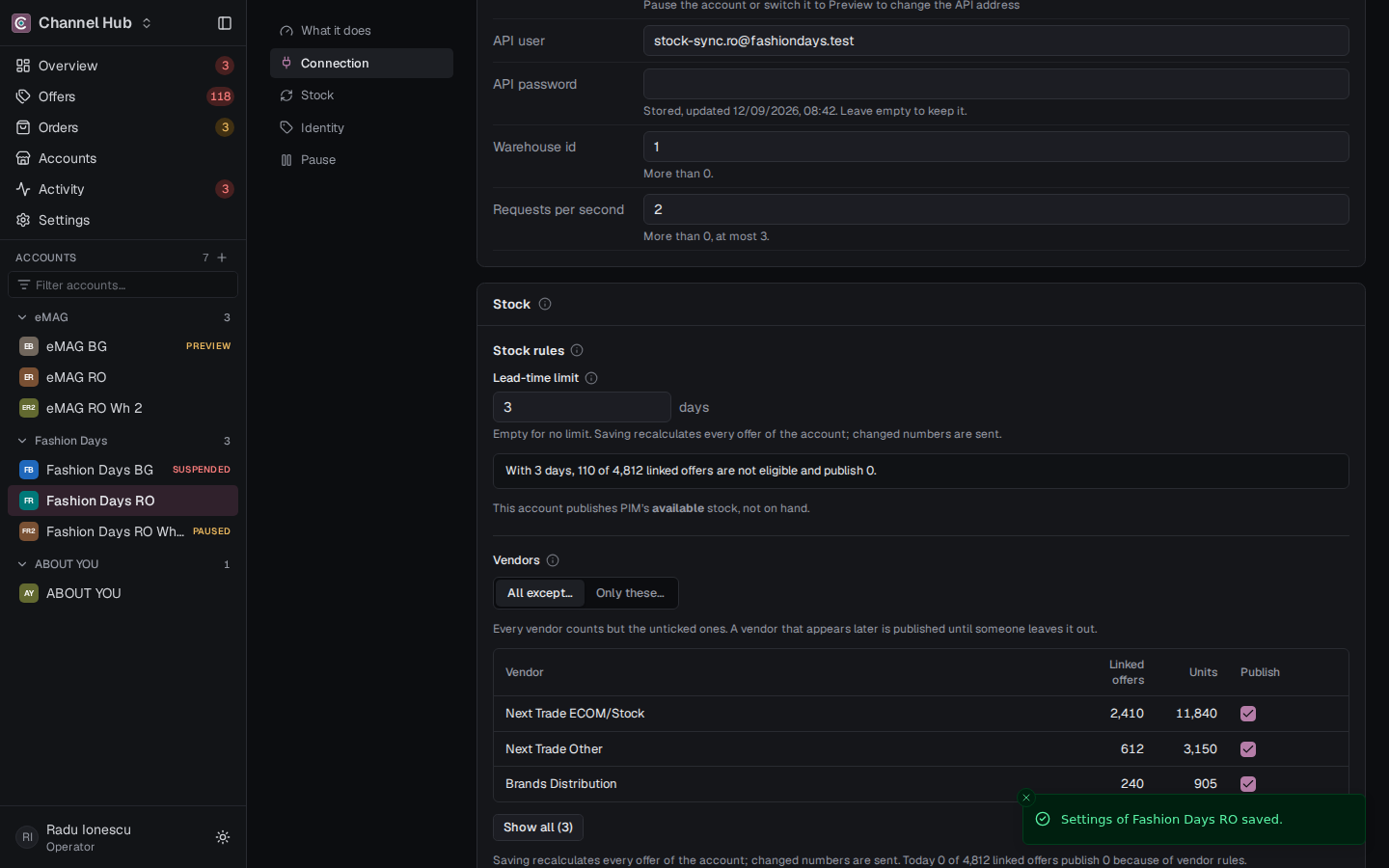
The message "Settings of Fashion Days RO saved." The Unsaved changes bar disappears.
A Recalculation of the account starts at once (on a paused or suspended account, once it is resumed or recovered). For a few thousand offers it takes under a minute; watch it in the account's Activity tab or in Activity → Sync runs. Its Counts say how many offers changed.
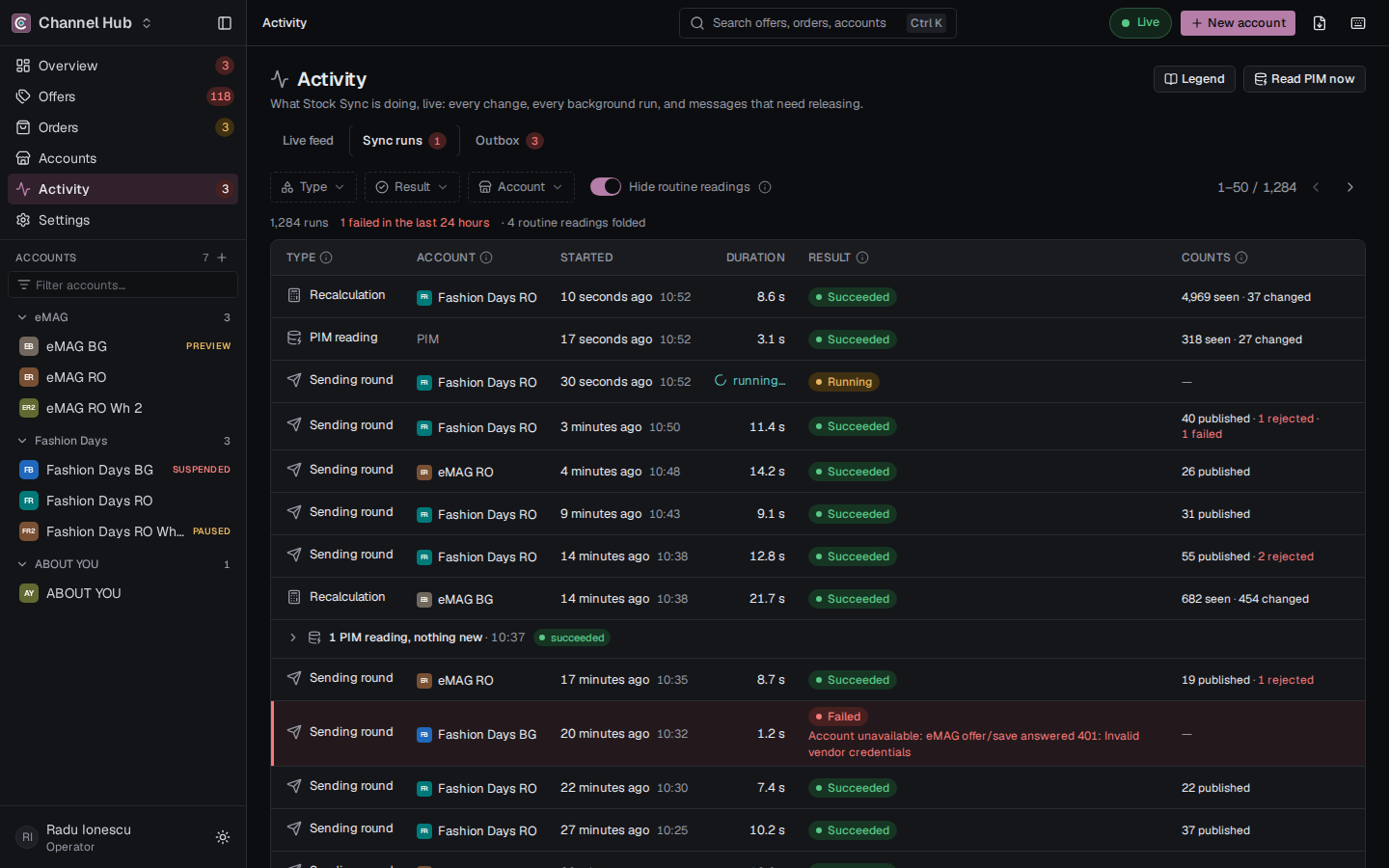
4,969 seen is every offer of the account, each worked out again; 37 changed is how many of them got a new stock to publish.
The offers whose Stock to publish changed become Waiting to send. On a sending account they are sent within seconds of the recalculation, at about 100 per second.
On an account in Preview, the status banner shows the new number of updates going Live would send.
The account's Activity tab says you changed the settings.
If something goes wrong
| You see | Do this |
|---|---|
| Whole days, or leave it empty for no limit | Type digits only in Lead-time limit, or clear it. |
| At least 1 day, or leave it empty for no limit | 0 is not a limit: type 1 or more, or clear it. |
| Many offers dropped to 0 after a new limit | The limit is too strict for those products. On the account's Offers tab, choose Not eligible in the Eligible filter (or the Not selling view) to see them; raise the limit or clear it. |
| The numbers did not change | Check the Recalculation on the account's Activity tab. A paused or suspended account is not recalculated until it is resumed or recovered. |
| The limit is plain text | You are a viewer. |
| You expected the on hand figure to be sent | Stock Sync sends available on every account; there is nothing to change. If available is wrong, it has to be corrected in the PIM. |
See Messages and what they mean and The marketplace shows 0 but we have stock.
Example
Fashion Days RO has a Lead-time limit of 2 days. The product owner wants it to accept products that take up to 3 days, so supplier products with a 3-day delivery can be sold.
Radu first checks one offer: offer 312870, whose product takes 3 days, shows Eligible: No — 3 days > 2 days and Stock to publish 0.
- He opens Fashion Days RO, its Settings tab, and types 3 in Lead-time limit. The Unsaved changes · Stock rules bar appears.
- He clicks Save. The message says "Settings of Fashion Days RO saved."
- The account's Activity tab shows a Recalculation: "4,969 seen · 37 changed". Only the offers whose products take 3 days changed. The next Sending round publishes the 37 within seconds.
- Offer 312870 now shows Eligible: Yes and, with 4 available in the PIM, Stock to publish 4.
Choose which vendors count
Some stock must not reach a marketplace. Next Trade Other, for example, should never be published anywhere, and another vendor may be fine on ABOUT YOU but not on eMAG and Fashion Days. You choose the vendors at two levels, and a vendor counts only if both levels let it through:
| Level | Where | What it decides |
|---|---|---|
| For all accounts | Settings → Vendors | Vendors whose stock no account publishes |
| For one account | The account's Settings tab, Stock rules, block Vendors | Vendors that account does not publish, on top of the first level |
The vendor rules and the lead-time limit add up: a vendor's stock is published only when the vendor counts and ships within the limit.
Before you begin
Who can do this: an Operator. A viewer reads the table but cannot tick or save.
Time needed: 2 minutes, plus a minute or two for the recalculation.
Before you start: nothing is set on release day. Every vendor counts until someone leaves it out. Agree the choice with the product owner: on a Live account it changes the stock on the marketplace within minutes. To look first, put the account in Preview (see Go from Preview to Live).
The table
Both places show the same table, one row per vendor: its name, Linked offers (how many linked offers have a line at that vendor, including a line with 0 units), Units (how many pieces it holds on them) and a Publish tick. At first it lists the vendors that hold stock; Show all lists every vendor PIM knows, with a filter box, and Show fewer goes back. A vendor PIM has switched off shows Inactive in PIM.
Units are added per offer, so one product that is on three accounts counts three times in the app-wide table. PIM's own figure is smaller.
Two ways of choosing
| Way | What it does | A vendor that appears later |
|---|---|---|
| All except… | Publishes every vendor except the unticked ones | Is published until someone leaves it out |
| Only these… | Publishes only the ticked vendors | Stays out until someone ticks it |
Switching from one to the other keeps what the table shows: the vendors counting stay ticked.
Steps
For all accounts, open Settings in the sidebar and go to Vendors. For one account, open the account, its Settings tab, Stock rules, and find Vendors under the Lead-time limit.
Choose All except… or Only these…, then untick the vendors that must not be published (or tick the ones that must).
On an account, a vendor the app-wide rule leaves out shows Ignored app-wide instead of a tick: it cannot be turned back on there. Change it in Settings → Vendors.
Click Save vendors. The line under the table says what saving will do: "Saving recalculates every offer of the account; changed numbers are sent. Today N of M linked offers publish 0 because of vendor rules."
Stock Sync may ask first. It checks the choice before saving:
- For all accounts it asks Change the app-wide vendor rule? whenever the save would recalculate at least one account or leave one with nothing to publish; otherwise it saves at once. It says how many accounts are recalculated, a paused or suspended one included (it catches up when resumed). Click Save and recalculate.
- If an account would be left with nothing to publish, it asks Leave the account with nothing to publish? and names the accounts that have units to publish today and would have none. Click Save anyway if that is what you want, or Cancel to go back.
- If the check itself fails, it says Could not check the effect. You can still save.
Only these… with nothing ticked is refused: "Pick at least one vendor, or choose All except…".
What you should see
- The message "App-wide vendor rule saved." or "Vendor rule saved.".
- A Recalculation starts at once, as for the lead-time limit (on a paused or suspended account, once it is resumed or recovered). Its Counts say how many offers changed.
- An offer whose stock is partly at an ignored vendor publishes only what the other vendors hold. If all its stock is at ignored vendors it publishes 0 and stays linked: it is not taken off the marketplace.
- On the account's Summary, the Stock path has a Vendor rules step: All vendors, N left out or N chosen. While the app-wide rule leaves vendors out, it says so instead of All vendors (for example 1 left out app-wide), or adds Also N left out app-wide under the account's own words.
- The account's Activity tab, or Activity for the app-wide rule, says who changed the rule.
- Orders, Odoo and the PIM are not affected. The offer list still shows every vendor line and can be filtered and grouped by Supplier.
Seeing why an offer has the number it has
- Offers list, Eligible column: Partly · 3 of 8 or Ignored vendors. Point at it to read why.
- Offer page and side panel, Eligible: Partly — 3 of 8 by vendor rules, Partly — 3 of 8 by vendor rules and lead time, or No — all stock is at ignored vendors.
- Offer page, Suppliers block: each vendor line says in Counts here whether it counts: Yes, Ignored on this account or Ignored app-wide, or its lead time against the limit. A sentence under the block gives the outcome, for example "Publishes 3 of 8 available: Next Trade Other is ignored app-wide."
If something goes wrong
| You see | Do this |
|---|---|
| Pick at least one vendor, or choose All except… | Only these… needs at least one tick. Tick a vendor or switch to All except…. |
| A vendor you want is not in the table | Click Show all. The vendors without stock are hidden at first. |
| A vendor shows Ignored app-wide and has no tick | The rule for all accounts leaves it out. Change it in Settings → Vendors. |
| Many offers dropped to 0 after saving | The vendors left out held their stock. On the account's Offers tab, choose Not eligible in the Eligible filter to see them, then tick the vendor again and save. |
| Could not check the effect | The check did not answer. Saving still works, but nobody warned you about an account left with nothing. Look at the Stock path afterwards. |
| The numbers did not change | Check the Recalculation on the account's Activity tab. A paused or suspended account is not recalculated until it is resumed or recovered. |
| The ticks are greyed out and there is no Save vendors | You are a viewer. |
Example
Fashion Days RO should not publish Next Trade Other, and neither should any other account. Radu opens Settings → Vendors, unticks Next Trade Other in All except… and clicks Save vendors. Stock Sync asks Change the app-wide vendor rule? and says it recalculates all accounts. He clicks Save and recalculate. An offer with 5 pieces at Next Trade Other and 3 at another vendor now reads "Publishes 3 of 8 available: Next Trade Other is ignored app-wide." On the account's own Vendors table, Next Trade Other shows Ignored app-wide.
Related
- How the quantity is calculated.
- Account settings: Stock rules.
- Settings: Vendors.
- Worked examples: "A long lead-time product" and "Why available and not on hand".