
Appearance
Orders
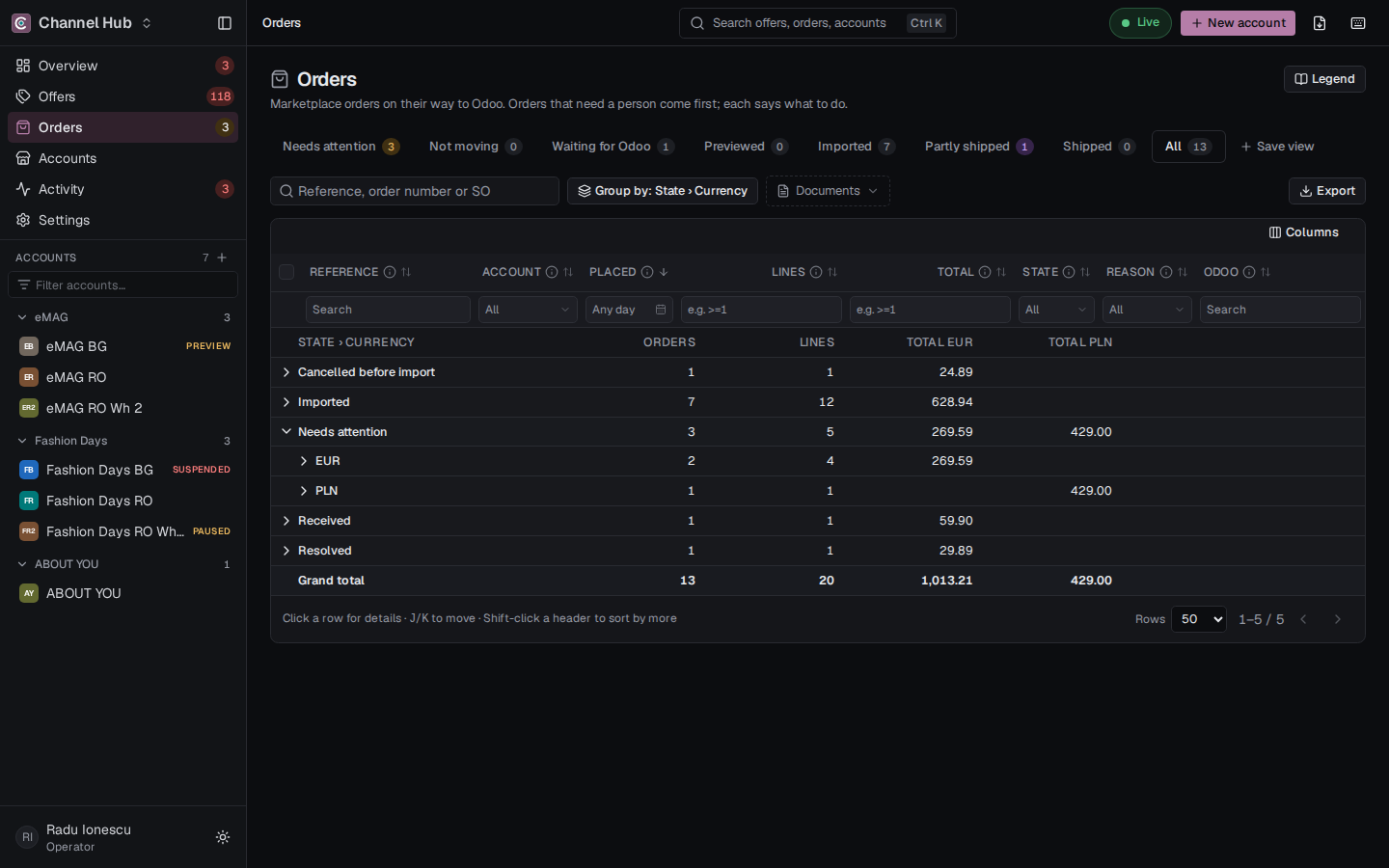
The Orders page lists the marketplace orders Stock Sync has read, from every account, and where each one stands: waiting for Odoo, compared, in Odoo, or needing a person. You use it to see every order that needs attention and fix it, to find one order, and to open the Odoo order a marketplace order became. Open it with Orders in the sidebar (or G then R). The number beside Orders in the sidebar counts the orders that need attention. For now it holds ABOUT YOU orders only.
The same list is the Orders tab of an account whose marketplace sends orders, already narrowed to that account.
Orders are separate from stock
This page is about orders going into Odoo. How stock goes out to the marketplaces is described in The journey of a stock number. How orders come in is described in How orders reach Odoo.
The page at a glance
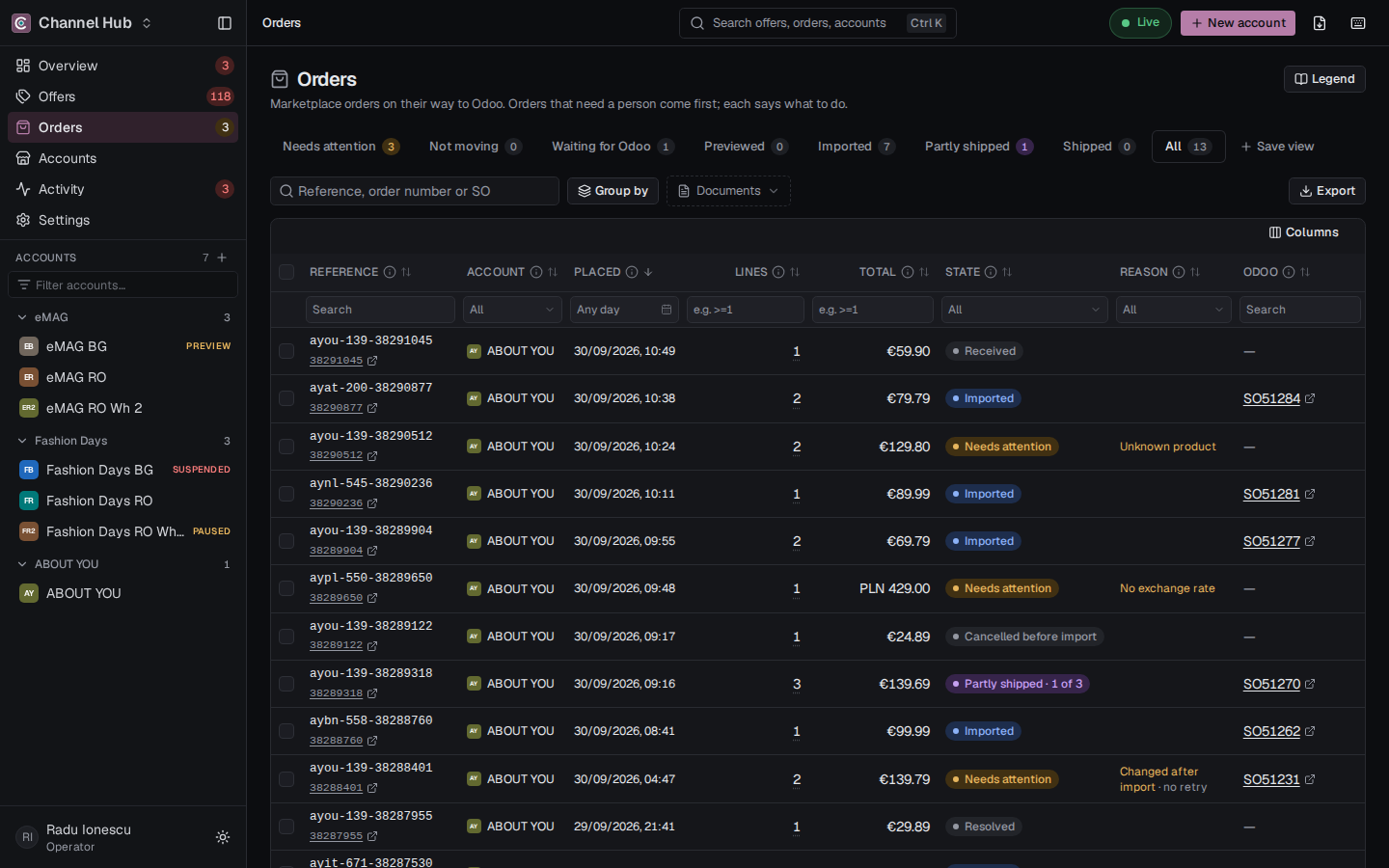
From top to bottom:
- Orders — Marketplace orders on their way to Odoo. Orders that need a person come first; each says what to do.
- Legend — what every order state and every attention reason means, and what to do about it.
- The views bar: the quick views, each with its count, then your team's saved views and Save view.
- Search orders, Group by, the Documents filter and Columns.
- The table, with a filter under each column title; the page arrows, Rows per page (25 to 500) and Export, which makes the Excel file in the background (Preparing your export…, then a notice with Download and Open in Excel; see Working with tables); and — once you select orders — the bar for Retry and Mark resolved.
The quick views
The quick views are the first tabs of the views bar. After them come the saved views of your team and Save view: a saved view keeps a quick view with filters, sort, grouping, rows per page and columns, for everyone (Team views).
| View | Shows | Count colour |
|---|---|---|
| Needs attention | Orders Stock Sync did not guess about. Each reason says what to do; most end with Retry. | Amber |
| Not moving | Orders that have not changed for 24 hours, Saturday and Sunday not counted. Each says where it is stuck and since when. See below. | Amber |
| Waiting for Odoo | Received, not in Odoo yet. They go on by themselves, usually within a minute. | Grey |
| Previewed | Orders of accounts whose orders are in Preview: compared with Odoo, nothing written. | Blue |
| Imported | In Odoo, confirmed, stock reserved. | Grey |
| Partly shipped | Some items shipped at the marketplace, the rest still to ship: a backorder in Odoo, or waiting in Needs attention. Each row says how much, for example Partly shipped · 1 of 5. | Violet |
| Shipped | Every item not cancelled is shipped at the marketplace. | Grey |
| Partially returned | Shipped, and some of the items returned at the marketplace, not all. Shown only while an order is in it (or the address asks for it, ?view=partially-returned). | Violet |
| Returned | Shipped, and every shipped item returned at the marketplace. Shown only while an order is in it (or ?view=returned). | Grey |
| All | Every order, whatever its state. | Grey |
Opened from the sidebar, the page starts on All, as in the picture above; the Overview's links open the view they name. The list starts sorted by Placed, newest first (an order without a Placed date comes last).
Orders to check on the Overview opens Needs attention; the attention rows open Needs attention, Not moving or Waiting for Odoo.
Not moving
Not moving lists the open orders that have had no change for 24 weekday hours: Saturday and Sunday do not count, so an order imported on Friday at 15:00 appears on Monday at 15:00. Under its state, each row says where the order is stuck and when it last changed (weekday, date and time):
| The row says | What to do |
|---|---|
| Waiting in Needs attention · no change since … | Handle its reason: An order needs attention |
| Imported, not shipped · no change since … | Get it shipped in Odoo: Ship an order |
| Shipped in Odoo, not yet confirmed by the marketplace · no change since … | Read the order's Shipping section |
| A cancellation is not finished · no change since … | Read where the cancellation stands: Cancel an order |
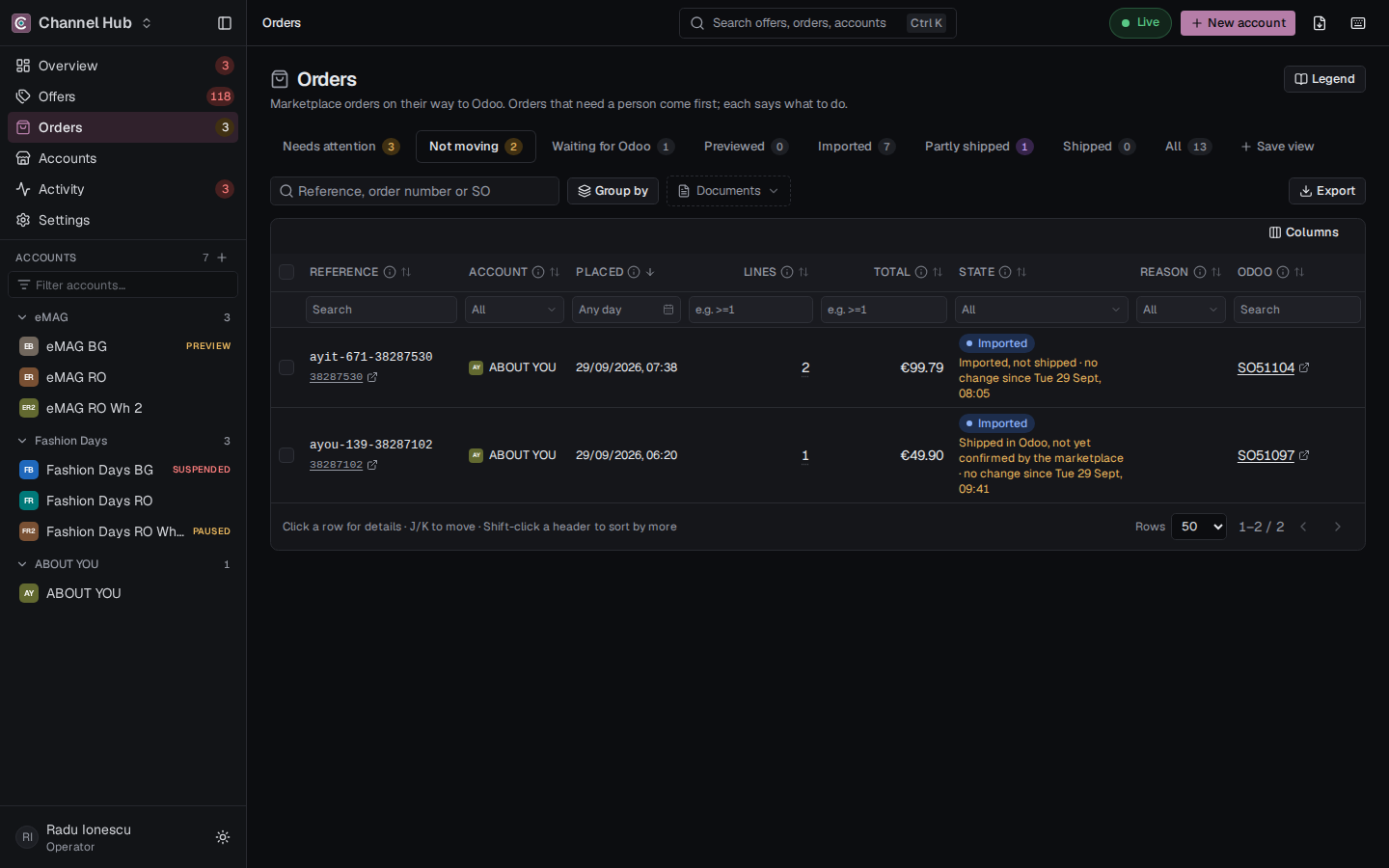
Only orders of accounts whose Ship orders is Live can be Imported, not shipped or Shipped in Odoo, not yet confirmed: for the others someone else tells the marketplace, and Stock Sync does not wait for it. Once the Deliveries page is switched on for your environment, orders waiting in the warehouse to ship are watched there instead, by their Delivery Date, and never show here as Imported, not shipped: one late order is not reported twice. An order leaves the view by itself as soon as something happens to it: it ships, a cancellation finishes, its reason is fixed, or someone presses Retry or Mark resolved. The Legend says the same: No change for 24 weekday hours (Saturday and Sunday do not count). The same orders reach the Teams Operations channel as Orders not moving, with a link to this view (?view=not-moving).
Searching and filtering
Type in Search orders (Reference, order number or SO); the list follows as you type. Part of the reference is enough, for example 38290512 or aypl. The reference is the marketplace's order number as Odoo shows it, for example ayou-139-38290512. The Odoo sale order's name finds the order too, in any case or by its digits: SO51284, so51284 or 51284. An order whose name Stock Sync has not read yet is found by its Odoo number.
Under each column title is a filter cell: a search box for Reference, Order ID and Odoo order, dropdowns with counts for Account, State, Reason and Currency, a typed condition for Lines, Total and Attempts (>100, 100..200), and a day range for Placed and Shipped. You can paste a list of references or Odoo orders from Excel into a search box. Working with tables explains each kind.
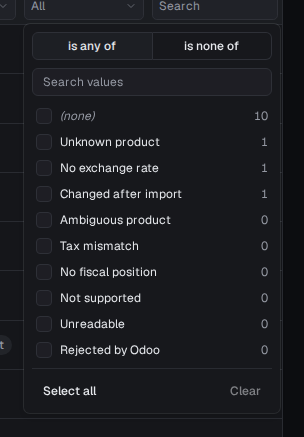
Three of the old chips are now column filters; the fourth, Documents, is still a button above the table:
| You used to open the chip | Now |
|---|---|
| Account | The Account column's filter. Not on an account's own Orders tab |
| Reason | The Reason column's filter: why an order needs attention, from Unknown product to Cancel at the marketplace by hand. An order needs attention explains each |
| State | The State column's filter. Choose Received, Previewed, Imported, Needs attention, Cancelled before import, Cancelled, Resolved, Shipped, Partially returned, Returned and tick several. A quick view and a State filter work together: on Shipped, filtering State to Imported finds nothing |
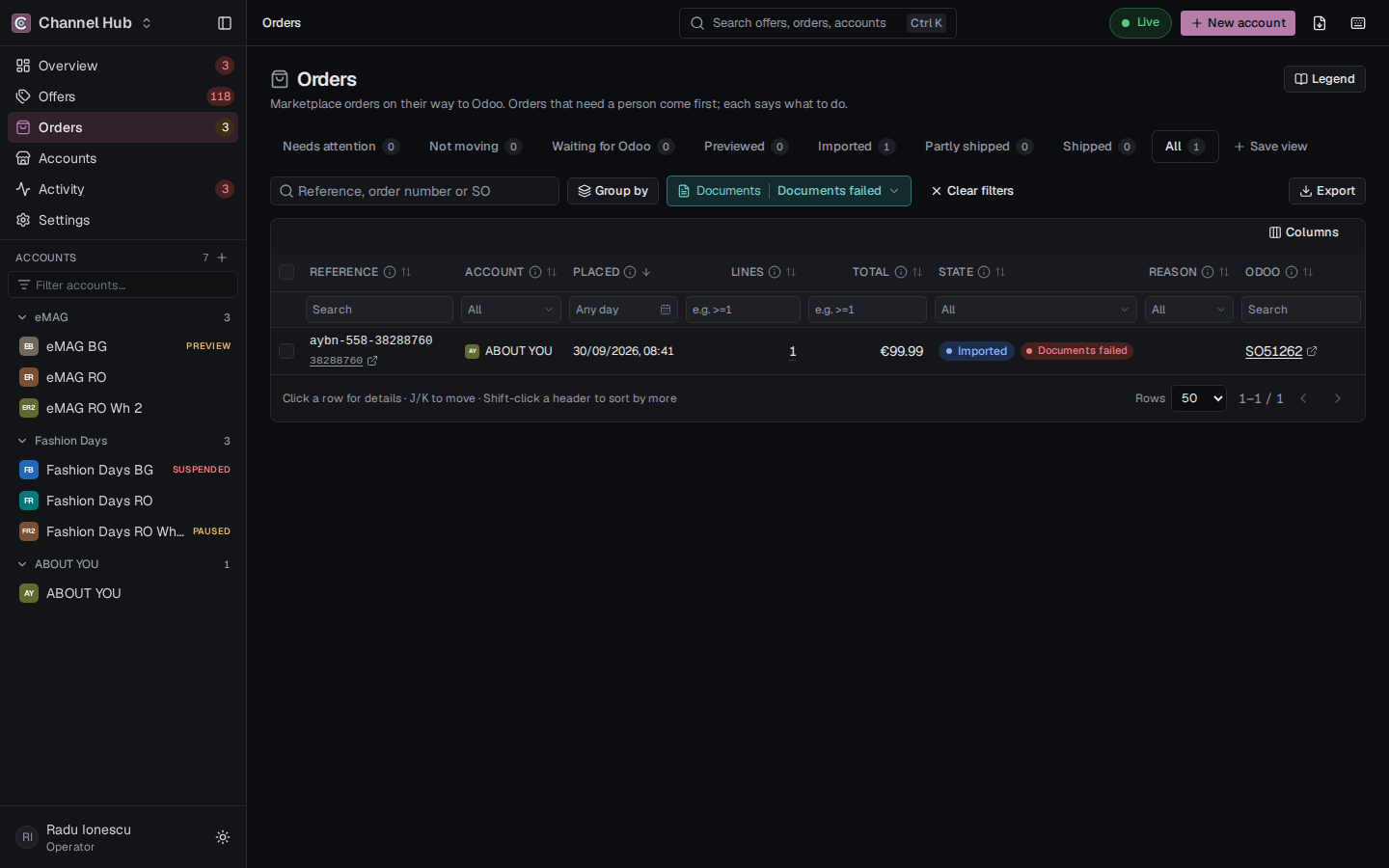
| Documents | Stays a Documents button next to Group by, because it is no column. Its one choice, Documents failed, shows only the orders whose documents (ABOUT YOU's delivery document) could not be fetched or sent to Odoo. The orders themselves are in Odoo. Clear filters removes it too |
Clear filters removes the search and the column filters; the quick view stays. If nothing matches, the list says "No orders match these filters."; on Needs attention with nothing to do it says "No order needs attention. Every order reached Odoo or is on its way."; before the first order arrives "No orders yet."
Sorting, grouping and Excel
Every column sorts, both ways; Shift-click adds a second column. Group by folds the list by Account, State, Reason or Currency. Each group shows Orders, Lines and the Total in each currency it holds (never one mixed figure), and the list ends with Grand total. Sorting by Total while grouped keeps the groups in order of their value. Export downloads an Excel (.xlsx) file of every order that matches, with your columns, filters, sort and groups; a grouped file has a Total column per currency. See Group with totals and Export to Excel.
The page address holds the view, the search, the filters, the sort, the grouping, the page and the open order, so you can copy it to send a colleague to exactly what you see.
The columns
Every header with an (i) explains itself on hover. Columns shows, hides, moves and freezes columns (Choose the columns).
| Column | What it shows |
|---|---|
| Tick box | Selects the order for Retry or Mark resolved. Operators only. |
| Reference | The marketplace's order reference. Under it, the account's badge and the marketplace's own order number, a link that opens the order in the marketplace's seller centre (ABOUT YOU's Seller Center searches it by that number), in a new tab. |
| Placed | When the customer placed the order |
| Lines | How many lines the order has; hover the number for the products |
| Total | The order's total with VAT, in the order's currency, for example €129.80 or PLN 429.00 |
| State | The state, in colour. An order that needs attention shows its reason under it; hover the reason for what to do. A Previewed order also shows the result of its comparison: Match, Match (rate), Different or Not in Odoo. A red Documents failed beside it means the order's documents could not be fetched; the order page's Documents says why. An order that has not changed for 24 weekday hours says, in amber, where it is stuck and since when (Not moving). |
| Order ID | The marketplace's own order number, shown under the reference; as a column it can be filtered (a search box), sorted and exported. Hidden at first: show it with Columns. |
| Shipped | When the order was last shipped at the marketplace (the last confirmed shipment); — until then. Hidden at first; filter it with a day range. |
| Currency | The order's currency (EUR, PLN …), for filtering and grouping. Hidden at first. |
| Odoo | The sale order's name as Odoo shows it (for example SO20841), a link that opens it in Odoo, once the order is there; — until then. An order imported before Stock Sync kept the name shows its number in Odoo until the name is read: older orders get their name over the next hours, a thousand per hourly run. Shown from a 1440 px wide window; on a narrower one a filter on it is named beside the search. |
| Attempts | How many times Stock Sync tried to create the order in Odoo; amber after more than one. Retry starts the count again. Hidden at first: show it with Columns. |
The order placed last comes first (sorted by Placed; click a title to sort by another column). No customer name, address or phone number is shown here or anywhere on the order screens, only the city and country the parcel goes to, in the order's details.
The states
| State | What it means |
|---|---|
| Received | Stock Sync has the order; it is not in Odoo yet. It arrives by itself. |
| Previewed | Orders are in Preview: the Odoo order was worked out and compared with Gaia's, nothing written. |
| Imported | In Odoo, confirmed, stock reserved. |
| Partly shipped · 1 of 5 | Imported, and the marketplace has some of its items shipped (here 1 of its 5 lines); the rest wait in Odoo or for their shipment. It becomes Shipped once every line not cancelled is. |
| Shipped | The marketplace knows the order left the warehouse: every line not cancelled is shipped, told by Stock Sync or marked by hand. See Ship an order. |
| Partially returned | Shipped, and the marketplace reports some of its items returned, not all. It becomes Returned once every shipped item is. |
| Returned | Shipped, and the marketplace reports every shipped item returned. |
| Needs attention | Stock Sync did not guess; the reason says why. Follow it, then Retry or Mark resolved. |
| Cancelled before import | The marketplace cancelled it before it reached Odoo. It never will. |
| Cancelled | Every line was cancelled: from Stock Sync, at the marketplace and in Odoo; or by following Odoo, which gave every item up. See Cancel an order. |
| Resolved | Someone handled it by hand: marked resolved while it was not in Odoo, or closed it (Close – handle manually). Stock Sync no longer follows it. |
Hover any state for the same words. Legend lists the states, every reason with what to do, and the Preview comparison results; Every status explained has them too.
The side panel
Click a row (or select it with J / K and press Enter) to open the order beside the list.
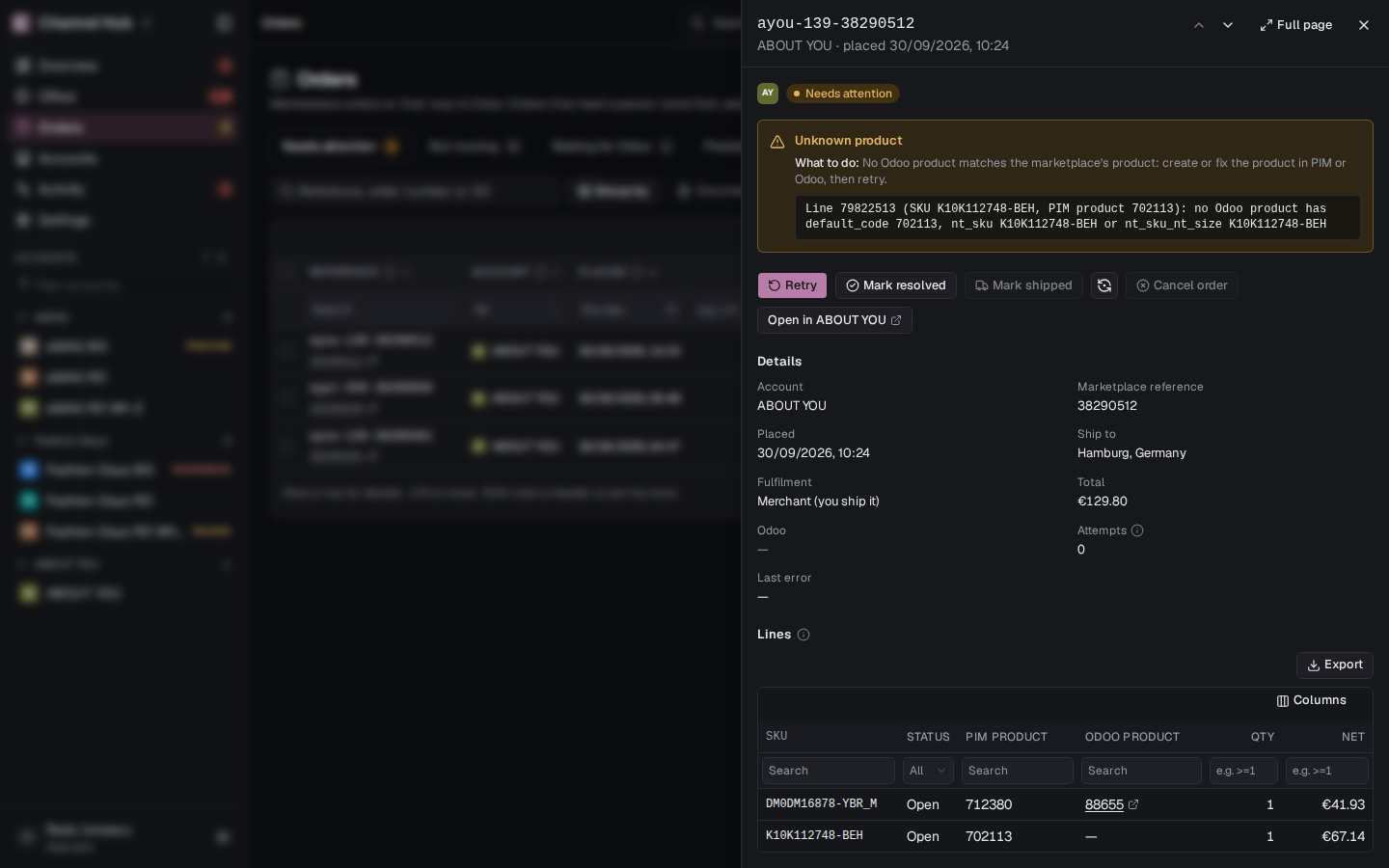
The panel shows the order the way the Order page does: on top, a box that says what its state means — or, for an order that needs attention, why, with What to do — then its buttons and links (Retry, Mark resolved, Cancel order, Open in ABOUT YOU, Open in Odoo, as they apply), Details, Lines, the Preview comparison and the Activity. The panel's lines show the SKU, Item, Status, PIM product, Odoo product, Quantity and Net price; the VAT rate and the EUR rate are on the order's own page only. Previous row and Next row (or K and J) move through the list; Full page opens the order on its own page, whose breadcrumb Orders returns to the list as you left it; Esc closes the panel.
Retry and Mark resolved on several orders
When one cause blocks several orders — one Odoo product missing, say — fix the cause once, then deal with all of them together. Tick the orders (operators only; Shift-click ticks a range) and a bar rises at the bottom of the screen:
- N orders selected.
- Retry N orders — tries the selected orders again, after you fixed what their reasons say. Only orders that need attention for a reason Retry can fix, and that are not in Odoo yet, are retried; the button's hover says how many of the selection will be skipped. Disabled, saying why, when none qualifies.
- Mark N orders resolved — says you handled what the selected orders waited for. A dialog, Mark N orders resolved?, asks for one Note for all of them (up to 500 characters, for example booked by hand in Odoo as S04513). Each order goes where its own Mark resolved would take it: one not in Odoo is Resolved and Stock Sync stops trying; one in Odoo goes back to Imported once Stock Sync has checked that its Odoo order delivers the items the marketplace still has, and is refused and listed when it does not (see Order page, the buttons). Only orders that need attention can be marked resolved. Close – handle manually is on the order itself, one at a time.
- The × (or Esc) clears the selection.
A message says what happened, for example "3 orders are tried again. 1 order skipped: Retry cannot fix their reason." When some orders were refused, an amber message lists each one by reference with the reason. The selection is cleared when you change the view, a filter or the page.
Live updates
The list follows changes as they happen: an order that changes state flashes where it is, and orders that newly match the view wait behind Show N new so the list does not jump while you select. An order that newer ones pushed off the page stays where it is, dimmed and marked May be out of date, until you click Show N new; you can open it but not select it, and Show N new counts what is new on this page, not in the whole list. A row that stopped matching leaves at once, unless more than half of the page changed together (a bulk retry of more than half a page, for example): the list cannot tell those rows from pushed-off ones, so they stay marked until you click Show N new. If orders leave the last page until it is empty, the list goes to the page before by itself. While the Live pill is paused nothing moves; without the live connection the list reads itself again every 15 seconds. See The Live pill.
What a viewer sees
The list, the filters, the views, the side panel and every link are the same for viewers, who open the team's saved views but cannot save, change or delete them. They have no tick boxes and cannot change anything on an order: no Retry, no Mark resolved, no Cancel order. See Who can do what.
Good to know
- Older links to the list (with Needs attention or Received in them, from bookmarks or the old Overview) open the matching view.
- J / K move through the rows, Enter opens one, X ticks it, Esc closes the panel or clears the selection. Keyboard shortcuts lists them all.