
Appearance
Connect Spartoo
You connect the company's Spartoo shop to Stock Sync, so that its stock, new orders, tracking numbers and cancellations no longer depend on a catalogue file and on copying by hand. It matters more here than on the other marketplaces: from 1 December 2026 Spartoo charges for cancelled and late orders.
At a glance
| Stores | One account for the company. It covers Italy, France and Spain. Never one per site. |
| Login needed | One Key. It never expires and gives full access to the shop. |
| Where it comes from | Spartoo's back office, My account → Information: the Seller Id for webservices |
| Who can do this | An Operator sets it up. The product owner decides each move to Live. Viewers have no buttons. |
| Time needed | About 10 minutes for the account, a few minutes for the first offer import, then days in Preview |
| Test shop | None. Everything Stock Sync sends goes to the real shop. |
| Orders | Read from all three sites. No accepting. Tracking back and cancelling, whole orders only. |
| Status of this connector | Reading is seen working on the real shop. Nothing has been written to Spartoo yet (see below). |
Reading is proven, writing is not
Seen working on the real shop (3 November 2026): reading the products, orders, returns and delivery slips of all three sites with the real key, and linking 893 of 895 sizes to PIM.
Not seen yet (notes as of 5 November 2026): a stock update, a shipment and a cancellation. No write has reached Spartoo. These are built from Spartoo's own documentation, so the first real one of each kind is asked for first and watched with the technical team. Spartoo's request limit is also still unknown: Spartoo doesn't publish a figure, and we still have to ask.
One store or several?
One Stock Sync account for the company. Never one per site. One key is one merchant, and Spartoo keeps one stock number for that merchant across all its sites. There is no site to choose on the form.
| Site | What Spartoo keeps per site | Stock Sync account |
|---|---|---|
Italy, spartoo.it | Its own orders. Stock and returns are shared. | The one account |
France, spartoo.fr | Its own orders. Stock and returns are shared. | The same account |
Spain, spartoo.es | Its own orders. Stock and returns are shared. | The same account |
Stock Sync reads all three sites with the one key and joins them. Each order remembers its site, so its shipment and its links go to the right one.
Never create one account per site
The form won't stop you: it only checks the name, and Test connection goes green on the same key every time. This is what would happen:
- Two accounts would write one stock number. They would overwrite each other. An account in Preview would still see its stock changed by the one in Live.
- Orders refuse the second account. Choosing Preview or Live for it says "[name] already reads the orders of the same marketplace store. Set that account's orders to Off first." Don't look for another key: there isn't one.
- Accounts can't be deleted from the screen. If you made one by mistake, pause it, leave its orders Off, and ask the technical team to remove it.
The key decides the merchant. The API address holds {site}, and Stock Sync fills in it, fr or es for each call. Don't touch it.
When the business opens another country on Spartoo:
| What happens | What you do |
|---|---|
Another site for the same merchant (Spartoo also has .de and .co.uk, for example) | No new account. Stock Sync reads only Italy, France and Spain, so orders from another site wouldn't arrive. It's a small technical change: tell the technical team. |
spartoo.com | Nothing. It answers as a copy of France. |
| A second Spartoo merchant, with its own key | A second account, with that key. No technical work. |
Can two accounts share a key? No, see the box above. Naming: call the account Spartoo. Only a second merchant needs a second word, its own name.
What the sites share with everything else: Spartoo gets the same PIM stock as every other marketplace, so one unit can sell twice. A unit sold on any site lowers the one number on all three. When an order reaches Odoo and reserves its stock, the lower figure reaches the other marketplaces within one PIM reading. An oversold order ends in a cancellation, which on Spartoo costs money.
What you need before you start
| ✓ | Item | Who gives it to you | How you know it's right |
|---|---|---|---|
| ☐ | Your own look at the Accounts list | You | No Spartoo account exists yet. If there is one, don't create another: go to The required checks. |
| ☐ | A login to Spartoo's seller back office | The person who manages the Spartoo seller account | https://www.spartoo.it/mp/ opens the merchant's dashboard |
| ☐ | The Key | You read it yourself, or that person types it in with you | Test connection answers green |
| ☐ | The Operator role in Stock Sync | Whoever gives out roles, see Who can do what | You see New account |
| ☐ | The Odoo connection | The technical team, if it's missing | Settings → Odoo connection: Check connection passes |
| ☐ | The Lead-time limit | The product owner | You were told a number of days, or No limit. See the warning in the steps below. |
| ☐ | The Salesperson for the orders | The last Spartoo orders in Odoo: staff put the same person on all of them | You can name that person in Salesperson |
| ☐ | Who keeps the catalogue file | Ask the product owner | You know who to tell on the day stock goes Live |
| ☐ | The product owner's agreement on the first real writes and on the Live days | The product owner | Each day is agreed before you switch anything |
Where the credentials come from
The only credential is the Key. On Spartoo's own page it's called the Seller Id for webservices.
Sign in to Spartoo's seller back office,
https://www.spartoo.it/mp/. Nobody has to create the key: it's already there.Open My account → Information.
Copy the Seller Id for webservices.
Paste it into Stock Sync's Key field, and nowhere else.
- Does it expire? No. It never expires.
- Is it shown once? No. It stays on the Information page, so if you lose it, read it there again.
- Can it be changed? Our notes don't say. If you think it has leaked, tell the product owner and the technical team at once, and don't try anything yourself.
- Real shop or test shop? There is only the real shop, so there is only the real key.
This key is the whole shop
It gives full access: it can change stock and prices, and cancel and refund orders. Type it into Stock Sync's form and nowhere else: never into a chat, a ticket or an email.
Don't send a screenshot or a link from the back office either. The Information page, Spartoo's documentation pages and the Delivery note links on the orders list all hold the key. The file link on the Information page holds a secret too.
Don't connect Spartoo on the test environment
Spartoo has no test shop and no test key, so an account on the test environment would hold the real key and talk to the real shop. Real marketplace credentials belong only on production. If you think you need a Spartoo account on the test environment, ask the technical team.
Connect the store, step by step
Open New account: the button in the top bar on any Channel Hub page or at the top of Accounts, the + beside Accounts in the sidebar, or Ctrl K and new.
Marketplace. Click the Spartoo card, which says Also reads orders. If there is no such card, the connector is switched off on this system: stop, and ask the technical team.
Click Next.
Connection. Leave API address on Spartoo, chosen already:
https://sws.spartoo.{site}/mp, with{site}in it. Name fills in as Spartoo; keep it. Paste the Key; it shows only as dots. Leave Requests per second on 1.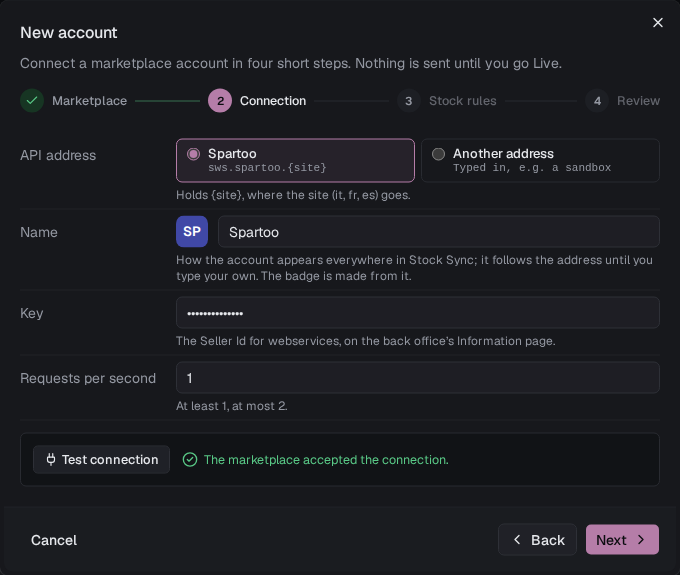
Leave the address alone
{site}is not something to fill in. An address without it, such ashttps://sws.spartoo.it/mp, is refused: API address must contain {site}, where the site (it, fr, es) goes. Don't try to pick a site here.Click Test connection. It asks Spartoo about the key and saves nothing.
You see It means Do this A green line, The marketplace accepted the connection. The key works. It proves the key only, not that stock can be written. Click Next. A red line, The marketplace refused the connection: Spartoo xml_check_status_products answered -2: the key is refused. The key is wrong Copy it again from Information, without spaces. A red line ending -428: account has been deactivated Spartoo has closed the seller account Stop. Tell the product owner. A red line, The marketplace could not be reached (…), so the connection could not be checked. Try again in a moment. No answer, or Spartoo said too many requests Try again later. If it names too many online requests, try after the next full hour. Fill in Key first. The field is empty Paste the key. Stock rules. Set the Lead-time limit the product owner gave you: No limit, or Limit to a number of days. Below it, the orders start Off. Click Next.
On Spartoo, stock 0 takes a product off the site
A limit, or a vendor rule, makes some products publish 0. On Spartoo that removes the product from the site once the account is Live. So don't set a limit "just to see", and never use Only these… vendors to send a small test: everything else would publish 0. Check the Not eligible count before going Live.
Review. Check the lines: Marketplace Spartoo, Name, API address with
{site}, Key Set (never shown again), Requests per second 1, Lead-time limit, Orders Off, Connection test Accepted. Don't create the account while it says Refused.Click Create account. It opens the account, with the message "Spartoo is created in Preview; its first offer import is requested." The status reads Preview, the sidebar tags it PREVIEW, and nothing is sent. The first Offer import reads the three sites one after the other. Watch it on the account's Activity tab.
Open the account's Settings tab, Orders → Odoo. Set the mapping below, the way staff enter Spartoo orders today, and leave Orders mode on Off for now.
Field Choose Sales channel Spartoo Sales team Website Warehouse ECOM Pricelist Public Pricelist (EUR) Delivery method Fedex International. Its hint says books the shipment in Odoo when the delivery is validated, and that's what you want: Odoo makes the FedEx label, as it does for staff now. Shipping product Shipping fee on sales, listed as [S1] [Shipping] [Shipping fee] Shipping fee on sales Salesperson The person staff put on every Spartoo order today Odoo order name, Phone for customers without one Leave empty Service lines None Click Save. Then carry on with The required checks.
Nothing else is needed: Spartoo has no courier, cancel reason or acceptance setting to fill in. If you see a Shipping section, leave its Carrier on None: the parcels go with Odoo's FedEx.
Every option explained
| Option | What it does | What to choose | Can it change later? | If it's wrong |
|---|---|---|---|---|
| API address | Where Stock Sync calls, with {site} filled in per site | Leave https://sws.spartoo.{site}/mp | Locked while Live and active. Only the technical team would ever change it. | Without {site} it's refused. Elsewhere the test fails. |
| Key | The merchant: the whole shop | The Seller Id for webservices | Locked while Live and active: Pause the account or switch it to Preview to change the API address and Key. Saving a new one puts a Live account in Preview and imports its offers again. Leave it empty to keep the stored one. | Refused, and the account becomes Suspended. Another merchant's key would run this account on that merchant's shop. |
| Requests per second | How fast Stock Sync calls Spartoo. At least 1, at most 2, and it starts on 1. The 2 is our own ceiling: Spartoo states no figure. | 1. Don't raise it on your own. | Any time, even while Live | Too fast risks too many online requests: Spartoo then holds the key until the next full hour, and no stock or orders move. |
| Lead-time limit | A product with a longer lead time publishes 0 | The product owner's answer | Any time. On a Live account it recalculates and sends at once. | Too strict takes products off the site. |
| Orders mode | Off, Preview (compares, writes nothing) or Live (creates and confirms in Odoo) | Off, then Preview, then Live | Any time. Back to Preview or Off needs no confirmation. | Live too early, while staff still type orders, risks a second order if a reference differs. |
| Ship orders | Off, Preview (shows what it would send) or Live (tells Spartoo, which emails the customer) | Off, then Preview, then Live | Only while the orders are Live and saved. Leaving Live orders sets it Off. | Off means no tracking goes back, and the two-business-day clock keeps running. |
| Sales channel, Sales team, Warehouse, Pricelist | Where the order goes in Odoo. Preview and Live need all four. | Spartoo, Website, ECOM, Public Pricelist (EUR) | Any time | An empty one: Save says Required. A wrong Sales channel: Stock Sync looks for staff's orders inside that channel, so every order reads Not in Odoo, and Live would create a second order for each. A wrong Sales team, Warehouse or Pricelist: Preview doesn't compare them, so it only shows on a Live order in Odoo. Check them by eye. |
| Delivery method | Which method Odoo books the label with | Fedex International | Any time | No FedEx label when the delivery is validated |
| Shipping product | Books the €5 the customer paid for shipping, without VAT | Shipping fee on sales | Any time | Every order stops in Needs attention with No shipping product. |
| Salesperson | The person on the Odoo order | Who staff put there today | Any time | Preview shows it as a difference |
The required checks
| ✓ | Check | Where to look | What "right" looks like | If it isn't |
|---|---|---|---|---|
| ☐ | Test connection | The form, then Review | Accepted | See If something goes wrong |
| ☐ | First offer import | The account's Activity tab, or Summary → Recent runs | Offer import reads Succeeded, and the status is still Preview | Failed or Suspended: read the reason, then see below |
| ☐ | How many offers link | Summary, the Offers figures | Nearly all. One offer is one size. On 3 November 2026, 893 of 895 sizes linked; the 2 that didn't were at stock 0. | Open the Not linked quick view. A size with stock there is a problem: see below. |
| ☐ | A few quantities by hand | Offers tab, Waiting quick view: open five to ten, J for the next | Stock to publish is right for the PIM figures. Marketplace shows agrees with the back office's Products page, which shows one total per product. | Don't go Live. Ask the technical team. |
| ☐ | Products publishing 0 | Offers tab, Eligible filter: Not eligible, and the vendor line in Settings → Stock → Stock rules | Each is expected. Each one leaves the site on the Live day. | Change the limit or the vendor rule first, with the product owner. |
| ☐ | Nothing was sent | The status banner and the back office | The banner reads Preview: everything is calculated, nothing is sent. Spartoo's quantities have not moved because of us. | Stop. Click Back to Preview if it's Live. Tell the technical team. |
| ☐ | Order comparisons, after step 1 of Going fully live turns on Preview for orders | Orders, the Previewed quick view | Match, or a difference the business accepts. The first read reaches back 90 days, so past orders show too. SO19865 is known to read Different: its tax position doesn't match its tax. | Fix the mapping. Not in Odoo a day after staff entered the order means the reference or the Sales channel differs: don't go Live. Check the channel, then send the reference to the technical team. |
| ☐ | One real write of each kind | With the technical team | One stock change, one shipment and one delivery slip seen working. Does the product come back when its stock returns? | Don't go on. Each is asked for first, and they are the technical team's to run. |
| ☐ | The go-live checks | Pre-flight checklist | Every line ticked | Fix it first |
The linking rule. A size links by its Spartoo reference, read as PIM's SKU with its spaces written as underscores, to exactly one active PIM product. A barcode can only pick between two that fit. Two products, or none, leave it Not linked: see the Spartoo rule.
What to do with a size that's Not linked. Stock Sync never changes its stock, so once the catalogue file stops, nothing keeps it right. Compare its reference on Spartoo with the SKU in PIM, then send the list to whoever keeps the catalogue file and to the PIM team. A size with stock must be settled before stock goes Live.
Going fully live
Do these in order. The product owner decides each one, and each goes Live only when its Preview is clean. Stock and orders can go Live on the same day. The screens for this are the same as for other marketplaces: Go from Preview to Live and Go live with orders.
| Step | Where | Who decides | Done when |
|---|---|---|---|
| 1. Orders to Preview | Settings → What this account does, Orders | You | Orders show as Previewed within minutes. Staff keep typing orders, one Odoo order per reference (why). |
| 2. Read the comparisons | Orders, Previewed | You, with the product owner | Every order is Match or an accepted difference, over at least five working days |
| 3. One real write of each kind | With the technical team | Product owner, each one asked first | A stock change, a shipment and a delivery slip seen working |
| 4. Agree the day, and stop the catalogue file | The person who keeps the file | Product owner | That person confirms it's stopped, and the back office's Integration History shows no new run |
| 5. Stock to Live | The status banner, Go Live, type the name | Product owner | The status reads Live, and In sync climbs |
| 6. Orders to Live | Orders mode, Live, Save, then Go live in the dialog | Product owner | Orders become Imported. Those staff entered read Found in Odoo and adopted. |
| 7. Ship orders to Preview | Ship orders, under Orders mode | You | Each order's Shipping shows what would be sent, and it's right |
| 8. Ship orders to Live | Ship orders, Live, Save, then Ship from Stock Sync | Product owner | The first real shipment reads Shipped, and the tracking number shows in the back office |
Stop the catalogue file on the day stock goes Live, before you click Go Live
The file also sets stock. Each time Spartoo reads it, its numbers replace what Stock Sync sent, and neither side tells you. Check with the person who keeps it before you switch. See the catalogue file.
Going Live sends every waiting number at once
There is no Go Live for one item, and a size going to 0 leaves the site. The first real stock change is one item, with the technical team, before step 5. Read the number in "Going Live would send [n] stock updates now." before you confirm.
What staff stop doing, and on which day:
| Day | Who stops | What |
|---|---|---|
| Stock Live | The person who keeps the file | The catalogue file. From then on it only ever holds new products. |
| Orders Live | Staff | Typing Spartoo orders into Odoo. Tell them before you confirm. From this day, a cancel in Odoo also cancels at Spartoo and refunds the customer. |
| Ship orders Live | Staff | Marking Spartoo orders shipped in the back office. An order already marked isn't sent again. |
How to pull back:
| From | Do this | What it means |
|---|---|---|
| Stock Live | Back to Preview, no confirmation (details) | Sending stops at once. What was sent stays. Nothing updates Spartoo's stock any more, so tell the product owner the same day: the file may have to run again. |
| Orders Live | Orders mode to Preview or Off, Save (details) | Stock Sync stops creating orders, and Ship orders goes Off too. Orders in Odoo stay. Staff type the orders of the days between by hand, and mark shipments in the back office. |
| Ship orders Live | Ship orders to Preview or Off, Save | Nothing more goes to Spartoo. Staff mark shipments in the back office again. |
A shipment already sent, and a cancellation, can't be taken back: the customer has the email, or the refund.
Fully connected means:
- ☐ One Spartoo account, reading Live, with its offers nearly all Linked
- ☐ The catalogue file stopped, and its keeper told how to list new products
- ☐ Orders mode Live, new orders Imported within minutes, staff no longer typing them
- ☐ Ship orders Live, tracking numbers reaching Spartoo, staff no longer marking shipments
- ☐ The delivery slip attached to the Odoo orders
- ☐ One real stock change, shipment and slip seen working
- ☐ Someone looking at Needs attention every day
Stock
Stock goes to Spartoo as a quantity only, for the items already listed there. Stock Sync never lists a product and never sends a price or a discount.
Spartoo allows no spaces in a reference, so a PIM SKU such as HWBB93 08180 BLA is listed there as HWBB93_08180_BLA. Stock Sync reads the two as the same and links each item to the one PIM product that fits. If two PIM products fit, or none, the item stays Not linked and gets no stock; see Matching offers to products. When this was measured on 3 November 2026, 893 of 895 sizes linked, and the 2 that did not were at stock 0.
The stock starts in Preview: check the Linked count and a few quantities in Offers, then move it to Live (Go from Preview to Live).
Stock 0 takes a product off the site
On Spartoo, a size at stock 0 leaves the site, and it should come back when stock returns. The first real change is made with one item, with the technical team watching.
The catalogue file on the day stock goes Live
Spartoo also reads a catalogue file every few days. That file lists products and sets their stock, so each time Spartoo reads it, it would replace the stock Stock Sync sent.
- On the day stock goes Live, the operator who keeps the file stops it. Check with them before you switch.
- A file with no stock cannot list products: Spartoo does not create a product that has no stock.
- To list something new afterwards, send a file holding only the new products. Stock Sync reads them at its next import and takes over their stock. Spartoo still has to confirm that it leaves products missing from the file alone, so ask the technical team before the first one.
Orders
Stock Sync reads Spartoo's new orders every 2 minutes, from all three sites, and creates one Odoo order for each Spartoo order, confirmed, as staff do now:
- The reference is the Spartoo order number as staff write it, for example
2000037--258832848. Spartoo's own interface shows it without the dashes; both are the same order. - The price is what the customer paid, with VAT taken out at the rate of the delivery country's fiscal position in Odoo (22% Italy, 20% France, 21% Spain). The €5 shipping the customer pays becomes the shipping line.
- The customer is the person named on the order, with their phone. There is no email, as now.
An order goes to Needs attention as Unreadable, with the reason, when a value is missing, when the lines and shipping do not add up to Spartoo's total, when the currency is not EUR, when the country does not come as a code, when the order is for a collection shop (Odoo's FedEx label would go to the wrong place) or when it has a status Stock Sync does not know.
What staff do differently
One Odoo order for each Spartoo reference
From the day the account is in Preview, create each Spartoo order in Odoo with the channel Spartoo and the one Spartoo reference as the client reference, as you do today. Do not merge a customer's orders into one Odoo order. Stock Sync does find an order with several references separated by spaces, commas or semicolons, but it also holds the lines of the other orders, so each reads Different and can never Match. With any other separator it isn't found at all: it reads Not in Odoo, and on the Live day Stock Sync would create a second one.
In Preview Stock Sync only compares: each of its orders against the one you made, with the same reference, and shows Match, Different or Not in Odoo. A difference in the order date is expected. Once every comparison matches, or differs in a way the business accepts, switch orders to Live: Stock Sync then adopts the orders you already entered instead of creating them again, and you stop typing Spartoo orders that day.
Shipping and cancelling
- The label comes from Odoo, as now: validating the delivery books the FedEx shipment.
- The tracking number goes back by itself once Ship orders is Live. When every delivery of the order is done in Odoo, Stock Sync tells Spartoo the order is shipped, with the tracking number. Spartoo then emails the customer, once. Spartoo takes one number for an order; with several deliveries, Stock Sync waits for all of them and sends the first number (see Ship an order).
- The delivery slip that Spartoo wants in the parcel is attached to the Odoo order.
- If Spartoo refuses the shipment, the order waits in Needs attention as Marketplace refused the shipment, with Spartoo's own words, and a person decides. Too old means contacting Spartoo's marketplace team.
Cancelling refunds the customer and counts against you
A cancel from Stock Sync, or a cancel in Odoo that Stock Sync passes on, is for the whole order. It refunds the customer, it cannot be undone, and it counts toward the 5% cancelled limit below. Spartoo's list shows a reason such as Out of stock, but Stock Sync cannot send one; add it in Spartoo's back office if you need it. Cancelling part of an order is done by a person (see Cancel an order).
Ship orders has its own Preview, which shows on each order what would be sent, and it can be switched on once the orders are Live (Account settings: Ship orders). Cancelling has no Preview: Cancel order appears, and cancels in Odoo are passed on, from the moment orders are Live. The first real ones are worth watching. An order that Spartoo itself cancels after it's in Odoo goes to Needs attention as Changed after import, and a person handles it in Odoo.
The penalties from 1 December
From 1 December 2026 Spartoo charges €2 for each order that falls outside its monthly limits:
| Limit | Spartoo charges when |
|---|---|
| Cancelled | more than 5% of orders are cancelled |
| Shipped in time | fewer than 91% are shipped within two business days of the order |
| Returned | more than 1% are returned as non-compliant |
- Needs attention is on that clock. An order waiting there still counts as not shipped. Look at Needs attention every day, and clear Spartoo orders first.
- Stock that is out of date is what leads to cancellations. Keeping stock Live, and the catalogue file stopped, is the best protection.
The companion in Spartoo's back office
The Channel Hub companion also works in Spartoo's seller back office, on www.spartoo.it, www.spartoo.fr and www.spartoo.es (the pages under /mp/). It shows what Channel Hub knows beside what Spartoo shows, and only reads: it presses nothing in Spartoo, changes nothing there and sends Spartoo no request of its own.
| Where | What you see |
|---|---|
| Dashboard | A Channel Hub summary card |
| Orders list | Channel Hub and Odoo columns right after Status: the order's state in Channel Hub and its sale order in Odoo. An order Channel Hub does not know shows a dash. |
| One order's page | A Channel Hub panel right under the order number, like the one in Loom and Seller Center: the state, Open in Channel Hub, Odoo, the documents and the shipping. Operators also get the buttons of Channel Hub's own order page. |
| Products page, the online table | A Channel Hub column right after Quantity: what Channel Hub sends for the product, compared with Spartoo's Quantity |
Spartoo's Products page shows one total per product, while Channel Hub keeps stock per size. A product with several sizes therefore gets one line, for example 3 sizes: sends 5. It says how many sizes there are and the total Channel Hub sends, and turns amber when that differs from Spartoo's Quantity. It has no Resync button: that belongs to a size, and is done in Channel Hub.
Which Channel Hub: Spartoo has no test shop, so the companion always asks the live Channel Hub, on all three sites. Nothing shows until the Spartoo account exists there.
What it reads: which page is open, the order numbers on the orders list and on an order's page, the column headers, and on Products the product's reference and the quantity beside it (the quantity stays in your browser). It never reads a link, a customer's name, an address or a price.
Known limits:
- It has been seen on
.itonly..frand.esare taken to be laid out the same way. If a page is laid out differently, the companion shows nothing there rather than guess: tell the technical team. - It shows nothing on pages other than the dashboard, Orders and Products.
- It shows nothing for a column header it does not know (it knows the Italian, French, Spanish and English words for Status and Quantity).
- Chrome asks you to accept the new sites when the companion updates. If it was switched off, turn it back on in Chrome's Extensions page.
What stays manual
- Listing products, photos and categories, prices and discounts: done in Spartoo's back office and the catalogue file.
- Returns and refunds: staff handle them in the back office. Stock Sync only shows that a line came back. A Spartoo return names a size, never how many pieces, so a line reads Returned whatever its quantity. The order is Partially returned while some of its lines are still out, and Returned once every line is.
- Tickets, and marking a parcel lost or undelivered.
- Billing and commission.
If something goes wrong
| You see | What it means | Do this |
|---|---|---|
| No Spartoo card on New account, or Connector off on the account and the banner Connector switched off here: … | The connector is switched off on this system. Its work waits. | Nothing on the screen changes this, and only the technical team can. Ask them. |
| API address must contain {site}, where the site (it, fr, es) goes. | Someone typed over the address | Put back https://sws.spartoo.{site}/mp. |
| Key is required. or Required | The key is empty | Paste the key. |
| At least 1, At most 2 or A number under Requests per second | Outside its limits | Type 1. |
| The marketplace refused the connection: … answered -2: the key is refused. | Wrong key | Copy it again from My account → Information. |
| The account is Suspended: Spartoo xml_export_products answered -2: the key is refused | Spartoo refused the stored key | In Settings → Connection, type the key again, Save, then Recover. On a Live account: Settings → Pause, type the key under Connection, Save, Recover, Resume. Stock is now in Preview: check the offers and Go Live. See Bring back a suspended account. |
| … answered -428: account has been deactivated | Spartoo has closed the seller account | Tell the product owner. They talk to Spartoo. |
| … answered -429: too many online requests during this 1-hour time period; held until the hour turns | Spartoo says too many requests. Stock Sync holds that key until the next full hour, then carries on. | Wait. Don't raise Requests per second. If it comes back hour after hour, tell the technical team. |
| The marketplace could not be reached (…) | No answer from Spartoo | Try again later. |
| Reading Odoo's lists…, or Odoo's lists could not be read in Orders → Odoo | Odoo is slow or not answering | Settings → Odoo connection: Check connection, then Read Odoo again. |
| "[name] already reads the orders of the same marketplace store. …" | A second account on the same key | Keep the first. Pause the second, leave its orders Off, and ask the technical team to remove it. |
| Many sizes Not linked | Far from the normal 2 of about 895. The references on Spartoo may have changed. | Don't go Live. Send the technical team a few offer ids. |
| Spartoo's quantity has gone back to an old number | The catalogue file ran again | Ask its keeper to stop it. Stock Sync sends its number again at the next offer import, or use Resync. |
| An offer Rejected with size is no longer valid … or size reference does not exist | Spartoo no longer has that size | See Rejected by the marketplace. |
| An order Unreadable, order is for a collection shop … | Odoo's FedEx label would go to the wrong place. None has appeared so far. | Tell the product owner the same day: it's on the two-business-day clock. |
| Another order Unreadable, such as order has no … | A value is missing, or doesn't add up. No order at Spartoo's very first status has been read yet, so the first new order may do this. | Send it to the technical team. There's no Retry: it comes back when Spartoo sends a readable version. |
| No shipping product on an order | Shipping product isn't set | Set it in Orders → Odoo, then Retry (An order needs attention). |
| Marketplace refused the shipment, … too old to go on status 3 | Spartoo won't take the shipment any more | Contact Spartoo's marketplace team. |
| Marketplace refused the shipment, tracking number data entry error | The number in Odoo is wrong | Correct it in Odoo, then Retry. |
Before you ask
You can settle these yourself:
- One account per site? No. One account, always.
- Which site do I choose? None. There is nothing to choose.
- Why does the address have
{site}in it? It's meant to. Leave it. - Is there a test shop to try it on? No. Preview is the safe place.
- Does the key expire? No. If it's refused, copy it again from Information.
- A size at stock 0 is gone from the site. Is that a fault? No, that's Spartoo's rule.
- Why is a product not in Offers? Stock Sync sees only what's on Spartoo, and products with no stock were never created there. Look it up on the back office's Products page, by reference: it also lists products that aren't online, with Spartoo's reason. Sizes with no price in the catalogue file also appeared to stay off Spartoo in November 2026; Spartoo hasn't confirmed this.
- Why does Products show one number and Offers several? Spartoo totals the sizes there.
The product owner decides: the Lead-time limit, which differences in Preview are accepted, every move to Live, the first real writes, the day the catalogue file stops, what happens to a collection-shop order, and anything to raise with Spartoo.
The technical team handles: a connector switched off, a new Spartoo site, removing an account made by mistake, repeated too many requests, an order Unreadable for no clear reason, a comparison reading Not in Odoo a day after staff entered the order.
What to send them: the account name, whether it's the test or the real system, the page you were on, the exact words on screen, the order reference or offer id, and the time.
Never send the key
Not the key, not a screenshot of Information, and not a back-office Delivery note link: those hold it too.