
Appearance
Create a DHL shipment
Instead of typing an order into the MyDHL+ website, you create the DHL shipment from the Odoo sale order, in one small window. Stock Sync asks DHL Express for the labels, puts them on the order, writes the tracking numbers into Odoo, and ABOUT YOU is told them when the delivery is validated. Nobody types a tracking number.
Before you begin
Who can do this: an Operator. A viewer sees the labels but has no Create DHL shipment button.
Which orders: an order Stock Sync put in Odoo, whose account has its Shipping section set to DHL Express (see Account settings: Shipping), and whose delivery is not validated yet. For an ABOUT YOU order, ABOUT YOU must have chosen a DHL carrier for it.
You need: the companion installed and signed in, and the DHL connection saved in Settings.
Time needed: about a minute.
Create the shipment
In Odoo, open the order's sale order (the form, not the Barcode app). The Channel Hub card above it has a button Create DHL shipment.
Click it. A small window Create DHL shipment opens, already filled in from the order: the Receiver (name, city and country), the Reference (the sale order's name), the Service, the Contents, the Declared value, whether a Return label is made and how the Pickup is arranged. The last three come from the account's settings and are only shown.
Check the receiver's Phone and E-mail. DHL needs both. Stock Sync takes them from the Odoo customer, then from the marketplace order. When the order has no phone, it fills in a placeholder, the receiver's country code followed by 6000000 (for example +496000000 for Germany), and says Placeholder — the order has no phone. That is what operators type into MyDHL+ today, and DHL accepts it. Type a real phone to replace it. An order with no e-mail gets the warehouse's own.
Fill in the Parcels. There is one parcel of 1.0 kg to start with: type its real Weight (kg) (0.1 to 70). The Length, Width and Height (cm) are optional; type all three or none. For a second parcel click Add parcel; the cross removes one.
Click Create. The window says Creating…. It takes a few seconds.
When it is done, the window says Shipment created. Print the labels from the Channel Hub card. with the waybill, and the pickup reference when one was booked. Click Close.
What you get
- The labels. The outbound label (one file for all parcels) and, when the account makes them, the return label, in the order's documents and on the Channel Hub card of the sale order. They are labels for the Zebra: see Printing the labels.
- DHL's receipt, as an A4 document. It goes into the batch's A4 stack (see Print a batch).
- The tracking numbers in Odoo, within a minute: the outbound waybill on the delivery's Tracking Reference and the return waybill in a Return Tracking number: note. They are what Ship an order needs to tell ABOUT YOU.
- The pickup, when the account's Pickup setting books one: the reference is shown on the order's page and in the window. DHL collects on its own when the account uses a standing pickup.
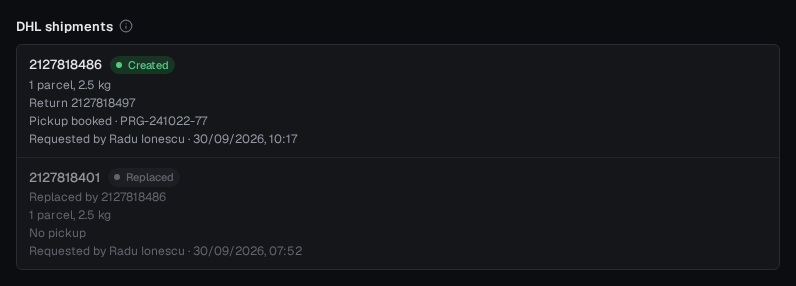
The order's page lists the shipment under DHL shipments with its state, its waybills, the pickup and who asked. See Order page: DHL shipments.
Printing the labels
On the sale order's Channel Hub card and at OUT in Barcode, each label has Print label. It sends the label to your workstation label printer, the Zebra at your packing station, through Odoo's PrintNode.
If DHL hands a label over as a PDF, Channel Hub converts it to ZPL within a minute, so Print label still sends ZPL to the Zebra; until then, or if the conversion fails, the PDF is what prints.
Until printing from the companion is switched on for your workplace, a label cannot go to the printer by itself. Print label then downloads the label as a .zpl file instead, and says why in a message; there is no PDF of a ZPL label, so nothing opens in a tab. Send the file to the Zebra with your label tool. Ask the technical team when printing will be switched on.
When Odoo does not answer the print, the line says The label may still be printing. Check the printer before printing again. Look at the Zebra first; Download on the line saves the label if it did not print.
In the scan popup, Print label always downloads the .zpl file: the scan popup never prints through PrintNode, by design.
When DHL refuses
DHL checks the address. When it says no (a postcode that does not exist, a street it cannot find), the window shows DHL's own words in red and nothing is created. Correct the cause (the address in Odoo, the phone or e-mail in the window) and click Create again. The next Create is a new request.
Not allowed, and why
Before DHL is asked, Stock Sync refuses with a sentence in the window. The common ones:
| The window says | What to do |
|---|---|
| DHL shipments outside the EU are not supported yet | Create the label in MyDHL+ and upload it. |
| ABOUT YOU gave this order the carrier …, not DHL | ABOUT YOU chose another carrier. Ship it with that carrier. |
| DHL Express is not connected yet: save the DHL connection in Settings first | An operator saves the connection in Settings. |
| This account has no shipping settings yet: set its carrier on the account page first | An operator fills in Shipping on the account. |
| Order … has already shipped; a DHL shipment can no longer be created | The delivery is validated in Odoo; the parcel has left. |
| This delivery already has tracking …. Remove it in Odoo first if it is wrong. | The delivery holds a tracking number typed by hand or from a marketplace's label. Remove it in Odoo if it is wrong, then create the shipment. |
When the delivery holds the tracking number of a label uploaded earlier (for example a MyDHL+ label), Create is allowed: the box Replaces the earlier label is ticked, and the new waybill takes the place of the old number on the delivery.
A shipment already exists: replace it
A second shipment for an order that has one is refused, to stop two labels reaching the box. When a label was wrong, tick Replaces the earlier shipment and click Create. If someone else made a shipment for the order while your window was open, Create is refused with Order … already has a DHL shipment; choose Replaces the earlier shipment to create another, whether the box was ticked or not: the window reads the order again and shows the newer shipment with the box unticked, so you never replace a shipment you did not see. The new waybills replace the earlier shipment's on the delivery, and the earlier shipment stays listed under DHL shipments, marked Replaced. A shipment is not cancelled at DHL, and a booked pickup is not cancelled: tell DHL by hand if the old one must not be collected or billed. A tracking number someone typed by hand is never replaced.
When the window does not know what DHL did
If DHL does not answer in time, Stock Sync cannot know whether it made the shipment. The window says Still waiting for DHL… and asks again with the same request, which never makes a second shipment. After about two minutes Stock Sync treats the outcome as unknown (the window stops waiting after three), and says:
DHL may have created a shipment for SO48211. Look for reference SO48211 in MyDHL+.
Stock Sync never tries again by itself, so no second shipment is billed. The order goes to Needs attention with DHL shipment unclear (see An order needs attention). Do this:
- Open MyDHL+ and search for the reference (the sale order's name).
- Nothing there: click It was not created (in the window, or on the order's page under DHL shipments). The shipment is closed as not created and you can click Create again. If an earlier DHL shipment of the order was found with no pickup while the order waited, the order moves to DHL pickup not booked instead of leaving Needs attention.
- A shipment is there: do not create another. If the labels in MyDHL+ are wrong or you want Stock Sync's, click Create again (replaces), which makes a new shipment that replaces the earlier one; otherwise ship with the MyDHL+ labels and upload them. Cancel the unused one in MyDHL+ yourself.
If DHL answers late and the shipment turns out to exist, it is kept and the order's warning goes away by itself. If it answers late for one you closed as not created, or one a newer shipment replaced, the order shows DHL shipment unclear again with DHL created shipment … after it was marked not created (or after it was replaced) ; cancel it in MyDHL+ if it is not needed. When DHL made a shipment but Channel Hub could not keep it (no label, a file it cannot store, a failure saving it), the sentence names the waybill: DHL shipment 2127818486 was created but … Look for reference SO48211 in MyDHL+. After Re-sync with Odoo, an order that waited here waits here again once it is in Odoo (or, if it then waits for another reason such as Customer asked to cancel, once that ends), with DHL may have created a shipment for … under its earlier Odoo order, before Re-sync with Odoo. Look in MyDHL+ for the reference of that Odoo order, shown under Activity on the order's page.: DHL knows the shipment by the lost sale order's name, which the order's Activity shows. The same happens when Marketplace refused the shipment took this warning's place and is marked resolved. Once you mark DHL shipment unclear resolved yourself, it does not come back for that shipment.
When only the return label is missing
If DHL made the outbound shipment but not the return label, the shipment shows Return label missing and Create the return again on the order's page and in the window. Click it: only the return label is asked of DHL again, the outbound shipment stays as it is. If it says DHL may have created the return label; look for reference … in MyDHL+ before trying again, look in MyDHL+ first.
When the pickup is not booked
The shipment and its labels are valid even if the courier was not booked. The shipment shows Pickup not booked with Book pickup again. Click it to ask DHL again. When DHL did not answer the booking, the row says DHL may have booked it — check MyDHL+: look there before booking again.
If the pickup is still not booked once the account's closing time has passed, Stock Sync raises DHL pickup not booked on the order. Book pickup again from the order's page, or call DHL and then choose Mark resolved. Mark resolved here only ends the warning: the order carries on to shipping as usual, or to Shipped when its items have already gone. The warning also comes on an order that has already shipped. Once you have answered it, it does not come back for that pickup.
With Book once a day, a shipment made after the closing time or at the weekend belongs to the next working day's pickup, and later shipments for that day reuse its booking: Friday evening's and Saturday's shipments share one Monday pickup. Book pickup again books for the working day it falls on, or reuses that day's booking.
What you should see
- A Create DHL shipment button on the sale order of a DHL account's order, and none on an order that is not Channel Hub's.
- After Create, a green line in the window, the labels in the card within a minute and the waybill in the delivery's Tracking Reference.
- The order's page lists the shipment under DHL shipments.