
Appearance
New account
The New account form adds a marketplace account to Stock Sync, for example an account on eMAG Hungary. Stock Sync talks to each marketplace through its API: the address and login the marketplace provides so that other programs, not people, can read and change offers. You use the form once per marketplace store, for example once per country, when the business starts selling there. Only operators can use it.
Open it with New account in the top bar (on every Channel Hub page, for operators) or at the top of the Accounts page, with the + beside Accounts in the sidebar, or from Search or jump to… (Ctrl K, then type new account). The form opens over the Accounts list. An old bookmark to the former New account address opens the same form.
A new account never sends anything by itself
Every new account starts in Preview: Stock Sync imports its offers and works out their stock, but sends nothing to the marketplace until an operator goes Live. You can fill in the form without any risk to the marketplace.
Four short steps
The form is titled New account and says Connect a marketplace account in four short steps. Nothing is sent until you go Live. The steps are shown at its top: Marketplace, Connection, Stock rules, Review. Click a step you have already done to go back to it.
At the bottom:
| Button | What it does |
|---|---|
| Cancel | Closes the form. If you typed something, Stock Sync asks Discard unsaved changes? first. |
| Back | The previous step, keeping what you typed |
| Next | Checks the step and moves on. A field with a problem shows a red message and you stay on the step. |
| Create account | On the last step: creates the account in Preview and starts its first offer import |
1. Marketplace
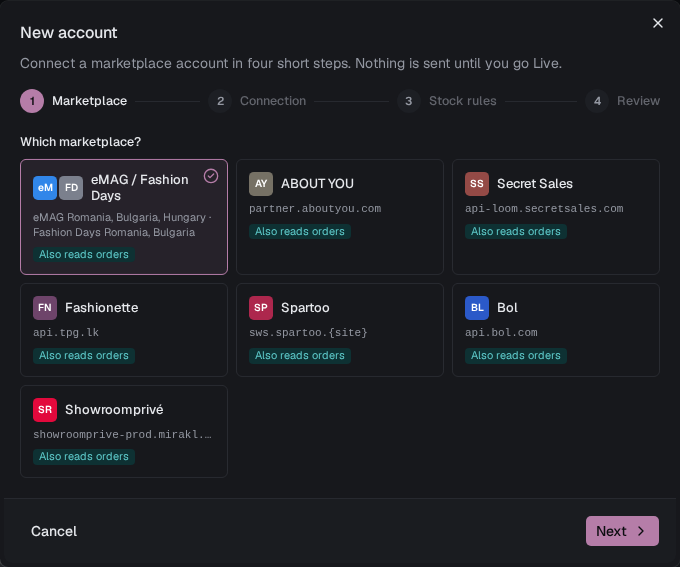
- Marketplace — click the marketplace, for example eMAG / Fashion Days or ABOUT YOU. There is one card per marketplace. A card that covers several stores lists them (eMAG / Fashion Days: eMAG Romania, Bulgaria, Hungary · Fashion Days Romania, Bulgaria); the others show their address. Also reads orders means the marketplace sends its orders to Stock Sync. You choose the store, and the real shop or the test shop, on the next step.
| Message | How to fix it |
|---|---|
| Choose the marketplace | Click one of the cards. |
2. Connection
These values come from the marketplace, and each one has its own fields. Its guide says where every value comes from and what to type.
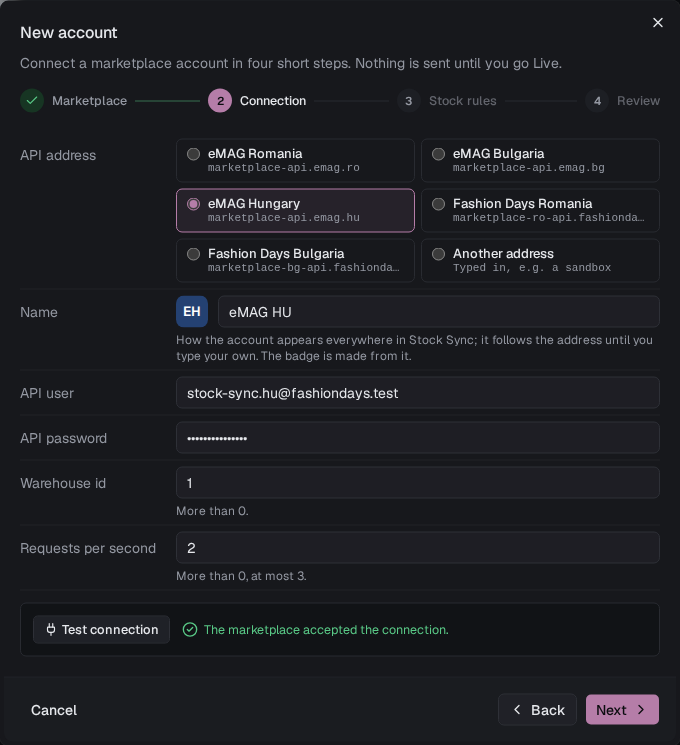
API address comes first: the addresses Stock Sync knows for this marketplace, each by its name and its address.
- On eMAG / Fashion Days, one per store: eMAG Romania, eMAG Bulgaria, eMAG Hungary, Fashion Days Romania and Fashion Days Bulgaria. None is chosen for you: click the store.
- When a marketplace has a test shop, its addresses stand in two columns, Production and Test, and the test shop says Test beside its name: Secret Sales and Secret Sales test shop, Showroomprivé and Showroomprivé test. On Secret Sales none is chosen for you; on Showroomprivé the production shop is. Choose the test shop only on the test environment.
- A marketplace with one address (ABOUT YOU, Fashionette, Spartoo, Bol) has it chosen already.
- Another address — Typed in, e.g. a sandbox — shows a box to type an address the list doesn't have (it starts with the address chosen before, if any: replace it), such as the eMAG sandbox on the test environment or Fashionette's staging server. Use it only when the technical team gives you the address.
Name follows, with the account's badge beside it:
- Name — how the account appears everywhere in Stock Sync. It starts as the name of the address you chose (eMAG Hungary, Secret Sales test shop) and follows your choice until you type your own; with Another address it is the marketplace's name (eMAG / Fashion Days). Add a second word when one store has two accounts, for example eMAG Romania Wh 2.
- The badge — the coloured initials box the account will have in the sidebar, lists and filters, made from the name and kept different from every other account's badge. If eMAG Romania would give ER but an existing account already has ER, the newcomer gets the first free letter: ERA. You can change it later in the account's Appearance settings. The account badge explains how it is made.
Then the marketplace's own fields:
| Field | What to type | Rules |
|---|---|---|
| API address | Click the store, or the real or the test shop. Another address only for an address the technical team gives you. | Required. A typed address is a full web address starting with https:// (an http:// address is accepted for test addresses). |
| Name | Keep the name it suggests, or type your own | Required, at most 100 characters, not the name of another account (capitals do not count) |
| API user | The API user the marketplace gave you (eMAG and Fashion Days) | Required |
| API password | Its password; the dots hide it. Stored encrypted and never shown again. | Required |
| Warehouse id | The marketplace warehouse the stock is sent for: 1 unless the marketplace says otherwise | Required, a whole number more than 0 |
| API key (ABOUT YOU, in place of API user, API password and Warehouse id) | The key from the ABOUT YOU Seller Center; it decides which ABOUT YOU shop, real or sandbox, the account writes to | Required |
| Other marketplaces' login | API key (Secret Sales), API user and API password (Fashionette), Key (Spartoo), Client ID and Client secret (Bol), API key and the optional Shop id (Showroomprivé). Each guide says where they come from. | Required |
| Requests per second | How fast Stock Sync may call the marketplace. Leave what is filled in. | Required. Filled in with, and at most: eMAG / Fashion Days 2, at most 3; ABOUT YOU 16, at most 16; Secret Sales 5, at most 10; Fashionette 2, at most 10; Spartoo 1, at most 2; Bol 10, at most 40; Showroomprivé 1, at most 5. |
The grey lines under Warehouse id and Requests per second (More than 0., More than 0, at most 3.) are hints, not errors.
Test connection asks the marketplace whether it accepts these credentials, without saving anything. It is optional, but it catches a wrong address or login before the account exists.
| You see | It means |
|---|---|
| Optional, but it catches a wrong address or login before the account exists. | Not tested yet. |
| Testing… | Waiting for the marketplace's answer. |
| A green line, for example The marketplace accepted the connection. | The marketplace accepts the connection. |
| A red line with the marketplace's answer | It refused, for example a wrong user or password. Correct the fields and test again. |
| Fill in API user, API password first. | A field the test needs is empty. |
Changing any field after a test makes the result disappear: the next test asks again with what is now typed.
| Message | How to fix it |
|---|---|
| Required | Fill in the field. A field that came filled in, such as Warehouse id, says this too once emptied: type the value back in. Under API address: click an address, or type one in the box under Another address. |
| Give the account a name | Type a name. |
| At most 100 characters | Shorten the name. |
| An account named "[name]" already exists | Choose another name (capitals do not count). |
| A web address starting with https:// | Type the full address. |
| A whole number | Warehouse id: digits only. |
| A number | Requests per second: digits only, for example 2 or 1.5. |
| More than 0 / At most 3 / At most 16 (each marketplace has its own limit) | Stay within the limits in the grey hint. |
Never use real credentials on the test environment
On the test (dev) environment, use the test addresses and invented credentials the technical team gives you. Real marketplace credentials belong only on production.
3. Stock rules
- Lead-time limit — hover over its (i): a product whose lead time (days until it can ship) is longer than the limit is not eligible, and Stock Sync publishes 0 for it, so the marketplace does not sell what cannot ship in time. Choose:
- No limit — every linked offer publishes its PIM available stock.
- Limit to [n] days — products with a longer lead time publish 0 (not eligible). Type a whole number of days, at least 1. Whole days, such as 2 or At least 1 day appear when the number is not valid.
- Orders (ABOUT YOU, eMAG, Fashion Days, Secret Sales, Fashionette, Spartoo, Bol and Showroomprivé) — the three orders modes, Off, Preview and Live, with Off chosen. Orders start Off. Preview and Live need the Odoo mapping first: set it up in the account's Settings → Orders & shipping → Orders → Odoo once it is created.
Not sure about the limit? Choose No limit; you can change it later in Stock rules. How the quantity is calculated explains what it does.
4. Review
The last step lists what you chose: Marketplace (the store you chose, such as eMAG Hungary, or the marketplace for another address), Name, every connection field (the password or key only as Set (never shown again)), Lead-time limit, Orders (when the marketplace sends orders) and Connection test: Accepted, Refused or Not tested. Under it:
Starts in Preview: everything is calculated, nothing is sent. The first offer import starts right away; check the offers, then Go Live from the account page.
Press Create account. If the server refuses a field from an earlier step, the form goes back to that step and shows the message there.
After Create account
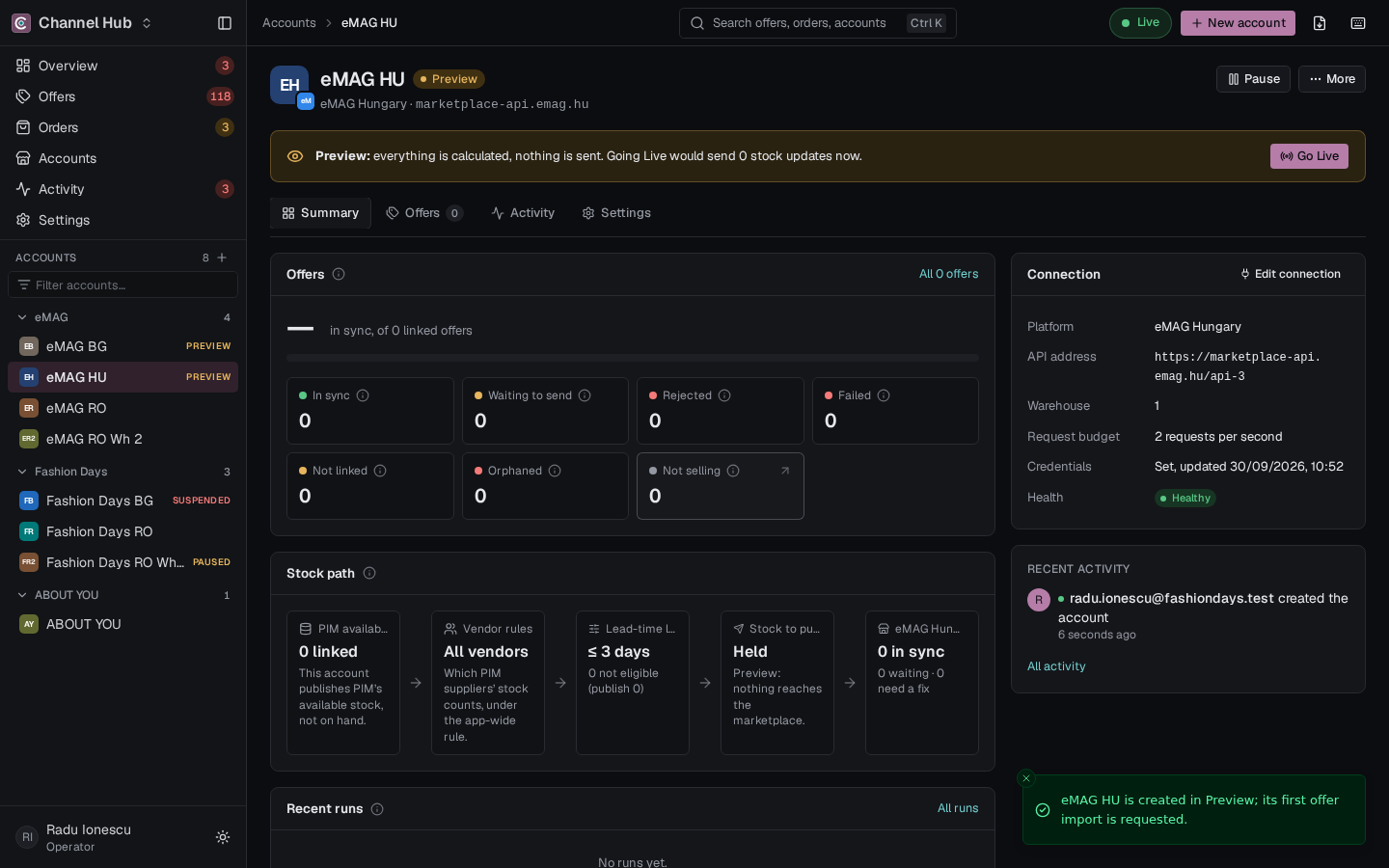
Stock Sync creates the account and opens its Account workspace, with the message "[name] is created in Preview; its first offer import is requested."
What happens next, by itself:
- The account appears in the sidebar under its marketplace, tagged PREVIEW, and on the Accounts page and the Overview.
- The first Offer import reads every offer of the account from the marketplace. You can follow it on the account's Activity tab or in Activity → Sync runs. With a few thousand offers it takes a few minutes.
- Each offer is linked to its PIM product and its stock to publish is worked out. The Offers counts on the Summary tab fill up.
- Nothing is sent. The status banner says how many stock updates going Live would send.
Check the offers, then go Live when you are ready: Go from Preview to Live.
If the import fails, for example because the password is wrong, the account becomes Suspended with the marketplace's reason. Correct the credentials in Settings → Connection and use Recover.
In the rare case the account was saved but something after it failed (for example the message queue went down before the import was requested), the form shows what went wrong and a link Open [name] to the account, rather than a form that would only answer that the name is taken.
What a viewer sees
A viewer has no New account button and no + in the sidebar. A viewer who opens the form's address sees only "Creating an account needs the Operator role." and nothing to fill in.
Good to know
- A new account is always in Preview. There is no way to create one directly in Live.
- The password or API key is stored encrypted and never shown again, not even to operators. To change it later, use Settings → Connection.
- Accounts cannot be deleted from the screen. Choose the name with care; ask the technical team if an account was added by mistake.