
Appearance
Working with tables
Every list in Stock Sync works like a spreadsheet: a filter under each column, sorting by several columns, grouping with totals, views your team shares, a real Excel file out, and the columns the way you want them. This guide shows each one on the Offers list. Orders, Activity, Outbox, Accounts and the lines of an order work the same way, with the columns they have.
What every list has
| You want to | Use | Section |
|---|---|---|
| Find rows by a value in one column | The filter cell under the column title | Filter a column |
| Look up a list of EANs or offer ids from Excel | Paste them into the filter cell | Paste a list from Excel |
| Put rows in order | Click a column title; Shift-click for a second column | Sort by several columns |
| See totals per brand, supplier or account | Group by | Group with totals |
| Come back to the same list tomorrow, or share it | The views above the list | Team views |
| Work on the rows in Excel | Export, then Excel (.xlsx); the file is made in the background | Export to Excel |
| Show, hide, move or resize columns | Columns | Choose the columns |
| Copy cells into Excel | Select cells, Ctrl C | Copy cells |
| Send a colleague to exactly what you see | Copy the page address | Links that restore a list |
Filter a column
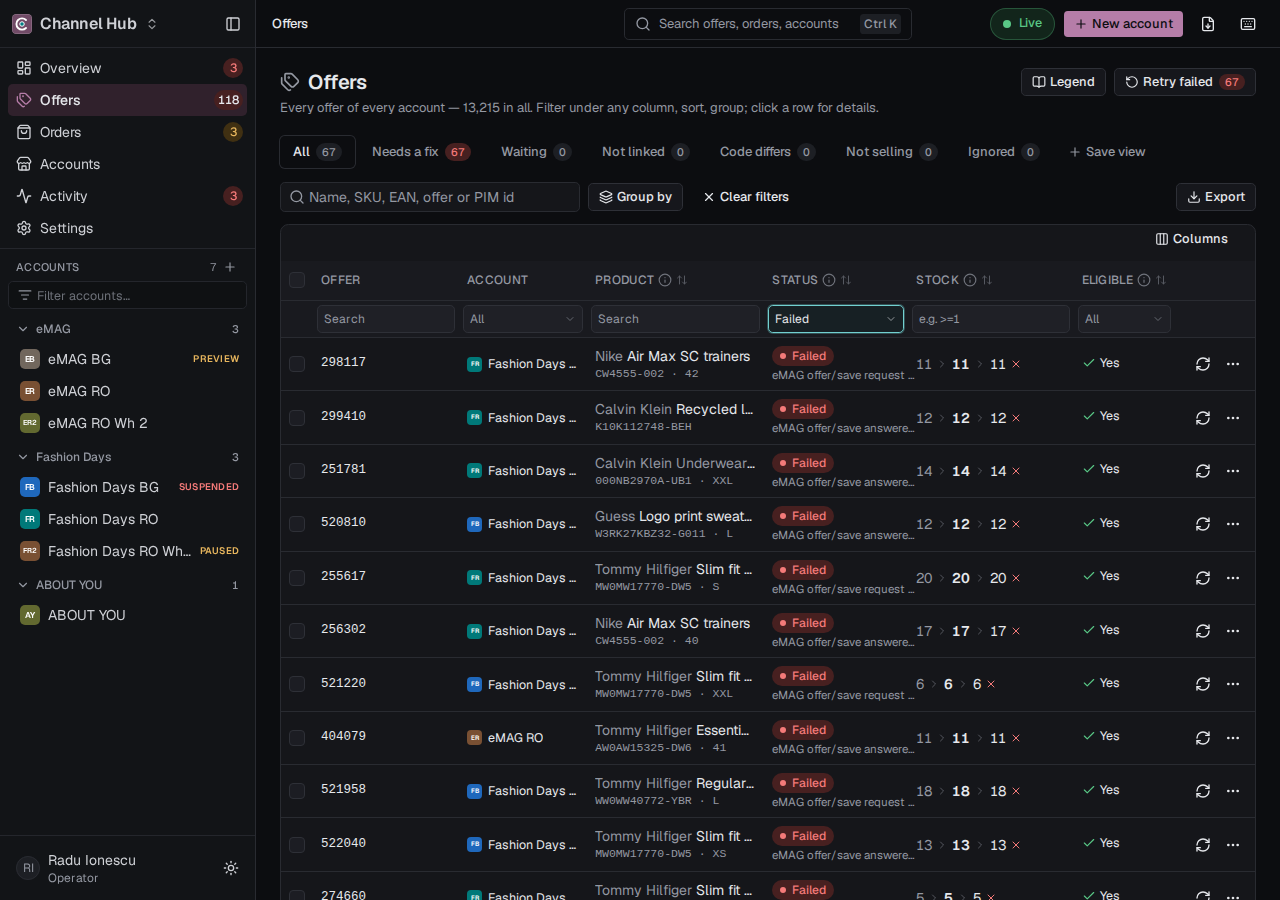
Under each column title sits a small filter cell. What you type or pick depends on what the column holds. A column with a filter on is outlined, so you can see at a glance which columns narrow the list. Clear filters (next to the search box) removes them all; the quick view and the search stay as they are.
| The column holds | The filter cell is | Examples |
|---|---|---|
| Words (Product, Reason, Details, Actor) | A search box: shows the rows that contain what you type, in any case | parka finds Quilted Parka |
| Codes (Offer ID, SKU, PIM ID, EAN, Barcode, UPC, order reference) | A search box: shows the rows whose code is what you type or starts with it | 8712423 finds every EAN that starts with it |
| One of a few values (Account, Status, Brand, Size, Supplier, State, Reason, Kind) | A dropdown with a search box and a tick box per value | See below |
| Numbers (PIM stock, Marketplace shows, Lead time, Attempts, Lines, Total) | A condition you type | See below |
| Dates and times (Updated, Last sent, Placed, Shipped, Time) | A day range | See below |
In any search box, type empty to find the rows with no value in that column, and !empty to find the rows that have one. Offers without a barcode, for example: type empty under EAN.
The list follows a moment after you stop typing; you do not need to press Enter.
Pick values from a dropdown
Click the cell: a list opens with every value the column has, and how many rows have it with your other filters applied. The counts change as you filter elsewhere, so you never pick a value that gives an empty list by mistake.
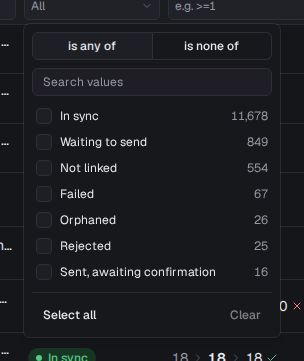
- Search values narrows a long list, for example the brands that contain
tom. - At the top, Match has two choices: is any of (rows with one of the ticked values) and is none of (every row except those). Ticking Failed and Rejected with is any of lists both; with is none of it lists everything else.
- To clear the cell, untick everything, or use Clear filters.
- Values that nothing has are not listed. A value with no name, such as an offer without a brand, shows as (none).
On Status, a row matches the status it shows: an offer that is Not linked is listed under Not linked only, and you can tick Waiting to send and Not linked together. (Before, the Status chip could not mix a link status with a sync status.)
Numbers
Type a condition. These all work:
| Type | It finds |
|---|---|
5 | Exactly 5 |
>5 | More than 5 |
>=1 | 1 or more |
<10 | Less than 10 |
<=0 | 0 or less |
10..50 | From 10 to 50, both included |
empty | No value (for example an offer with no lead time) |
!empty | Any value |
If what you type is not one of these, the cell gets a red outline and nothing is applied; point at the cell for the list above.
Dates and times
Click the cell and pick a ready-made range or your own:
- Today, Yesterday, Last 7 days, Last 30 days, This month.
- Custom opens a calendar and two boxes, From and To, written dd.mm.yyyy. A single day is that day.
- On a column that can be empty (Last sent, Shipped), No date finds the rows without a date and Has a date the rows with one.
A day runs from midnight to midnight, Romanian time, both ends included. The ready-made ranges stay relative when you save them in a view: Last 7 days is always the last seven days, not the seven days of the day you saved it.
Paste a list from Excel
You have a column of EANs, offer ids or order references in Excel. Copy the cells, click the filter cell of the matching column and paste. Stock Sync reads every line as one value and shows the rows that have any of them.
- Code columns (EAN, SKU, Offer ID…): lines, commas, semicolons and spaces all separate the values, and each must match exactly. Pasting 300 EANs shows the offers with those 300 EANs.
- Word columns (Product, Details…): lines, commas and semicolons separate the values, but spaces do not, so
red bagstays a search for red bag. A single value is a search for text that contains it. Two or more pasted lines are read as "is any of": each line must be the whole value of the cell, not a part of it. - Up to 500 values at a time. Beyond that Stock Sync says, under the filter, for example EAN: at most 500 values, and applies nothing: split the list.
- A text search typed into a link (rather than pasted) takes at most 20 values. With more, Stock Sync says [Column]: a search takes at most 20 values at once; paste a longer list as "is any of". Paste the longer list into the filter cell instead.
- Values that match nothing simply add no rows. To find out which EANs of your list are not in Stock Sync, export the result and compare in Excel.
Sort by several columns
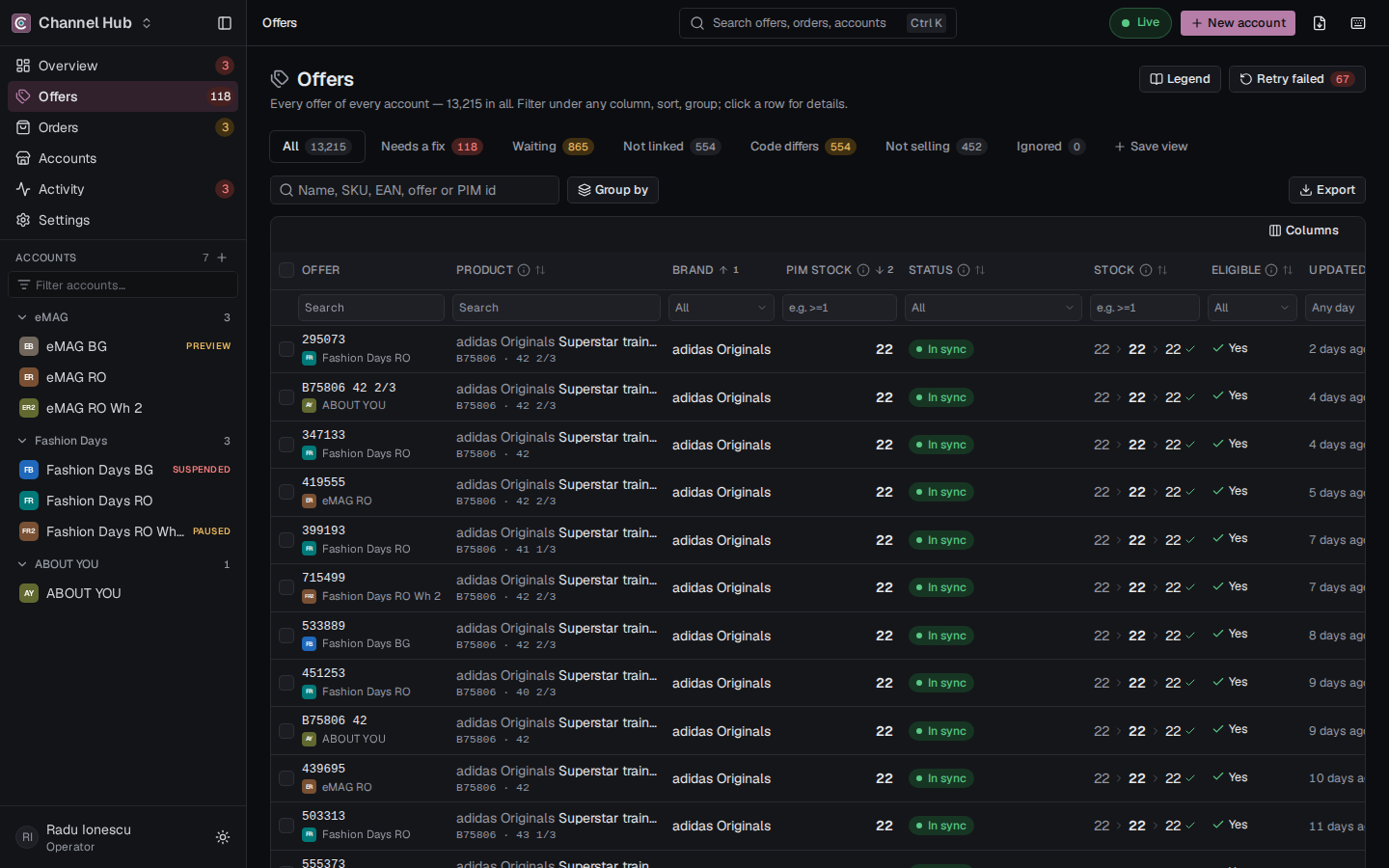
Click a column title: the list sorts by it, ascending. Click again: descending. Click a third time: the sort for that column is off. A small arrow shows the direction (▲ ascending, ▼ descending).
To sort by two columns, for example Brand, then PIM stock from most to least: click Brand, then Shift-click PIM stock (twice for descending). With more than one sort on, each title shows its level, 1, 2, and so on: the first column decides, the second breaks ties, and so on. A plain click on any title starts again with just that column.
Every column sorts, except the buttons at the end of a row. Empty values come last, in both directions.
When nothing else is chosen:
- Offers are sorted by Updated, newest first. Clicking Updated turns it round (oldest first).
- Orders are sorted by Placed, newest first (before, by the day Stock Sync received them). An order with no Placed date comes last.
- Activity is sorted by Time, newest first.
Group with totals
Group by (beside Columns) folds the list into groups with figures per group, like a pivot in Excel. Tick up to three columns, in the order you want the levels: for example Account, then Brand, then Supplier. Tick a column again to take it out; No grouping takes them all out.
You can group by columns that hold a few repeated values: on Offers, Account, Brand, Size, Supplier, Status, Marketplace status, Problem and Eligible; on Orders, Account, State, Reason and Currency. Activity cannot be grouped.
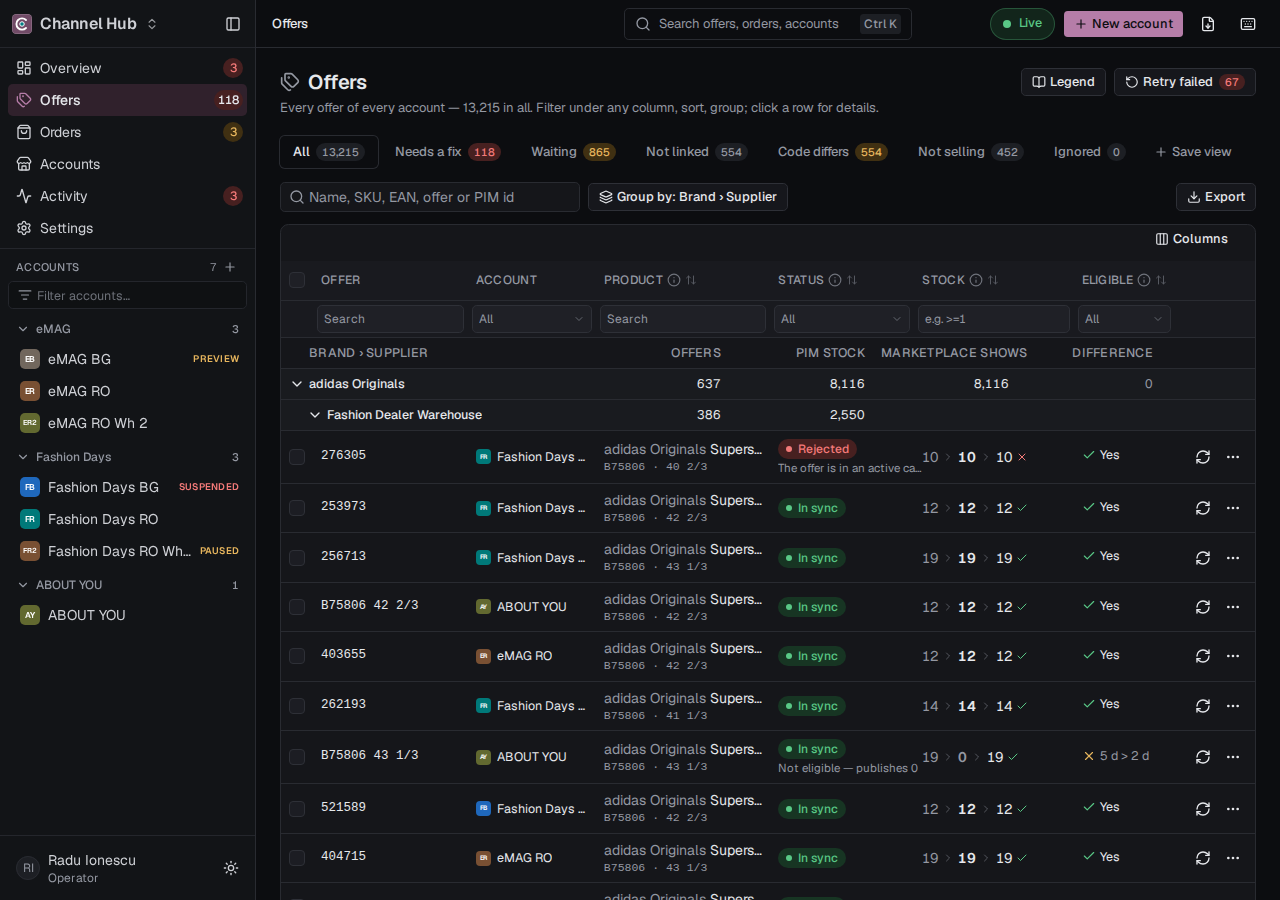
Each group is a row with an arrow. Click it to open the group: you see the next level, or, at the last level, the group's own offers, which you can open, tick and copy like any row. A group with many offers has its own pager.
On Offers, every group row shows:
| Figure | Means |
|---|---|
| Offers | How many offers the group holds |
| PIM stock | Their PIM available stock, added up |
| Marketplace shows | What the marketplaces show for them, added up (the same figure as the third number in a row's Stock) |
| Difference | PIM stock minus Marketplace shows: how far the marketplaces are from the PIM in this group |
On Orders, every group shows Orders, Lines and the Total in each currency present (so a group with orders in EUR and PLN shows two totals, never one mixed figure). Sorting by Total while grouped does not reorder the groups; they stay in order of their value.
At the bottom, Grand total adds up everything the filters match, each offer or order counted once.
The groups come in order of their value. When you sort by a column that has a total (PIM stock, Marketplace shows) while grouped, the groups are ordered by that total instead.
Grouping by Supplier
A product can have several suppliers, and the Supplier column lists all of them. When you group by Supplier, an offer with two suppliers appears in both groups. So inside a Supplier group:
- PIM stock is that supplier's available stock, not the product's.
- Marketplace shows and Difference are empty, on purpose: the marketplace's figure belongs to the offer, and adding it under each of its suppliers would count it twice.
- Offers with no supplier (not linked to a PIM product, or a product without supplier lines) sit in No supplier; its PIM stock is empty too.
- A group you open under a supplier (for example Brand under Supplier) works the same way: that supplier's stock, no Marketplace shows. A group above a supplier level (Brand, then Supplier: the brand rows) keeps the whole-offer figures.
- The Grand total counts each offer once, whatever its number of suppliers.
Why is "Marketplace shows" empty here?
Because a number that cannot be added up honestly is better left out. To compare the PIM with the marketplace for one supplier's products, filter by Supplier (the filter cell lists the offers of that supplier once each) and group by something else.
The supplier names, EANs, barcodes and UPCs come from the PIM. They are filled in by the nightly full PIM check, so the first night after the release. Until then the new columns show — and the filters find nothing there.
Team views
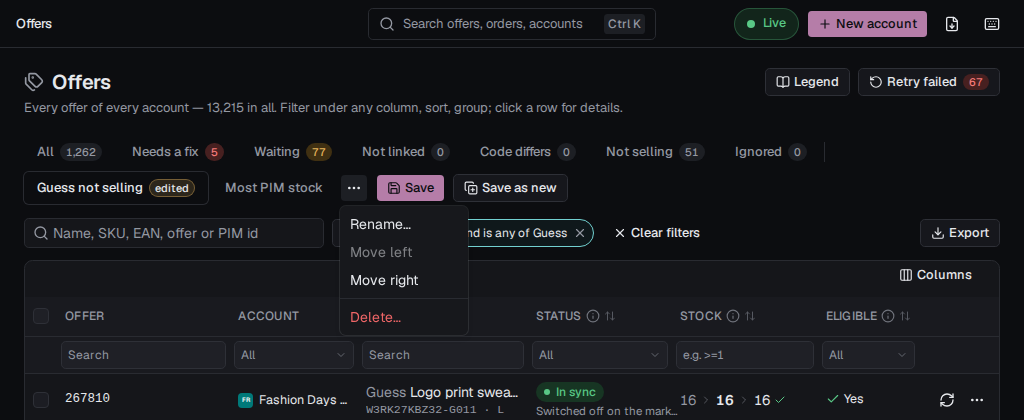
A view is a list set up the way you like it: its quick view, filters, sort, grouping, rows per page and columns. Views belong to the whole team: everyone sees them, on every browser, and the list of views is the same for all.
Above each list, the bar reads: the quick views (All, Needs a fix, …), a divider, then your team's views, then Save view.
| You want to | Do this |
|---|---|
| Open a view | Click its tab. The whole list changes to the view, and the page address holds it |
| Save the list you have as a view | Set it up, click Save view, give it a name, click Save view in the dialog. Names are up to 60 characters and must be different from the others on that list (capital letters do not count); a list can have 50 views |
| Change a view | Open it and change the list. The tab says edited; click Save to change the view for everyone, or Save as new to keep it as another view and leave the first one as it was |
| Undo your changes to a view | Click the view's tab again: the list goes back as saved |
| Rename or delete a view | Open it, then ⋯ after the tabs: Rename… or Delete… (it asks first) |
| Put the views in another order | Move left and Move right in ⋯, or drag a tab (operators) |
Good to know:
- Operators create, rename, change, reorder and delete any view. Viewers open views and see them; the buttons are not there for them. A view does not belong to the person who made it: the tab's hover says who last changed it.
- A view is a quick view and column filters. For example Not selling, with Brand Coccinelle, is the Not selling offers of one brand.
- If you change a view's columns (hide, move, resize), the tab shows edited too, and Save keeps the columns with the view. While a view is open, your changes to the columns belong to it and do not change the columns you normally see; when you close the view, your own columns come back.
- If a colleague saves the open view while you look at it, your unsaved column changes stay on screen and the view stays edited.
- If someone deletes a view you have open, the list stays as it is and a message offers Show the list without it.
- On an account's own Offers tab, a view's Account filter is ignored: the tab is already that account.
- A view that names a column that no longer exists loses that part and opens anyway.
- A name can be used once on a list: saving a second view with the same name says A view named "…" already exists on this list. Choose another name.
- A list can have at most 50 views. The 51st says A list can have at most 50 views. Delete one you no longer use.
- If the view in your link was deleted, the bar says This view no longer exists. with Show the list without it. If the views cannot be read at all, it says Could not load views. with Load views again.
Export to Excel
On Offers, Export (at the right end of the bar above the list, as on every list) offers two files:
- Excel (.xlsx) — the list as you see it: every row that matches (not only the page on screen), the columns you show in the order you show them, the filters, the sort and, if you grouped, the groups with their totals. Columns that a narrow window hides are exported too.
- CSV — every matching row with every column, for scripts and lookups. It is the file you had before.
On the other lists, Orders, Activity, Outbox, Accounts and the lines of an order, Export gives the Excel file only.
The Excel file is made for working:
- Codes stay text. EANs, barcodes, UPCs, offer ids, SKUs and PIM ids are text cells, so Excel never shows
8.06E+12and never drops a leading zero. - Dates are real Excel dates (Romanian time), and numbers are numbers: sort, filter and sum them in Excel.
- The first rows say what the file is: the list, the filters you had on, and when it was exported. The column titles follow, frozen, so they stay in view when you scroll.
- Grouped lists export a row per group, with its figures, and the rows inside it. The groups are outline levels: click the 1, 2, 3 at the top left of the sheet, or the + and − at the left, to fold and unfold them in Excel. The Grand total is the last row. A grouped file always has the Offers, PIM stock, Marketplace shows and Difference columns (on Orders, Orders, Lines and one Total per currency), so the group rows can show their figures.
- When you group by Supplier, an offer appears once under each of its suppliers, with that supplier's stock.
The file is made in the background
On Offers, Orders and Activity, the file is made by Stock Sync in the background, so you can keep working while it is prepared.
- Click Export, then Excel (.xlsx) (or CSV on Offers). A notice says Preparing your export…. Carry on with what you were doing.
- When the file is ready, a notice says Your export of Offers is ready (12,345 rows), with Download and, for an Excel file, Open in Excel.
- In the browser tab where you clicked Export, the file also downloads by itself, once. In another tab you only get the notice.
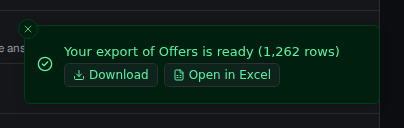
- Download saves the file to your computer.
- Open in Excel opens the file straight in the Excel app. It needs Excel installed on the computer you are using; without it, use Download. If Excel cannot open it, the notice says Could not open the file in Excel. Download it instead.
- Open in Excel for the web, where it is switched on, saves a copy of the file to your OneDrive, in the folder Channel Hub exports, and opens it in Excel in a new browser tab, where you can edit it. It needs no Excel app, only the Microsoft account you sign in to Stock Sync with. The copy stays in your OneDrive until you delete it; a second copy of the same file gets a new name, so your edits are never overwritten. If it cannot open there, for example because your account has no OneDrive, the new tab says why and offers Download.
Exports in the top bar lists your exports of the last 24 hours, newest first: the list and the file type, the state (Queued, Preparing, Ready, Failed, Expired), the filters the file was made with, the number of rows, and Download and Open in Excel while the file is kept. A number on the icon says how many are still being prepared.
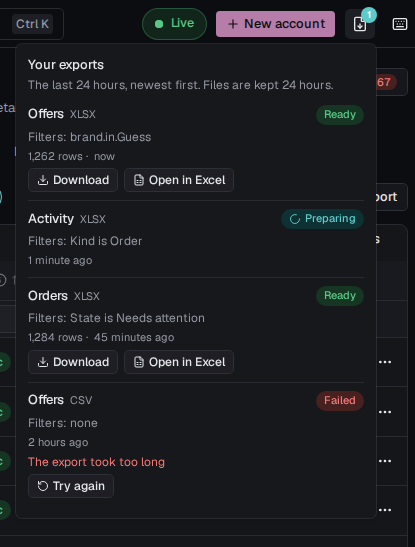
- A file is kept for 24 hours; after that its state is Expired and you export again.
- Only you can see your exports. A colleague has their own list and cannot download your files.
- At most 3 exports can be in progress at a time. A fourth says You have 3 exports in progress; wait for one to finish. Wait for one to become Ready, then export again.
- If a file could not be made, the notice and the menu say why (for example The export took too long or Could not save the file) and offer Try again, which starts the same export again with the same filters, sort, groups and columns. If it fails again, narrow the filters.
- Exports run one after another on the server, so a big one can wait as Queued behind another.
A file of 100,000 rows is usually ready in under a minute. Activity's file holds the newest 2,000 events that match, the same window the feed shows.
Outbox, Accounts, the lines of an order and the Overview's accounts table do not wait: their rows are already on the page, so the file is made in your browser and downloads at once.
A list, a count or a group that takes more than 30 seconds to compute is stopped; narrow the filters and try again.
With Select all N matching (offers), Export in the bar uses the same two files for the selection.
Choose the columns
Columns opens the list of the columns of that list. Click a column to see what you can do with it:
| Choice | What it does |
|---|---|
| Show | Shows or hides the column |
| Freeze | Keeps the column at the left when you scroll sideways. The first column is frozen by default |
| Move left, Move right | Moves it by one place |
| (drag) | Drag a column in the menu to its new place |
Reset layout brings back the columns the list starts with.
Also on the table itself: drag the right edge of a column title to resize the column, and double-click the edge to fit it to its content.
Your layout is remembered in your browser, for each list. A team view can carry a layout too, and then everyone who opens the view sees it.
The Offers columns
Offers start with Offer, Product, Status, Stock, Eligible (windows 1,280 pixels wide or more) and Updated (1,440 or more). Account is also shown while Stock Sync manages more than one account. All the others are one click away in Columns:
| Column | What it shows |
|---|---|
| Account | The account the offer belongs to |
| Offer ID, SKU, PIM ID | The marketplace's offer id; the product's SKU (for an unlinked ABOUT YOU offer, its own SKU); the PIM product id |
| Brand, Size | From the PIM product |
| EAN, Barcode, UPC | The three code attributes of the PIM product, each as PIM holds it, the way the PIM table shows them. An offer with several codes of a kind lists them separated by commas. They are not checked or corrected: you see what PIM has |
| Supplier | Every supplier of the product, even one with no stock left |
| Marketplace status, Problem | What the marketplace says about the offer, and its validation reason |
| PIM stock | The PIM available stock (the figure Stock Sync publishes) |
| On hand, Stock to publish, Marketplace shows, Lead time, Attempts, Last sent | As their names say |
The EAN, Barcode, UPC and Supplier columns are filled in by the nightly full PIM check: the first night after the release they are —.
A filter on a column you have hidden never works unseen: above the list, Filters on hidden columns shows a chip for each, with what it filters. Click a chip to show the column; its × removes the filter.
Copy cells
Drag across cells, or click one and Shift-click another, to select a block. Press Ctrl C (⌘ C on a Mac). Paste into Excel and the block arrives as rows and columns of plain values, without badges, icons or tooltips: codes as typed, dates as dd.mm.yyyy hh:mm. Row selection (the tick boxes, X, Shift-click on a box) and J, K and Enter work as before. A click on a row without moving the mouse still opens the row.
Links that restore a list
Everything above lives in the page address: the quick view, the search, the filters, the sort, the grouping, the page, the rows per page and the open view. So:
- Reload shows the same list.
- Back and Forward step through your changes. Ticking several values in one dropdown counts as one step.
- Copy the address and send it: your colleague sees the same list (a team view they can see too, or the same filters on their own).
- Leave and return: when you come back to a list from the sidebar or another screen, it opens as you left it in this browser. Opening a quick view from the Overview or from a link shows what the link names.
- Addresses from before, from bookmarks and messages, open the same list they opened.
Rows per page
Rows under the table offers 25, 50, 100, 200 or 500. Above 100 rows, only the rows in view are drawn, so the list stays quick. When you group, an opened group shows at most 100 rows per page, with its own pager.