
Appearance
Go live with orders
You switch an account's orders from Off to Preview to Live, so Stock Sync puts its orders into Odoo by itself and staff stop bringing them into Odoo. You also learn how to pull back. The switches work the same on every marketplace; what staff do until the Live day depends on the marketplace:
| Marketplace | Until Live, staff | On the Live day they stop |
|---|---|---|
| ABOUT YOU | upload Gaia's ABOUT YOU file (or enter an order by hand) | bringing the orders into Odoo through Gaia or by hand |
| eMAG, Fashion Days | book each order into Odoo and accept it in Seller Center | booking and accepting the orders |
| Secret Sales | accept each order in Loom and enter it into Odoo by hand | accepting and entering the orders |
| Fashionette, Spartoo, Bol | enter each order into Odoo by hand | entering the orders |
| Showroomprivé | type one order per campaign into Odoo by hand | typing the campaign orders |
This page calls the order staff put into Odoo staff's order: it is the one Preview compares with. That marketplace's guide gives its mapping and how long to stay in Preview. The pictures show an ABOUT YOU account.
Before you begin
Who can do this: an Operator.
Time needed: about 30 minutes to set up, then at least five working days in Preview, then one minute to go Live.
Before you start: the account exists and works (see Add a marketplace account); the Odoo connection in Settings is saved and Check connection passes (Settings); the product owner and finance have agreed to the switch.
The three steps
Steps
Open the account, its Settings tab. The first section, What this account does, has an Orders row: the first time it is Off, and the Orders & shipping section is folded with Show orders and shipping, and nothing is chosen in Orders → Odoo.

Click Show orders and shipping (or choose Preview in Orders first: the section then shows by itself) and, under Orders → Odoo, fill the Mapping to Odoo: Sales channel, Sales team, Warehouse, Pricelist, Delivery method (a method with its own shipping connection in Odoo books the shipment when the delivery is validated; Channel Hub books no labels), Salesperson if the orders carry one, Odoo order name if the orders need a name of their own, and Phone for customers without one if the carrier needs a phone the marketplace does not send. Then add the Service lines with Add service line. Ask the finance team for the service lines; see Account settings: Orders → Odoo.
Choose Preview in the Orders row of What this account does. The Unsaved changes bar at the bottom lists Orders mode and Orders → Odoo; click Save. If Odoo refuses a field, its reason is shown under the field: fix it and save again.
Staff keep bringing the orders into Odoo as today. Within 2 minutes the account's orders appear as Previewed, on the Orders page (the Previewed quick view) and on the account's Orders tab. Nothing is written to Odoo.
Every working day, open the Previewed view and read the comparison of each order: click a row for its side panel, and J for the next. Each reads Match, Different with each difference listed, or Not in Odoo; the State column of the list shows the result beside Previewed too.
Most orders reach Stock Sync before staff's order reaches Odoo (Gaia's file on ABOUT YOU is uploaded once a day), so Preview first finds them Not in Odoo. You need not do anything about it: Stock Sync compares a Not in Odoo order again by itself, for up to 7 days, and it turns to Match or Different within a few hours of staff's order reaching Odoo.
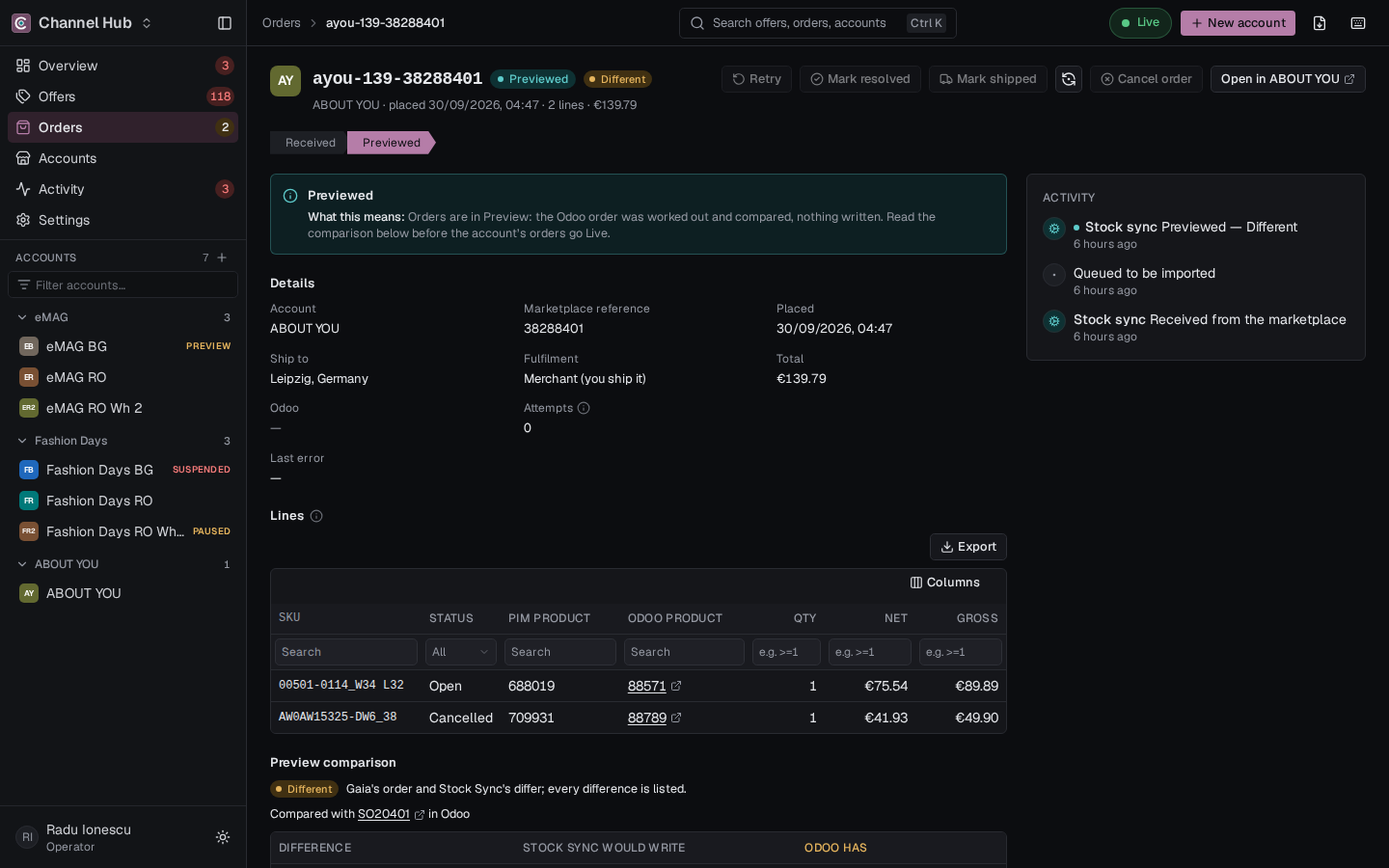
The comparison lists every difference: what Stock Sync would write and what staff's order in Odoo has. Prices are in euro: here Gaia's file books the shipping fee at €4.90 where the mapping says €0.00. Compared with SO20401 in Odoo names staff's order: click it to check a difference in Odoo. The Odoo field stays empty: Preview writes nothing.
After at least five working days, check before you go Live:
- Every order of those days shows Match, or a difference the business accepts (for example a cent of rounding on a converted amount).
- No order still says Not in Odoo a day after staff put it into Odoo (on ABOUT YOU, after the Gaia upload that included it). Such an order means staff's order carries a reference that differs from Stock Sync's, so Stock Sync cannot find it: going Live would put that order into Odoo a second time. Send its reference to the technical team, and go Live only once they have settled it.
- The warehouse and finance agree which morning.
On that morning, before staff bring in the day's orders (on ABOUT YOU, before the day's upload), open Settings, choose Live in the Orders row of What this account does and click Save. A dialog, Go live with the orders of [marketplace]?, asks you to confirm and reminds you what staff stop doing that day, in the marketplace's own words: on ABOUT YOU, bringing the orders into Odoo through Gaia or by hand.
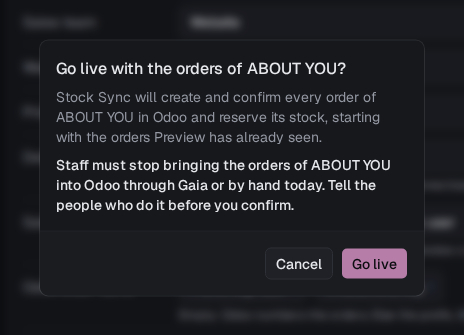
Click Go live. (Cancel saves nothing.) Tell the people who bring the orders into Odoo: from today they stop (on ABOUT YOU, they no longer upload ABOUT YOU's file). Everything else they or Gaia do (tracking, invoices, cancellations, returns) stays as it is.
What you should see
- A message such as "Orders of ABOUT YOU are Live: 8 previewed orders are queued to be imported into Odoo." The Orders row reads Live.
- Within a few minutes the orders that were Previewed become Imported (going Live queues them again), each with an Odoo link. You can watch them move on the Orders tab: the rows change in place. An order staff had already put into Odoo is adopted, not created again: it says Found in Odoo and adopted.
- An order the marketplace already shows shipped or returned, which Odoo does not hold, goes to Needs attention as Already shipped instead: see An order needs attention.
- New orders reach Imported within about 2 to 5 minutes of the customer's order, confirmed in Odoo with the stock reserved in the warehouse.
- Within one PIM reading, the lower stock reaches the other marketplaces.
- Odoo shows the orders created by the Channel Hub user.
Going back
Choose Preview (or Off) in the Orders row of Settings → What this account does and click Save; no confirmation is asked. Stock Sync stops creating orders at once; orders already in Odoo stay there. Staff must then bring the orders of the days in between into Odoo as before, so tell them. Orders that arrived meanwhile stay Previewed and are checked again when you go Live once more.
If something goes wrong
| You see | Do this |
|---|---|
| Save refuses with Odoo's reason under a field | Fix that field. If it names something missing in Odoo, ask Odoo's administrator. |
| Save says "Odoo did not answer (…), so nothing was changed" or "Odoo refused Channel Hub, so nothing was changed" | Open Settings (the main menu), check the Odoo connection and press Check connection. |
| The section says Odoo lacks something orders need | Ask Odoo's administrator for what it names; Check connection under Settings → Odoo connection lists it too. Off can still be saved. |
| Orders stay Received (the Waiting for Odoo view) | Odoo may be down; they arrive by themselves (How orders reach Odoo). |
| Orders show Needs attention | See An order needs attention. |
| Many orders Different in Preview in the same way | Look at the first difference; it is usually one setting (the salesperson, the sales team or a service line). Fix it and the later orders match. |
| An order still says Not in Odoo a day after staff put it into Odoo | Staff's order (on ABOUT YOU, Gaia's file) carries a different reference, so going Live would create it twice. Do not go Live yet: send the order's reference to the technical team. |
Related
- How orders reach Odoo
- Account settings: Orders → Odoo
- Orders
- Go from Preview to Live: the same switch for stock