
Appearance
Connect ABOUT YOU
You connect an ABOUT YOU seller account to Stock Sync, so that ABOUT YOU always shows the stock PIM has, its orders reach Odoo by themselves within minutes, and customers get their tracking numbers without anyone typing them.
At a glance
| Stores | One account for one ABOUT YOU merchant. That one account covers all of the merchant's shops, 27 of them. Never one account per country. |
| Login needed | One API key. No user, no password, no warehouse number. |
| Where it comes from | ABOUT YOU Seller Center, Settings → API Keys → Add. Only an Admin of the Seller Center can make one. |
| Who can do this | An Operator in Stock Sync, with the key from a Seller Center Admin. |
| Time needed | 5 minutes for the form. 15 to 30 minutes of stock checks. About 30 minutes to set up orders, then at least 5 working days of order Preview, then a few days of shipping Preview. |
| Test shop | Yes: ABOUT YOU's sandbox. It has the same address and its own key. |
| Orders | Read every 2 minutes, put into Odoo and confirmed. Tracking goes back when the delivery is validated. Cancelling works item by item. Nothing needs accepting. |
| Status of this connector | Seen working on the real shop. On 5 November 2026 the ABOUT YOU account was Live and healthy, with orders being imported into Odoo and shipments confirmed by ABOUT YOU in the week before. |
One store or several?
One API key is one merchant. One merchant is one account in Stock Sync. ABOUT YOU has no separate login per country: the orders of all 27 shops arrive on the same key, and the stock of an article is one number for the whole merchant.
| Accounts to create | What one account covers | What decides it |
|---|---|---|
| One for each ABOUT YOU merchant. The business has one today, named ABOUT YOU. | Every product variant of the merchant, and the orders of every shop | The API key. The address is the same for everyone. |
This is the opposite of eMAG and Secret Sales, which need one account for each country. Do not copy their pattern here.
The business starts selling in another ABOUT YOU country. Do nothing in Stock Sync: no new account, no new key, no technical work. The orders simply start to arrive on the existing account. Check the first order of that country:
| You see on the order | What it means | Who fixes it |
|---|---|---|
| It reaches Imported | All is well | Nobody |
| Needs attention, No fiscal position | Odoo has no fiscal position for that delivery country | Whoever looks after Odoo creates it, then you press Retry |
| Needs attention, Unreadable, with shop 123 is not a known ABOUT YOU shop | The shop is not one of the 27 Stock Sync knows | The technical team: this one needs a code change. Send them the message. The order comes back by itself afterwards. |
The business gets a second ABOUT YOU merchant. Create a second account with that merchant's own key, following this page from the start. No technical work is needed. It has its own settings and its own orders mapping.
Can two accounts share a key? No. Stock Sync stops only part of it, so do not rely on it to catch you:
| What you do | What happens |
|---|---|
| Create a second account with a key another account has | Nothing stops you. The form accepts it and Test connection is green. |
| Set both accounts' stock to Live | Nothing stops you. Both send stock for the same articles and overwrite each other, whenever their numbers differ. |
| Save Preview or Live in Orders mode on the second account | Refused, and nothing is saved: "ABOUT YOU already reads the orders of the same marketplace store. Set that account's orders to Off first." Both accounts would otherwise read every order. |
| Give an account whose orders are in Preview or Live a key that another such account reads | Refused with the same sentence. |
Two keys of one merchant are not caught
Stock Sync compares the keys, not the merchants. Two different keys of the same merchant on two accounts pass every check, and both accounts read every order, so one customer order can reach Odoo twice. One merchant gets one account, full stop.
Accounts cannot be deleted from the screen. If you created one by mistake, leave it in Preview with its orders Off, and ask the technical team to remove it.
Names. Call the account ABOUT YOU. With a second merchant, add a word for the merchant. Do not put a country in the name: the account sells in all of them. On the test environment, say so in the name, for example ABOUT YOU Sandbox.
What the shops share. All shops sell from one number per article, so there is no way to give one country a different quantity. That number comes from the same PIM stock as every other marketplace, so the last unit can sell twice, here and elsewhere, until the order is in Odoo and the next PIM reading lowers the stock everywhere. Stock Sync does nothing extra for this on ABOUT YOU: orders arrive already placed, with no step where one could be held back.
Which shop an order came from. The order's reference starts with the shop: in ayit-671-38290512 (a made-up example) the shop is ayit, number 671.
The 27 shops Stock Sync knows
ayou 139, aydn 688, ayat 200, ayae 731, aynl 545, ayne 732, aypl 550, aycz 554, aybn 558, aybf 562, aysk 586, ayhu 590, ayro 594, aylv 622, aylt 627, ayee 632, ayhr 637, aybg 642, aydk 654, ayse 655, ayfi 656, ayes 670, ayit 671, aycy 705, aylu 706, aypt 685, aygr 686.
ABOUT YOU's user guide gives their names, under Shop Name & ID / Prefix.
What you need before you start
| ☐ | Item | Who gives it to you | How you know it's right |
|---|---|---|---|
| ☐ | The Operator role in Stock Sync | Whoever manages access, see Who can do what | You see New account on the Accounts page |
| ☐ | Someone who is an Admin of the ABOUT YOU Seller Center, ready to make the key | The person who manages the seller account | They can open Settings → API Keys |
| ☐ | To know it is the real shop you are connecting, and no account has this merchant yet | The person who manages the seller account; the Accounts page | No ABOUT YOU account is listed for this merchant |
| ☐ | The Lead-time limit: a number of days, or none | The product owner | You have it in writing. It can be changed later. |
| ☐ | The go-ahead for stock, for orders and for shipping, each with its day | The product owner. For orders, finance and the warehouse too. | Each one agreed, see Going fully live |
| ☐ | Whether anything else writes stock to this merchant, such as a feed or a file | The person who manages the seller account | The answer is no, or it stops on the day stock goes Live. Stock Sync cannot stop it, and the two would overwrite each other. |
| ☐ | The Odoo connection (for orders) | Already saved in Settings. If not, the technical team. | Check connection passes |
| ☐ | The DHL Express connection (for shipping with DHL) | Already saved in Settings. If not, the technical team. | The section shows it saved |
| ☐ | The companion, on the computers that pack and ship | The warehouse | Its icon says Signed in as and a name |
The Odoo login must not be a person's own
Stock Sync treats orders made by its Integration user login as its own unfinished attempts. If that login is someone's personal Odoo user, that person's own orders get mistaken for them. It must be a user made for this purpose. If you see a colleague's name in that field, tell the technical team before you set orders to Preview.
Where the credentials come from
ABOUT YOU needs one credential, the API key. Only an Admin of the Seller Center can make it.
Have the Admin sign in at
https://partner.aboutyou.com.Check which system you are in. In the sandbox, the merchant's name in the header ends with (Sandbox) and the account menu offers Switch to Live. For the real shop, that word must not be there.
Open Settings → API Keys → Add.
If ABOUT YOU asks for an expiry date, ask the product owner what to choose, and put that date in the team's calendar. If it asks for anything else, the person who manages the seller account decides.
Copy the key straight away. ABOUT YOU shows it once.
Paste it into API key on the Stock Sync form (below). If the Admin is not an operator, sit together, so the key goes directly from one screen to the other.
| Question | Answer |
|---|---|
| Who may create it? | Only an Admin of the Seller Center. |
| Does it expire? | Only if it was given an expiry date. On that date ABOUT YOU refuses it and the account turns Suspended. Stock Sync gives no warning before. |
| Can it be shown again? | No. ABOUT YOU shows it once. Stock Sync stores it encrypted and never shows it to anyone either. |
| It's lost, what now? | Nothing is broken: Stock Sync keeps its own copy. When you need a key to type in, the Admin makes a new one. |
| Can I delete the old key? | Only after the new one is saved and the account is working. Deleting the key in use suspends the account. |
| To replace it? | See ABOUT YOU: the API key. |
Real shop or sandbox. An Admin makes a sandbox under Settings → Sandbox. It has its own key and its own data: a few copies of the merchant's products or one dummy product, which skip ABOUT YOU's approval. Its limits on requests are a tenth of the real ones, and nothing needs changing for that. Orders are made there with its Receive Orders button. They are numbered sandbox-0-…, and their delivery countries are invented, so on Odoo's test system they often stop at No fiscal position.
The key decides where stock goes, and the screen does not show it
The real shop and the sandbox share one address. The key alone picks one, and nothing in Stock Sync tells them apart afterwards. Test connection is green for both. Use a sandbox key on the test environment, and never type the real shop's key there.
Pass it on safely. The key is typed into Stock Sync's form and nowhere else. Never put it in a chat, a ticket, an email or a document, not even for a moment. If that happens, have the Admin make a new key, replace it in Stock Sync, then delete the exposed one.
Connect the store, step by step
Open New account: in the top bar on any Channel Hub page, on the Accounts page at the top right, with the + beside Accounts in the sidebar, or with Ctrl K, typing new and pressing Enter. The form says Connect a marketplace account in four short steps. Nothing is sent until you go Live.
Marketplace. Click the ABOUT YOU card. It shows
partner.aboutyou.comand Also reads orders. There is one ABOUT YOU card and no choice of country. Click Next.Connection. Leave API address on ABOUT YOU (
partner.aboutyou.com), chosen already, on the real shop and on the sandbox alike. In Name keep ABOUT YOU (see Names). The badge beside it shows the initials the account will get.Paste the key into API key. It shows only as dots. Do not add a space or a line break: the key must be exactly as ABOUT YOU gave it.
Leave Requests per second on 16. The grey hint says More than 0, at most 16.
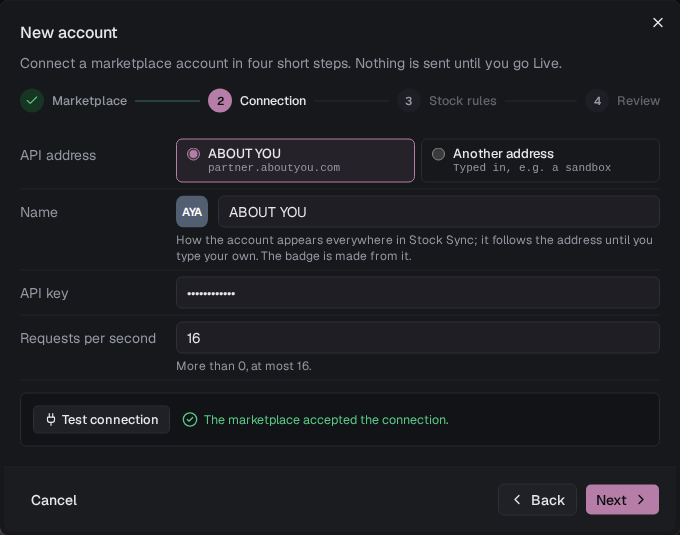
Click Test connection. Stock Sync asks ABOUT YOU for one product, and saves nothing. The answer appears beside the button:
You see It means Do this Green: The marketplace accepted the connection. The key works. It does not say whether it is the real shop or the sandbox. Click Next Red: The marketplace refused the connection: ABOUT YOU products/list answered 401: … The key is wrong, expired or deleted Paste it again. If it's still red, the Admin makes a new key. Red: The marketplace could not be reached (…), so the connection could not be checked. Try again in a moment. ABOUT YOU did not answer. This says nothing about the key. Try again in a moment Grey: Fill in API key first. The field is empty Paste the key Stock rules. Choose what the product owner decided under Lead-time limit: No limit, or Limit to a whole number of days. Under it, Orders is on Off: leave it. Click Next.
Review. Check Marketplace, Name, API address, API key (it reads Set (never shown again)), Requests per second, Lead-time limit, Orders: Off and Connection test (Accepted). Click Create account.
What you see right after. The account's page opens with the message "ABOUT YOU is created in Preview; its first offer import is requested."
- The status reads Preview, and the banner says "Going Live would send 0 stock updates now." until the import has run.
- The account is in the sidebar with a PREVIEW tag.
- Credentials on the Summary's Connection card reads "Set, updated" with the time. It shows Platform: ABOUT YOU and no Warehouse row.
- The account has an Orders tab.
- The first Offer import runs by itself and takes a few minutes. Nothing is sent to ABOUT YOU.
Settings that are not on the form, in the account's Settings tab. Do them when you reach that step of Going fully live, not now:
- What this account does: the orders mode and Ship orders; Orders & shipping → Orders → Odoo: the mapping to Odoo.
- Shipping: DHL Express and its details.
- Batch print: which A4 papers print together.
More about the form in New account.
Every option explained
The connection
| Option | What it does | What to choose | Can it change later? | If it's wrong |
|---|---|---|---|---|
| API address | Where Stock Sync calls ABOUT YOU | Leave https://partner.aboutyou.com/api/v1 | Only while Paused or in Preview. Saving a new one switches stock to Preview, and the key must be typed again. | The test can't reach ABOUT YOU, and the account stops working |
| API key | Decides the merchant, and real shop or sandbox | The key of this merchant's real shop | Only while Paused or in Preview. Saving a new one switches stock to Preview and requests a new offer import. Orders mode stays as it is. Left empty, the stored key is kept. | Refused: Suspended. Another merchant's or a sandbox key: stock goes to the wrong place. |
| Requests per second | How fast Stock Sync reads and sends products and stock | 16, the most allowed (ABOUT YOU allows 1,000 requests a minute). Orders and shipments have their own fixed limits. | Any time, also while Live | Too low: imports and sending are slower. Above 16 is refused. |
Stock and name
| Option | What it does | What to choose | Can it change later? | If it's wrong |
|---|---|---|---|---|
| Name | What everyone sees | ABOUT YOU | Any time, also while Live | Only confusion. See Name. |
| Lead-time limit | A product with a longer lead time gets stock 0 | What the product owner decided | Any time, in Stock rules | Too strict: articles show 0 although they could ship. Too loose: customers buy what can't ship in time. |
Orders → Odoo
| Option | What it does | What to choose | Can it change later? | If it's wrong |
|---|---|---|---|---|
| Orders mode | Off: nothing is read. Preview: compares with Odoo and writes nothing. Live: creates and confirms orders. | Off to start, then in order | Any time. Live asks you to confirm. | Live while staff still upload: see Go live with orders |
| Ship orders | Off, Preview or Live: whether ABOUT YOU is told an order shipped | Off, until orders are Live | Only while Orders mode is Live and saved | Off: staff must keep marking orders shipped in Seller Center |
| Sales channel | Where the Odoo order says it came from | About You | Any time. Required for Preview and Live. | The worst one to get wrong. Stock Sync looks for staff's orders only inside this channel, so every order reads Not in Odoo, and going Live creates a second Odoo order for each. |
| Sales team | The team the order belongs to | Website | Any time. Required for Preview and Live. | Preview does not compare it. It only shows on a Live order in Odoo. |
| Warehouse | Where stock is reserved | E-commerce (ECOM) | Any time. Required for Preview and Live. | Preview does not compare it. Live orders reserve stock in the wrong place. |
| Pricelist | Must be in euro | Public Pricelist (EUR) | Any time. Required for Preview and Live. | Preview does not compare it. Pricelists in another currency are greyed out; another euro one only shows on a Live order in Odoo. |
| Delivery method | The Odoo delivery method on the order | Ask whoever looks after Odoo. None is allowed. With DHL Express under Shipping, a method that books its own shipment is greyed out, so a shipment is never booked twice. | Any time | Two bookings are prevented; the wrong method shows on the order |
| Salesperson | The person on the Odoo order | None: Odoo's default, the integration user. The business chose no salesperson. | Any time | A person's name on every order |
| Odoo order name | A naming rule | Empty: Odoo numbers the orders | Any time | Orders get unusual names |
| Phone for customers without one | A phone put on the Odoo customer | Empty. The DHL window fills in its own placeholder. | Any time | A false phone on customers |
| Shipping product | Books a shipping fee | None: ABOUT YOU lists no fees on its orders | Any time | Nothing changes |
| Service lines | Extra lines on every order | None. The business decided on 16 October 2026 that orders get no service or cost lines. | Any time | Wrong totals in Odoo |
Shipping (see Account settings: Shipping)
| Option | What it does | What to choose | Can it change later? | If it's wrong |
|---|---|---|---|---|
| Carrier | Whether operators can create DHL shipments from Odoo | DHL Express. Choosing it fills in the rest. | Any time | None: no Create DHL shipment button |
| Account number, Service, Contents, the shipper | What DHL books and prints | The values it fills in. Change them only if whoever manages the DHL account says so. | Any time | Wrong details on the label or the DHL bill |
| Return label | Makes a return label with every shipment | On: every ABOUT YOU parcel needs a return tracking number. It starts on for ABOUT YOU. | Any time | Off: the order waits with no 'Return Tracking number:' note |
| Pickup, Ready from, Closing time | How DHL is told to collect | Starts as Book with every shipment, 09:00 to 17:00. Ask the warehouse. | Any time | No courier, or an extra one |
Batch print: starts with DHL receipt and Delivery document ticked, in that order. Leave it unless the warehouse asks otherwise. See Print a batch.
The required checks
Do them in this order. Don't go on past a line that isn't right.
| ☐ | Check | Where to look | What "right" looks like | If it isn't |
|---|---|---|---|---|
| ☐ | Test connection | The Connection step, or Connection test on Review | Accepted | See If something goes wrong |
| ☐ | First offer import | The account's Summary, Recent runs, or Activity → Sync runs | Offer import is Succeeded | Failed or Suspended: usually the key. Read the banner. |
| ☐ | It is the real shop | The number of offers on Summary; Open in ABOUT YOU on an offer | About 1,670 offers (the count on 15 October 2026; it grows slowly). A sandbox has only a handful. | A handful: you have a sandbox key. Replace it while still in Preview. |
| ☐ | How many offers link | Summary, Offers figures; the Not linked quick view | 0, or a few you can explain. On 15 October 2026 every one of 1,671 offers linked. | See below the table |
| ☐ | A few quantities by hand | Open 5 to 10 Waiting offers, J for the next | Stock to publish is right for the PIM figures. | Check the Lead-time limit and How the quantity is calculated |
| ☐ | The same offers at ABOUT YOU | Open in ABOUT YOU on the offer, which opens Inventory → Stock searched by its SKU | Marketplace shows equals the Seller Center's quantity | Press Import offers in More, and look again. If it still differs, ask the technical team. |
| ☐ | Nothing was sent | The banner; Activity → Sync runs | Preview in the banner, and no Sending round for this account | Stop and ask the technical team |
| ☐ | The go-live checks | The pre-flight checklist | Every line ticked | Fix it first |
The linking rule. ABOUT YOU knows an article by its SKU, not by a PIM product id. An offer links when exactly one PIM product has that SKU, or, where the SKU ends in _ and a size, when exactly one PIM product has both parts. Otherwise it stays Not linked, and Stock Sync never changes its stock. Barcodes are never used. Details: ABOUT YOU offers are linked by SKU.
What to do with Not linked.
- A few: open each one. Either the SKU isn't in PIM, or two PIM products share it. Have the SKU corrected in PIM or on ABOUT YOU so that exactly one product has it, then press Import offers in the account's More menu.
- Hundreds, on a new installation: PIM may not have been read in full yet. That happens at 02:17 every night. Press Import offers the next morning. If the number stays, ask the technical team.
- Orphaned: PIM got a second product with the same SKU, or the product left PIM. The offer gets stock 0 on purpose. It's fixed the same way.
Going fully live
For ABOUT YOU, one switch at a time, in this order. Other marketplaces' guides have their own order. Each switch can be pulled back on its own.
| Step | Where | Who decides | Done when | What staff stop doing | To pull back |
|---|---|---|---|---|---|
| 1. Stock: Preview to Live. Follow Go from Preview to Live. | Go Live in the banner; type the account name | The product owner | Live is green, offers go Sent, awaiting confirmation and then In sync | Changing stock by hand in Seller Center, or through any other feed, from that moment | Back to Preview: no confirmation, sending stops at once |
| 2. Orders: Off to Preview. Fill the mapping, choose Preview, Save. | Settings → Orders & shipping → Orders → Odoo | The product owner and finance | Orders show as Previewed within 2 minutes | Nothing: they go on bringing orders into Odoo as today | Off |
| 3. Check for at least 5 working days. Every working day, read the comparisons. | Orders, Previewed view | You | Every order is Match, or a difference the business accepts; none still Not in Odoo a day after the upload | Nothing yet | Stay in Preview |
| 4. Orders: Preview to Live. On an agreed morning, before the day's upload: follow Go live with orders. | Settings → What this account does; confirm Go live | The product owner, finance and the warehouse | Orders turn Imported with an Odoo link. An order uploaded earlier says Found in Odoo and adopted. | Uploading Gaia's ABOUT YOU file, that same morning | Preview or Off, no confirmation. Tell staff: they upload the days in between. |
| 5. DHL. Choose DHL Express, save. | Settings → Orders & shipping → Shipping | The warehouse | Create DHL shipment is on the sale order, and a first shipment has its labels. See Create a DHL shipment. | Typing orders into MyDHL+, except for what the window refuses | Carrier: None |
| 6. Ship orders: Off to Preview. | Settings → What this account does | The product owner | Read a few days: under Shipping each delivery says Would send to ABOUT YOU, with both tracking numbers | Nothing: they keep marking orders shipped in Seller Center | Off |
| 7. Ship orders: Preview to Live. Confirm Ship from Stock Sync. See Ship an order. | Settings → What this account does | The product owner and the warehouse | Orders end Shipped within about 5 minutes of the delivery being validated | Marking these orders shipped in Seller Center, that same day. An order already marked by hand is never sent twice. | Off |
Three things about order Preview
- A difference that is expected: a service line at €0.00 on an order from Gaia's file. The business decided these orders get no service lines. With Salesperson on None, the salesperson is not compared, nor is the order date of an uploaded order.
- The same reference is everything. The reference in Odoo must be written exactly like Stock Sync's. An order still Not in Odoo a day after the upload would be created a second time on going Live. Check the Sales channel first, because Stock Sync looks only inside it; if that's right, send the reference to the technical team.
- Preview needs something to compare with. If nobody brings this merchant's orders into Odoo today, every order says Not in Odoo and Preview proves nothing. Ask the product owner how to proceed.
Fully connected means:
- ☐ The account reads Live, with no Connector off or Suspended beside it.
- ☐ Not linked is 0, or each one is known and reported.
- ☐ Orders mode is Live, and new orders reach Imported within about 5 minutes.
- ☐ Staff have stopped uploading ABOUT YOU's file.
- ☐ Ship orders is Live, and a real parcel ended Shipped with both tracking numbers.
- ☐ Staff have stopped marking orders shipped in Seller Center.
- ☐ A key's expiry date, if it has one, is in the team's calendar.
Stock
Stock Sync sends only a quantity, up to 1,000 articles at a time, and never a price.
- ABOUT YOU answers later. An offer goes Waiting to send, then Sent, awaiting confirmation, then In sync, usually within a minute. Rejected comes with ABOUT YOU's reason. With no answer in 30 minutes, the stock is sent again. See ABOUT YOU: sent first, confirmed a moment later and when an update is confirmed.
- Every status gets stock, also Inactive, Rejected in review and Needs correction. ABOUT YOU can put a product on sale by itself, so the number has to be right already. Those labels are information: somebody fixes the product in Seller Center.
Orders
Stock Sync reads ABOUT YOU's orders every 2 minutes, going back 14 days, and looks again at any order with an open item. See How orders reach Odoo.
- The reference is the shop's prefix, the shop's number and the order number, for example
ayit-671-38290512(made up). It's the same as in Gaia's file. - The price and tax come from ABOUT YOU's own net price and VAT rate. If Odoo's tax for the delivery country differs, the order waits as Tax mismatch.
- Italy takes the fiscal position set under Fiscal position for domestic orders in Settings.
- An order ABOUT YOU ships itself goes to Needs attention as Not supported. Its stock is left alone.
- Returns are only read. The order ends Partially returned or Returned, and needs nobody.
- The delivery document is fetched for each order you ship yourselves and attached to the Odoo order. Print it and put it in the parcel.
If something doesn't fit, nothing is guessed: see An order needs attention.
Shipping and cancelling
Shipping. Validate the delivery in Odoo as usual. ABOUT YOU needs two numbers from Odoo: the tracking number, and the return tracking number in a note that says Return Tracking number: …. With a DHL shipment, both are written for you. ABOUT YOU then tells the customer. Part of an order can ship, parcel by parcel. See Ship an order.
DHL. Create a DHL shipment from the Odoo sale order. ABOUT YOU chooses the carrier for each order, and only an order under a DHL carrier can be shipped this way.
Printing. Print a batch gives one A4 stack: the DHL receipt, then the delivery document. Labels go to the Zebra separately.
Cancelling. Works only once Orders mode is Live, from the order's page, and ABOUT YOU decides item by item. It then tells the customer; it isn't told your reason. What Odoo gives up is cancelled at ABOUT YOU by itself, after 30 minutes. In Preview there is no Cancel order button: cancel in Seller Center and in Odoo by hand. See Cancel an order.
The companion
The companion adds Stock Sync's view to Odoo's packing and shipping screens and to Seller Center: order lists, an opened order, Inventory → Stock and the dashboard. In Seller Center it only reads. It was checked on the sandbox only, so it may show nothing in the live Seller Center. See In ABOUT YOU Seller Center.
What stays manual
- Products: creating them, their data, ABOUT YOU's approval, and fixing Rejected in review or Needs correction. All in Seller Center.
- Prices: Stock Sync never changes them.
- Returns and refunds: Stock Sync only reads that a line came back.
- Commission and fees: ABOUT YOU's orders carry none, and Stock Sync books none on the order.
- Stock in ABOUT YOU's own warehouses: left alone, and orders it ships itself are Not supported.
- Shipments outside the EU, or under another carrier: the label is made by hand and uploaded or typed into Odoo.
- The Odoo fiscal position for a new delivery country.
If something goes wrong
| You see | What it means | Do this |
|---|---|---|
| Required under API key | The field is empty | Paste the key |
| API key must not start or end with a space, or contain a line break or other control character. | A stray space or line break came with the paste | Copy it again, cleanly. Stock Sync never trims a key. |
| A web address starting with https://, or API address must be an http(s) URL, such as https://partner.aboutyou.com/api/v1. | API address was changed | Put https://partner.aboutyou.com/api/v1 back |
| More than 0 or At most 16 | Requests per second is out of range | Type 16 |
| There is no ABOUT YOU card, or The "aboutyou" connector is not available here. | The connector is switched off in this environment | Only the technical team can change this. Ask them. |
| Connector off beside the status, and Connector switched off here: … | The same. Stock and orders wait, and move again by themselves. No screen has a switch for it. See the banner. | Tell the technical team. Don't touch the account. |
| The marketplace refused the connection: ABOUT YOU products/list answered 401: … | The key is wrong, expired or deleted | The Admin makes a new key |
| The marketplace could not be reached (…) | ABOUT YOU did not answer | Try again in a moment. If it keeps happening, tell the technical team. |
| Red Suspended, ABOUT YOU … answered 401: … (or 403), or the Teams alert Account suspended | ABOUT YOU refused the key, often because it expired. Nothing is sent or imported, and nothing is lost. | Get a new key. On a Live account: Settings → Pause, paste it under Connection, Save, Recover, Resume. Stock is now in Preview: check the offers and Go Live. See Bring back a suspended account. |
| ABOUT YOU is still suspended: … | Recover was refused: the key is still wrong | Fix the key first. Recover changes nothing by itself. |
| API key greyed out: Pause the account or switch it to Preview to change the API address and API key, or The API key can only change while the account is paused or in Preview | The account is Live and active | Pause it, or Back to Preview, first |
| Enter the API key again for the new address | You changed the address, and a key is never carried over to one | Put the address back, or type the key |
| ABOUT YOU already reads the orders of the same marketplace store. Set that account's orders to Off first. | Two accounts on one key | Read One store or several?. The second account is almost certainly a mistake. |
| Many Not linked | See the checks | Fix them there |
| SKU is 130 characters long; ABOUT YOU accepts at most 120 on a Rejected offer | The SKU is too long to send | Have it corrected on ABOUT YOU, then press Import offers |
| ABOUT YOU did not confirm the update within 30 minutes | No answer yet | Nothing: the stock is sent again by itself |
| ABOUT YOU failed the batch | ABOUT YOU could not process an update | Nothing, unless it keeps happening: then tell the technical team |
| Unreadable, shop 123 is not a known ABOUT YOU shop | A shop outside the 27 | Send it to the technical team: it needs a code change. There is no Retry. |
| No fiscal position | Odoo has none for that delivery country | Have it created in Odoo, then Retry |
| Tax mismatch | Odoo's tax differs from ABOUT YOU's VAT rate | Check the fiscal position or the tax in Odoo, then Retry |
| Unknown product | No Odoo product matches | Create or fix it in PIM or Odoo, then Retry |
| Already shipped, when going Live | ABOUT YOU shows it shipped or returned, and Odoo has no order for it | See An order needs attention |
| Not in Odoo a day after the upload | The Sales channel in Orders → Odoo is wrong, or the reference in the file differs. Either way, going Live would create the order twice. | Do not go Live. Check the Sales channel first: if it isn't About You, correct it and Save. If it's right, send the reference to the technical team. |
| Odoo's lists could not be read in Orders → Odoo | Odoo did not answer, or refused | Check Settings, then Read Odoo again. Off can always be saved. |
| Waiting for Odoo, no 'Return Tracking number:' note … | The delivery is validated, and the return number is missing | Add the note. After 2 hours the order goes to Needs attention. |
| ABOUT YOU gave this order the carrier …, not DHL | ABOUT YOU chose another carrier | Ship it with that carrier |
| No new orders for a while | Often a refused key, or orders Off | See No new orders arrive from ABOUT YOU. In Live, tell the technical team at once: nothing reaches Odoo meanwhile. |
More in Troubleshooting and Messages and what they mean.
Before you ask
You can settle these yourself.
- Do I need an account for each country? No. One account covers all the shops.
- We start selling in a new country, what do I do? Nothing, then check its first order.
- Which address do I type? None: leave the one filled in.
- Is my key the real shop's? Count the offers after the import: about 1,670 is the real shop, a handful is the sandbox.
- The key is lost. Stock Sync still has it. Nothing needs doing until you replace it.
- Why is the status "Sent, awaiting confirmation"? ABOUT YOU answers later. Wait a minute.
- Why does an inactive product get stock? On purpose: see Stock.
- How do I change a price here? You can't. Stock Sync never touches prices.
For the person who manages the seller account: a new key, a sandbox, anything inside Seller Center, a product ABOUT YOU rejected.
For the product owner: the Lead-time limit, when each switch is flipped, whether a difference in Preview is acceptable, a second merchant, and how to handle orders nobody can compare with.
For the technical team: Connector off, shop … is not a known ABOUT YOU shop, an order still Not in Odoo after the upload, an account made by mistake, a colleague's login in the Odoo connection, anything that stays broken after this page.
What to send them:
- the account name;
- test or real system;
- the page you were on;
- the exact words on the screen;
- the order reference or the offer's SKU;
- the time.
Never send the key.