
Appearance
Account settings
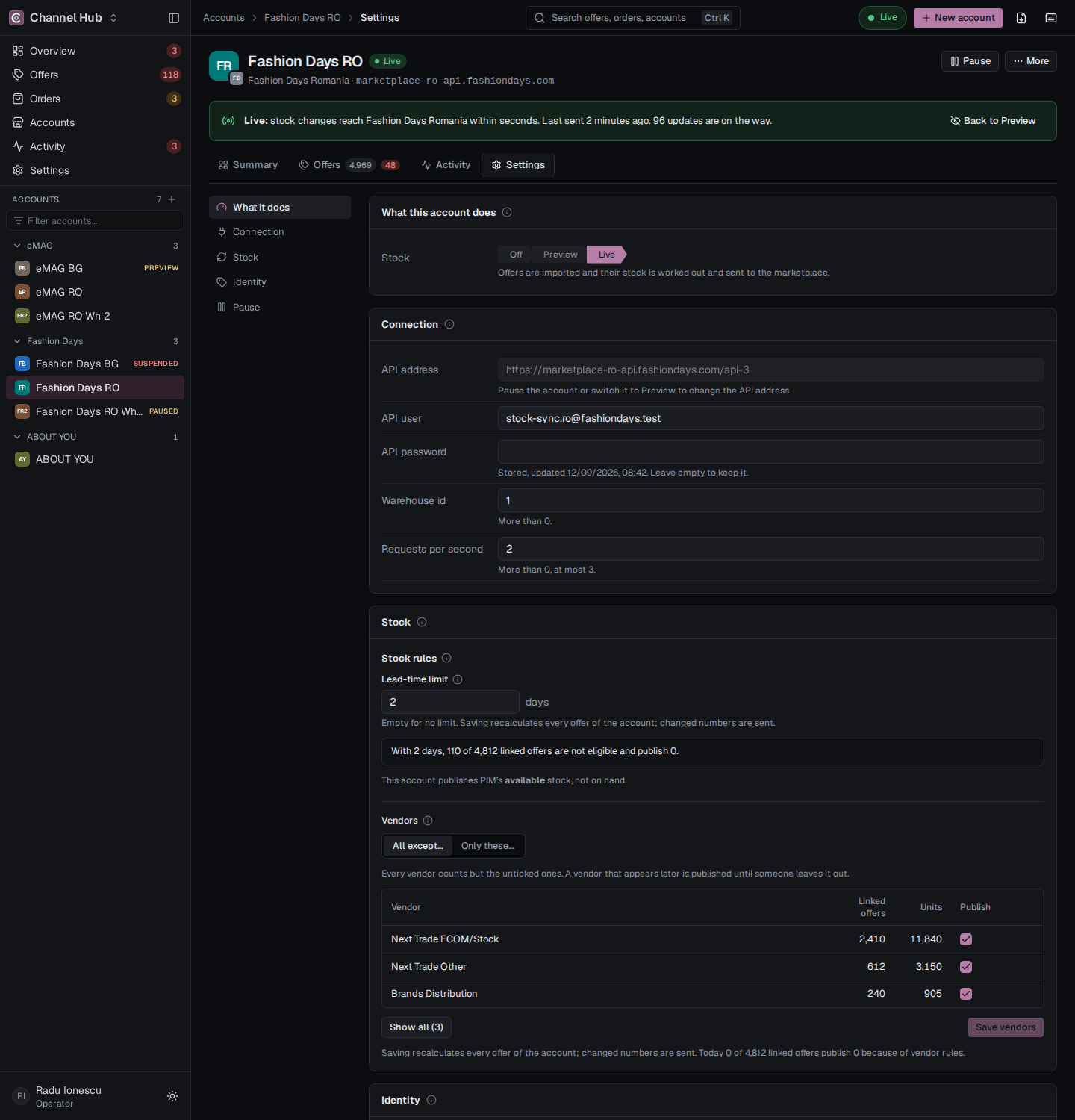
The Settings tab of an account workspace holds how the account is set up, in six sections, with a menu on the left that jumps to each one and highlights the one you are reading:
| Section | What it holds |
|---|---|
| What this account does | Stock, Orders and Ship orders: Off, Preview or Live each. Orders and Ship orders only on an account whose marketplace sends orders. |
| Connection | How Stock Sync reaches the marketplace |
| Stock | The Stock rules: lead-time limit and vendors |
| Orders & shipping | Accounts whose marketplace sends orders: Orders → Odoo (where the orders go in Odoo), Shipping (the carrier) and Batch print. Folded while Orders is Off |
| Identity | The account's Name and its badge (Appearance) |
| Pause (or Resume) | The switch to pause the account |
A part that does not apply to what the account does is folded to one line, with a button to show it: the stock rules while Stock is Off (Show rules), and all of Orders & shipping, the mapping to Odoo, the carrier and the batch print, while Orders is Off (Show orders and shipping). The line says what is set, for example Stock sync is off: these rules apply when you switch it on — up to 2 days, all vendors. Folded is not removed: what you typed in a folded part stays, and a folded part opens by itself when Save finds a problem in it, or when a link leads into it.
Only operators can change anything; a viewer reads every section and sees You can read the settings; changing them needs the Operator role.
One Save for the whole tab
You can change fields in several sections and save them together. Stock in What this account does and Save vendors are the exceptions: they act at once. As soon as something differs from what is saved, a bar appears: Unsaved changes, with what you changed (for example Orders mode, Ship orders, Orders → Odoo, Stock rules), then Discard and Save.
| Button | What it does | Keys |
|---|---|---|
| Save | Saves every change on this tab: the connection first, then the name, stock rules and appearance, then the orders settings (Orders, Ship orders and the mapping), then shipping and batch print | Alt + S |
| Discard | Puts every field back as it was | Alt + J |
Each section that was saved confirms it with its own message, for example "Connection of Fashion Days RO saved.", "Settings of Fashion Days RO saved." or "Order settings of ABOUT YOU saved." If you try to leave the tab with unsaved changes, Stock Sync asks Discard unsaved changes? first, with Stay and Discard and leave.
Fields are checked only when you press Save, not while you type. A field with a problem shows a red message under it, nothing in its section is saved, and the cursor jumps to the first one.
What this account does
The first section: what Stock Sync does for this account, one row each, with the same Off / Preview / Live steps and a line under each saying what the chosen step does.
| Row | Off | Preview | Live | Saved |
|---|---|---|---|---|
| Stock | No offers imported, no stock worked out or sent | Offers imported and their stock worked out; nothing sent | Stock sent to the marketplace | At once |
| Orders | Orders not read | Orders read and compared with Odoo; nothing written | Orders created in Odoo | With Save |
| Ship orders | The marketplace is not told | What would be sent is shown on each order; nothing sent | The marketplace is told when an order ships | With Save |
Orders and Ship orders appear only on an account whose marketplace sends orders; there a line under the rows reminds you: Stock changes at once (Live asks first). Orders and Ship orders are saved with Save. A viewer sees where each row stands and cannot change it.
Stock
Operators only, saved at once (not by the tab's Save). Every account starts with stock sync on.
| From → to | What happens |
|---|---|
| Off → Preview | At once: stock sync is switched on and the account is in Preview: its offers are imported, their stock worked out, and nothing is sent until you go Live. |
| Preview → Live | Asks first, with the account's name typed out, as Go live does everywhere. |
| Live → Preview | At once, as Back to Preview: nothing more is sent. |
| Preview or Live → Off | Asks first: Switch stock sync off for [account]? |
| Off → Live | Asks once, with the name typed out (Stock sync is switched on for [account]: its offers are imported and their stock is worked out and sent to the marketplace as soon as it is known.), then switches stock sync on and goes Live. |
Off means no offers are imported (neither the nightly import nor Import offers, which is greyed out with Stock sync is off for this account: switch it on in Settings first.), and no stock is worked out or sent. Orders carry on as before. The account's status banner and its Offers tab say Stock sync is off for this account, and the accounts list shows Stock sync off: no offers imported, no stock sent. under its status. Switch it off for a marketplace that takes its stock from somewhere else, such as Showroomprivé Drop.
Orders
The Orders row (its steps are named Orders mode): whether the account's orders are read and created in Odoo. Where they go there is set in Orders → Odoo.
The hint under each mode, and the dialogs below, say what staff do in the account's own marketplace's words. This table is ABOUT YOU's; on the others staff enter the orders by hand (on eMAG and Fashion Days they book them and accept them in Seller Center, on Secret Sales they accept them in Loom), and Preview compares with the order staff made in Odoo. Each connector guide says what staff stop and when.
| Mode | What Stock Sync does | What staff do |
|---|---|---|
| Off | Nothing. It does not read the account's orders. | Upload Gaia's ABOUT YOU file as today |
| Preview | Reads every order, works out the Odoo order and compares it with Gaia's. Writes nothing to Odoo. | Keep uploading Gaia's file; check the comparisons |
| Live | Creates and confirms every order in Odoo, so the stock is reserved | Stop uploading Gaia's ABOUT YOU file from that morning |
Choosing Live and pressing Save asks you to confirm:
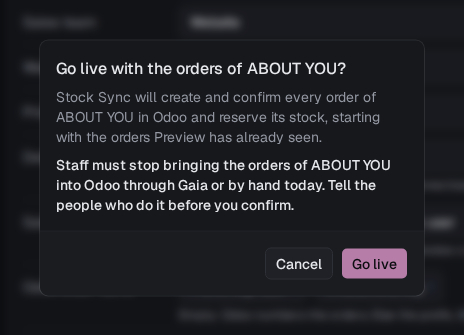
Go live saves Live, and also queues the orders Preview had already seen, so none is forgotten: "Orders of ABOUT YOU are Live: 8 previewed orders are queued to be imported into Odoo." ("Orders of ABOUT YOU are Live." when Preview had seen none). Other saves say "Order settings of ABOUT YOU saved." Going back to Preview or Off stops Stock Sync creating orders at once; orders already in Odoo stay there. See Go live with orders.
One marketplace store can have only one account reading its orders. Saving Preview or Live for an account whose connection is the same as another account's that is in Preview or Live (on ABOUT YOU the API address and API key; on eMAG and Fashion Days the API address; elsewhere the address and the login) is refused, and nothing is saved: "ABOUT YOU DE already reads the orders of the same marketplace store. Set that account's orders to Off first." Spaces around the key do not make it a different key. Off can always be saved.
Ship orders
Under Orders: whether Stock Sync tells the marketplace when an order of this account ships. See Ship an order.
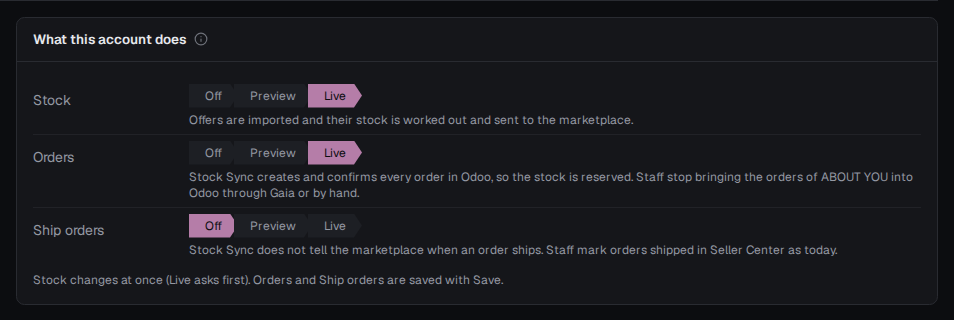
This table is ABOUT YOU's again; the hints and the dialog name what each marketplace is told and where staff ship today:
| Marketplace | Stock Sync sends | Where staff ship today |
|---|---|---|
| ABOUT YOU | The tracking number and the return tracking number | Seller Center |
| eMAG, Fashion Days | The invoice, and finalizes the order. No tracking number: staff keep adding the FedEx number | Seller Center |
| Secret Sales | The tracking number, with the account's Courier | Loom |
| Fashionette | The tracking number, with the connection's Carrier name sent to Fashionette | TPG's portal |
| Spartoo | The tracking number | Spartoo's back office |
| Bol | The tracking number, with the order's own carrier code (for example FEDEX_NL) | Bol's seller dashboard |
| Showroomprivé | Every parcel's tracking number, each with its own tracking address, and the carrier's name; then that the order is shipped. Whole orders only. | Showroomprivé's back office, where staff upload the tracking by hand |
| Mode | What Stock Sync does | What staff do |
|---|---|---|
| Off | Nothing: it does not tell the marketplace when an order ships | Mark orders shipped in Seller Center as today |
| Preview | Checks every delivery validated in Odoo and shows on each order what it would send. Sends nothing. | Keep marking orders shipped in Seller Center; read the order pages' Shipping |
| Live | Tells the marketplace when an order's delivery is validated in Odoo, with the tracking numbers | Stop marking these orders shipped in Seller Center |
Ship orders can be changed only while the account's orders are Live and saved; otherwise it is greyed with the reason ("Ship orders can be switched on once this account’s orders are Live and saved."). For a marketplace Stock Sync cannot tell yet it stays greyed, naming the account's marketplace (for example "Shipping from Stock Sync is not available for eMAG Romania yet."). Setting Orders mode back to Preview or Off sets Ship orders to Off too.
Choosing Live and pressing Save asks first: Ship the orders of ABOUT YOU from Stock Sync? says that the marketplace tells the customer, and, in bold, Staff stop marking these orders shipped in Seller Center today. An order already marked by hand is never sent twice. Ship from Stock Sync saves it: "Stock Sync now tells ABOUT YOU’s marketplace when its orders ship."
Connection
How Stock Sync reaches the marketplace for this account. Edit connection in the workspace's More menu, on the Summary, in the status banner of a suspended account and in the Accounts list's row menu all bring you here.
| Field | What it is | When you change it |
|---|---|---|
| API address | The marketplace address Stock Sync calls, for example https://marketplace-ro-api.fashiondays.com/api-3 | Rarely: only when the account must talk to another marketplace address. Locked while the account is Live and active. |
| API user | The API user the marketplace gave you | When the marketplace gives you a new user |
| API password | Its password, stored encrypted | When the password changes on the marketplace |
| Warehouse id | The marketplace warehouse the stock is sent for. A whole number more than 0. | Only if the marketplace tells you to |
| API key (ABOUT YOU accounts, in place of API user, API password and Warehouse id) | The key from the ABOUT YOU Seller Center, stored encrypted and never shown again. It decides which ABOUT YOU shop, real or sandbox, the account writes to. | When the key is replaced or has expired. Locked like the API address while the account is Live and active; see Enter or change credentials. |
| Key (Spartoo accounts) | The Seller Id for webservices, from Spartoo's back office (My account → Information), stored encrypted and never shown again. One key is one merchant, so a Spartoo account covers all three sites. Locked like the API address while the account is Live and active. | When the key is replaced. See Spartoo. |
| Requests per second | How many calls per second Stock Sync may make. At most 3 (eMAG / Fashion Days), 16 (ABOUT YOU), 10 (Secret Sales, Fashionette), 2 (Spartoo), 40 (Bol), 5 (Showroomprivé). | Only if the marketplace asks you to slow down or allows more |
Each marketplace has its own fields: Secret Sales, Fashionette, Bol and Showroomprivé have more than this table shows. Its guide explains every one of them.
A viewer sees the connection as plain rows instead: Platform, API address, Warehouse, Request budget and Credentials, and the line Changing the connection needs the Operator role.
The password is never shown

The API password (or API key) box is always empty. The line under it, Stored, updated [date]. Leave empty to keep it., says a password is stored and when it was last changed. Leave the box empty to keep it; type a new one only to replace it. So you can change the request speed, for example, without knowing the password.
Only the password or key may be left empty. Every other field must hold a value: if you empty Warehouse id, Requests per second or the ABOUT YOU API address, Save says Required on it. Stock Sync never puts the usual value in place of the one stored.
The address lock
The API address (and the ABOUT YOU API key) decides which marketplace the account talks to. Changing it on a Live, active account could send stock to the wrong marketplace, so Stock Sync locks it:
| Account is… | API address |
|---|---|
| Live and active | Locked, greyed out: "Pause the account or switch it to Preview to change the API address". While Stock is Off the account cannot be switched to Preview without switching stock sync on, so it says "Pause the account to change the API address" |
| Live and paused | Can be changed. Saving a new address switches the account to Preview. |
| In Preview (active or paused) | Can be changed. You must type the password again here too. |
On a marketplace where the login decides the shop, the login is locked in the same way: Secret Sales' API key, Spartoo's Key, Fashionette's API user and API password, Bol's Login address, Client ID and Client secret, and Showroomprivé's API key and Shop id. Every other field can be changed at any time, even while Live.
When you type a new address on a paused Live account, a note under it warns Saving a new address switches the account to Preview; go Live again after checking its offers. The stored password is not kept for a new address, so its Stored note disappears:
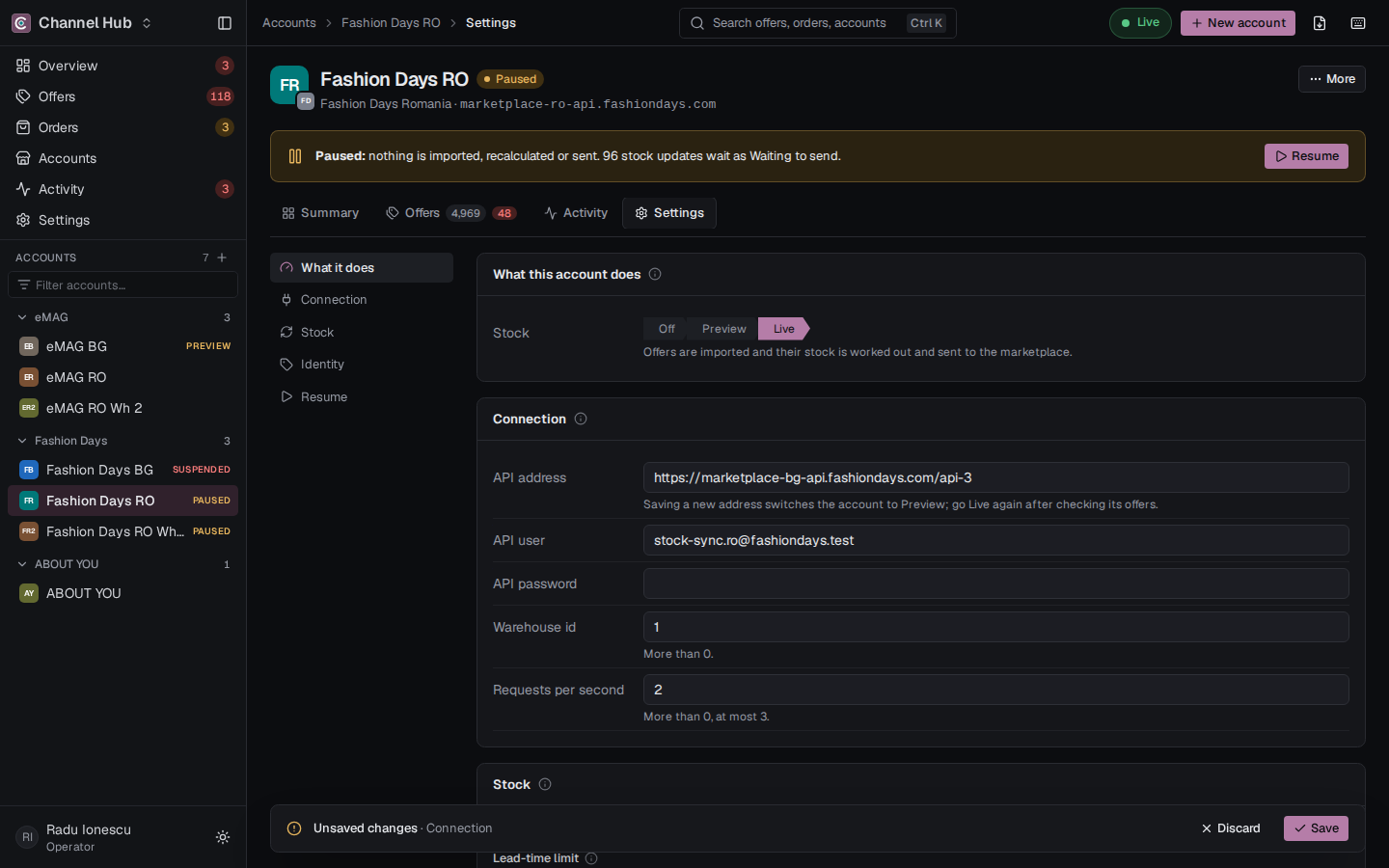
Stock Sync never sends a stored password to a different address. If you save the new address without typing the password, nothing is saved and the field says Enter the API password again for the new address.
When the new address is saved:
- The account switches to Preview, even if it was Live before. Nothing is sent to the marketplace.
- An Offer import is requested for the new address. If the account is paused, the import runs when you press Resume.
- You check the offers, then go Live again on purpose: Go from Preview to Live.
Moving an account is a big change
A new address usually means other offers, other stock and sometimes another country. Treat it like a new account: check its offers in Preview before going Live.
After saving the connection
The new connection is used from the next call to the marketplace. Every save also requests a Recalculation of the account (it runs once the account is active and healthy). The Activity tab records the save as changed the connection; the password never appears there or anywhere else.
If the account was Suspended because of its credentials, saving new ones does not bring it back by itself: press Recover in the status banner next. See Bring back a suspended account.
| Message | How to fix it |
|---|---|
| Required | Fill in the field. |
| A web address starting with https:// | Type the full address. |
| A whole number | Warehouse id: digits only. |
| A number | Requests per second: digits only, for example 2. |
| More than 0 / At most 3 / At most 16 | Stay within the limits in the grey hint under the field. |
| Enter the API password again for the new address | You changed the address: type the password again. |
| Stored value can't be read; enter it again | The stored password can no longer be read (for example after a technical change of its encryption key). Type it again and save. |
Stock
How the stock to publish is worked out, under Stock rules. While Stock is Off in What this account does the rules are folded to one line, for example Stock sync is off: these rules apply when you switch it on — up to 2 days, all vendors., with Show rules to read or change them.
Stock rules
How the stock to publish is worked out from PIM.
Lead-time limit — a product whose lead time (days until it can ship) is longer than the limit is not eligible: Stock Sync publishes 0 for it. Type a whole number of days, for example 2, or empty the box for No limit. While you type, a line under the box says what saving will do, for example, on Fashion Days RO with its limit of 2 days: before any change With 2 days, 110 of 4,812 linked offers are not eligible and publish 0., and after typing 3 Saving sets 3 days and recalculates every offer of the account; changed numbers are sent. Today 110 of 4,812 linked offers are not eligible.
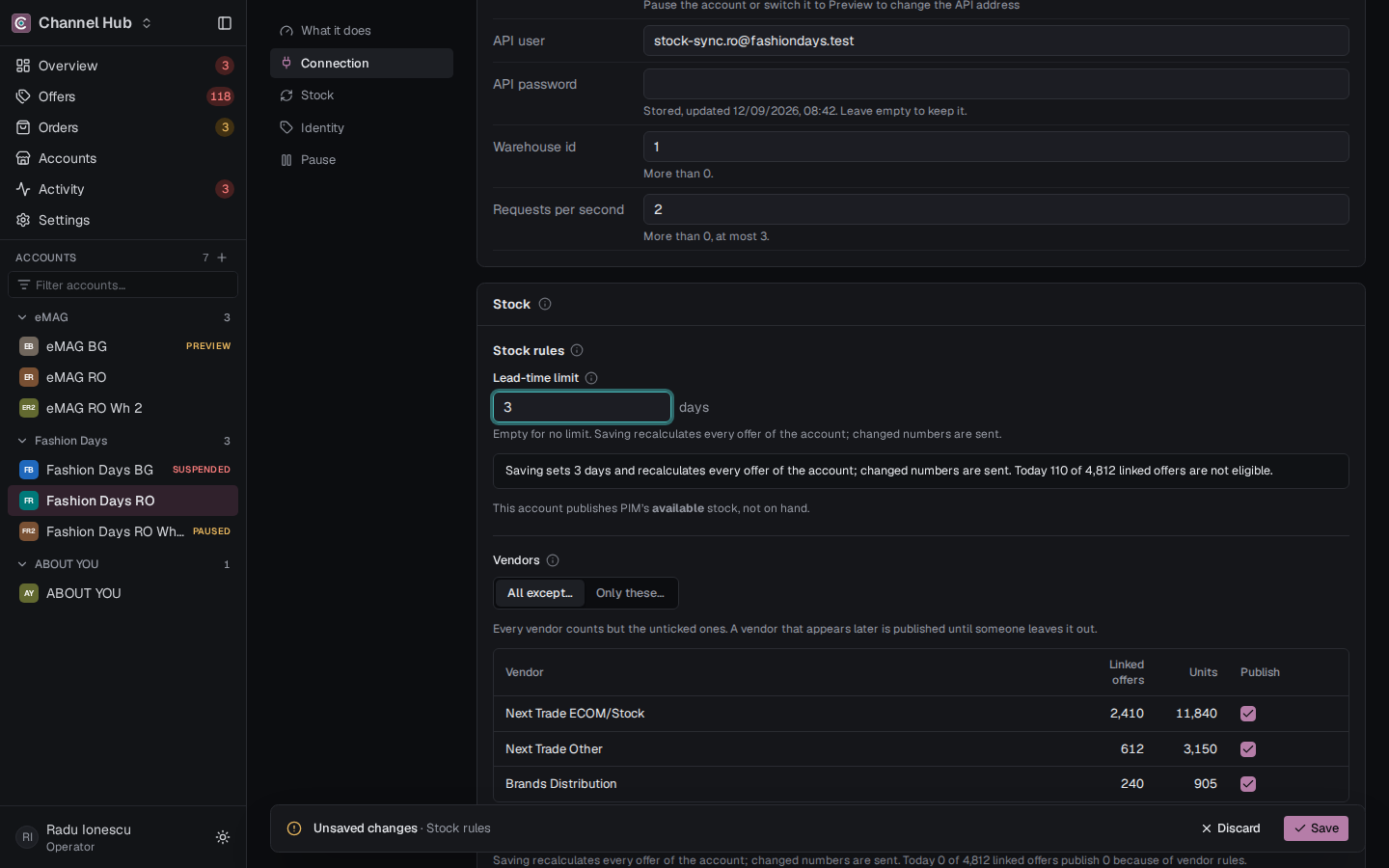
Save stores it with "Settings of [account] saved." and recalculates every offer of the account with the new limit. A value such as soon or 0 is refused with a message under the box.
Vendors — below the lead-time limit, a table of the PIM's vendors with Linked offers, Units and a Publish tick, and a choice between All except… (every vendor but the unticked ones) and Only these… (only the ticked ones). A vendor that the rule for all accounts leaves out shows Ignored app-wide and cannot be ticked here; change it in Settings → Vendors. Show all lists every vendor, Save vendors saves this block on its own, apart from the other sections, and asks first when an account would be left with nothing to publish. The line under the table says what saving does: "Saving recalculates every offer of the account; changed numbers are sent. Today N of M linked offers publish 0 because of vendor rules." Step by step: Choose which vendors count.
Which PIM figure is sent is not a setting: the section reminds you that every account publishes PIM's available stock, not on hand (How the quantity is calculated). Step by step: Change the lead-time limit.
A change goes out at once on a Live account
On a Live account, saving a new Lead-time limit recalculates every offer and sends the new numbers to the marketplace within minutes. (On a paused or suspended account the recalculation waits until it is resumed or recovered.) Try the change on an account in Preview first if you are unsure.
Orders & shipping
Only on an account whose marketplace sends orders: where its orders go in Odoo, how they are shipped and what is printed for them, each under its own heading.
While Orders is Off the whole section is folded to one line saying what is set, for example Orders are off, so none of this is used until they are in Preview or Live. Set: mapping: sales channel About You, warehouse E-commerce (ECOM); carrier DHL Express, batch print DHL receipt, then Delivery document., with Show orders and shipping. Choosing Preview or Live in Orders shows it at once, since both need the mapping. Ship orders folds nothing: DHL shipments and the batch print work whatever it says.
Orders → Odoo
Where the account's orders go in Odoo; whether they are read and created there is the Orders row of What this account does. The Odoo connection itself, shared by every account, is in Settings → Odoo connection and must be saved and work.
Order workflow
The first choice of Mapping to Odoo: who the account's orders are sold to in Odoo.
| Workflow | Who the Odoo order is for | When |
|---|---|---|
| Marketplace — we invoice the shopper (the default) | The shopper is the Odoo customer, created from the order's address, with the VAT of the country the order ships to (OSS). Stock Sync checks that VAT against the marketplace's. | Every marketplace where we sell to the shopper: ABOUT YOU, eMAG, Fashion Days, Secret Sales, Fashionette, Spartoo, Bol |
| Dropship — we invoice the marketplace | The marketplace's company is the Odoo customer; the shopper is only where the parcel goes | Showroomprivé Drop, where Showroomprivé buys from us and sells to the shopper itself |
Choosing Dropship shows four more choices:
| Field | What to choose |
|---|---|
| Customer | The Odoo company, or a contact of it, every order is sold to. Odoo has thousands of customers, so type at least two letters of its name in Search Odoo's customers (for example Saldi Privati), then choose it in the list under it. Only companies and their contacts and invoice addresses are found: never a private person, and never a customer Stock Sync created for a marketplace order. Required. |
| Invoice address | The address the orders are invoiced to, among the addresses of the customer's company, for example Saldi Privati SRL, Amministrazione. None: the customer itself invoices the customer. Choosing another customer empties it. |
| Fiscal position | The fiscal position of every order, whatever the country it ships to, for example Sales Italy & EU customers w/o VIES, VAT 22%. Required. |
| Payment term | Optional (None). Written on every order, for example 30 giorni dalla fattura. |
In Dropship each Odoo order:
- is sold to the Customer, invoiced to the Invoice address, and delivered to a delivery address Stock Sync creates under the customer with the shopper's name, address and phone, never the shopper's email, so nothing in Odoo writes to the shopper;
- books each product at the net price the marketplace pays, with the product's own taxes through the Fiscal position. There is no VAT check: the marketplace states none;
- carries the marketplace's order number as its reference and, for Showroomprivé, the campaign in its Source Document, so staff find a campaign's orders to invoice them together.
Preview has nothing to compare a dropship order with while staff type one order per campaign: every order shows Not in Odoo. Go Live between two campaigns, the day staff stop typing campaign orders. The other mapping fields below (sales channel, team, warehouse, pricelist, salesperson, order name, service lines) apply in both workflows.
A viewer reads the workflow, and in Dropship the four choices by the names Odoo gave them with their ids (for example Saldi Privati SRL (Odoo id 7002)); choices saved before 9 November 2026 show only Odoo id 7002 until an operator saves them again.
Mapping to Odoo
Each field is a list of choices read from Odoo. You never type an Odoo number. A field not chosen yet says Choose…. A field with a long explanation shows a short line under it; the (i) beside the line holds the whole explanation.
| Field | What to choose |
|---|---|
| Sales channel | The ABOUT YOU channel, About You, so the Odoo order shows where it came from |
| Sales team | The team the order belongs to, for example Website |
| Warehouse | The warehouse the stock is reserved in, shown with its code, for example E-commerce (ECOM) |
| Pricelist | The euro pricelist, for example Public Pricelist (EUR). Pricelists in another currency are listed but greyed out, with "— orders are booked in EUR". |
| Delivery method | Optional (None). On an account without a carrier in Shipping, any method in Odoo: a method with its own shipping connection (for example Fedex International) shows "— books the shipment in Odoo when the delivery is validated", and Odoo books its label when staff validate the delivery. On an account whose Shipping has a carrier (DHL Express), Channel Hub books the labels, so such a method is greyed out with "— books shipments in Odoo; choose a method without integration": a shipment is never booked twice. |
| Odoo order name | Optional (empty: Odoo numbers the orders). A prefix and a number of characters: with SEC and 12, the reference 6000253563-a-A becomes SEC6000253563AA, the prefix then the last characters of the reference without dashes. Fill both or neither. |
| Phone for customers without one | Optional (empty). A phone put on the Odoo customer when the marketplace sends none, for example +39 0541 000000, so the carrier can book the label. A phone the marketplace did send is kept. |
| Shipping product | Optional (None: orders with a shipping fee wait in Needs attention). The Odoo service product that books the shipping fee a customer paid, without its VAT, on the Odoo order. eMAG, Fashion Days and Spartoo accounts need it: for them choose "[S1] [Shipping] [Shipping fee] Shipping fee on sales". The hint under it says whether the account's marketplace charges a fee: ABOUT YOU, Secret Sales, Bol and Showroomprivé state none, and Fashionette keeps its own. Without it, an order whose customer paid shipping stops with No shipping product. |
| Voucher product | Optional (None: orders with a seller voucher wait in Needs attention). The Odoo service product a voucher we fund is booked on, as a discount line at minus its amount without VAT, so the Odoo order totals what the customer paid. eMAG and Fashion Days accounts need it: for them choose "Commercial discount" (Odoo product 81900; the list may call it Commercial discount (copy)). Other marketplaces' orders carry no voucher we fund, so leave None. Without it, an order with a voucher we fund stops with Seller voucher. |
| Commission product | Bol and Showroomprivé accounts only. Optional, off by default (None: Stock Sync books no commission). The Odoo service product that books the commission Bol states as a cost on the Odoo order, so its margin is right; choose "[MKP commission] Services SRP" if the product owner decided so. Save refuses it while the sales channel books that product by its own rule in Odoo, which would count the commission twice. See Bol. Showroomprivé Drop orders state no commission: leave None there (Showroomprivé). |
| Salesperson | Optional. The person shown on the order in Odoo. None: Odoo's default, the integration user leaves it to Odoo. Preview compares it with the orders made without Stock Sync: Gaia's on ABOUT YOU, staff's elsewhere. |
| Service lines | The extra lines every order gets: a product and a net amount in euro. Add service line adds one, × removes one; at most ten. With none: "No service lines: orders get only their products." |
In Off the mapping may stay empty. Preview and Live need Sales channel, Sales team, Warehouse and Pricelist, and in Dropship also Customer and Fiscal position: an empty one says Required when you press Save. The other fields are optional.
When Odoo's lists are not there
The section opens at once, without waiting for Odoo. Three notices can appear above the form:
| Notice | What it means |
|---|---|
| Reading Odoo's lists… Until they arrive, the choices show only what is saved; Off can be saved meanwhile. | Odoo is being asked for its lists. A choice already saved shows as Odoo id 3 until the names arrive, and Off can always be saved, so you can switch an account off during an Odoo incident. |
| Odoo lacks something orders need | Odoo answered, but lacks a field, a module or a right that orders need (it names them). Saving in Preview or Live is refused until it is fixed; Settings → Odoo connection lists what is missing. |
| Odoo's lists could not be read (red) | Odoo did not answer, or refused the connection. Check the connection in Settings, then press Read Odoo again. |
When Odoo refuses the settings
Saving in Preview or Live asks Odoo to check the mapping. If something is wrong, nothing is saved and Odoo's reason is shown under the field it concerns; a choice that is no longer in Odoo shows as Not in Odoo's list (id 3). What concerns Odoo itself appears above the fields, starting "Odoo refused the settings: …". If Odoo does not answer: "Odoo did not answer (…), so nothing was changed. Try again once Odoo is back."
A viewer reads the saved mode and mapping and sees Changing the order settings needs the Operator role. Each choice is shown by the name Odoo gave it with its id, for example About You (Odoo id 3); settings saved before names were kept show only Odoo id 3 until an operator saves them again.
Shipping
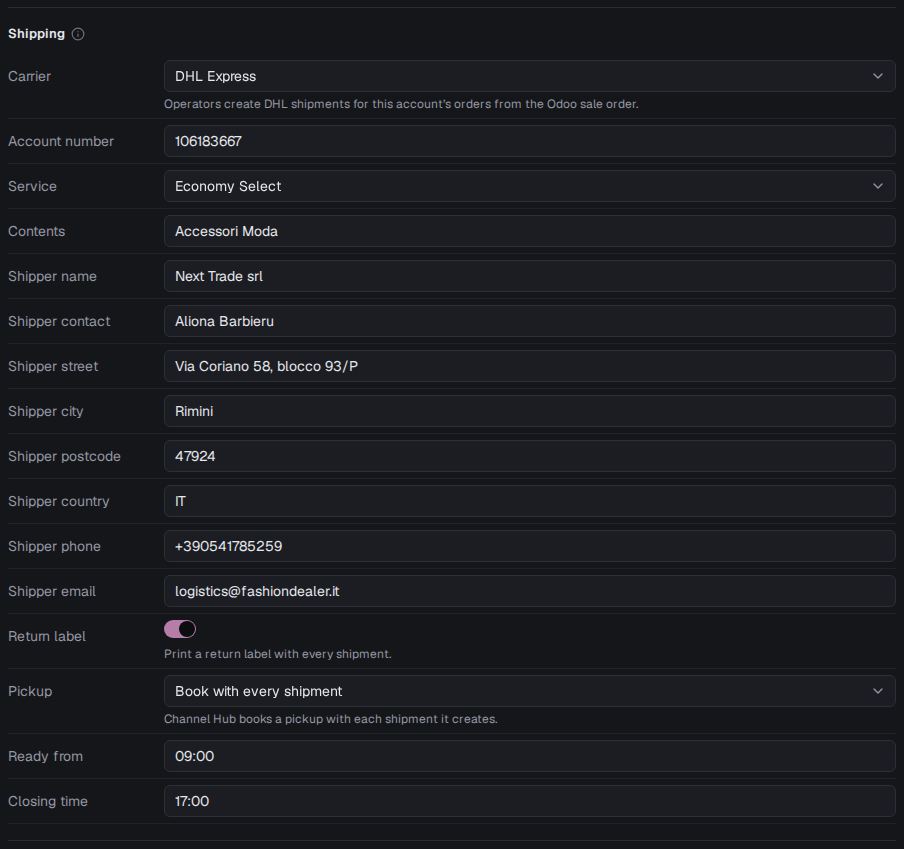
Only on an account whose orders Stock Sync can ship with a carrier: whether Channel Hub creates a DHL shipment for this account's orders, and with what. The DHL login itself, shared by every account, is in Settings → DHL Express. See Create a DHL shipment.
| Field | What it is |
|---|---|
| Carrier | None (no shipment is created) or DHL Express. With DHL Express, operators create DHL shipments for the account's orders from the Odoo sale order: Create DHL shipment appears there. Choosing DHL Express on an account that has no carrier is refused while Orders → Odoo is in Preview or Live with a delivery method that books shipments in Odoo (for example Fedex International): choose a method without integration there first. Stock Sync asks Odoo about it then, so that one choice waits for Odoo when Odoo is down; other changes to this section do not. |
| Account number | The DHL account the shipments are booked on, for example 106183667. One DHL login can hold several. |
| Service | The DHL service. Only Economy Select is offered for now. |
| Contents | The goods description DHL prints, for example Accessori Moda. |
| Shipper name, contact, street, city, postcode, country, phone, email | Who the parcel is from, starting as Next Trade srl, Via Coriano 58, blocco 93/P, 47924 Rimini, IT. |
| Return label | On: every shipment also makes a return label (every ABOUT YOU parcel needs one). |
| Pickup | Standing pickup: DHL comes on a schedule agreed with DHL and Channel Hub books nothing. Book with every shipment: each shipment asks DHL to collect. Book once a day: the first shipment for a pickup day books the pickup and the later ones for that day reuse it. The pickup day is the Italian working day (Europe/Rome, the warehouse's) DHL is asked to come: the same day before the closing time, otherwise the next working day, so shipments made on Friday evening, Saturday, Sunday and Monday morning share one Monday pickup. |
| Ready from, Closing time | For the two booking modes: when the parcels are ready and when the courier's pick-up window closes (HH:MM, Italian time, Europe/Rome). Optional; with no closing time, Stock Sync takes 18:00 under every pickup mode (the box shows it in grey), and Ready from must then be earlier than 18:00 when you change it. A shipment created after the closing time, or at the weekend, is planned with its pickup for the next working day, from the ready-from time. A pickup still not booked after the closing time raises DHL pickup not booked. |
Save stores the section with the rest of the tab. An account that has never been set starts at None; choosing DHL Express fills in DHL's defaults above (Return label on for ABOUT YOU, Book with every shipment from 09:00 to 17:00), which you can change before saving. A viewer reads the section and cannot change it.
Batch print
Which A4 documents Print A4 for batch puts in the stack for this account's orders (see Print a batch).

Tick the kinds you want: DHL receipt, Delivery document and Uploaded A4 labels. The ticked ones print in the order listed; use the arrows to move one up or down. ABOUT YOU starts with DHL receipt and Delivery document ticked. Labels for the Zebra are never in the stack. Save stores it; a viewer reads it.
Identity
What the account is called and the badge that tells it apart, under Name and Appearance.
Name
What people call this account: on every screen, in exports, in the companion and in the alerts in Teams.

Type another name in Account name and Save. The name has the same rules as a new account's: spaces around it are dropped, it can't be empty, and it can have at most 100 characters. Changing only its capitals is allowed.
- If another account has the name, capitals aside, the field says An account named "[name]" already exists, and nothing in this section is saved.
- Nothing else changes. The publish, orders and ship modes, the connection, the API key and the offers stay as they are, also on a Live account, and nothing is imported or sent. The marketplace never hears about it.
- It shows at once, for everyone. The Activity of the account says who renamed it, and the old and new names.
- The badge. Initials and a colour picked automatically follow the new name. A badge you chose stays as it is. See Appearance.
- Going Live asks you to type the new name.
- Alerts in Teams. An alert that is open when you rename the account ends, and comes back under the new name if the problem is still there, after the alert's usual waiting time.
- What was already written stays. A note on an Odoo sale order, a message on an order, and an export made earlier keep the name the account had then.
A viewer reads the name only.
Appearance
The badge that tells this account apart in the sidebar, lists, filters, feeds and headers.

- The badge — as it looks now, with Picked automatically or Your choice beside it.
- Initials — up to 3 letters or digits. Leave it empty to use the initials made from the name (shown in the box as a hint).
- Colour — Automatic picks a colour no other account of the same marketplace has; or choose one of twelve: Aubergine, Teal, Blue, Violet, Sky, Olive, Indigo, Purple, Slate, Brown, Stone, Navy. None of them is red, amber or green: those colours mean a status everywhere in Stock Sync.
Save stores the badge for everyone, with "Settings of [account] saved." The account badge explains how the automatic initials and colour are chosen. A viewer sees the badge only.
Pause
Operators only. Pause the account (or Resume the account while it is paused) repeats what the button does — Stop importing, recalculating and sending for this account. PIM changes keep being calculated and wait as Waiting to send. — with a red Pause button, or Resume. It works exactly like Pause in the workspace's header: Pause asks first, Resume acts at once. See Pause and resume.