
Appearance
The Channel Hub companion
The Channel Hub companion is a small add-on for Chrome and Edge. It shows what Channel Hub knows about a marketplace order right where you already work: in Odoo's Barcode app at the packing and shipping desks. It tells you which documents go in the parcel, opens or prints them, warns you when an order must not be sent, and checks that the marketplace will get everything it needs when the parcel leaves. You keep working in Odoo as before. The companion only adds a Channel Hub strip to the transfer, a Channel Hub button and tab to the sale order, and a Channel Hub row to the window Odoo opens when you scan a product. It is drawn in Odoo's own look: Odoo's buttons, lists and coloured notices, with Channel Hub's purple mark beside each part.
It also works in ABOUT YOU Seller Center: there it shows each order's state and sale order in Odoo, Channel Hub's view of an opened order, and what Channel Hub sends as the stock of each SKU. See In ABOUT YOU Seller Center. And it works in Secret Sales' Loom, Secret Sales' seller back office: there it shows each order's state and sale order in Odoo, Channel Hub's view of an opened order, and what Channel Hub sends as the stock of each SKU of Manage Inventory. See In Secret Sales' Loom. And it works in Spartoo's seller back office, read only: see In Spartoo's back office. And it works in Bol's partner panel, Bol's seller portal: there it shows each order's state and sale order in Odoo, Channel Hub's view of a shipped order's details, and what Channel Hub sends as the stock of each item. See In Bol's partner panel. And it works in Fashionette's merchant portal, the portal of The Platform Group (TPG) that runs Fashionette's shop: there it marks each order line Ours or Not ours, with the order's state and sale order in Odoo, and shows what Channel Hub sends as the stock of each size. See In Fashionette's merchant portal.
Before you begin
Who can do this: anyone who packs or ships marketplace orders on a desktop computer. Seeing the strip, the documents and the checklist needs no special role; writing a tracking number needs only your own Odoo access.
Which orders: orders that Channel Hub put in Odoo. For a transfer of any other order the companion shows nothing.
Time needed: about 1 minute to install it from the Chrome Web Store, once per computer.
What it looks like
This is a PACK transfer in Odoo's Barcode app with the companion. Everything between Odoo's dark header and the grey Scan products area is the companion; the rest is Odoo as you know it.
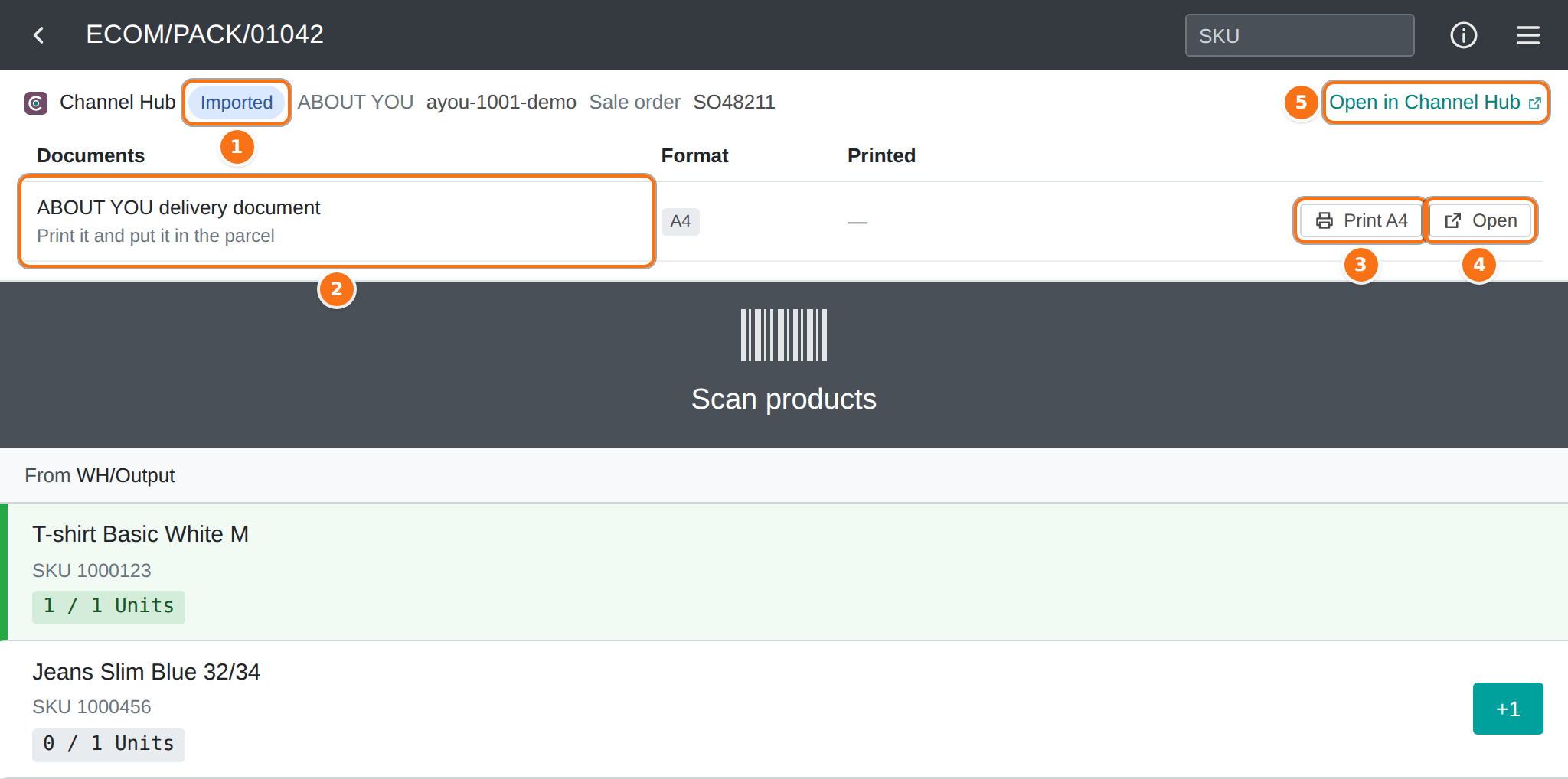
- The Channel Hub line: the order's state in Channel Hub, its marketplace and order number, and its sale order in Odoo (for example SO48211).
- A document of the parcel, with what to do with it: here the ABOUT YOU delivery document, Print it and put it in the parcel. Format says which printer it is for (A4 or Label), Printed when this browser printed it.
- Print A4: prints the document on your standard printer. (A label shows Print label instead and goes to your label printer.) Until printing from the companion is switched on, an A4 document opens in a tab instead and a ZPL label downloads as a file (see At the packing desk).
- Open: opens the document in a new tab.
- Open in Channel Hub: opens the order in Channel Hub in a new tab.
What it is, in short
- A Channel Hub line under the header of a transfer in Odoo's Barcode app: the order's state, the marketplace, the order number and its sale order in Odoo.
- At PACK, the order's Documents as an Odoo list, with Print A4 or Print label, and Open.
- On the Odoo sale order, a Channel Hub button in the row of buttons at the top of the order and a Channel Hub tab beside Order Lines, with Upload Shipping Labels and Create DHL shipment for operators (see On the sale order).
- On a batch page and the batch transfer form, Print A4 for batch (see Print A4 for batch).
- At OUT, the parcel's labels and a Before you validate checklist with a field for each missing detail.
- A red or amber Odoo notice when the order must not be packed, or needs a look first.
- In ABOUT YOU Seller Center: Channel Hub and Odoo columns in the order lists, a Channel Hub card in an opened order, a Channel Hub column on the stock page, and a Channel Hub card on the dashboard.
- In Secret Sales' Loom: Channel Hub and Odoo columns in All Orders, a Channel Hub card on an order's page, and a Channel Hub column on Manage Inventory.
- In Spartoo's back office: a summary card on the dashboard, Channel Hub and Odoo columns on the Orders list, a Channel Hub panel on an order's page, and a Channel Hub column on the Products page.
- In Bol's partner panel: a Channel Hub line under each order of Orders, a Channel Hub panel in a shipped order's details, a Channel Hub column on Items and a Channel Hub summary on Home.
- In Fashionette's merchant portal: an Ours or Not ours mark under each line of the order list and of the cancellations and returns list, a Channel Hub stock line beside each size's stock on an article's page, and a Channel Hub summary on the dashboard.
It works on desktop computers. Handheld scanners and phones keep Odoo's own screens (see Handhelds).
A parcel from start to finish
Ana packs and ships the ABOUT YOU order ayou-1001-demo (a made-up example) at a desk computer with the companion.
- At PACK she opens the transfer
ECOM/PACK/01042in Odoo's Barcode app. The strip shows the orderayou-1001-demoas Imported, with its sale order SO48211, and no red warning, so the order may go. She clicks Print A4 on the ABOUT YOU delivery document. Printing from the companion is not switched on yet, so the document opens in a new tab; she prints it from there and puts it in the parcel. She scans the products as usual. - At OUT she opens
ECOM/OUT/01042. Under Before you validate, Tracking number is ticked, but Return tracking number is not: Odoo has noReturn Tracking number:note yet. - She types the return tracking number from the return label into Return tracking no. and clicks Save. The companion writes the note
Return Tracking number: …on the sale order under her name, the checklist reloads, and the item turns ✓. - She clicks Odoo's Validate, as always.
- What Channel Hub does next: within about 5 minutes it sees the validated delivery, reads the tracking number and the note from Odoo, and tells ABOUT YOU the parcel has left. The order becomes Shipped in Channel Hub, and ABOUT YOU tells the customer. In an account whose Ship orders is Preview, Channel Hub only records what it would send. See Ship an order for what happens when something is still missing.
Install it
Install it from the Chrome Web Store: click Add to Chrome, then Add extension. The listing is unlisted, so only this link finds it. Chrome then keeps the companion up to date by itself. The page Install the companion has the steps, Edge's extra click, and a second way, a download you load by hand, for when the technical team needs to get a fix to you before the store has approved it.
Then pin it: click the puzzle-piece icon next to the address bar, then the pin beside Channel Hub companion (a purple square with a white C). Click its icon to see who is signed in.
Later, IT may install it on company computers by itself (Microsoft Intune), and you do nothing.
The companion on Odoo test always talks to the test Channel Hub, and on the live Odoo to the live one. You never choose.
Sign in
You sign in with your Microsoft account, the same as for the web app. The companion uses that sign-in and your own access: everyone sees, operators can also act.
- Click the companion's icon while an Odoo, Seller Center or Loom tab is open. It says Signed in as and your name.
- If it says Sign in to Channel Hub, click it. A small window opens on Microsoft's sign-in (if you are already signed in to Microsoft, it may only flash). It closes by itself once you are in, and the page shows Channel Hub's lines.
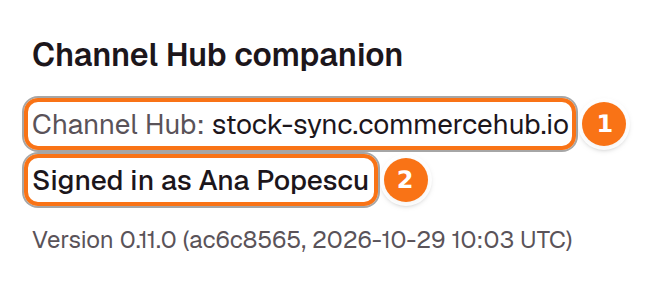
- Channel Hub: the Channel Hub this page talks to (the live one for the live Odoo).
- Signed in as: who Channel Hub sees. Nobody signed in shows a Sign in to Channel Hub button here instead.
When nobody is signed in, the transfer itself says so too:
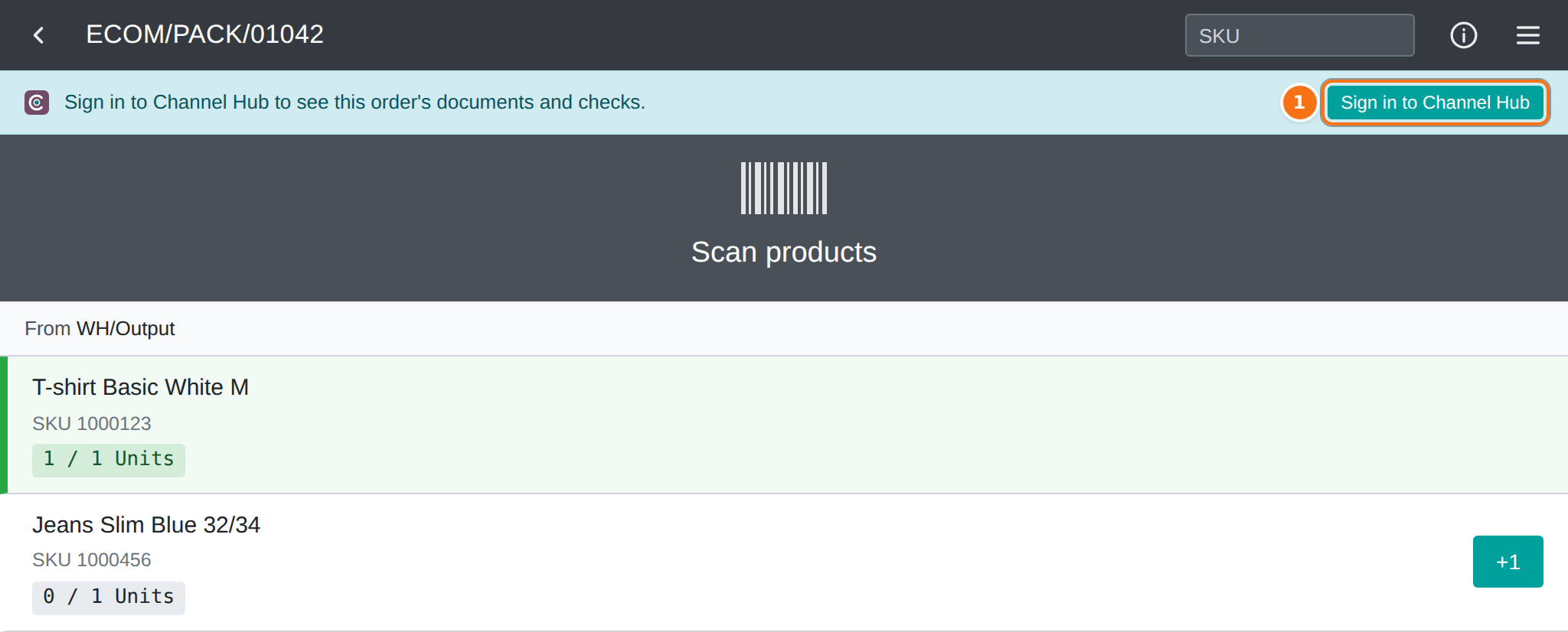
- Sign in to Channel Hub: opens the small sign-in window. While it is open the button reads Signing in…; when the window closes, the strip asks again by itself.
If the sign-in fails (for example your account has no role in Channel Hub yet), the small window stays open and says why: read it, then close it.
A computer that several people share needs one of them signed in. (Station keys, which let such a computer work without anyone signed in, were removed on 12 October 2026: one key saved once quietly replaced the person's own sign-in.)
At the packing desk (PACK)
Open a PACK transfer of a marketplace order in Odoo's Barcode app. Under the header the Channel Hub line appears: Channel Hub's mark, the order's state in Channel Hub (for example Imported, in the same colour as in Channel Hub), the marketplace, the order's reference and its sale order's name as Odoo shows it. Open in Channel Hub on the right opens the order in Channel Hub.
Under it, Documents: an Odoo list with one row for each document of the order, with what to do with it ("Print it and put it in the parcel"), its Format (A4 or Label), when it was Printed (for example 10:44, Postazione2, or a dash) and two buttons (see the picture in What it looks like).
| Button | What it does |
|---|---|
| Print A4 | For a document that goes on the standard printer. Sends it to your workstation printer, then the row's Printed says 10:44, Postazione2. For now, printing from the companion is not switched on yet: it opens the document in a new tab instead (below). |
| Print label | For a label that goes on the Zebra label printer. Sends it to your workstation label printer. The labels Channel Hub makes with DHL are ZPL files, which no browser shows: until printing from the companion is switched on, or when your label printer is not set or does not answer, Print label downloads the label as a .zpl file (a message says why) instead of opening a tab. A label that is a PDF opens in a tab, like Print A4. |
| Open | Opens the document in a new tab, to print or read it by hand. |
- Nothing prints by itself. A document prints only when you click Print A4 or Print label.
- The printer is the one you already use in Odoo: your workstation printer in PrintNode (the one Odoo prints the delivery slip on). You set nothing in Channel Hub.
- If you have no printer set up, or printing fails, a message says why and the document opens in a new tab. Print it from there with the browser's own print dialog.
- Scanning keeps working: the companion never takes the keyboard away from Odoo's scanner.
This is what you see today after clicking Print A4:
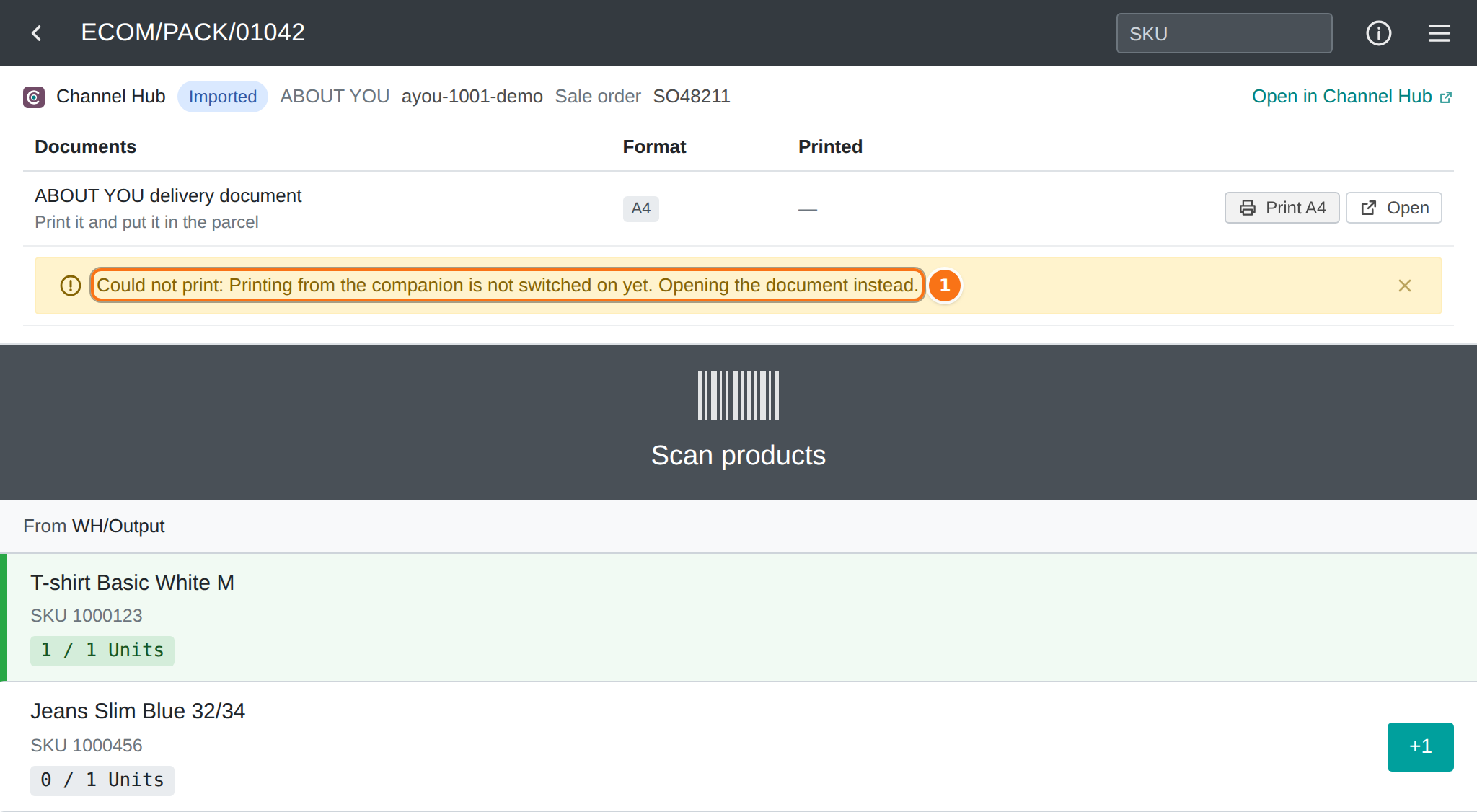
- The message: why the document opened in a new tab instead of printing; × closes it. Print it from that tab and put it in the parcel. Without a PrintNode printer set up for you, the message says No workstation printer is set for you in PrintNode instead.
In the scan popup (batch and single packing)
Each time you scan a product at PACK, Odoo's Barcode app opens a small window with the order: its Sale Order (the SO number), the Customer reference, how many pieces the order needs and the box. It looks the same in a batch transfer and in a single transfer. In a batch it has one tab for each order; the tab you see is the order you just scanned.
For a Channel Hub order the companion adds a row Channel Hub, with Channel Hub's mark, under Customer reference: first the order's state and number, then every document Channel Hub holds for that order, labels included (the strip at PACK shows only the parcel's documents), each with its format and its buttons on the right. It finds the order by the SO number.
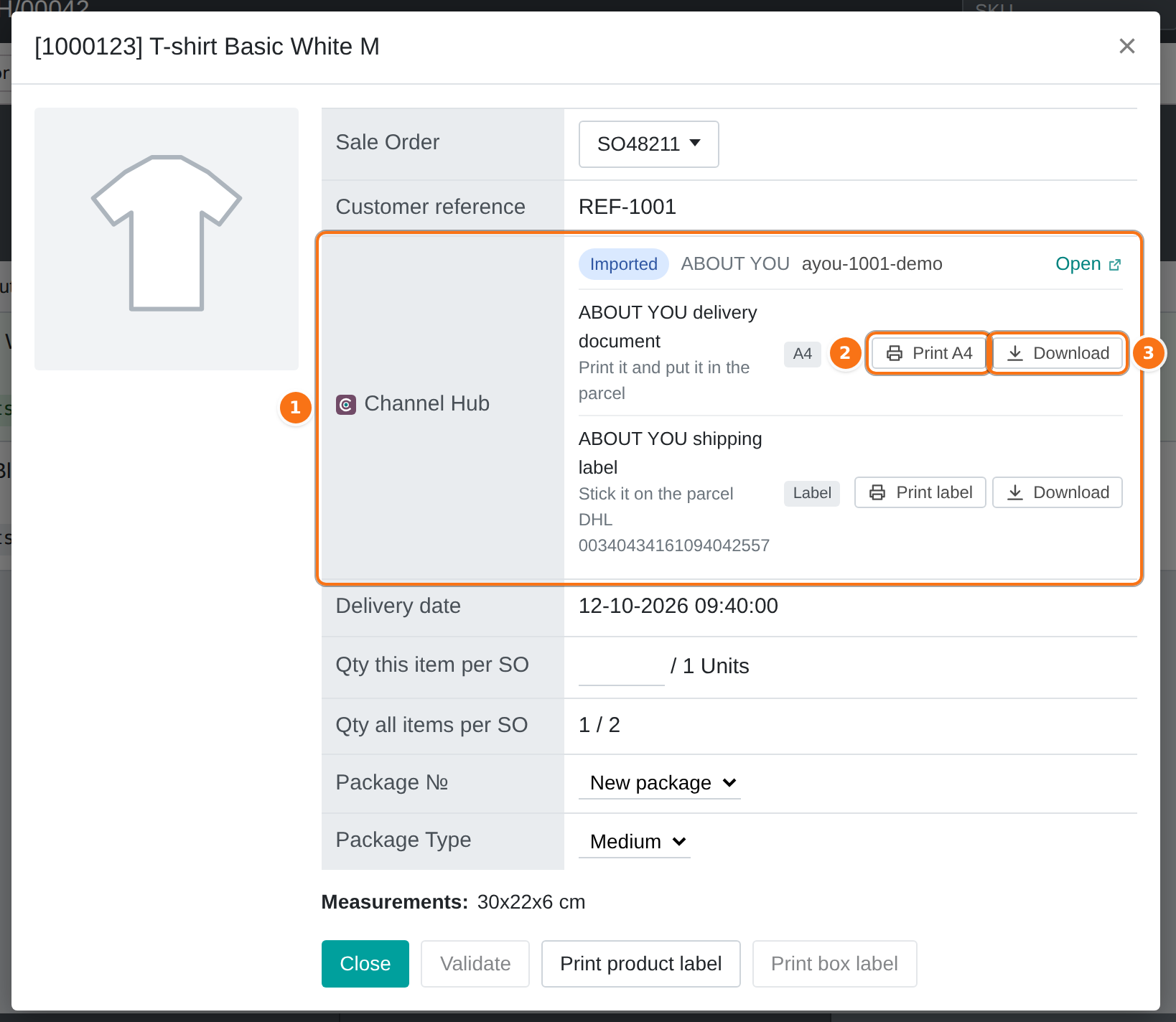
| Button | What it does |
|---|---|
| Print label / Print A4 | Opens the document in a new tab, to print with the browser's print dialog. Like the buttons in the strip, it does not send it to a printer by itself yet. A ZPL label (made with DHL) downloads as a .zpl file instead, because no browser shows it: the scan popup never prints a label through PrintNode, by design. |
| Download | Saves the file on your computer. If the browser needs one more click, the line says so: click Save the document. |
What the row can say:
| You see | What it means |
|---|---|
| The state, then the documents, each with Print label or Print A4, and Download | This is a Channel Hub order. After a print button the document's line says Printed at 10:44: when this browser last opened it for printing. Open opens the order in Channel Hub. |
| A blue notice with Sign in to Channel Hub | Nobody is signed in. Click it and sign in in the small window; the documents come back by themselves. |
| A grey notice Channel Hub unavailable with Try again | Channel Hub did not answer. Scanning goes on; click Try again or try the next scan. |
| No row | The order is not from a marketplace, or your account may not see Channel Hub orders. |
- Each tab shows the documents of its own order.
- Scanning keeps working: after you click Print label, Print A4 or Download you can scan at once.
- Odoo's own buttons (Close, Validate, Print product label, Print box label) are not changed.
At the shipping desk (OUT)
Open the OUT transfer. The same Channel Hub line shows, then:
Labels. When a marketplace or carrier gives a label for the parcel, it is listed with Print label (or Print A4 if it is an A4 page) and Open. A label prints on your workstation label printer, the one Odoo uses for labels. A label a colleague uploaded from the sale order is listed here too (see Upload shipping labels). The pictures below show the DHL label of the parcel.
Before you validate. On an order that Channel Hub ships (its account's orders are Live and Ship orders is Preview or Live, see Ship an order), a checklist answers one question: will Channel Hub be able to tell the marketplace the parcel left? On any other order there is no checklist. It is an Odoo list: each item has a green tick (✓) or a red cross (✗) and says what is missing, in the same words as the order page in Channel Hub:
| Item | When it is there | Field |
|---|---|---|
| Tracking number | the delivery has one | Tracking no. |
| Return tracking number | ABOUT YOU orders: a return tracking note | Return tracking no. |
| Carrier | eMAG and Fashion Days orders | Carrier |
| Invoice | eMAG and Fashion Days orders | none: the invoice is made in Odoo |
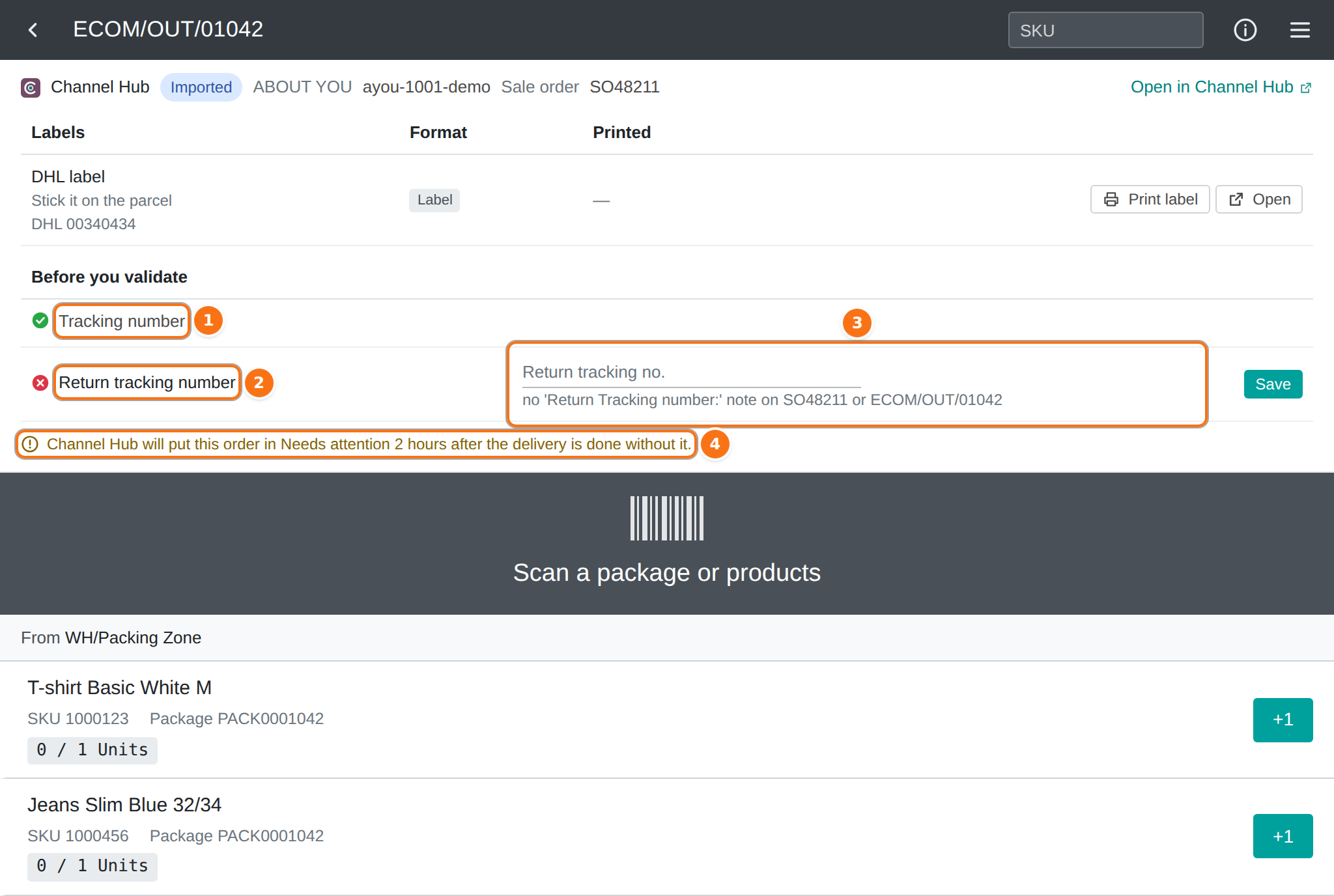
- ✓ Tracking number: Odoo already has it.
- ✗ Return tracking number: missing. The sentence under it says where Channel Hub looked (the sale order and the delivery).
- Return tracking no. and Save: type the missing value and save it into Odoo from here.
- The warning: what happens if you validate without it. It never stops you.
To fill a missing item:
- Type the value in its field: Tracking no., Return tracking no. or Carrier. For Carrier you can type or pick one of the carriers Odoo knows (DHL, UPS, FedEx, DPD, GLS); it takes 2 to 100 characters.
- Click Save, or press Enter.
- The companion writes it into Odoo under your own name: Tracking no. goes into the Tracking Reference of the transfer; the other two become a note on the sale order (
Return Tracking number: …,Carrier: …) in exactly the form Channel Hub reads. You no longer type the wording by hand. - The checklist reloads and the item turns ✓. If Odoo refuses the value, it stays in the field with Odoo's message under it.
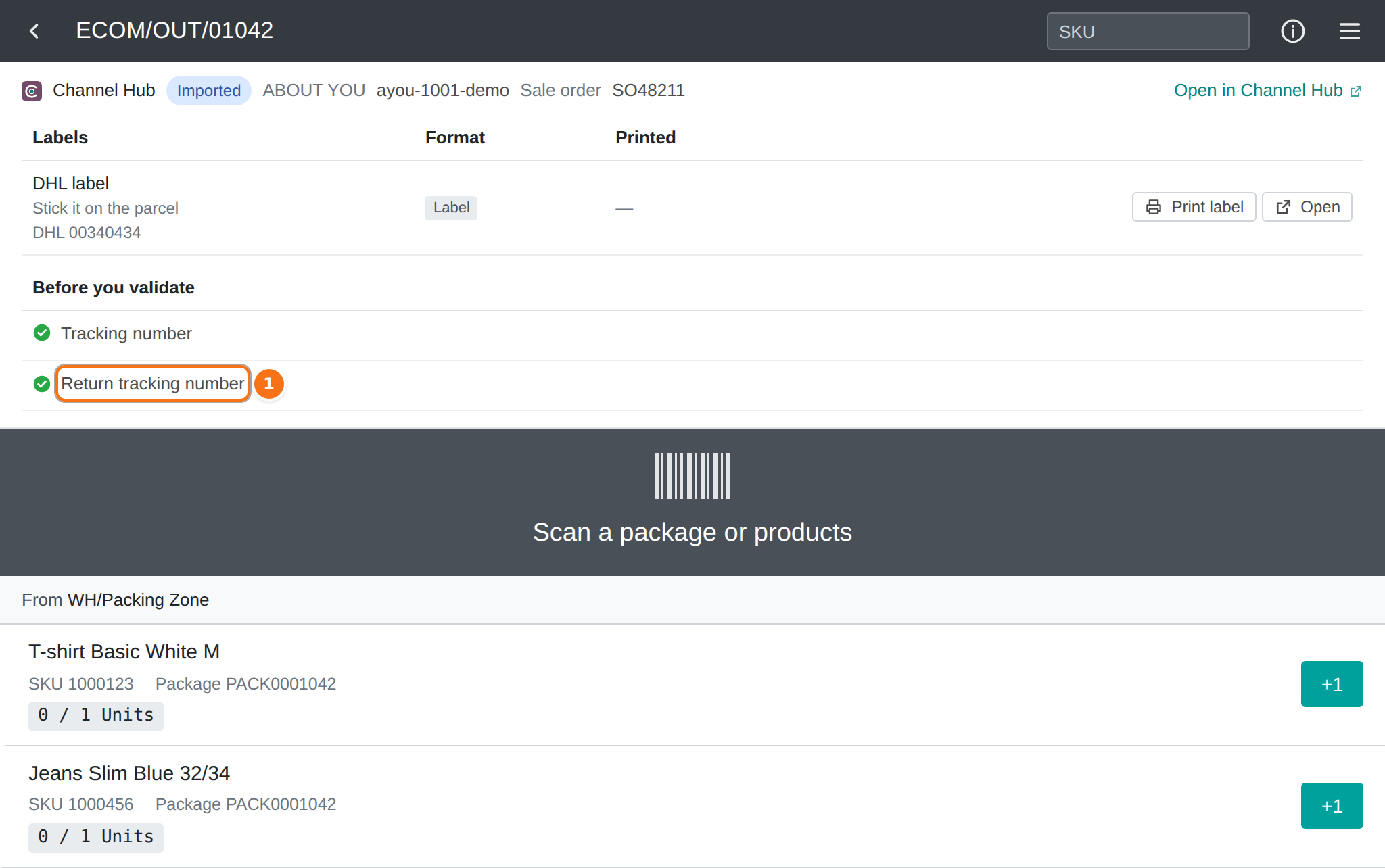
- ✓ Return tracking number: Odoo has the note now. With every item ticked, you can validate.
The companion never blocks Validate. If something is still missing when you validate, it only warns: Channel Hub will put this order in Needs attention 2 hours after the delivery is done without it. The order then waits for a person, as in Ship an order. After you validate, when Ship orders is Live, the line says ABOUT YOU will be told within a few minutes, and then Shipped once the marketplace has confirmed. In Preview the checklist says Not sent: this account is in Preview instead: Channel Hub only records what it would send, and the marketplace is told nothing.
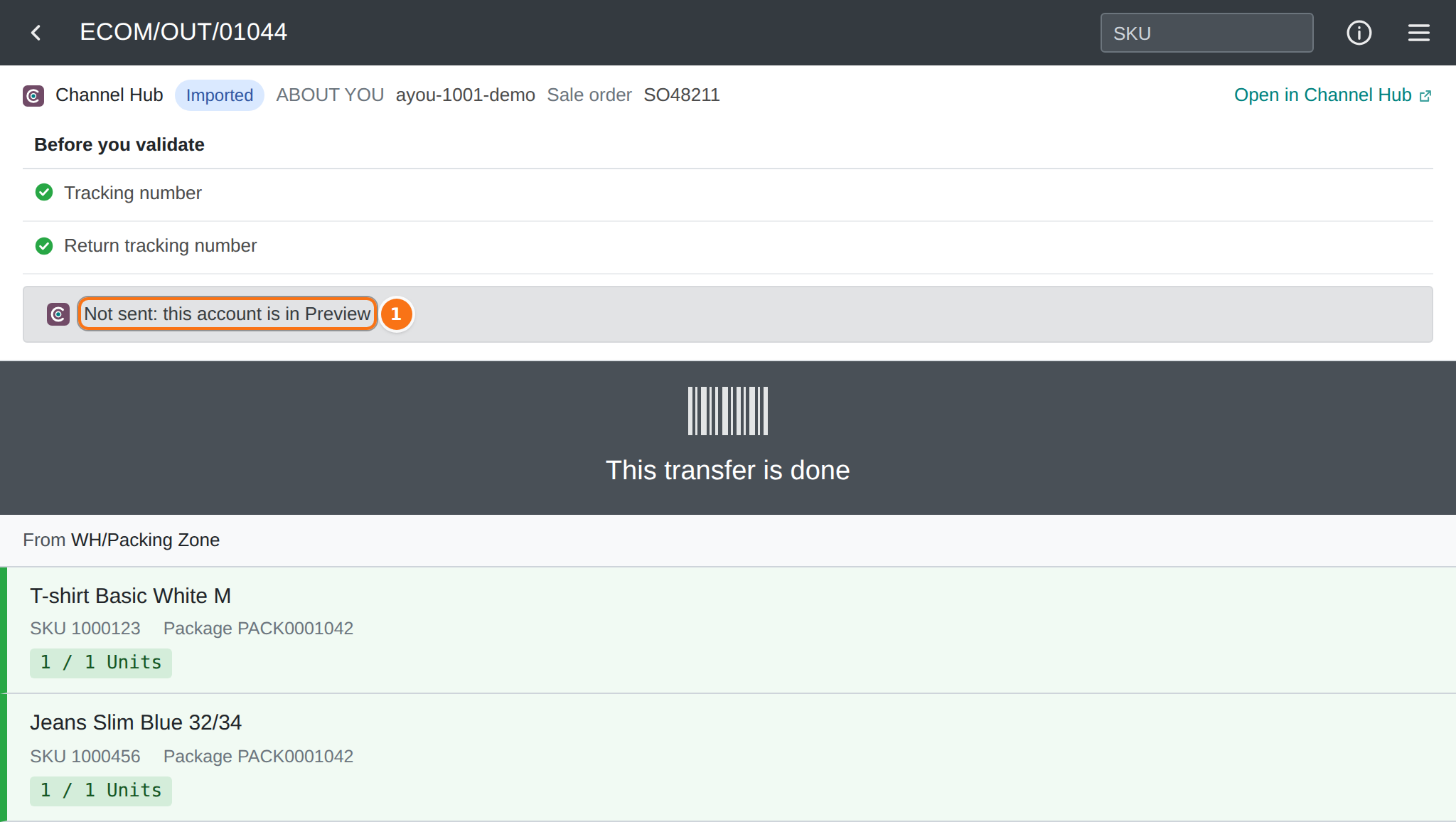
- Not sent: this account is in Preview: the account ships in Preview, so the marketplace is not told. Nothing for you to do.
On the sale order
On the Odoo sale order of a Channel Hub order, the companion adds two things in Odoo's own places:
- A Channel Hub button at the end of the row of buttons at the top right of the order (after Delivery and Invoices), with the order's state in Channel Hub. Click it to open the Channel Hub tab.
- A Channel Hub tab beside Order Lines and Odoo's other tabs.
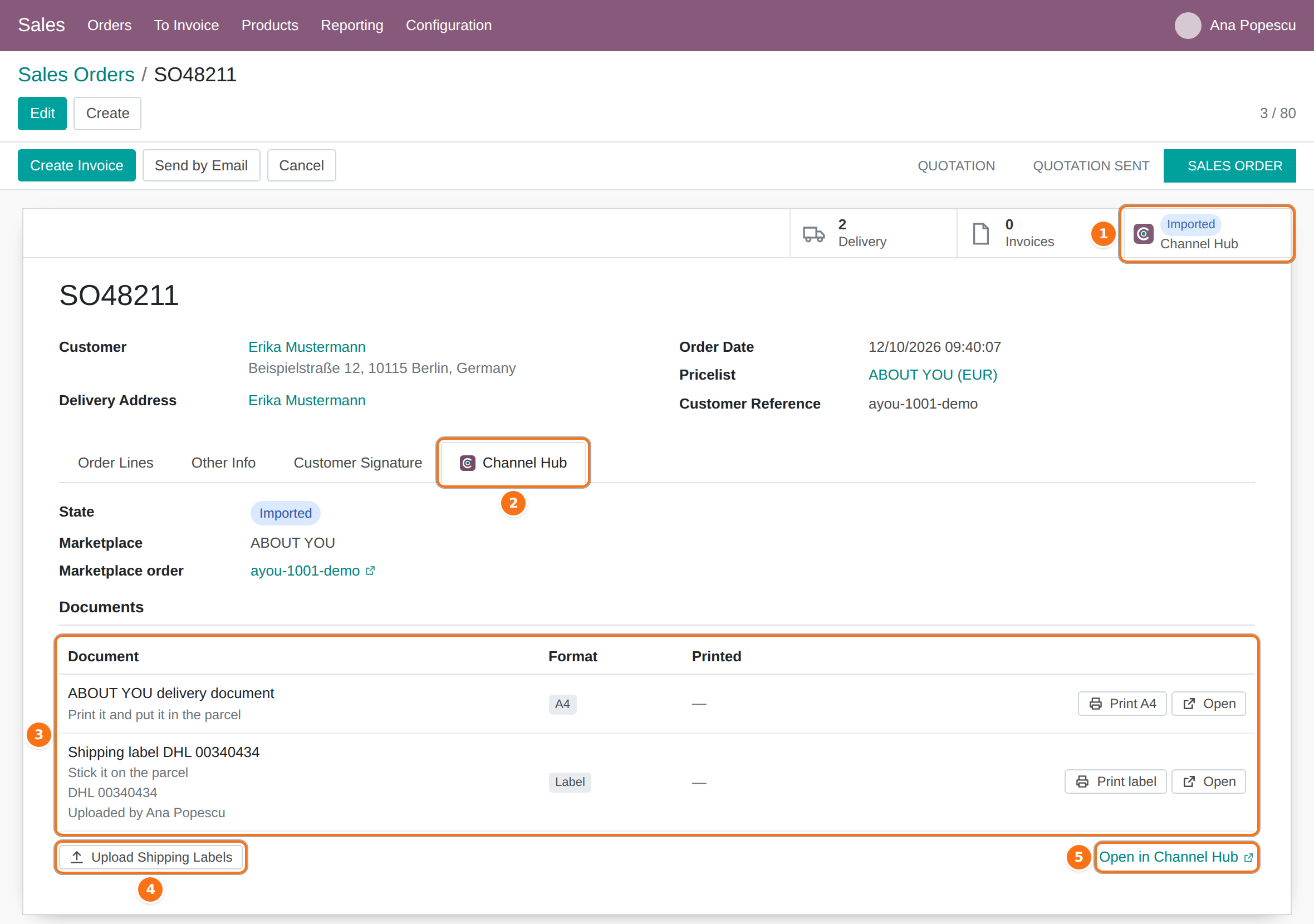
- The Channel Hub button: the order's state in Channel Hub. Click it to open the tab.
- The Channel Hub tab: the order's state (and why it needs attention, if it does), its marketplace and its order number there (click it to open the order in the marketplace's seller centre).
- Documents: every document of the order, labels you uploaded included, with Print label or Print A4 and Open.
- Upload Shipping Labels (and Create DHL shipment, when the account ships with DHL): for operators, see below.
- Open in Channel Hub: opens the order in Channel Hub in a new tab.
When the order is cancelled or needs attention, an Odoo notice also shows at the top of the sale order, so you see it without opening the tab:
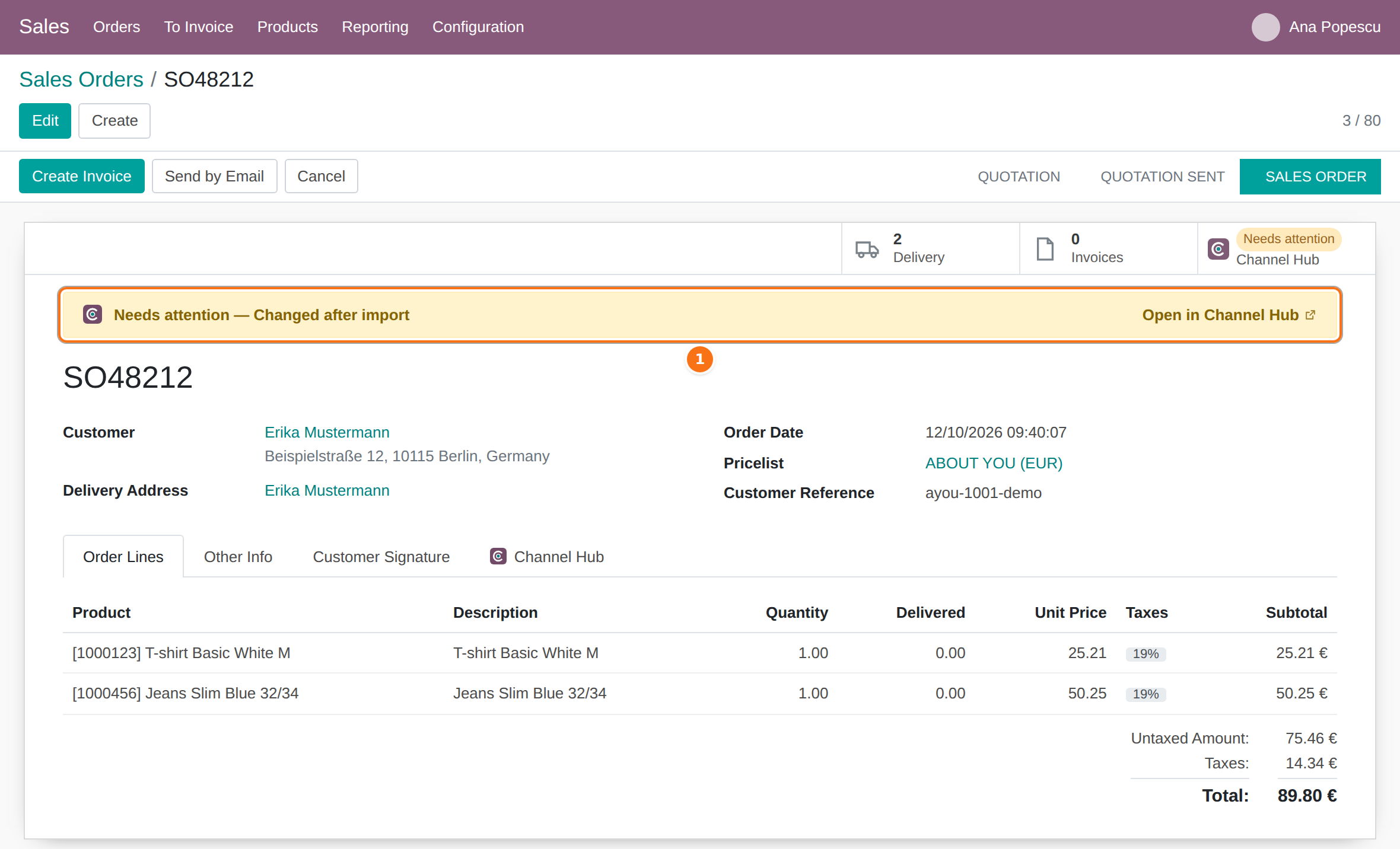
- The notice: red when the order must not be packed (cancelled), amber when it needs a look first. Nothing shows for an order that may go.
Clicking Edit, Save or Discard redraws Odoo's form: the Channel Hub button and tab come back at once. If you were on the Channel Hub tab, Odoo shows Order Lines again; click the button to come back. On a sale order whose form Odoo draws without the row of buttons or the tabs, the Channel Hub part shows at the top of the chatter instead, and Channel Hub counts it for the technical team.
Upload shipping labels (on the sale order)
When you have a label for a parcel as a PDF, for example one you booked with the carrier, you can add it to the order from Odoo. The label is kept in Channel Hub, written on the Odoo sale order as a note with the PDF, and shown at the shipping desk.
Who can do this: operators. A viewer sees and prints the uploaded labels but has no upload button.
Which orders: orders that Channel Hub put in Odoo.
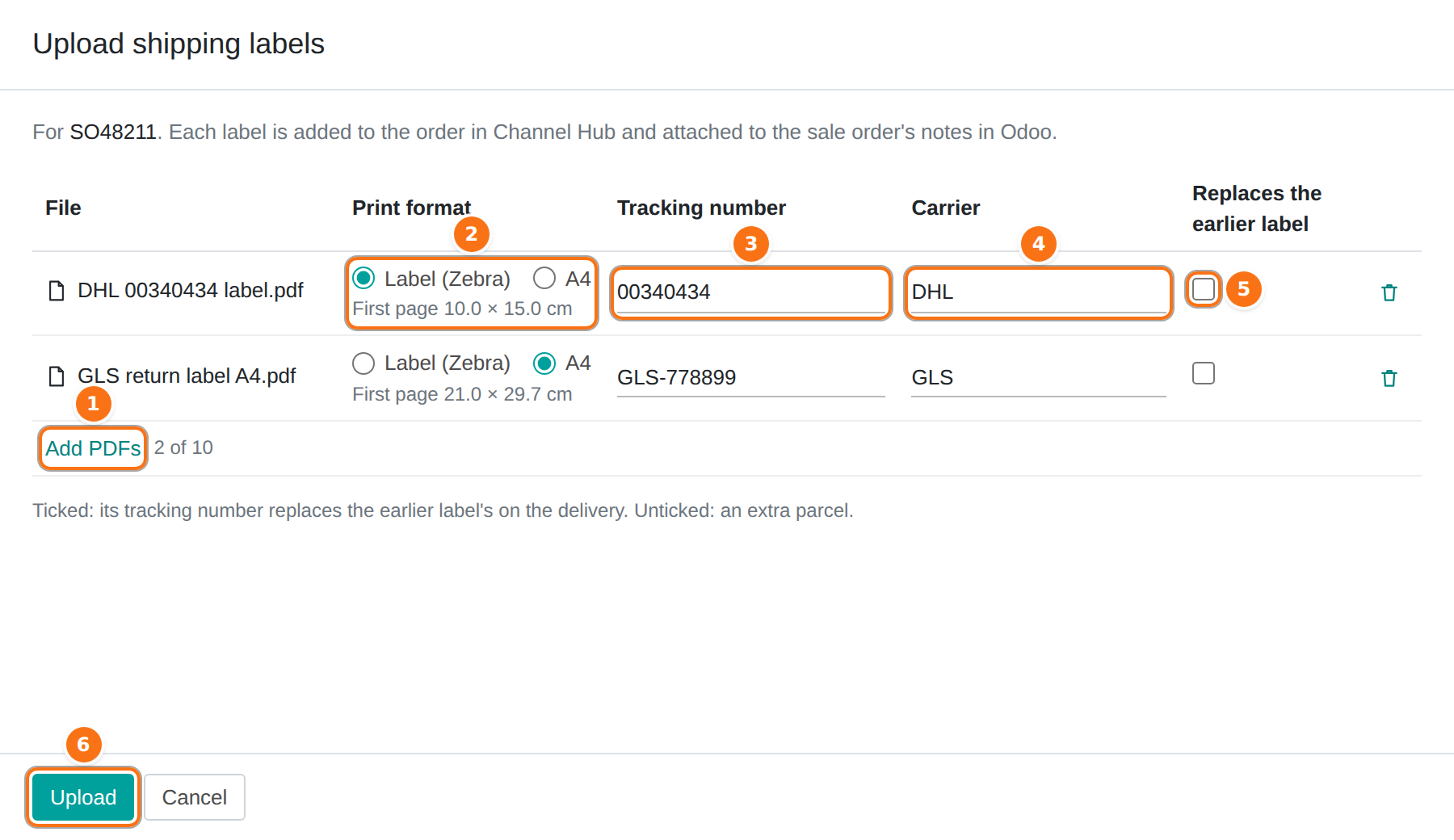
Open the sale order in Odoo. Click the Channel Hub button, then Upload Shipping Labels in the Channel Hub tab. A small window opens.
Click Add PDFs and choose the files, up to 10 at once. Each file is a line; the bin at its end removes it.
Check the Print format of each row. The window reads the page size of the PDF, shows it under the toggle (First page 10.0 × 15.0 cm) and sets the toggle:
- Label (Zebra): a small page, about 10 x 15 cm or 4 x 6 inches. It is printed on the label printer, the Zebra.
- A4: a bigger page, A5 and up. It is printed on the standard printer, for example a Canon.
If the guess is wrong, click the other choice. When the window cannot read the page size, it chooses A4 and says so.
A file that is not a PDF, or is over 5 MB, is refused as soon as you choose it: its row says Not a PDF: Channel Hub takes PDF files only. or Over 5 MB: Channel Hub takes files up to 5 MB. Remove that line with the bin before you upload.
Type the Tracking number (letters, digits and dashes, up to 64) and the Carrier (2 to 100 characters; DHL, UPS, FedEx, DPD and GLS are offered as you type) on every row.
When the order already has an uploaded label, each row also has a tick box Replaces the earlier label (an order without one has no box: there is nothing to replace). Leave it empty for an extra parcel. Tick it when this label corrects a label uploaded before for the same order, for example one with a wrong tracking number.
Click Upload. A field that is empty or not allowed (for example a tracking number with a space) says so under it, and nothing is sent until every row is right. The rows are then sent one by one, and each ends with ✓ Uploaded or Not uploaded: and the reason, for example Only operators can upload shipping labels., This order is cancelled or no longer in Odoo., This order has already shipped; a label can no longer be added., Order documents are not set up in Channel Hub. or Channel Hub could not store the file; try again. A refused row does not stop the others; press Upload again to send the rows that were refused. A row whose answer was lost on the way (the network dropped) is not added twice when you press Upload again: Channel Hub recognises it.
When all rows are done, the window says N labels uploaded. They appear in Odoo in a minute. Click Close. (Cancel, before you upload, closes the window without sending anything.)
What you see afterwards
- On the Odoo sale order, within a minute, an internal note Shipping label uploaded by your name: carrier tracking number with the PDF attached. Nobody is e-mailed.
- The tracking number and carrier are also written on the order's delivery. When an order has several labels for several parcels, the Tracking Reference keeps the first one. A label with Replaces the earlier label ticked replaces the tracking number that an earlier upload wrote, and its note on the sale order ends with (replaces the earlier label). A tracking number typed in Odoo by hand, or one from a marketplace's label, is never overwritten.
- The sale order's Channel Hub tab lists every document of the order, the uploaded labels included, each with Print label or Print A4 (following its format) and Open. The tab shows a new label when you come back to the sale order's browser tab.
- At OUT in the Barcode app the label is listed with Print label or Print A4 and Open; in the scan popup with Print label or Print A4 and Download.
- On the order's page in Channel Hub, Documents shows the label with the tag Label or A4, Uploaded by your name and Tracking 00340434 · DHL.
Many labels at once. Labels can also arrive in bulk: Nippon's label PDFs and tracking CSVs for Showroomprivé Drop are uploaded on Channel Hub's Orders → Upload labels page, which splits them per parcel and attaches each page to its order the same way (see Upload labels). A label in the Label (Zebra) format, from either place, is also converted to the Zebra's own language (ZPL), and Print label sends the ZPL once it is ready, a minute at most; until then it prints the PDF.
A label cannot be deleted in this version. If one is wrong, upload the right one with Replaces the earlier label ticked: its tracking number goes on the delivery in place of the wrong one, and the wrong label stays listed beside it. Once the order's delivery is done in Odoo, no label can be added: the window says This order has already shipped; a label can no longer be added.
Create DHL shipment (on the sale order)
Operators see Create DHL shipment in the sale order's Channel Hub tab, next to Upload Shipping Labels, when the order's account ships with DHL Express and the order has not shipped. It opens a small window prefilled from the order, where you check the receiver's phone and e-mail and type the parcels' weights, then click Create. DHL makes the labels, they appear in the Channel Hub tab, and the tracking numbers go into Odoo. The whole procedure, and what to do when DHL refuses or does not answer, is in Create a DHL shipment.
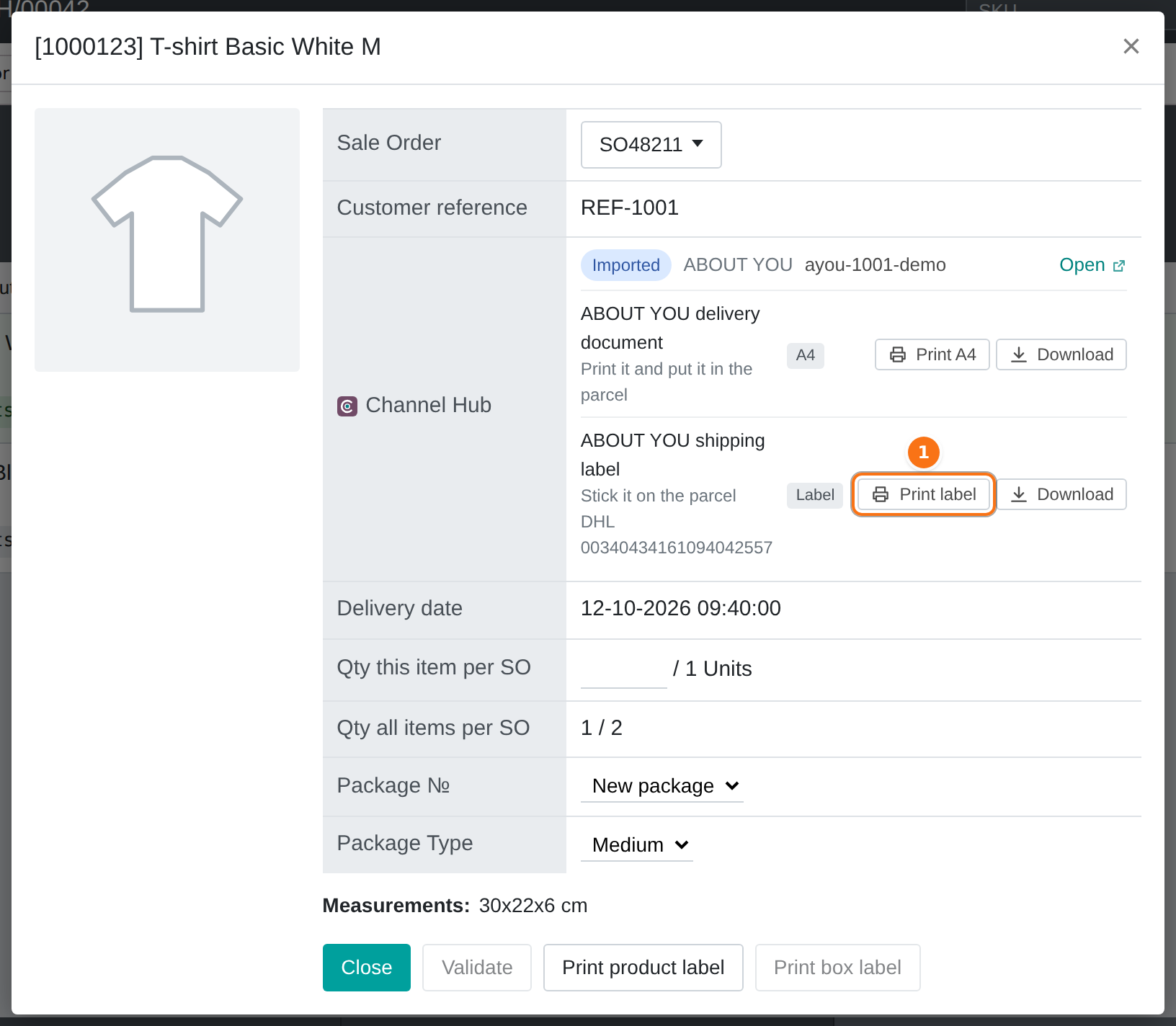
After a shipment is created, Print label sits on each label (outbound first, then the return label). It sends the ZPL to your workstation label printer; until that is switched on it downloads the label as a .zpl file, as described above. In the scan popup it always downloads the file.
FedEx pickup (on a return transfer)
On a return transfer (WH/RT/…) of any Odoo sale order sent back by FedEx, operators see Book FedEx pickup in the Channel Hub card, and the card lists the pickups booked so far with Cancel pickup. When Channel Hub does not know the order (one made in Odoo some other way), the card shows only the FedEx pickups, from companion 0.14.2. In Odoo's Inventory → Transfers list the companion adds a column FedEx pickup. The sale order's card of a Channel Hub order lists one line for each return that has a pickup. The team switches this on. The whole procedure is in Book a FedEx pickup for a return.
Print A4 for batch
On a batch page in the Barcode app and on the batch transfer form, a strip Print A4 for batch prints the A4 documents of every order of the batch in one job, each order's pages together, on your workstation printer. Everyone signed in sees it, viewers included. When a ticked document is missing, a summary asks you first; Print anyway prints what there is. See Print a batch.
Warnings
A warning shows as an Odoo notice on the transfer, at every step, and at the top of the sale order. It is red when:
the order was cancelled: Don't pack: cancelled at ABOUT YOU. Cancelled in Channel Hub counts too, and so does an order whose lines are all cancelled;
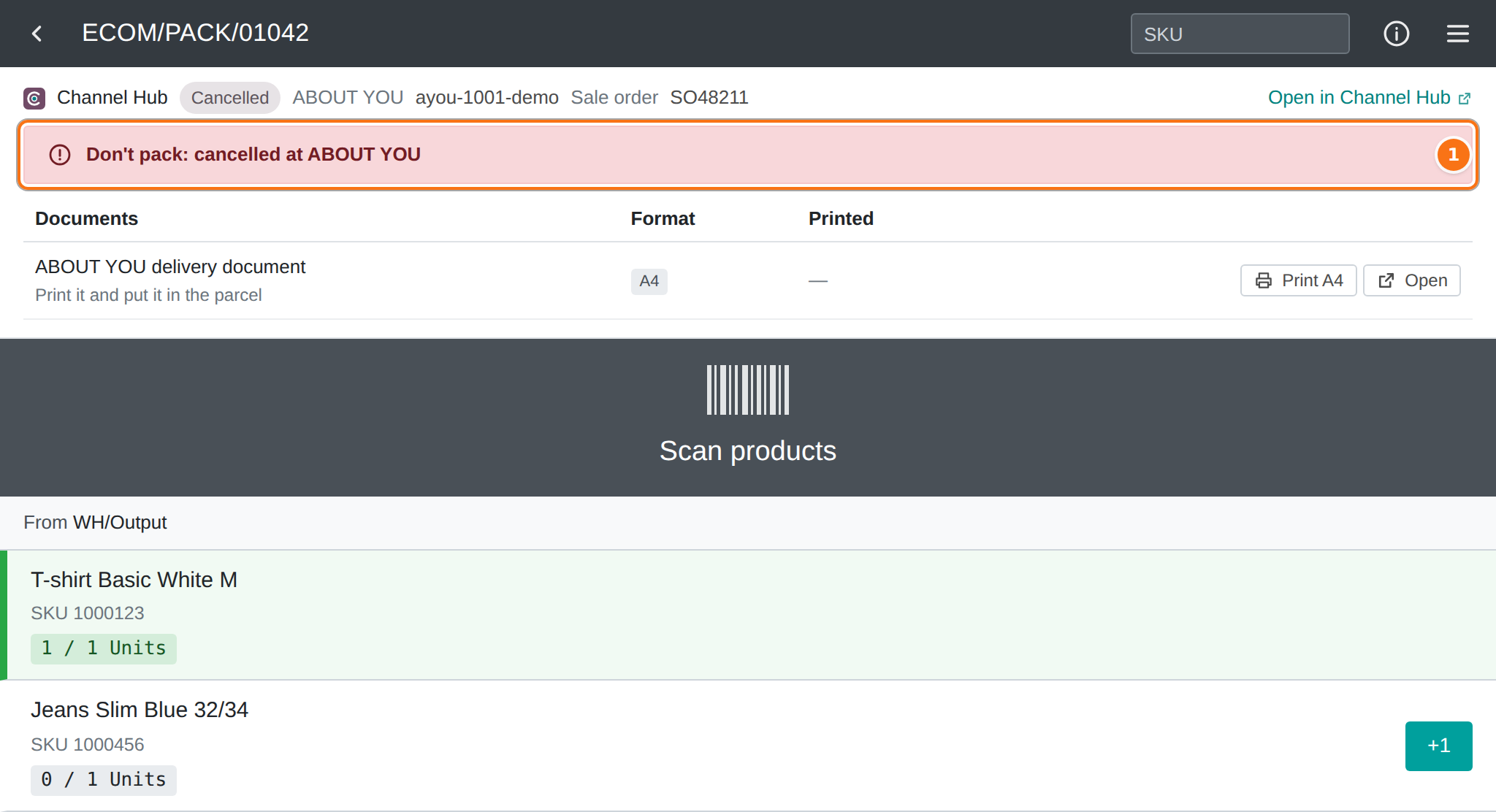
- Don't pack: the whole order was cancelled. Leave the parcel.
only some items were cancelled: Don't pack 1234567: cancelled at ABOUT YOU names each one by its product reference (the PIM id or SKU on the item's label; Channel Hub keeps no product names), up to three, then and 2 more.
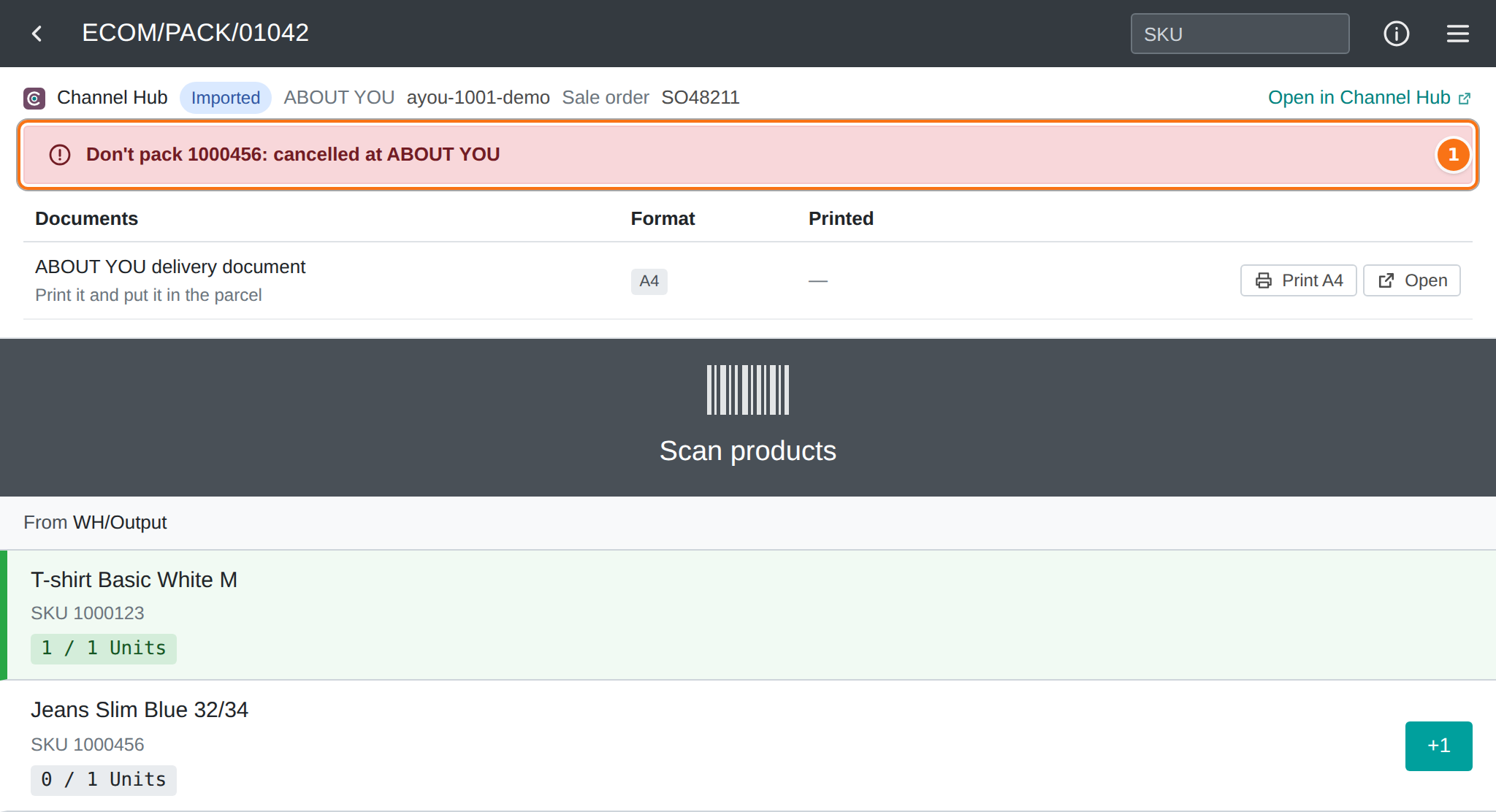
- Don't pack 1000456: only that item was cancelled. Here it is the line with SKU 1000456.
It is amber when a cancellation is on its way (wait before packing) or the order is in Needs attention (the reason and its detail). To see more, click Open in Channel Hub on the Channel Hub line above it.
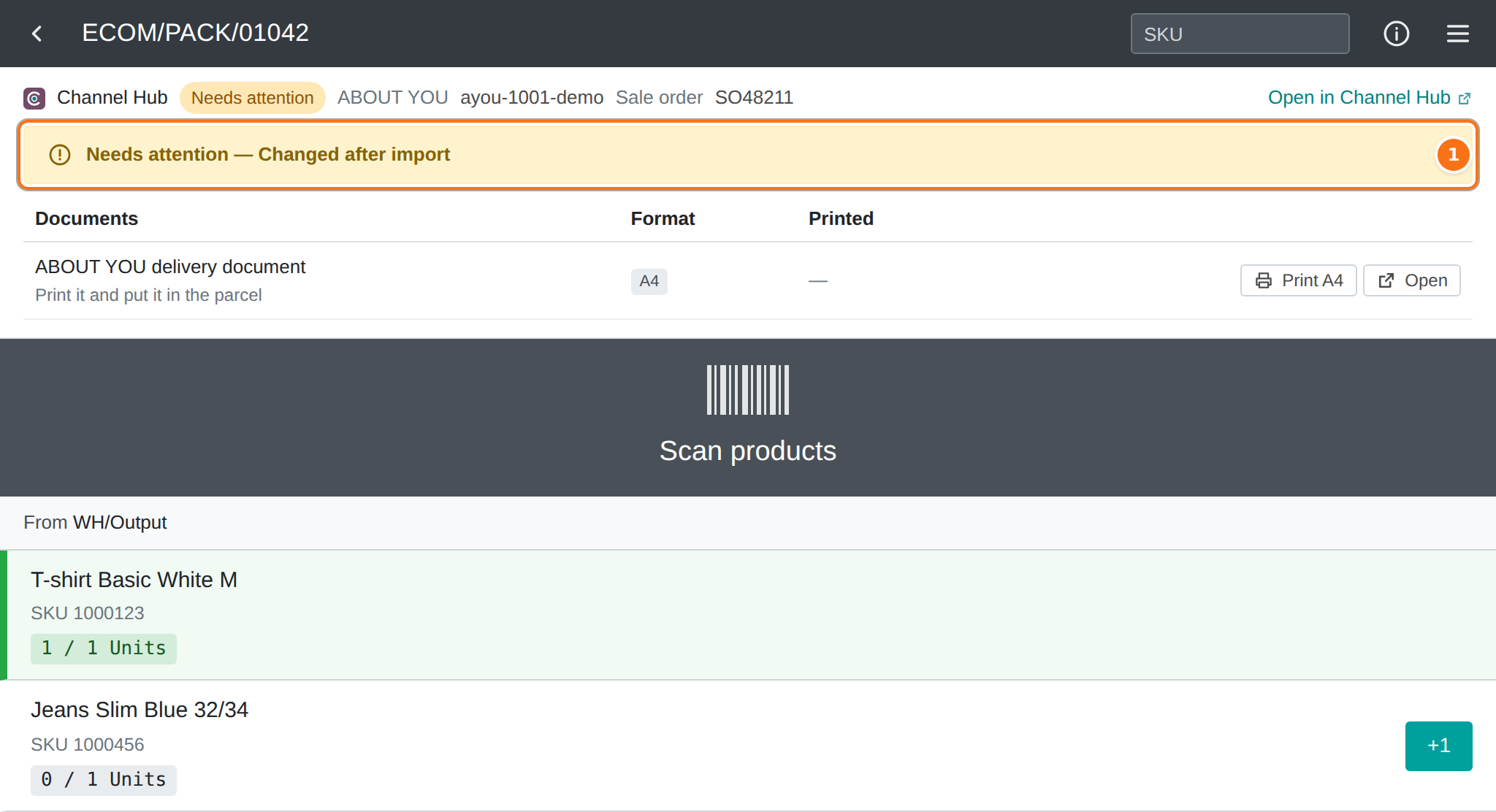
- Needs attention — Changed after import: the order waits for a person in Channel Hub, with the reason.
When you see Don't pack, leave the parcel and tell your supervisor. Cancelling from Channel Hub already lowers the quantities in Odoo, so the warning mainly covers the minutes in between.
In ABOUT YOU Seller Center
The companion also shows Channel Hub's view in ABOUT YOU Seller Center, where it helps most: two columns in the order lists, a card in an opened order, a column on Inventory → Stock, a line under each SKU of a product window, and a card on the dashboard. Every order names its sale order in Odoo and links to it. Whatever the companion adds carries Channel Hub's small purple sign, so you can tell it from Seller Center's own.
Who sees it: people signed in to Channel Hub with their Microsoft account in the same browser. Viewers see everything; operators also get the buttons of the order and offer pages (below).
Which Channel Hub: the companion reads Seller Center's header. In the sandbox (the merchant's name ends with (Sandbox) and the account menu offers Switch to Live) it asks the test Channel Hub; in live Seller Center (the name without (Sandbox), the menu offering Switch to Sandbox) it asks the live one. You never choose. If the header does not clearly say which one it is, the companion shows nothing and asks nothing.
Live Seller Center is not confirmed yet. The companion was checked on the sandbox only. Live Seller Center is expected to show Switch to Sandbox in the account menu, and the first check there confirms it (TC-EXT-13). Until then the companion may show nothing in live Seller Center: it shows nothing rather than guess which Channel Hub to ask.
The companion only reads Seller Center: it never presses, fills or hides anything of ABOUT YOU's. It adds its own columns and cards; every button it shows is Channel Hub's, and works as on Channel Hub's own pages. Clicking the companion's columns never opens or closes a Seller Center row, and typing in its fields never reaches Seller Center.
The pictures below are of made-up Seller Center pages of a demo merchant.
Dashboard
On the dashboard, a Channel Hub card sits above Tasks, one block per ABOUT YOU account of the paired Channel Hub.
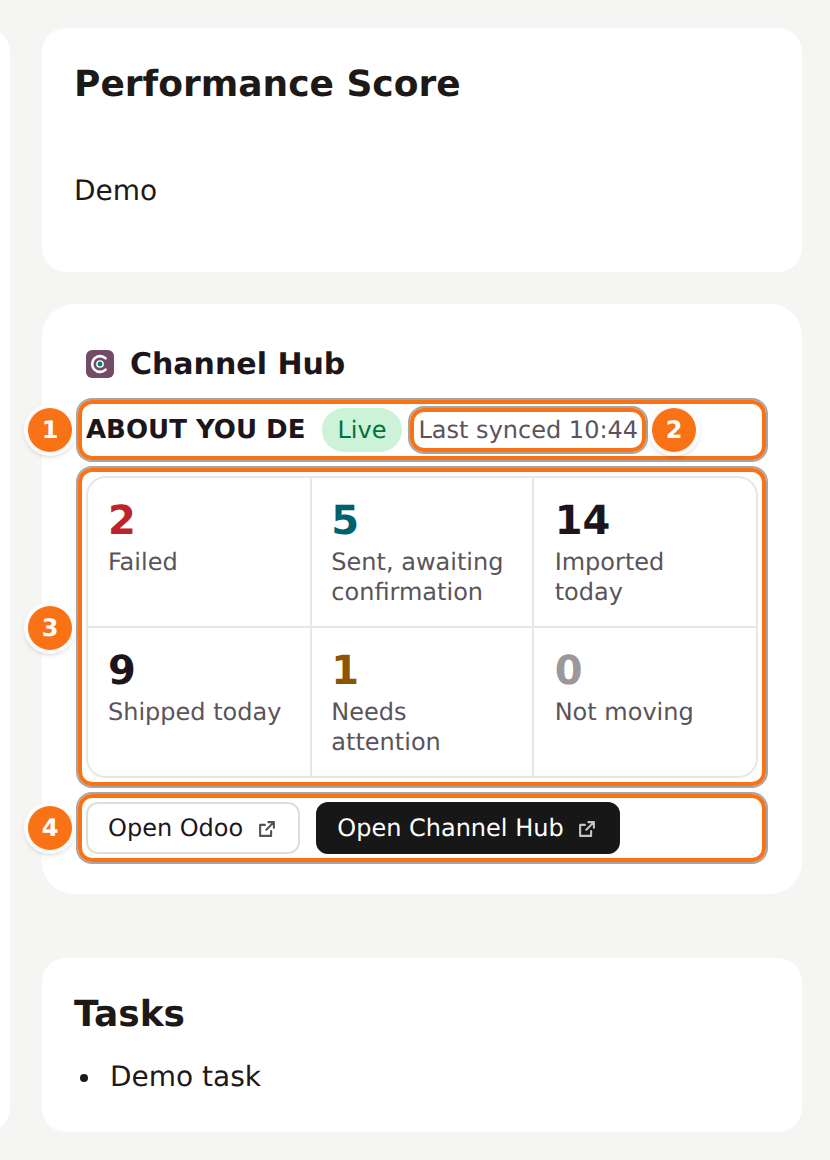
- The account and its status: the Channel Hub account and its status word (Live, Preview, Off, Paused or Suspended), as on Accounts.
- Last synced: when ABOUT YOU last confirmed a stock update of the account.
- The counts, one tile each, the number first: offers that Failed and that wait for ABOUT YOU's confirmation, orders Imported and Shipped today, orders in Needs attention and orders Not moving. Failed shows in red and Needs attention in amber when they are not zero; a zero is faded. Each tile opens its list in Channel Hub.
- Open Odoo opens Odoo's sale orders; Open Channel Hub opens the account in Channel Hub.
Order lists
Seller Center's order lists (Open, Shipped, All orders and the others) get two columns right after Seller Center's Status, each headed with Channel Hub's sign: Channel Hub, the order's state in Channel Hub, and Odoo, its sale order. An order that is not one of Channel Hub's shows a dash (—) in both.

- Channel Hub and Odoo: the companion's two columns, marked with Channel Hub's sign. They are not Seller Center's: they sort nothing.
- The state in Channel Hub, in its colour (Imported, Shipped, Needs attention, …). In Needs attention the reason is under it (Tax mismatch, …). Click the state to open the order in Channel Hub.
- The sale order in Odoo (for example SO20841). Click it to open the sale order in Odoo. An order not in Odoo yet shows a dash.
- —: the order is not one of Channel Hub's.
The columns follow Seller Center as you search, filter or move to the next page. If the same order number is in two ABOUT YOU accounts of Channel Hub, both show in each column, each under its account's name.
An opened order
Click an order row to open it, as usual. Above the addresses, a Channel Hub card shows the order's state (and, in Needs attention, why), then Odoo, the documents and the shipping side by side.
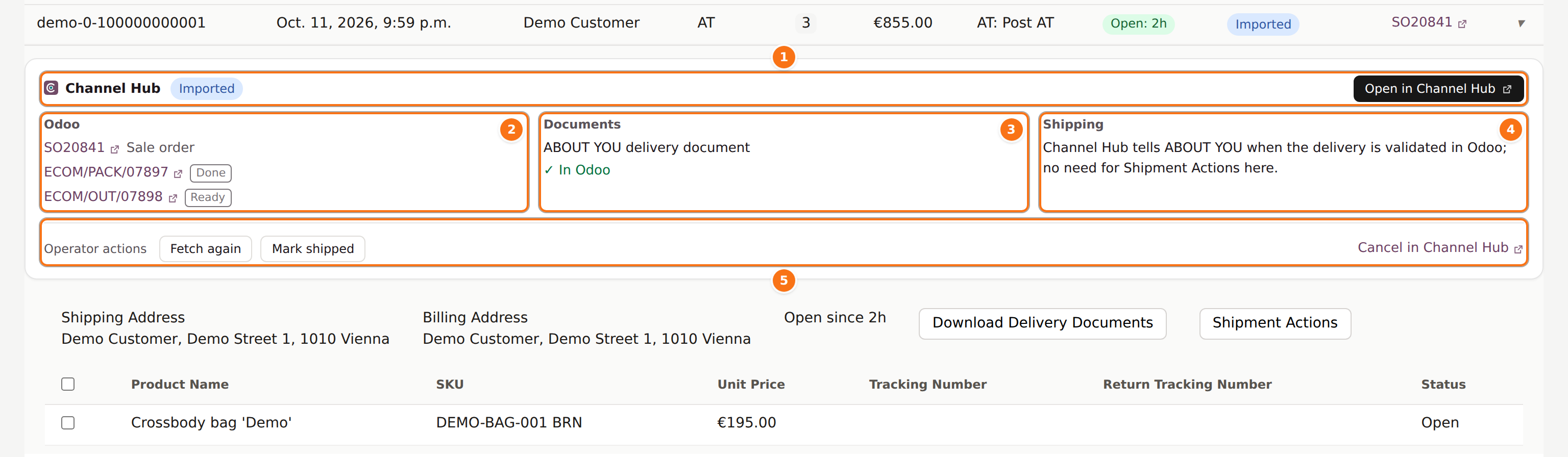
- The card's header: the order's state in Channel Hub and, in Needs attention, the reason beside it (what the order page says about it follows on the next line). Open in Channel Hub opens the order's page in Channel Hub.
- Odoo: the sale order and its PACK and OUT transfers, each with Odoo's own state word in a grey box (Ready, Done, …). Each opens in Odoo. Before the order is imported: No sale order yet. Channel Hub creates it when the order is imported.
- Documents: the order's documents and whether each is already In Odoo or Not in Odoo yet. When this browser printed one, Printed at follows. With none yet: None yet.
- Shipping: on an order Channel Hub ships, when it tells ABOUT YOU. You do not need Seller Center's Shipment Actions for it. In Preview it says Not sent: this account is in Preview.
- Operator actions, the same as on the order page: Fetch documents or Fetch again, Mark shipped, Retry and Resolve…, as Channel Hub offers them for the order. Cancel in Channel Hub (operators, on any order still open) opens the order there: cancelling always happens in Channel Hub, which asks for confirmation. A viewer sees no buttons and no Cancel link.
Stock and the product window
On Inventory → Stock, a note above the table says how many of the page's SKUs Channel Hub sends the stock of, and a Channel Hub column right after Stock says what Channel Hub sends for each SKU.
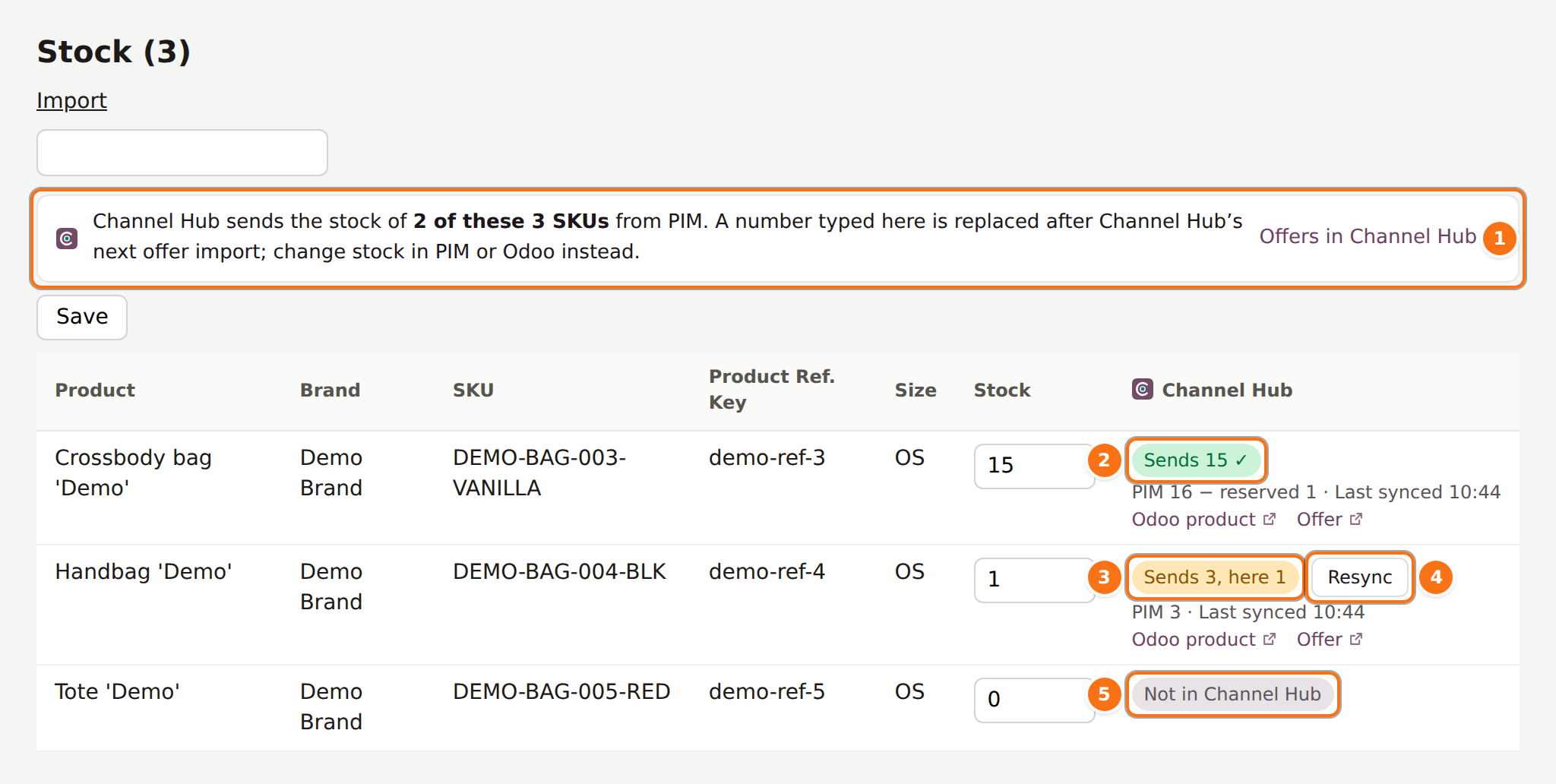
- The note: a number typed in Seller Center is replaced after Channel Hub's next offer import: change stock in PIM or Odoo. Offers in Channel Hub opens these offers in Channel Hub.
- Sends 15 ✓: Channel Hub sends 15 and ABOUT YOU confirmed it, the same number as on the page. Under it, where the number comes from: PIM 16 − reserved 1 is PIM's on hand stock, 16, less the 1 piece Odoo has reserved for orders not shipped yet, which leaves PIM's available stock, where the number Channel Hub sends starts from (as on the Offers page; a lead time over the limit, or all the stock at ignored vendors, for example, sends 0; the line then adds lead time over the limit or at ignored vendors); with nothing reserved it reads PIM 15 alone. Then when ABOUT YOU last confirmed it, and the links Odoo product and Offer (the offer in Channel Hub).
- Sends 3, here 1 (amber): Channel Hub sends 3, but the page was loaded with 1: someone typed a number in Seller Center, or ABOUT YOU changed it. Channel Hub's next update puts 3 back.
- Resync (operators), on the same line: sends Channel Hub's number to ABOUT YOU again now.
- Not in Channel Hub: Channel Hub has no offer with this SKU, so the number in Seller Center is the only one.
The column compares Channel Hub's number with the number the page was loaded with, not with what you are typing. Other states use the words of the Offers page: Waiting to send, Sent, awaiting confirmation, Failed or Rejected with the reason (red, with Resync), Sends nothing with why, and Not linked (No PIM product, sends nothing). See Messages.
A product window (click a product under Products) shows the same note, and the same words under each SKU:
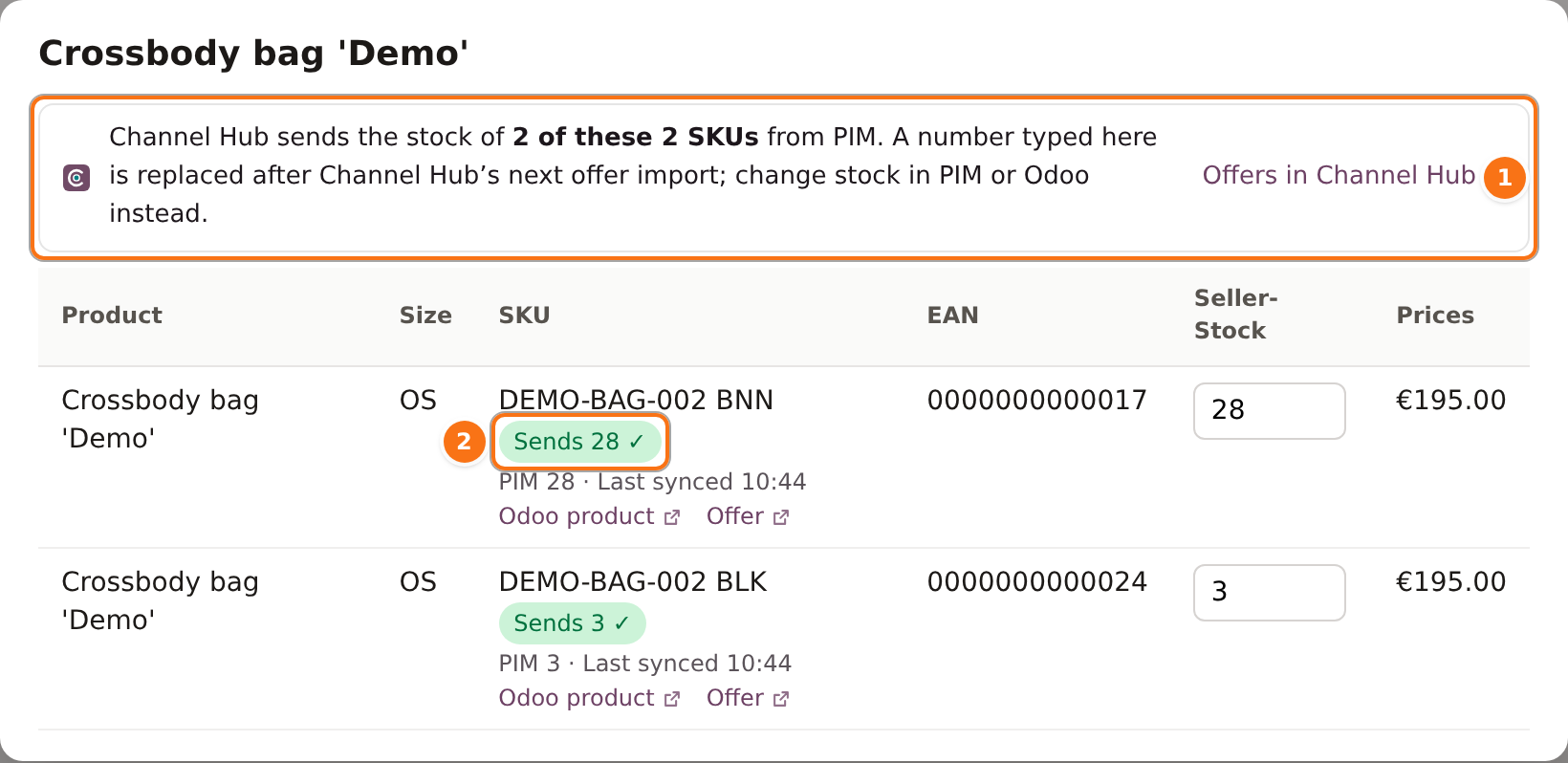
- The note, as on the stock page.
- Sends 28 ✓: what Channel Hub sends for this SKU, as on the stock page.
When Channel Hub cannot answer
Every page-wide message is one strip above the list, with Channel Hub's sign and, at its end, the one thing to do:
- Nobody signed in to Channel Hub: Sign in to Channel Hub to see order states and Odoo sale orders on this page. with the button Sign in to Channel Hub (an opened order adds none of its own). Click it and sign in in the small window that opens: it closes by itself and the columns fill. Until then they show a dash. If a button you clicked finds you signed out, the same Sign in to Channel Hub button shows under it: sign in, then click your button again.
- Channel Hub away: a grey strip Channel Hub unavailable. The Channel Hub and Odoo columns stay empty until it answers. with Try again. Seller Center works as before.
- The companion too old for Channel Hub: an amber strip Update the companion to keep seeing Channel Hub here. with Update.
In Secret Sales' Loom
Loom is Secret Sales' seller back office, the Secret Sales portal where staff look up, accept and ship Secret Sales orders. The companion shows Channel Hub's view there too: two columns in All Orders, a card on an order's page, and a column on Manage Inventory. Every order names its sale order in Odoo and links to it. As in Seller Center, whatever the companion adds carries Channel Hub's small purple sign.
Who sees it: as in Seller Center, people signed in to Channel Hub with their Microsoft account in the same browser. Viewers see everything; operators also get the buttons of the order page and Resync on the inventory (below).
Which Channel Hub: Loom has one address for staging and another for production, so the companion goes by the address. Staging Loom (sellers-staging.secretsales.com) asks the test Channel Hub, and production Loom (sellers.secretsales.com) asks the live one. You never choose. On an address it does not know, the companion shows nothing and asks nothing.
Shops: one Loom sign-in switches between the Secret Sales shops (Germany, the Netherlands, Sweden), and Channel Hub has one Secret Sales account per shop. An order is found by its number, whichever shop is on screen, so you need not tell the companion which shop you are in. A SKU is different: the same SKU is listed in each shop, so on Manage Inventory the companion tells Channel Hub the shop on screen (its name in Loom's switcher) and shows that shop's account (see Manage Inventory). When you switch shop, the columns follow the new list and ask Channel Hub again.
The companion only reads Loom: it never presses, fills or hides anything of Secret Sales'. It adds its own columns and card, and never touches Loom's accept, reject or ship buttons, a line's actions, the inventory's Edit, Delete or Qty, the shop switcher or a filter, and it reads no customer details. Its column headers sort nothing. Every button it shows is Channel Hub's, and works as on Channel Hub's own pages.
All Orders
Orders → All Orders gets two columns right after Loom's Status, each headed with Channel Hub's sign: Channel Hub, the order's state in Channel Hub, and Odoo, its sale order. An order that is not one of Channel Hub's shows a dash (—) in both.
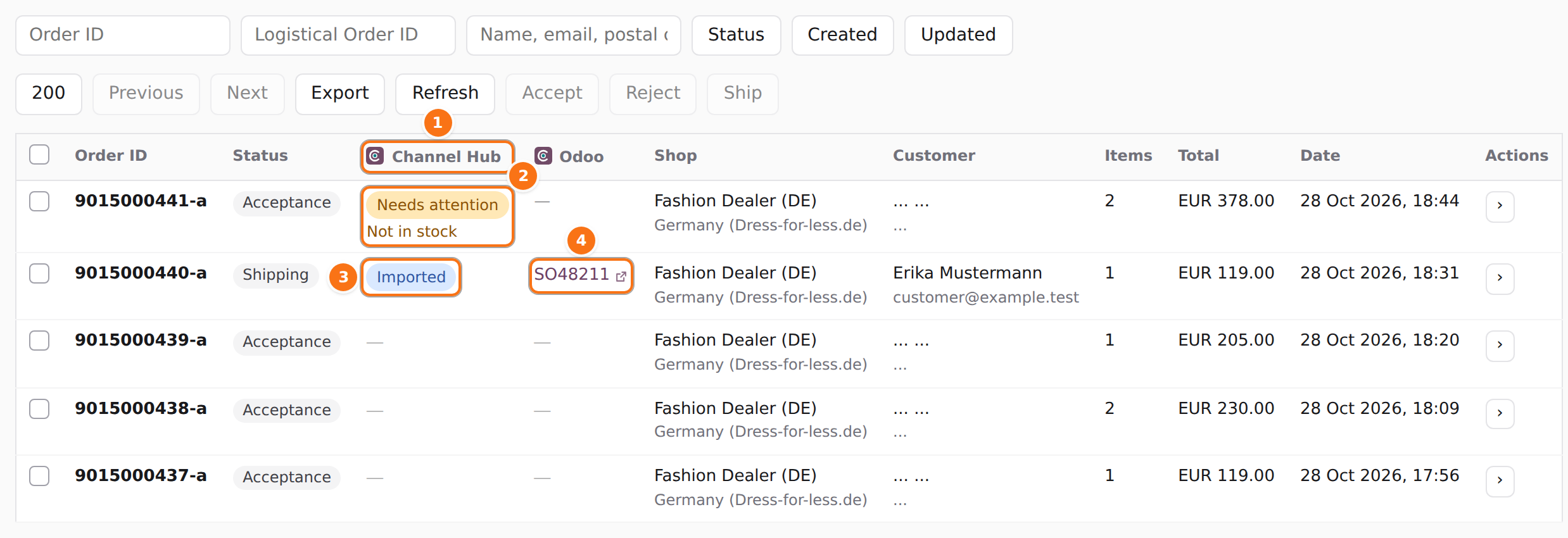
- Channel Hub and Odoo: the companion's two columns, marked with Channel Hub's sign. They are not Loom's: they sort nothing.
- The state in Channel Hub, in its colour, and in Needs attention the reason under it. An order Secret Sales still waits to have accepted is not in Odoo yet, so its Odoo column shows a dash.
- Click the state to open the order in Channel Hub.
- The sale order in Odoo (for example SO48211). Click it to open the sale order in Odoo.
The columns follow Loom as you filter, move to the next page, press Refresh or switch shop. If the same order number is in two Secret Sales accounts of Channel Hub, both show in each column, each under its account's name.
An order's page
Click an order number to open it, as usual. Right under the order's header (its number, the shop and Loom's three buttons), a Channel Hub card shows the order's state (and, in Needs attention, why), then Odoo, the documents and the shipping side by side.
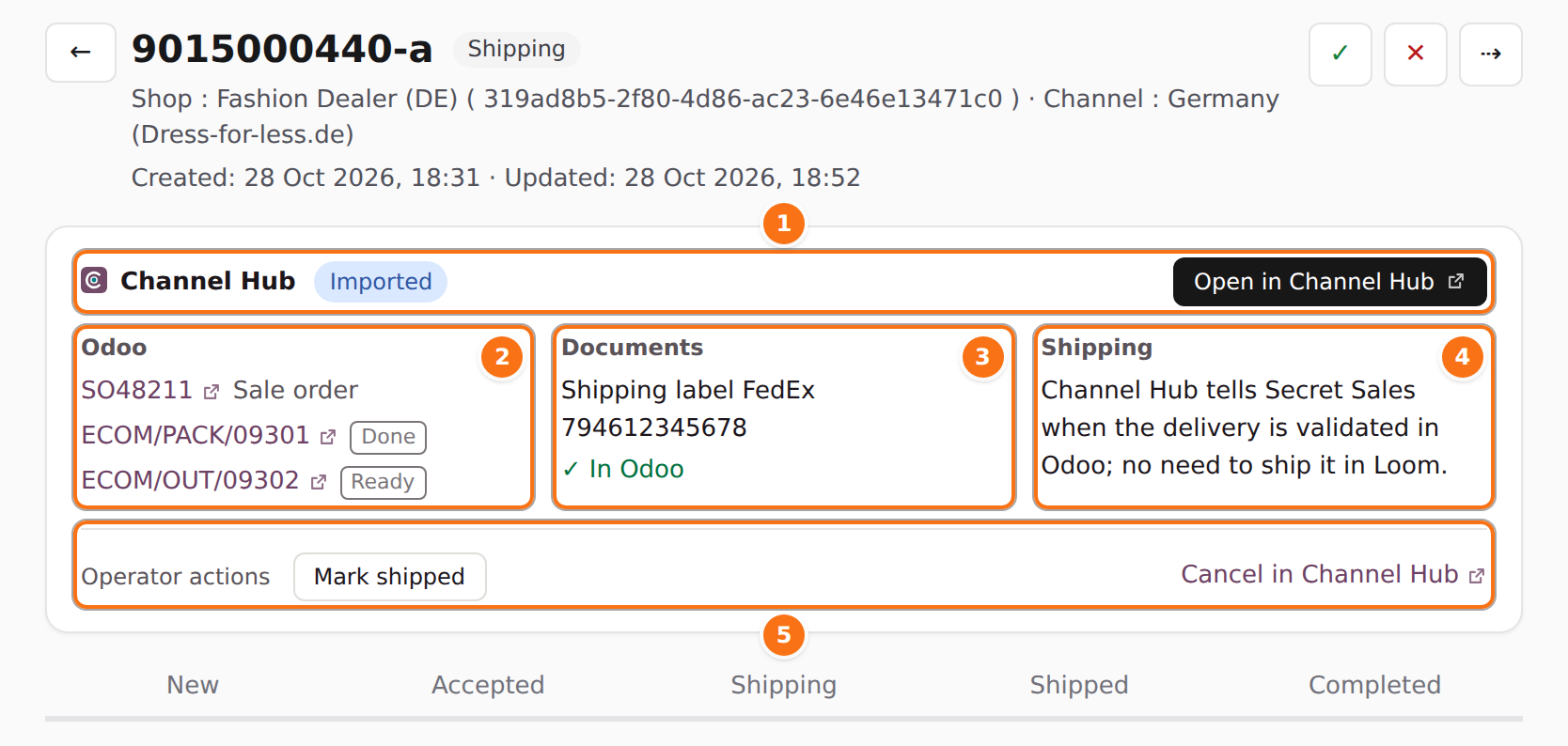
- The card's header: the state, and in Needs attention the reason beside it. Open in Channel Hub opens the order's page in Channel Hub, where Accept and Reject are.
- Odoo: the sale order and its PACK and OUT transfers, each with Odoo's own state word in a grey box (Ready, Done, …). Each opens in Odoo. Before the order is imported: No sale order yet. Channel Hub creates it when the order is imported.
- Documents: whether each is already In Odoo or Not in Odoo yet; None yet. without any.
- Shipping: on an order Channel Hub ships, Channel Hub tells Secret Sales when the delivery is validated in Odoo; no need to ship it in Loom. In Preview it says Not sent: this account is in Preview.
- Operator actions, the same as on the order page: Fetch documents or Fetch again, Mark shipped, Retry and Resolve…, as Channel Hub offers them for the order, and Cancel in Channel Hub, which opens the order there. A viewer sees no buttons and no Cancel link.
An order Secret Sales waits for us to accept says so in the card. Its reason is Not in stock, Not accepted automatically, Confirm acceptance or Accept failed (see When Secret Sales waits for an order):
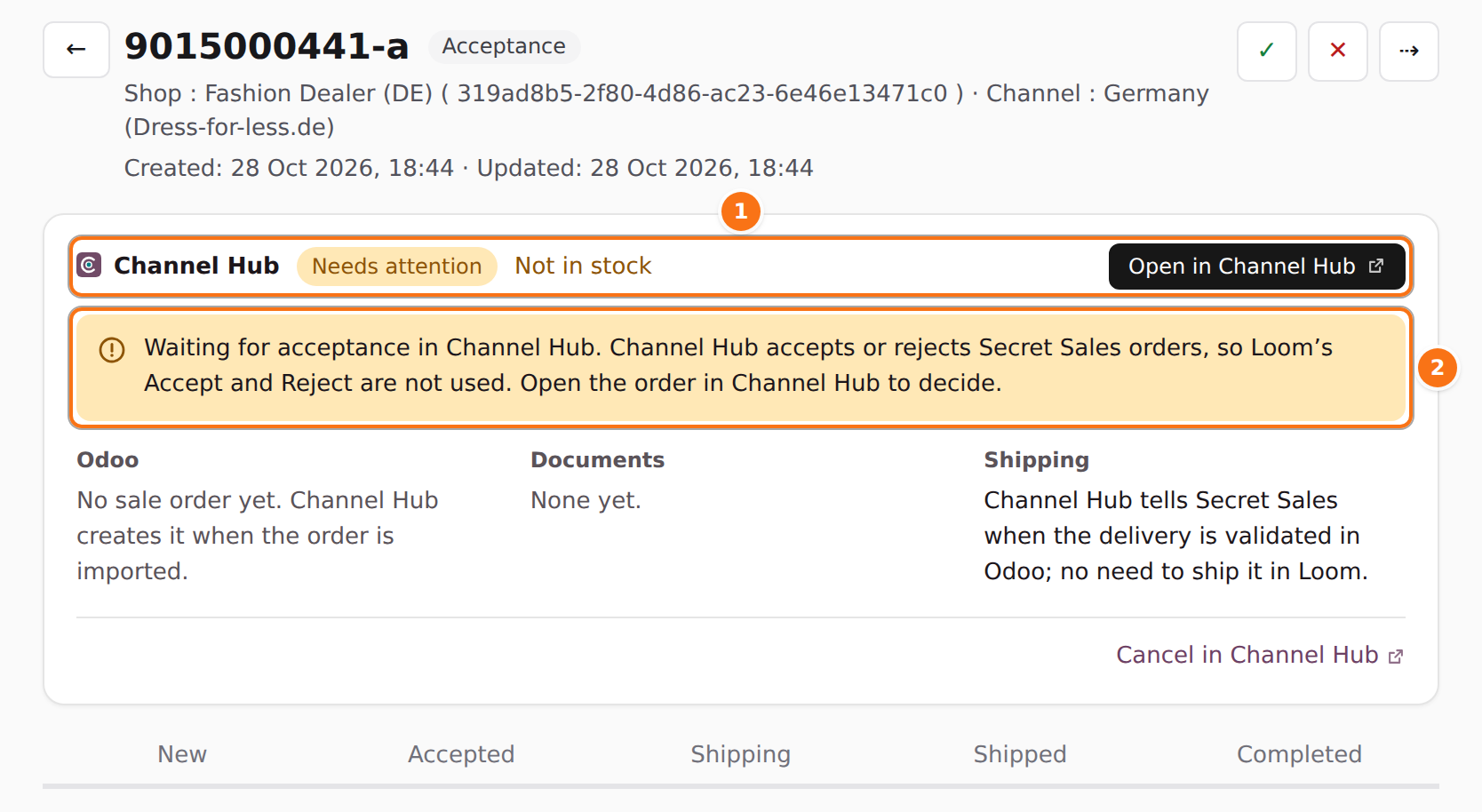
- Needs attention · Not in stock: the order waits for a decision to accept it.
- Waiting for acceptance in Channel Hub: where to decide, Channel Hub's order page.
Accept and Reject stay in Channel Hub's order page
The panel has no Accept and no Reject. To decide an order Secret Sales waits for, click Open in Channel Hub and press Accept or Reject there: Channel Hub's order page shows Channel Hub's decision, the short lines and the day Secret Sales rejects the order by itself (see Accept or Reject). While the order waits with one of the four reasons above, the panel offers no Retry or Resolve… either, because Retry would accept the order.
Manage Inventory
On Price & Stock → Manage Inventory, a note above the table says how many of the page's SKUs Channel Hub sends the stock of, and a Channel Hub column right after Loom's Qty says what Channel Hub sends to the shop on screen for each SKU. They work as on Seller Center's stock page, against Loom's Qty:
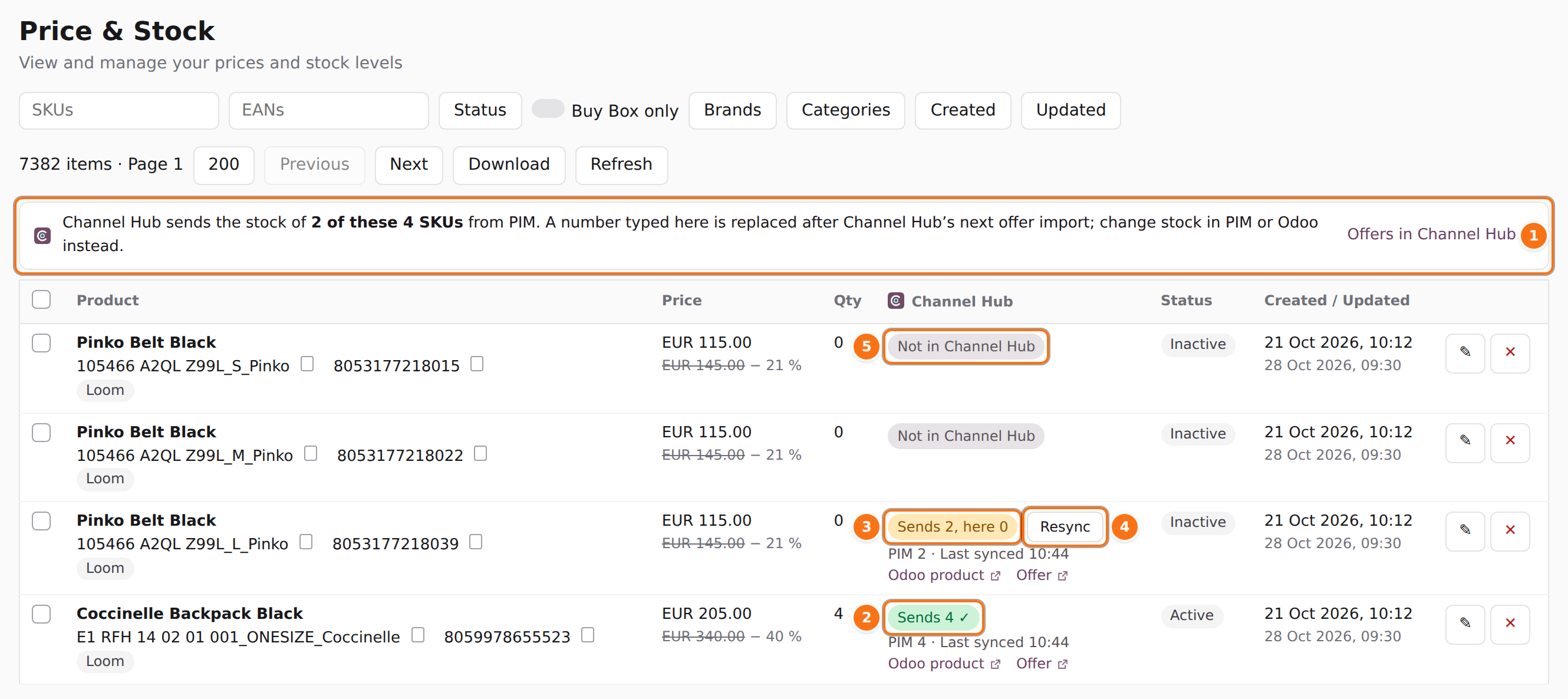
- The note, once for the page: Channel Hub sends the stock of 2 of these 4 SKUs from PIM. A number typed here is replaced after Channel Hub's next offer import; change stock in PIM or Odoo instead. A Qty changed with Loom's Edit does not last: change stock in PIM or Odoo. Offers in Channel Hub opens these offers in Channel Hub.
- Sends 4 ✓: Channel Hub sends 4 and Secret Sales confirmed it, the same number as Loom's Qty. Under it, where the number comes from (for example PIM 5 − reserved 1), when Secret Sales last confirmed it, and the links Odoo product and Offer (the offer in Channel Hub).
- Sends 2, here 0 (amber): Channel Hub sends 2, but Loom's Qty shows 0: someone changed it in Loom, or Secret Sales did. Channel Hub's next update puts 2 back.
- Resync (operators), on the same line: sends Channel Hub's number to Secret Sales again now.
- Not in Channel Hub: Channel Hub has no offer with this SKU, so Loom's number is the only one.
Other states use the words of the Offers page, as in Seller Center: Waiting to send, Sent, awaiting confirmation, Failed or Rejected with the reason, Sends nothing with why, and Not linked.
Only one shop's number is compared. Loom's Qty is the stock of the shop on screen, so a line is compared with it, and turns amber (with Resync), only when Channel Hub knows which of its Secret Sales accounts is the shop on screen, recognised by the shop's name in Loom's switcher, and that one account answers for the SKU. If Channel Hub does not know yet which of its accounts is that shop (it learns the shop's name from the next accepted order after the account's API key was saved, so on a shop with few orders this can take days, and typing any key, even the same one, starts this over), every account that lists the SKU answers: one entry per account in the column, each under its account's name, even when only one account lists it, and none of them is compared with Qty, since the number may be another shop's.
When Loom gets no answer
As in Seller Center, one strip above the list says it, with the one thing to do:
- Nobody signed in to Channel Hub: the button Sign in to Channel Hub (an order's page adds none of its own). Click it and sign in in the small window that opens: it closes by itself and the columns fill.
- Channel Hub away: a grey strip Channel Hub unavailable. with Try again. Loom works as before.
- The companion too old for Channel Hub: an amber strip with Update.
In Spartoo's back office
The companion shows Channel Hub's view in Spartoo's seller back office too, on www.spartoo.it, www.spartoo.fr and www.spartoo.es: a summary card on the dashboard, Channel Hub and Odoo columns right after Status on the Orders list, a panel on an order's page, and a Channel Hub column right after Quantity on the Products page. Spartoo shows one total per product, so a product with several sizes gets one line, like 3 sizes: sends 5.
Spartoo has no test shop, so on all three sites the companion asks the live Channel Hub. It only reads: it presses nothing and changes nothing in Spartoo. The details and the limits are in Spartoo: the companion in its back office.
In Bol's partner panel
Bol's partner panel (partner.bol.com) is the Bol portal where staff look up and ship Bol orders. The companion shows Channel Hub's view there too: a line under each order of Orders, a panel in a shipped order's details, a column on Items and a summary on Home. It needs a Bol account in the Channel Hub the companion pairs with; see Bol.
Who sees it: people signed in to Channel Hub with their Microsoft account in the same browser. Viewers see everything; operators also get the buttons of the order panel.
Which Channel Hub: Bol's panel has a single address, so the page cannot say which Channel Hub to ask. The companion from the Chrome Web Store always asks the live Channel Hub; only a test build made by the technical team asks the test one. There is one Bol shop, so there is no shop to choose.
The companion only reads Bol's panel: it never presses, fills or hides anything of Bol's. It never presses Process, Track & trace or a packing slip button, and it reads no customer details, addresses or prices. Every button it shows is Channel Hub's.
Orders
Under each order of Orders → Open orders and Orders → Shipped, a short Channel Hub line right after the customer line: the order's state in Channel Hub and its sale order in Odoo. An order that is not one of Channel Hub's has no line. Click the state to open the order in Channel Hub, and the sale order to open it in Odoo.
An open order has no panel: Bol's Process starts shipping, so the line is all the companion shows there. The panel is for shipped orders.
A shipped order's details
Press the details button on a card of Shipped. In the pop-up, above the first details row, a Channel Hub panel shows the order's state (and, in Needs attention, why), its sale order and transfers in Odoo, its documents and Open in Channel Hub. An operator also gets the buttons Channel Hub offers for the order (Fetch documents or Fetch again, Mark shipped, Retry, Resolve…); a viewer sees none. Bol has no accept step, so Retry and Resolve… stay available.
Items
On Items, a Channel Hub column right after the stock column: for each item, found by its EAN, what Channel Hub sends as its stock, a link to the Odoo product and a link to the offer in Channel Hub. An item Channel Hub does not have shows Not in Channel Hub. Bol's own stock figure and the rest of its row stay as they were.
Home
On Home, above Bol's tiles, a small Channel Hub summary card. Home's layout is the part of Bol's panel the companion recognises least firmly: if it cannot find the tiles, it shows nothing there rather than guess.
When Bol's panel gets no answer
- Nobody signed in to Channel Hub: one Sign in to Channel Hub button for the page. Click it and sign in in the small window that opens; it closes by itself and the lines come back.
- Channel Hub away: one grey line Channel Hub unavailable for the page. Bol's panel works as before.
In Fashionette's merchant portal
Fashionette's merchant portal (b2b.the-platform-group.com) is the portal of The Platform Group (TPG), which runs Fashionette's shop. Staff look up Fashionette orders and articles there. The companion shows Channel Hub's view there too: a mark under each line of the order list and of the cancellations and returns list, a stock line beside each size on an article's page, and a summary card on the dashboard. It needs a Fashionette account in the Channel Hub the companion pairs with; see Fashionette.
Who sees it: people signed in to Channel Hub with their Microsoft account in the same browser. Viewers see everything; operators also get Resync on a stock line.
Which Channel Hub: the portal has a single address and TPG has no test portal, so the companion from the Chrome Web Store always asks the live Channel Hub. Only a test build made by the technical team asks the test one. The test Channel Hub reads TPG's test system, not the real shop, so with a test build nearly every line reads Not ours and nearly every size Not in Channel Hub. That is expected: the test build only shows that the marks appear.
The companion only reads the portal: it never presses, fills or hides anything of TPG's. It never presses Delete, Save or Group order, never ticks Active, and never changes a price or a stock field. It reads no customer name, address or e-mail. Every button it shows is Channel Hub's.
The portal is in German. The companion works the same with Chrome's page translation on or off.
Orders, and cancellations and returns
In the order list (Bestellungen) and in the list of cancellations and returns, each line gets one Channel Hub mark in its first column, under TPG's status labels. Channel Hub finds the order by the FNC number in the line's second column.
- Ours, then the order's state in Channel Hub and its sale order in Odoo (or No sale order while Odoo has none yet): Channel Hub has this order and handles it. Click the state to open the order in Channel Hub, and the sale order to open it in Odoo. If two Fashionette accounts have the order, each is named on its own line.
- Not ours, in grey: Channel Hub answered and does not have this order.
- Nothing: Channel Hub has not answered for this page yet, or it could not answer the first time (nobody signed in, Channel Hub away). While the first answer is on its way there is no strip; when Channel Hub could not answer, the strip above the table says why. A line without a mark is never "not ours": wait for the mark, or follow the strip.
Once Channel Hub has answered for the page, the marks stay even if a later check fails (you signed out of Channel Hub, or Channel Hub is away for a moment): each line keeps the mark of Channel Hub's last answer, and the strip above the table says why it could not check again. The marks are brought up to date as soon as Channel Hub answers again.
A just-placed order can read Not ours for a few minutes, until Channel Hub has read it: Channel Hub reads Fashionette's orders every couple of minutes. If Fashionette's orders are paused in Channel Hub, new orders read Not ours until they are read. When in doubt, look the order up in Orders in Channel Hub.
Orders placed before Channel Hub started reading Fashionette (the lines entered by hand in early October 2026) show Not ours. All of them are already shipped.
The marks follow the list when you sort it, search, change page or switch on "only open orders". TPG's own columns, rows and buttons stay as they were.
An article's page
On an article's page, a Channel Hub stock line beside the stock field of each size, found by the size's EAN: what Channel Hub sends as its stock, a link to the Odoo product and a link to the offer in Channel Hub. A green Sends N ✓ matches the portal's number; an amber Sends N, here M differs from it, M being the number the field showed when the page opened (a number you type into the field is not compared). An operator gets Resync beside an amber line. A size Channel Hub does not have shows Not in Channel Hub. A size whose stock row the companion cannot find, or that has stock in more than one branch, gets a line without a comparison. A Channel Hub note above the stock table says how many of the sizes Channel Hub sends.
Dashboard
On the dashboard, above TPG's tiles, a small Channel Hub summary card.
The companion shows nothing on the portal's other pages: the article list, statistics, settlement, exports and the rest.
When the portal gets no answer
- Nobody signed in to Channel Hub: one Sign in to Channel Hub button for the page. Click it and sign in in the small window that opens; it closes by itself and the marks are up to date again.
- Channel Hub away: one grey line Channel Hub unavailable for the page. The portal works as before.
In both cases, the marks and stock lines Channel Hub already gave for the page stay as they were, under that button or line. A page opened while nobody is signed in or Channel Hub is away shows no marks until Channel Hub answers.
What it does not do
- It does not stop you from using any Odoo button, Validate included.
- It does not print anything by itself.
- It does not cancel orders. Cancelling stays in Channel Hub, which asks for confirmation (Cancel an order).
- It does not run on handhelds, phones or in the Odoo mobile app.
- In Seller Center, it does not edit anything: no stock, no order, no shipment. Every button it shows is Channel Hub's.
- It shows nothing on Seller Center's Promotions, Incidents or Analytics pages.
- In Spartoo's back office, it edits nothing (no stock, no order) and shows nothing outside the dashboard, Orders and Products.
- In Loom, it does not accept or reject an order: Accept and Reject stay in Channel Hub's order page. It edits nothing in Loom (no stock, no price, no order), and shows nothing on Returns, Data Hub, Integrations or Settings.
- In Bol's panel, it presses nothing (Process included) and edits nothing. It shows no panel on an open order, and nothing on Bol's other pages.
- In Fashionette's merchant portal, it presses nothing (Delete, Save and Group order included) and edits nothing: no stock, no price, no order. It shows nothing on the article list or the portal's other pages.
If Channel Hub cannot be reached, the strip shows a grey notice Channel Hub unavailable with Try again, and everything else in Odoo works as before. If Odoo's page changes in a way the companion does not recognise, it shows nothing rather than break the page (on a sale order: the Channel Hub part at the top of the chatter instead): tell the technical team.
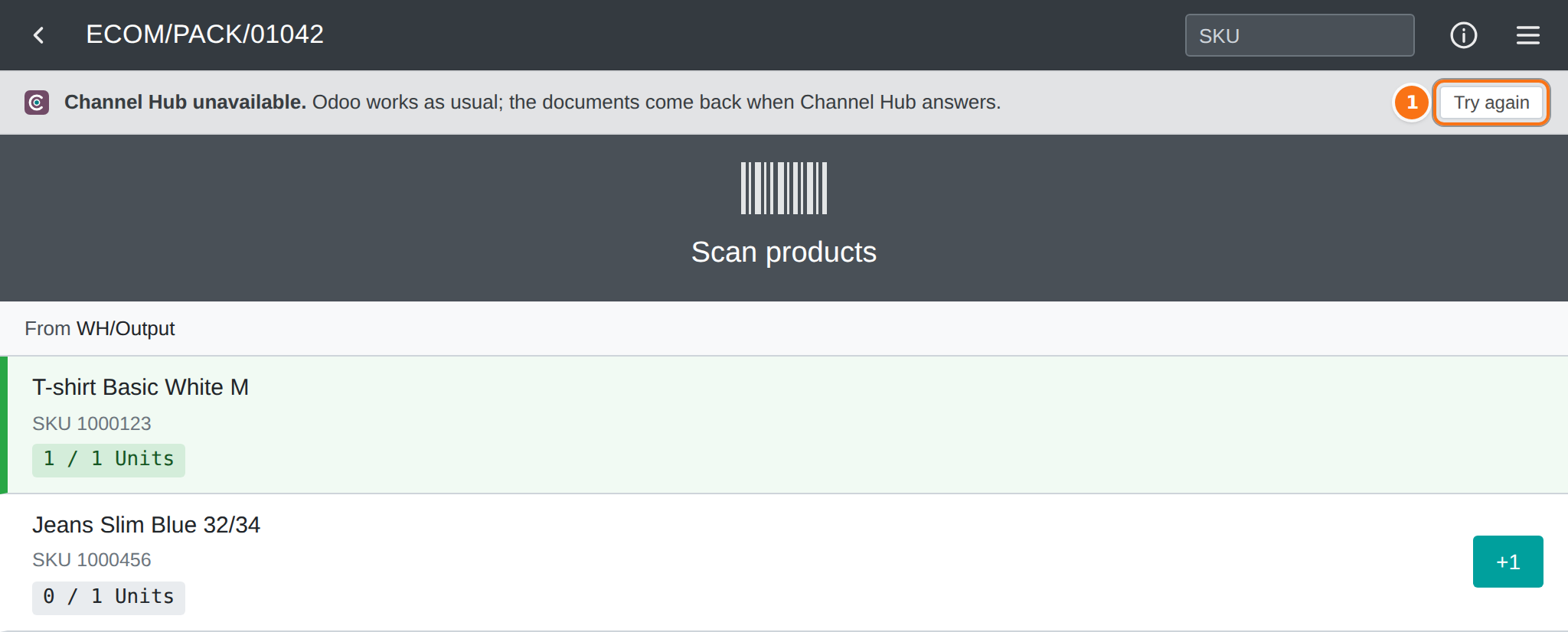
- Channel Hub unavailable: Channel Hub did not answer. Odoo works as before; click Try again to ask again.
Handhelds and phones
On a handheld, use Odoo's own button Print Marketplace Delivery Slip in the ☰ menu of the transfer. Channel Hub fills it with the delivery document of the order, so it works on every device.
Troubleshooting
| You see | What to do |
|---|---|
| Nothing under the header | The transfer is not a Channel Hub order, or the companion is not installed or not signed in. Click its icon. |
| Sign in to Channel Hub | Click it and sign in with your Microsoft account in the small window. If the window stays open with a message, your account may have no role: ask the CommerceHub admins. |
| Channel Hub unavailable | Wait a minute and click Try again. If it stays, tell the technical team. |
| The document opened in a tab, or a ZPL label downloaded, instead of printing (Print label or Print A4) | Printing from the companion is not switched on yet, or your PrintNode printer is not set or did not answer. Print from the tab; if the message names your printer, ask IT to check your PrintNode printer in Odoo. |
| No Channel Hub button on the sale order | The order is not one Channel Hub put in Odoo, or nobody is signed in: a blue notice at the top of the order then says Sign in to Channel Hub. |
| No Upload Shipping Labels button in the Channel Hub tab | Only operators see it, and only on an order that Channel Hub put in Odoo and has not shipped yet. Check your role in Channel Hub and that the order is a marketplace order. |
| A row says it is not a PDF | Choose a PDF file of at most 5 MB. Photos and other formats are not accepted. Remove the line with the bin. |
| Not uploaded: Order documents are not set up in Channel Hub. | This Channel Hub keeps no documents yet. Tell the technical team. |
| Not uploaded: This order is cancelled or no longer in Odoo. | The order was cancelled or resolved, or Odoo cancelled its sale order. No label is needed. |
| Not uploaded: This order has already shipped; a label can no longer be added. | The order's delivery is done in Odoo. If the parcel needs a new label, ask your supervisor: it is handled in Odoo. |
| Not uploaded: This upload was already sent for another order or with other details; choose the file again. | The same upload was sent with different details, or for another order: choose the file again. Remove the line with the bin, choose the file again and upload. |
| The delivery's Tracking Reference still shows the old tracking number | The new label was uploaded without Replaces the earlier label, or the old number was typed in Odoo by hand. Upload it again with the box ticked, or correct the Tracking Reference in Odoo. |
| Not uploaded: Channel Hub could not store the file; try again. | Channel Hub's document store did not answer. Wait a few minutes and press Upload again: only the refused rows are sent. |
| The window says A4 for a small label | Click Label (Zebra) on the row. The window could not read the page size, or the page is bigger than a label. |
| A field shows Odoo's message | You may lack the right to edit the transfer or the sale order in Odoo. Ask your supervisor. |
| Nothing shows in Bol's panel | Are you signed in to Channel Hub with your Microsoft account in this browser? Click a Sign in to Channel Hub button if there is one. Does Channel Hub have a Bol account, and is the order or item one of its? Is your companion up to date (its icon shows the version)? If Chrome switched the companion off after an update because it needs a new permission (to read Bol's pages), turn it back on in Chrome's Extensions page and accept. An open order shows only a line, never a panel. If all of that is fine, Bol's page may have changed: tell the technical team. |
| Nothing shows in Fashionette's merchant portal | Are you signed in to Channel Hub with your Microsoft account in this browser? Click a Sign in to Channel Hub button if there is one. Is it the portal at b2b.the-platform-group.com, on the order list, the cancellations and returns, an article's page or the dashboard? Does the live Channel Hub have a Fashionette account? If Chrome switched the companion off after an update because it needs a new permission (to read the portal's pages), turn it back on in Chrome's Extensions page and accept. If all of that is fine, the portal's page may have changed: tell the technical team. |
| A Fashionette line says Not ours | Channel Hub does not have that order. An order placed before Channel Hub started reading Fashionette (early October 2026) always says so; those are all shipped. A just-placed order says so for a few minutes, until Channel Hub has read it (longer while Fashionette's orders are paused in Channel Hub). For a newer order, check the order's FNC number in Orders in Channel Hub, and tell the technical team if it is there. |
| Nothing shows in Loom | Are you signed in to Channel Hub with your Microsoft account in this browser? Click a Sign in to Channel Hub button if there is one. Is it Loom at sellers.secretsales.com or sellers-staging.secretsales.com? On any other address the companion shows nothing. Is your companion up to date (its icon shows the version; Chrome updates it by itself)? If Chrome switched the companion off after an update because it needs a new permission (to read Loom's pages), turn it back on in Chrome's Extensions page and accept. If all of that is fine and an order of Channel Hub's still shows nothing, Loom's page may have changed: tell the technical team. |
| Nothing shows in Spartoo | Are you signed in to Channel Hub with your Microsoft account in this browser? Is it a page under /mp/ of www.spartoo.it, www.spartoo.fr or www.spartoo.es? On any other address the companion shows nothing. Is the Spartoo account set up in the live Channel Hub? If Chrome switched the companion off after an update because it needs new permissions (to read Spartoo's pages), turn it back on in Chrome's Extensions page and accept. If all of that is fine, Spartoo's page may be laid out differently from the one we have seen (.it): tell the technical team. |
| Nothing shows in Seller Center | Are you signed in to Channel Hub with your Microsoft account in this browser? Click a Sign in to Channel Hub button if there is one. Can the header's mode be read: does the merchant's name and the account menu show the sandbox or live clearly? If all of that is fine and the page still shows nothing, Seller Center's page may have changed: tell the technical team. |